Product
Manage all products you buy and sell.
Location: Sidebar → Inventory → Products
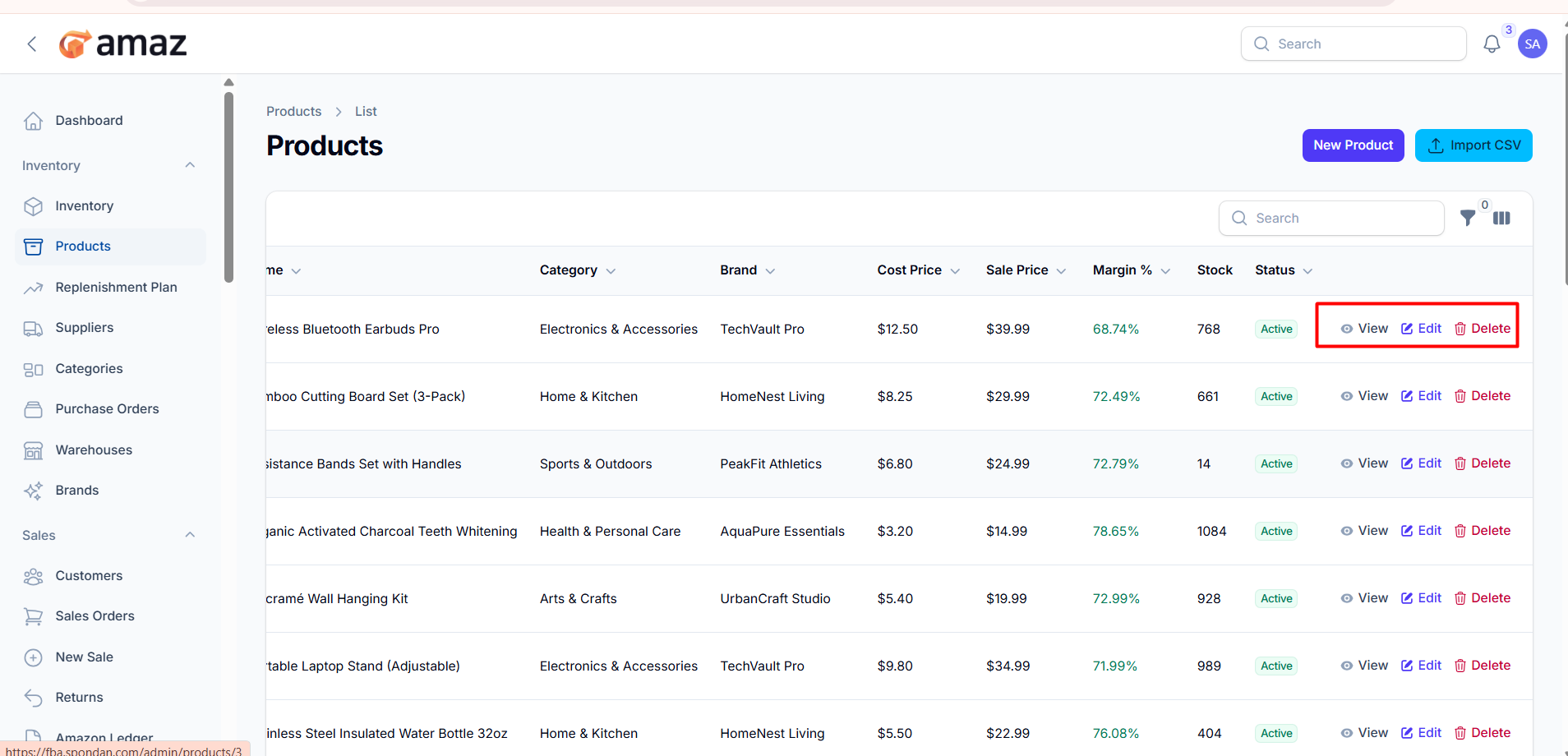
Viewing Products
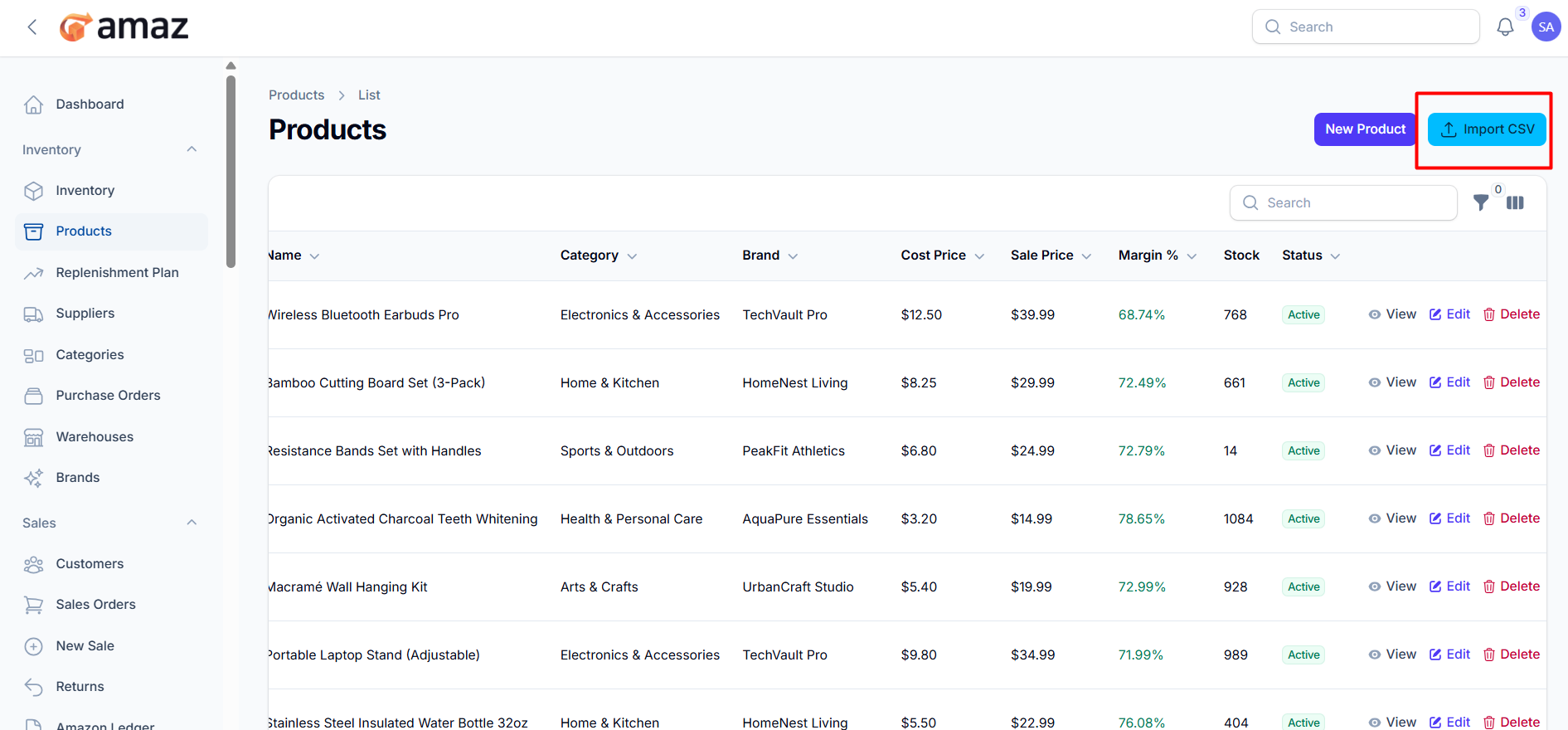
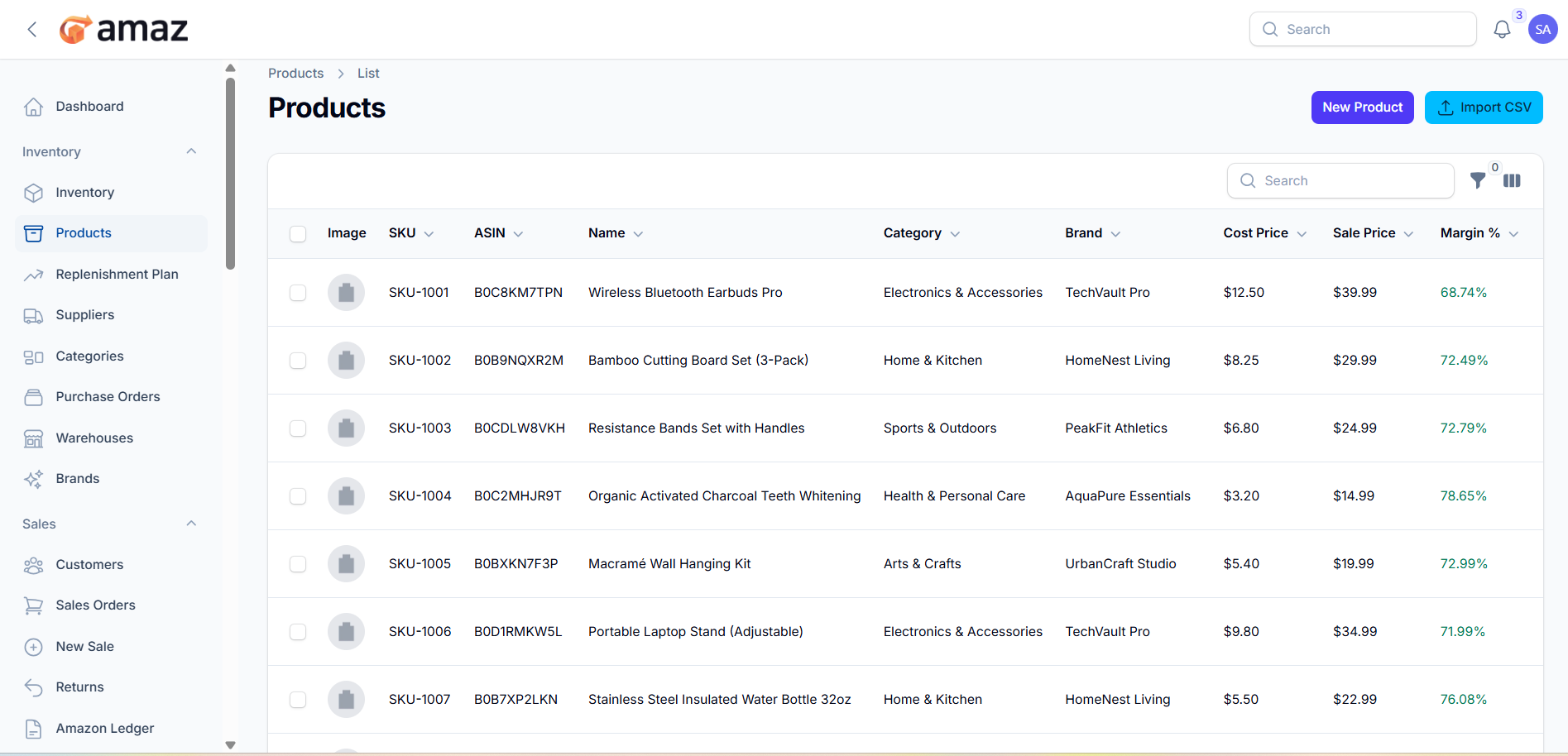
The product list displays:
- SKU — Unique product identifier
- Image — Product thumbnail
- Title — Product name
- ASIN — Amazon Standard Identification Number (if applicable)
- Category — Product category
- Brand — Product brand
- Cost — Purchase cost per unit
- Price — Selling price per unit
- Margin — Margin of the product
- Stock — Stock of the product
- Status — Active or Inactive
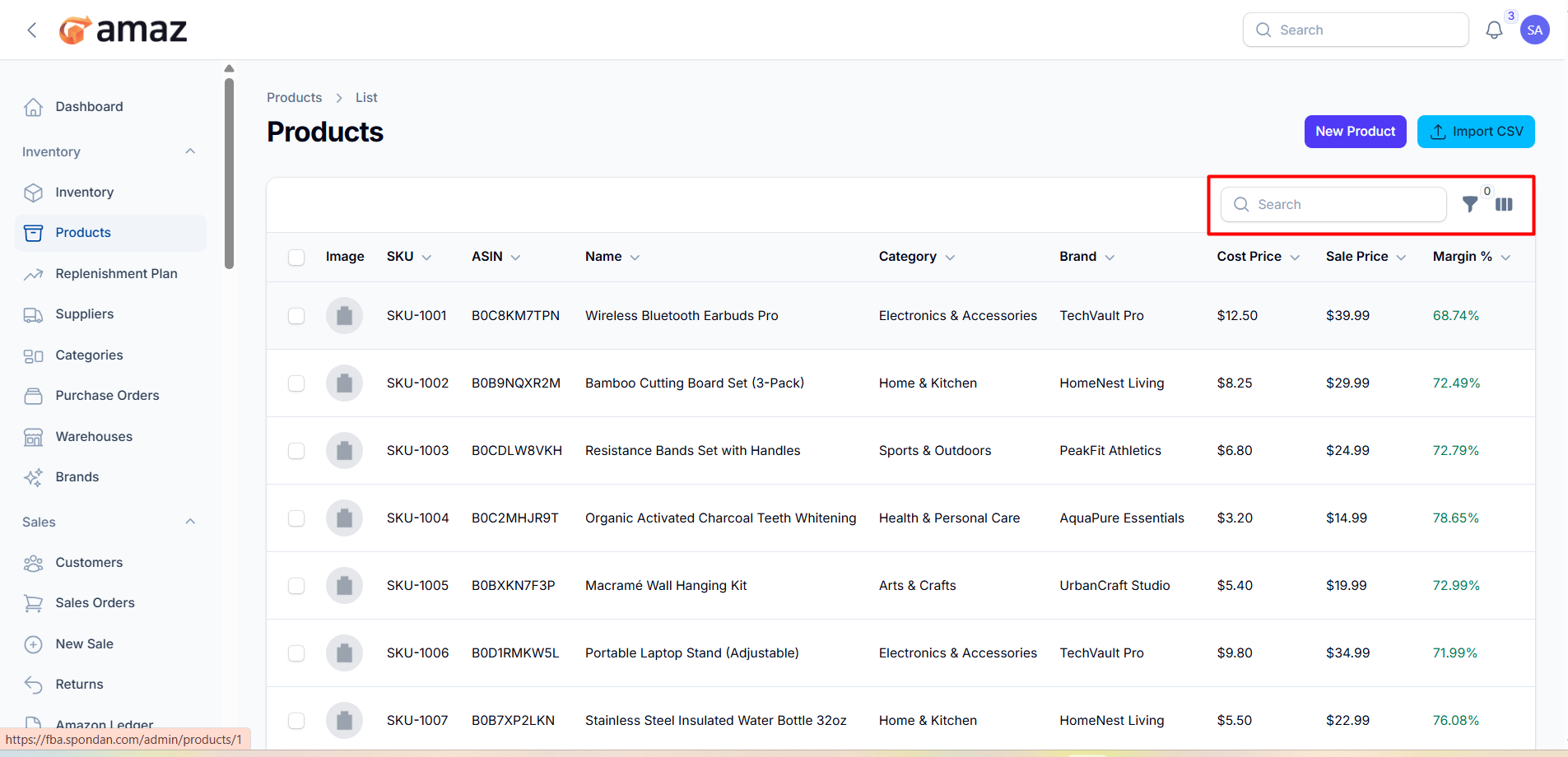
Searching Products:
- Use the search box to find products by SKU, title, or ASIN.
- Use filters to narrow results by category, brand, or status.
- Click column headers to sort.
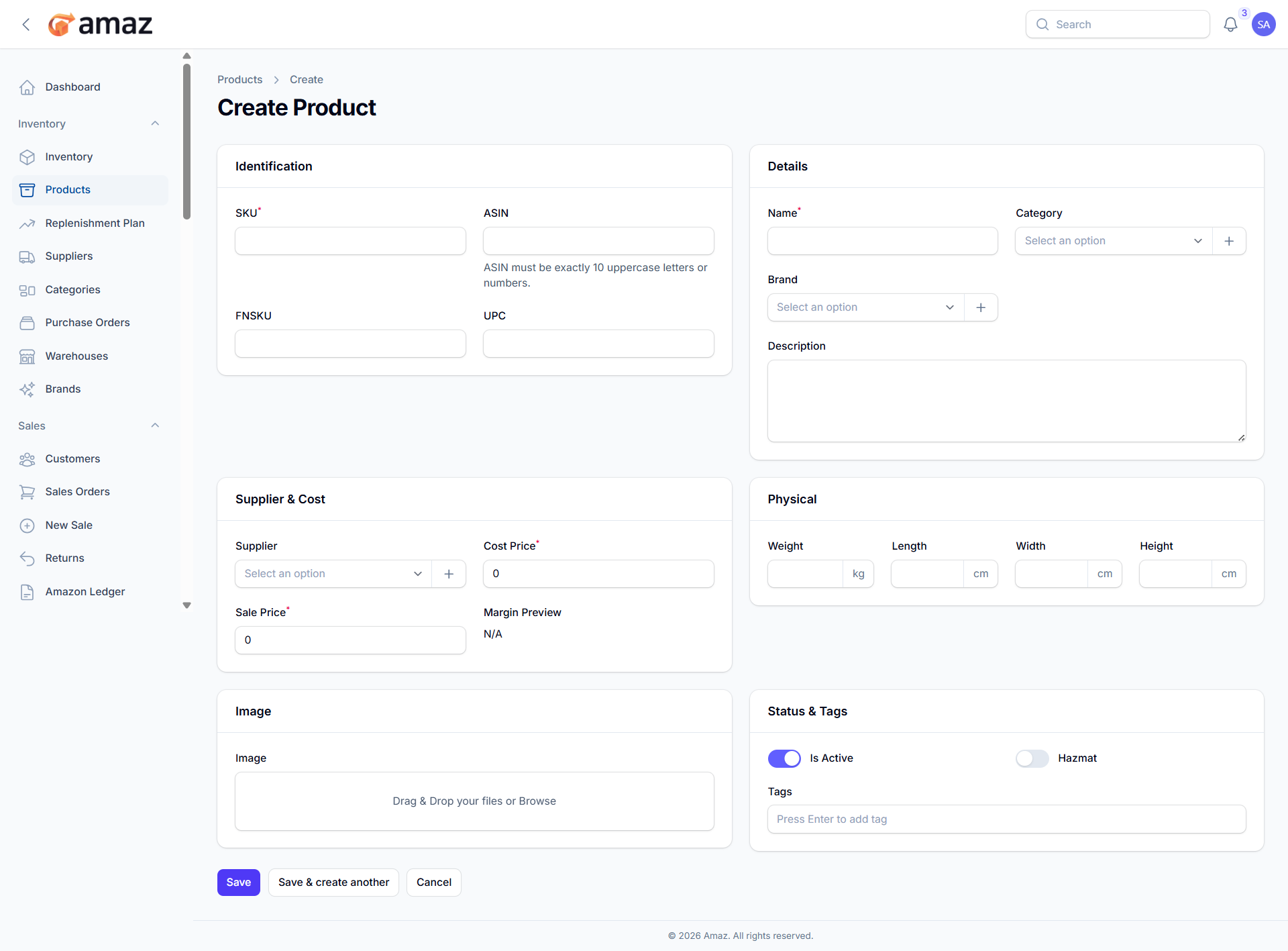
Creating a Product
1. Click New Product button
2. Fill in the product details:
Field | Description | Required |
SKU | Your unique product code | Yes
ASIN | Amazon product identifier | No
FNSKU | Amazon Fulfillment Network SKU | No
UPC/EAN | Barcode number | No
Title | Product name | Yes |
Category | Select from your categories | No
Brand | Select from your brands | No
Description | Detailed product information | No
Supplier | Supplier of the product | No
Cost Price | Your purchase cost per unit | Yes
Selling Price | Your selling price per unit | Yes
Margin Preview | Preview of margin | No
Weight (kg) | Product weight | No
Length/Width/Height (cm) | Product dimensions | No
Image | Product photo (upload) | No
Status | Product active/inactive | No
Hazmat | Hazmat (Hazardous Materials) active/inactive | No
3. Click the “Save” button to save the product. Click the “Save and Create Another “ button to save the product and open an add product page. Click “Cancel” button to cancel product creating.
Editing a Product
1. In the product list, click the Edit icon (pencil) on the product row
2. Modify the fields you need to change
3. Click Save to update
Viewing Product Details
1. Click the View icon (eye) on a product row
2. The detail page shows:
- Complete product information
- Current inventory levels across all warehouses
- Related information
Deleting a Product
1. Open the Edit page for the product
2. Click Delete in the header actions
3. Confirm the deletion when prompted.
Note: Products with order history or inventory cannot be deleted.
Importing Products from CSV
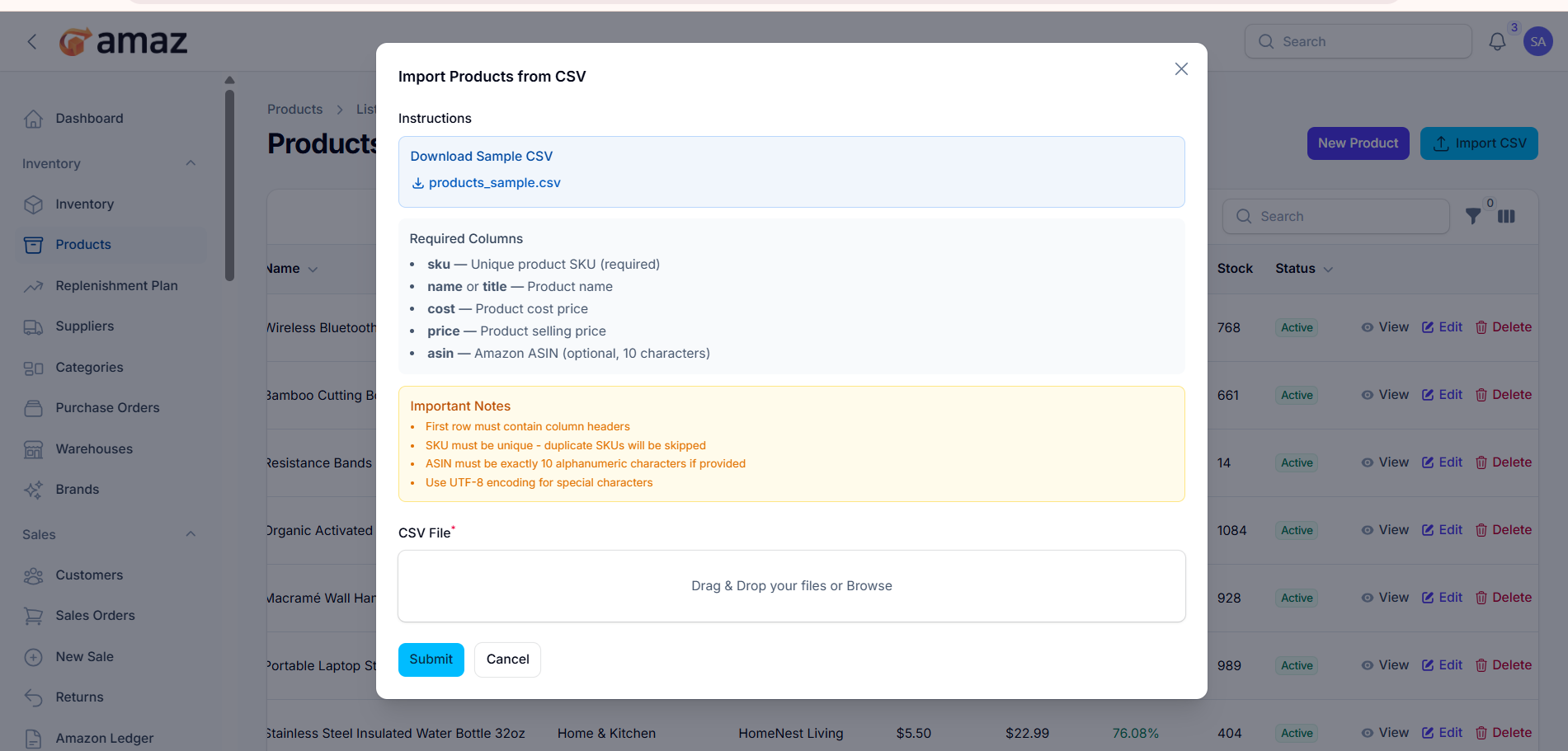
1. From the Products list, click Import CSV
2. Prepare your CSV file with columns: SKU, Title, ASIN, Cost Price, Selling Price, etc.
3. Upload the CSV file
4. Review any import errors and fix your data if needed.
5. Successfully imported products appear in your catalog.