Inventory Overview
View and manage stock levels for all products across all warehouses.
Location: Sidebar → Inventory → Inventory
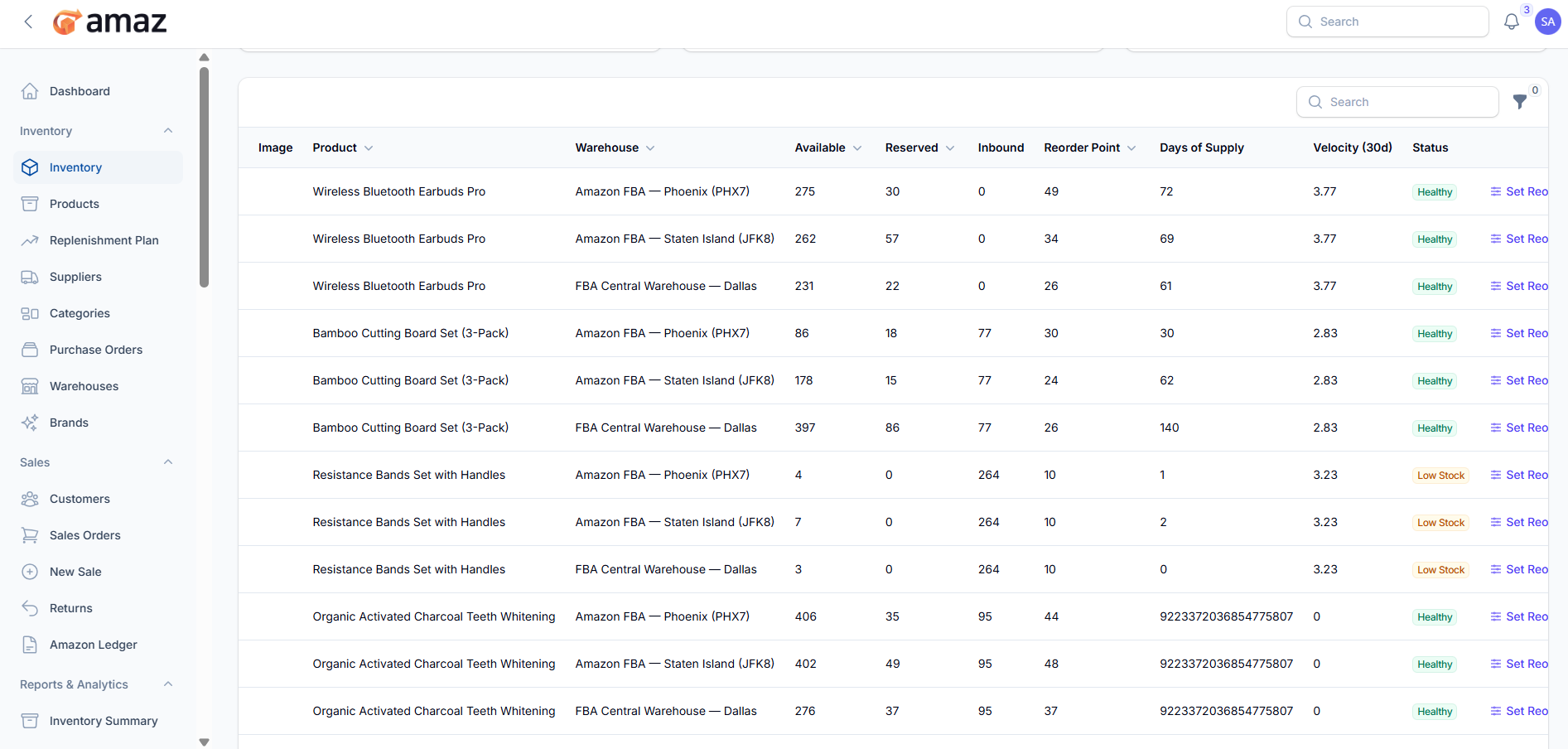
Understanding the Inventory List
Column | Description
Product – Product SKU and title.
Warehouse – Storage location of the product.
Available – Quantity available for new orders (On Hand - Reserved).
Reserved – Quantity allocated to pending orders.
Inbound – Quantity of stock expected to arrive from purchase orders.
Reorder Point – Minimum stock level at which new stock should be ordered.
Days of Supply – Estimated number of days the current stock will last based on sales rate.
Velocity (30 Day) – Average quantity sold per day over the last 30 days.
Status – Current inventory status (e.g., In Stock, Low Stock, Out of Stock).
Filtering Inventory
Search: Find by product SKU or title
Warehouse Filter: View inventory for a specific warehouse
Low Stock Toggle: Show only products below the re-order point
Opening Stock Entry
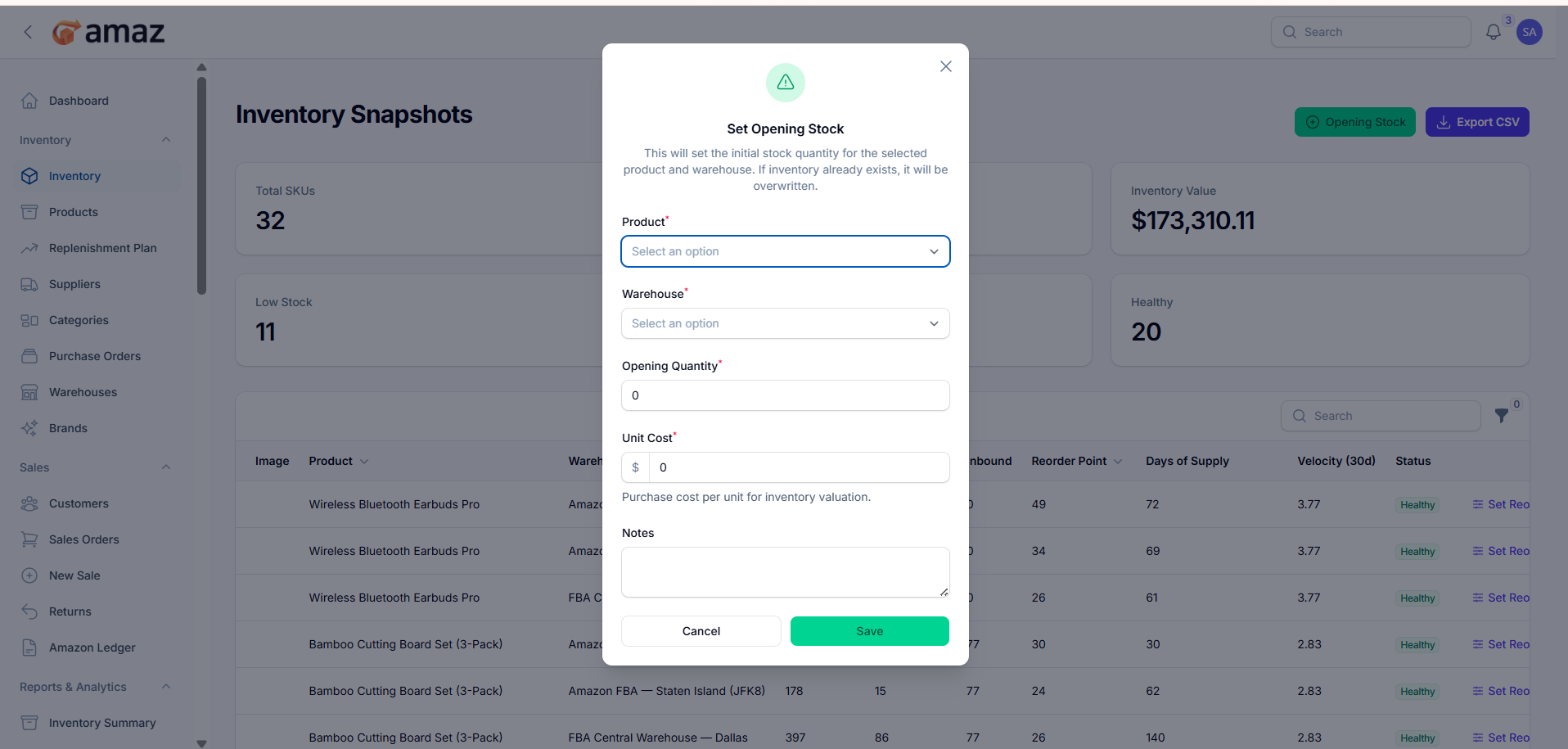
Set initial inventory when starting to use the system.
To Enter Opening Stock:
1. Navigate to Inventory → Inventory
2. Click the Opening Stock button in the header
3. Fill in the form:
Product — Select the product
Warehouse — Select the warehouse
Quantity — Enter the initial quantity
Unit Cost — Enter the cost per unit
Notes — Enter any additional notes associated with the product
4. Click Create
The inventory record is created with the specified quantity.
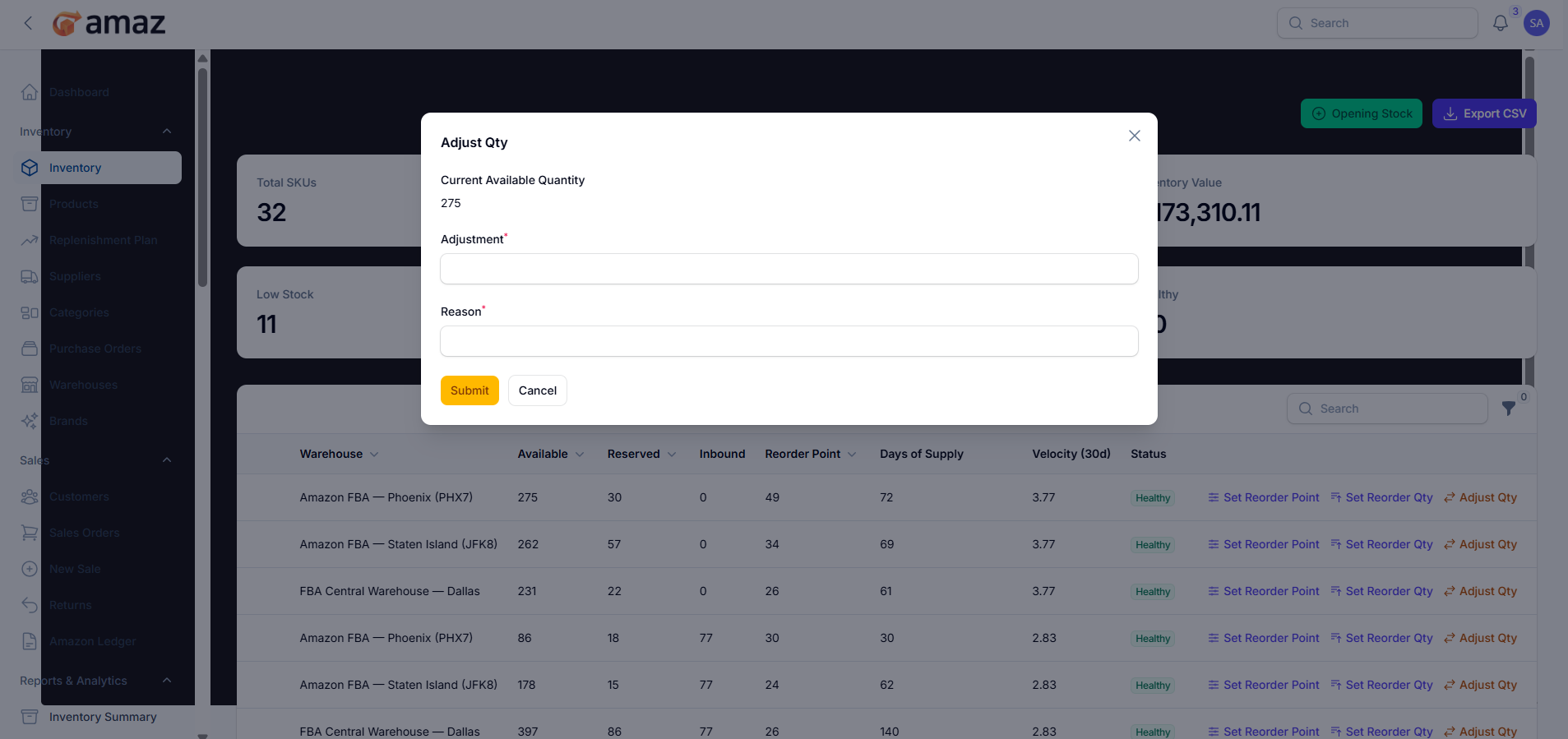
Stock Adjustments
Adjust inventory for discrepancies, damage, or other corrections.
To Adjust Stock:
1. Find the inventory record in the list
2. Click the Adjust Qty action
3. In the adjustment form:
Enter Quantity Change (positive to add, negative to subtract)
Add Reason explaining the adjustment (Damaged, Lost, Found, Correction, Other).
4. Click Adjust.