Alerts Dashboard
View all system alerts requiring attention.
Location: Sidebar → Monitoring → Alerts
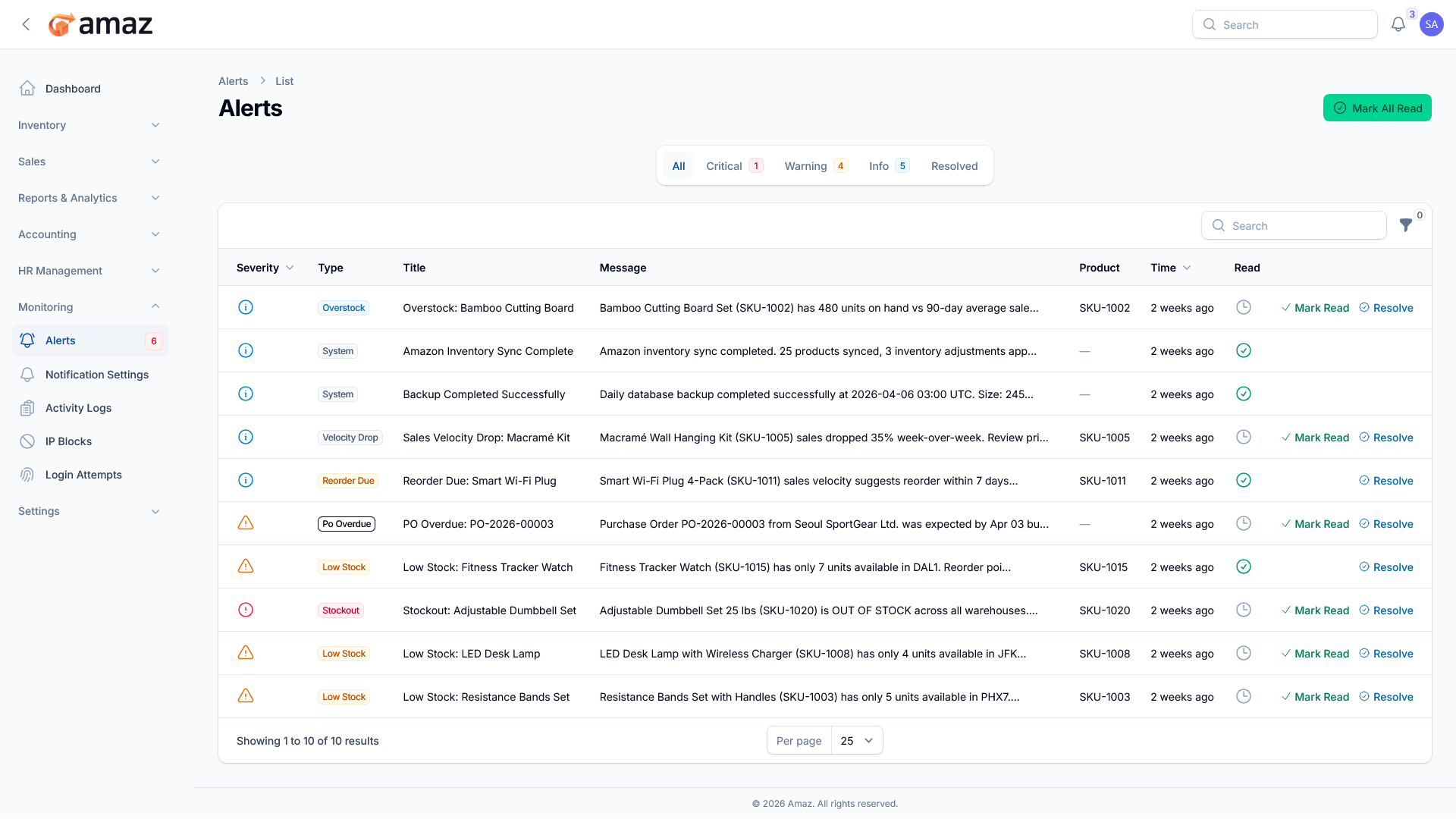
The
Alerts module provides a centralized interface for monitoring, managing, and resolving system-generated notifications across inventory, operations, and system activities. It enables users to quickly identify critical issues, track operational anomalies, and take timely action.
Alert Categorization and Filtering
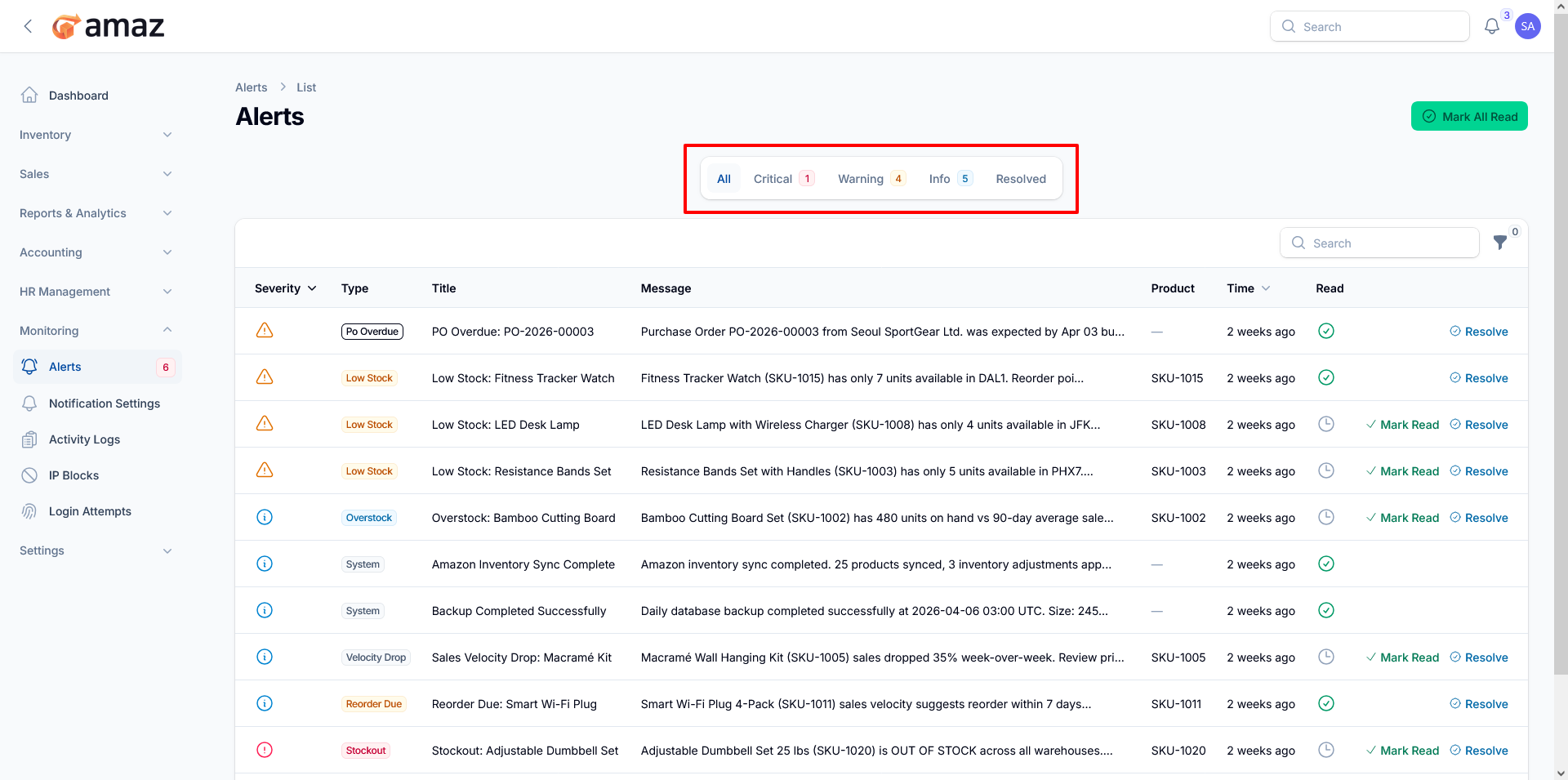
Alerts are organized into categories for efficient navigation and prioritization:
- All – Displays all alerts.
- Critical – High-priority issues requiring immediate attention.
- Warning – Alerts indicating potential risks or upcoming issues.
- Info – Informational updates related to system activities.
- Resolved – Alerts that have been addressed and closed.
Each category includes a count indicator to provide a quick overview of alert volume.
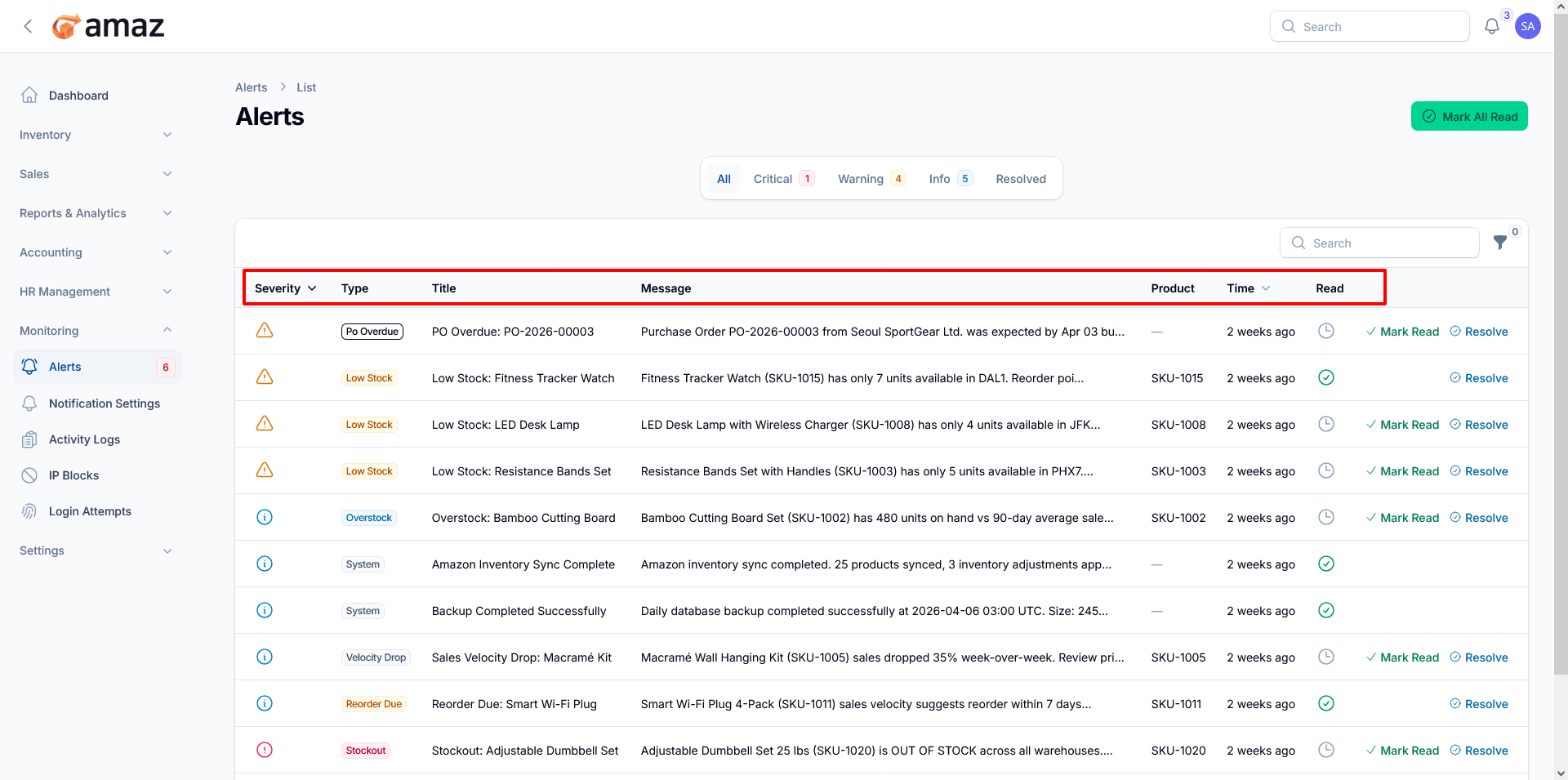
 Alerts Table Overview
The alerts list presents detailed information for each notification:
-
Severity – Visual indicator of alert importance (e.g., informational, warning, critical).
-
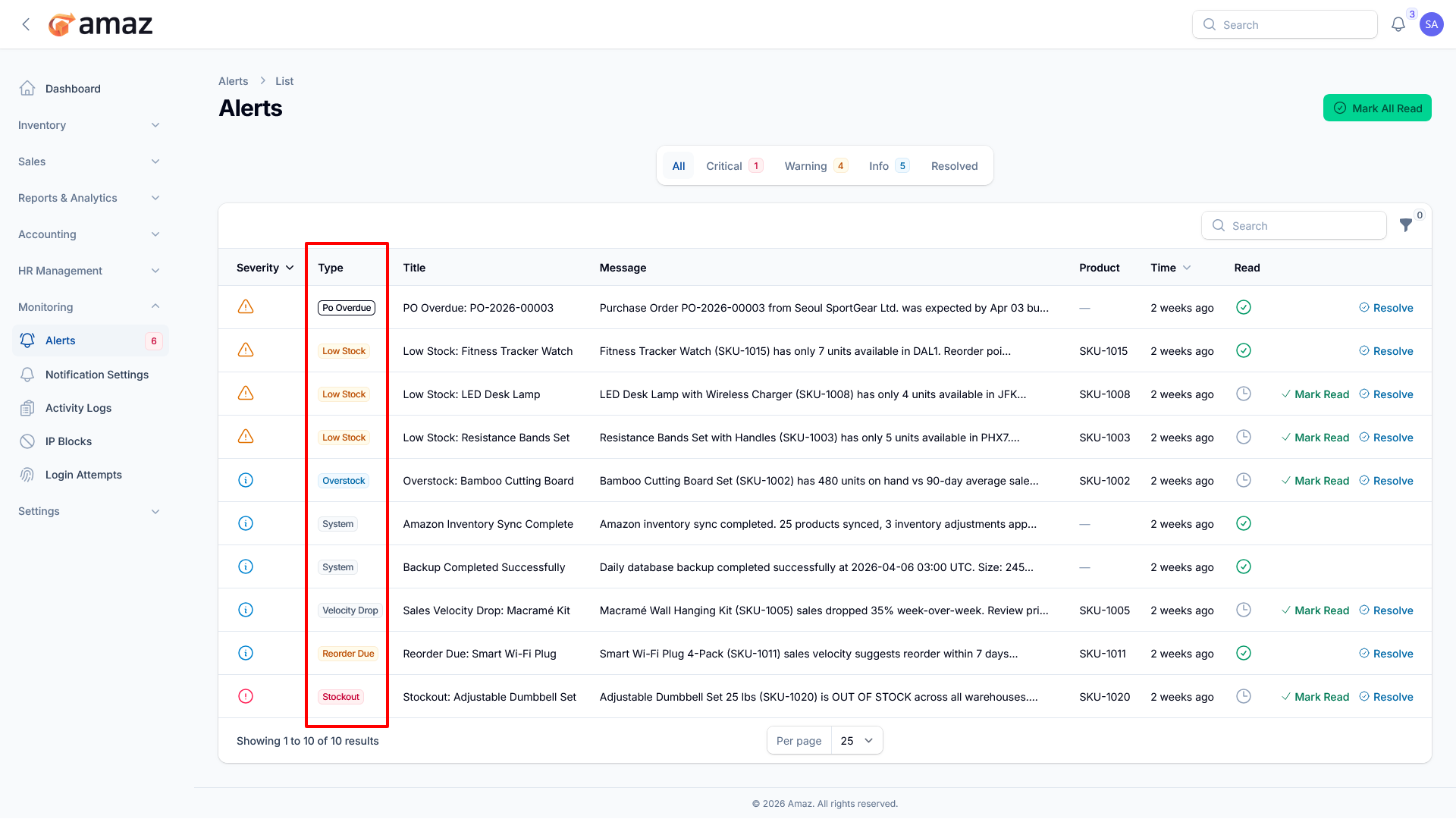
Type – Classification of the alert (e.g., Overstock, Low Stock, System, Reorder Due).
-
Title – Short, descriptive summary of the alert.
-
Message – Detailed explanation of the issue or event.
-
Product – Associated product identifier (if applicable).
-
Time – Timestamp indicating when the alert was generated.
-
Read Status – Indicates whether the alert has been viewed.
Alert Actions
Users can take immediate action directly from the alert list:
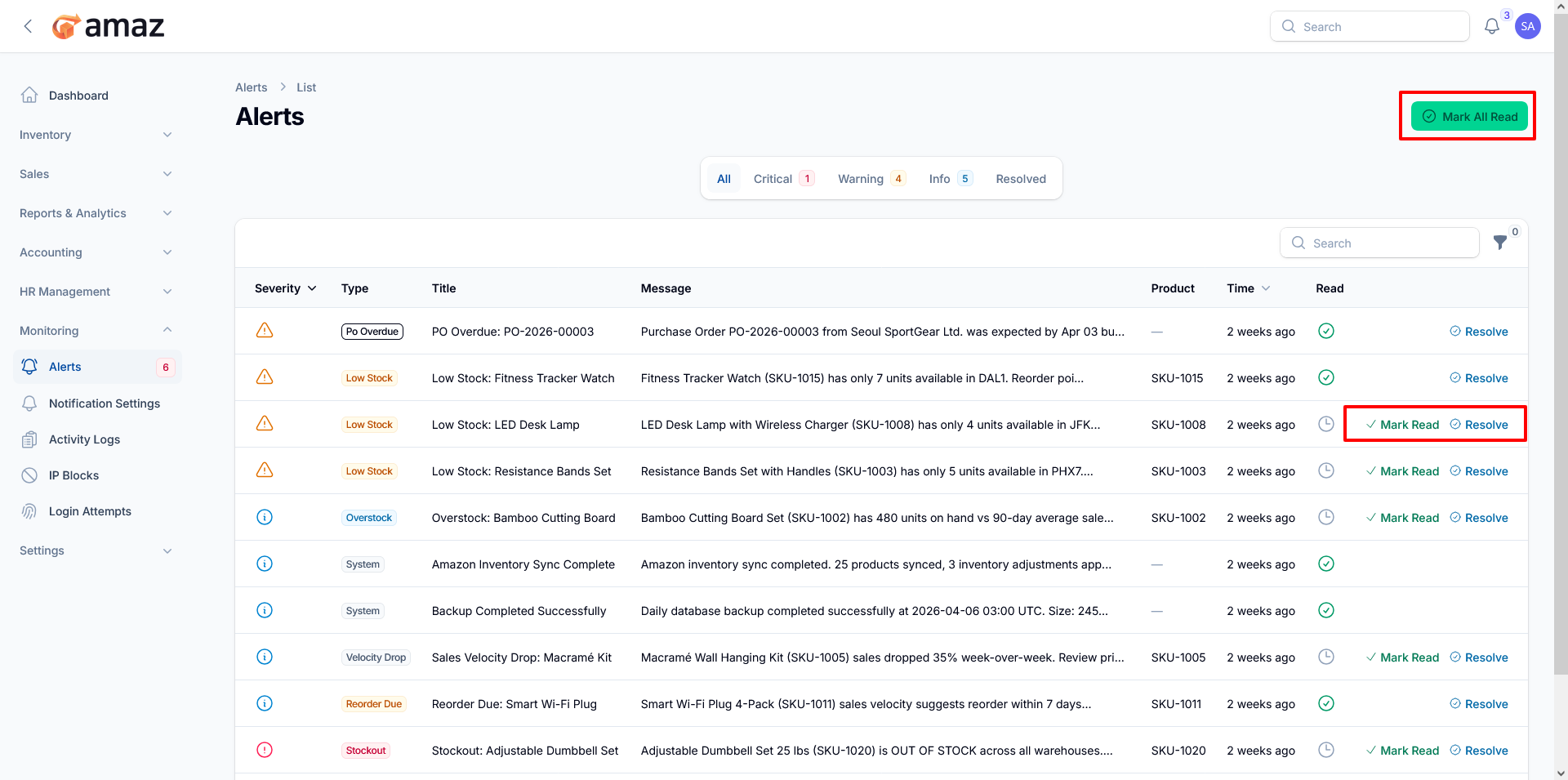
- Mark as Read – Acknowledge the alert and update its read status.
- Resolve – Mark the alert as addressed and move it to the resolved category.
Additionally:
- Mark All Read – Bulk action to mark all alerts as read in a single step.
 Alert Types and Use Cases
The system supports a range of alert types, including:
-
Overstock Alerts – Indicates excess inventory compared to sales trends.
-
Low Stock Alerts – Highlights items approaching stock depletion.
-
Stockout Alerts – Notifies when inventory is completely exhausted.
-
Reorder Alerts – Suggests replenishment based on sales velocity.
-
Purchase Order Overdue – Flags delayed procurement activities.
-
System Alerts – Provides updates on system processes such as backups or sync operations.
-
Sales Velocity Alerts – Identifies significant changes in product demand.
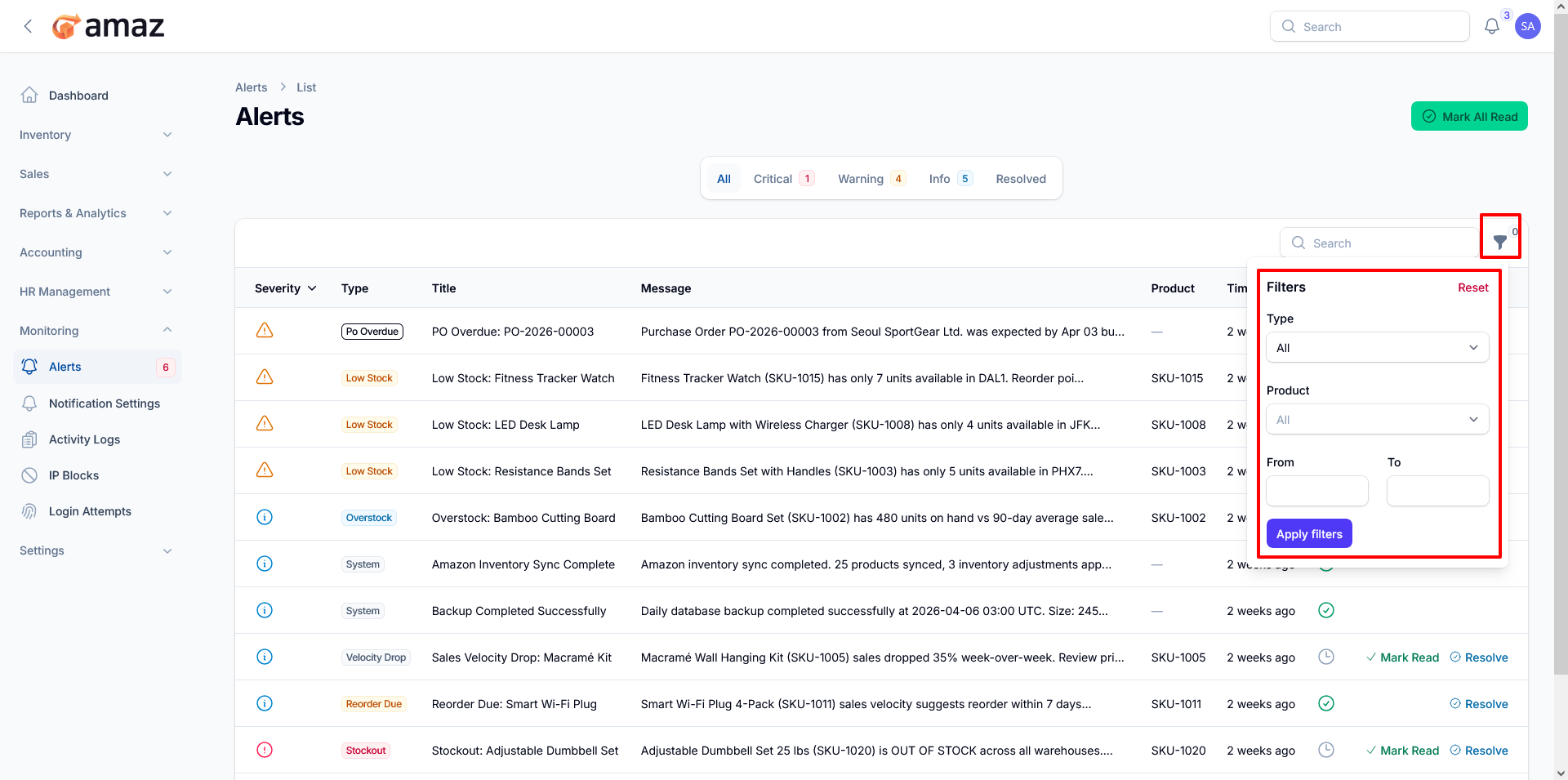
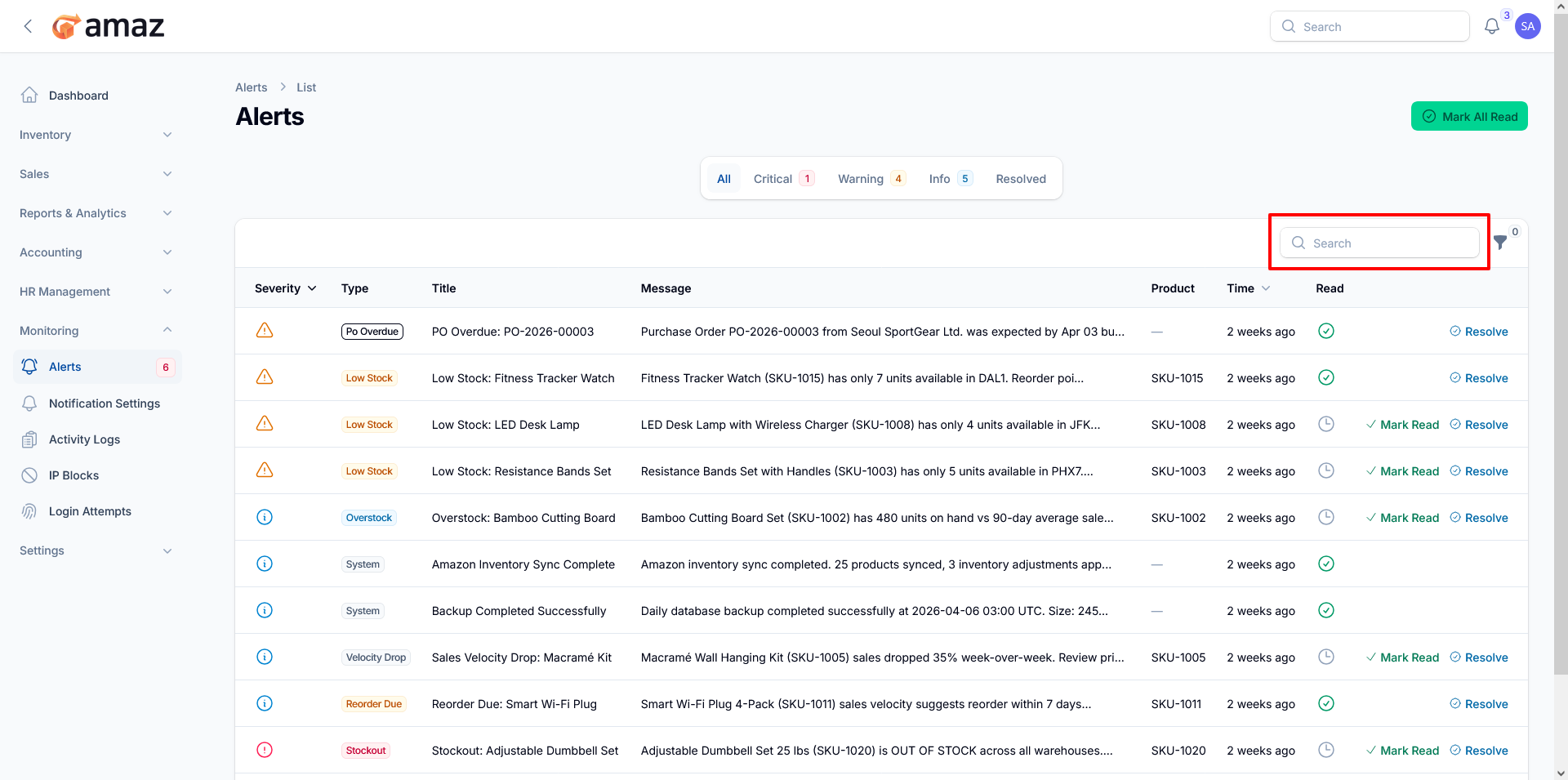
Search Functionality – Quickly locate specific alerts using keywords.
You can filter the data using the Status options for more precise results. Additionally, you can reset all applied filters at any time by clicking the Reset button.