Notification Settings
Configure how alerts are delivered.
Location: Sidebar → Monitoring → Notification Settings
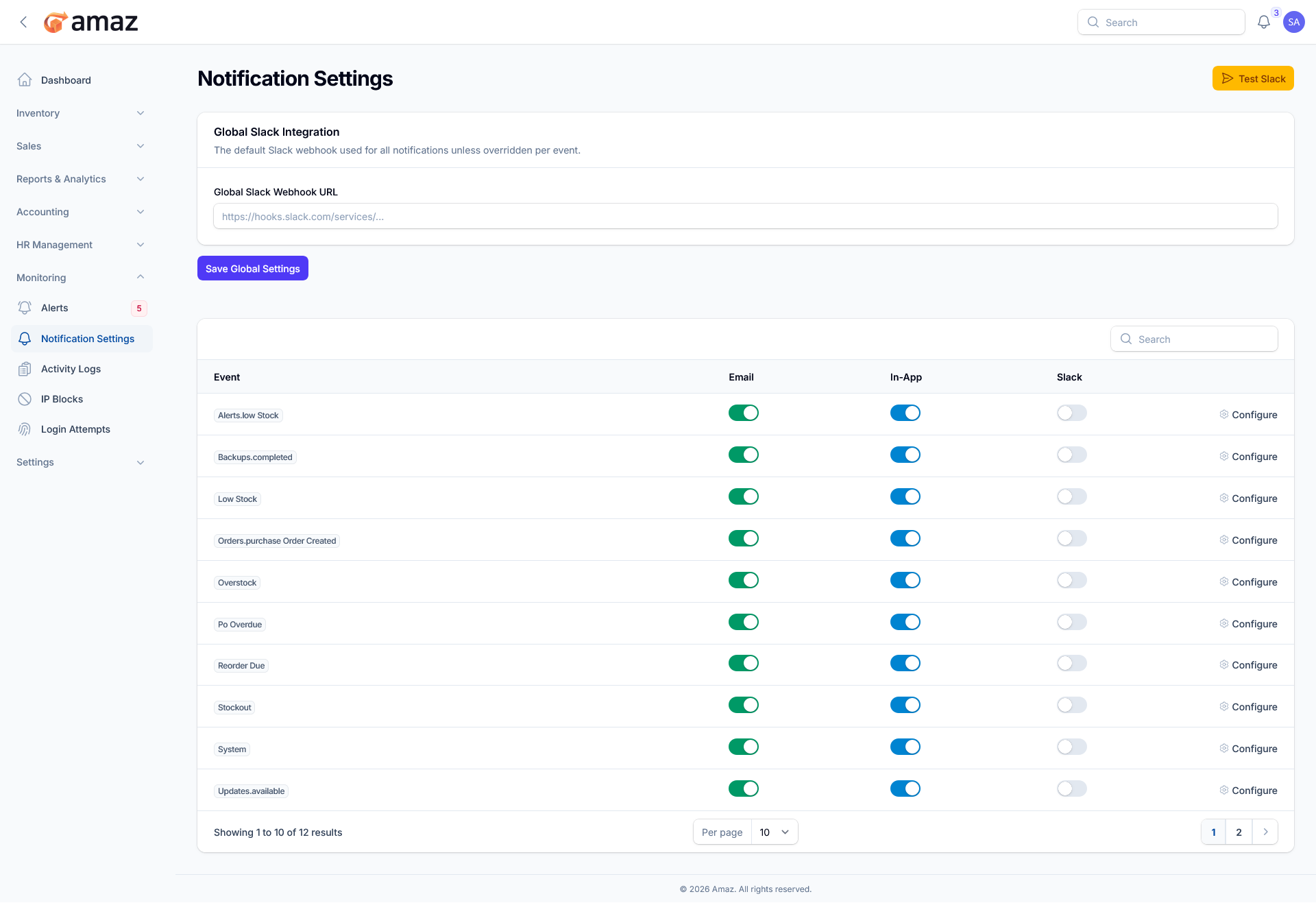
The Notification Settings module provides centralized control over how system alerts and events are delivered across multiple communication channels. It allows administrators to configure global integrations and customize notification preferences for specific event types, ensuring timely and relevant communication.
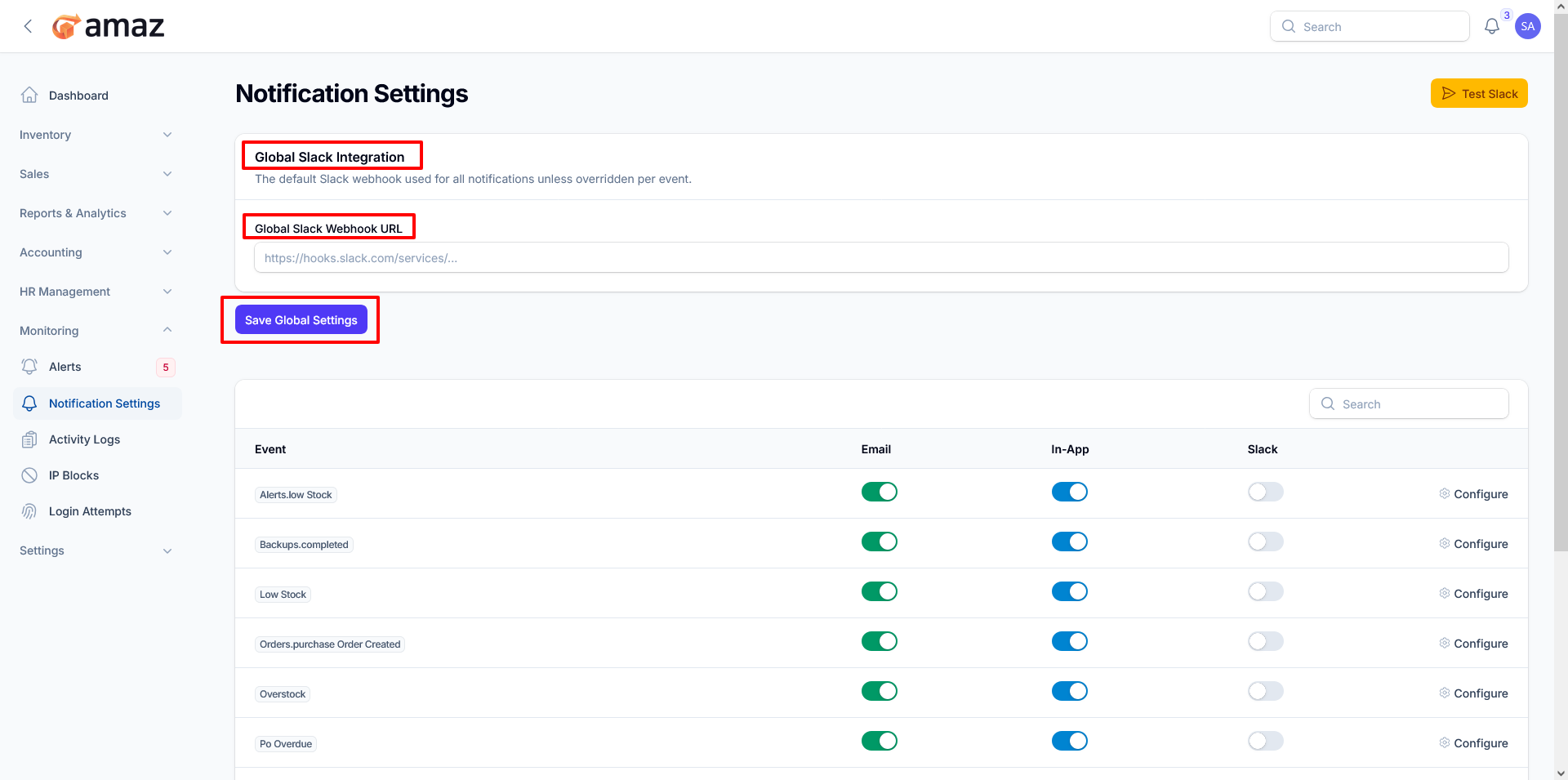
Global Slack Integration
- Global Slack Webhook URL – Configure a default Slack webhook to receive notifications across all events.
-
This integration serves as the primary Slack endpoint unless overridden at the individual event level.
- Test Slack – Validate the webhook configuration by sending a test notification.
- Save Global Settings – Apply and store the configured Slack integration.
Event-Based Notification Configuration
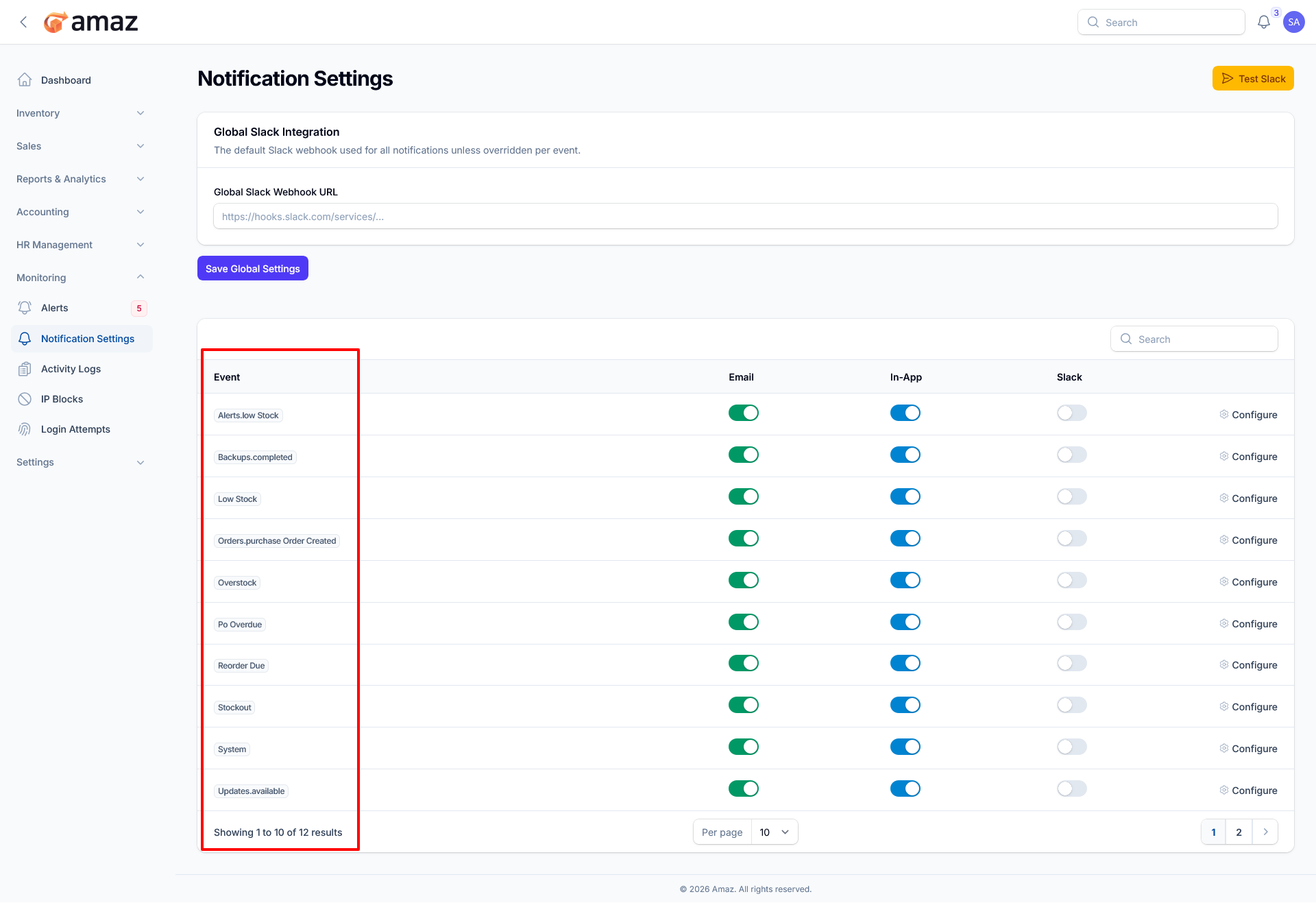
The system allows granular control over notifications for each event type. Available events include:
-
Alerts (e.g., Low Stock, Overstock)
-
Purchase order activities
-
System events (e.g., backups, updates)
Each event can be configured independently across multiple channels.
Notification Channels
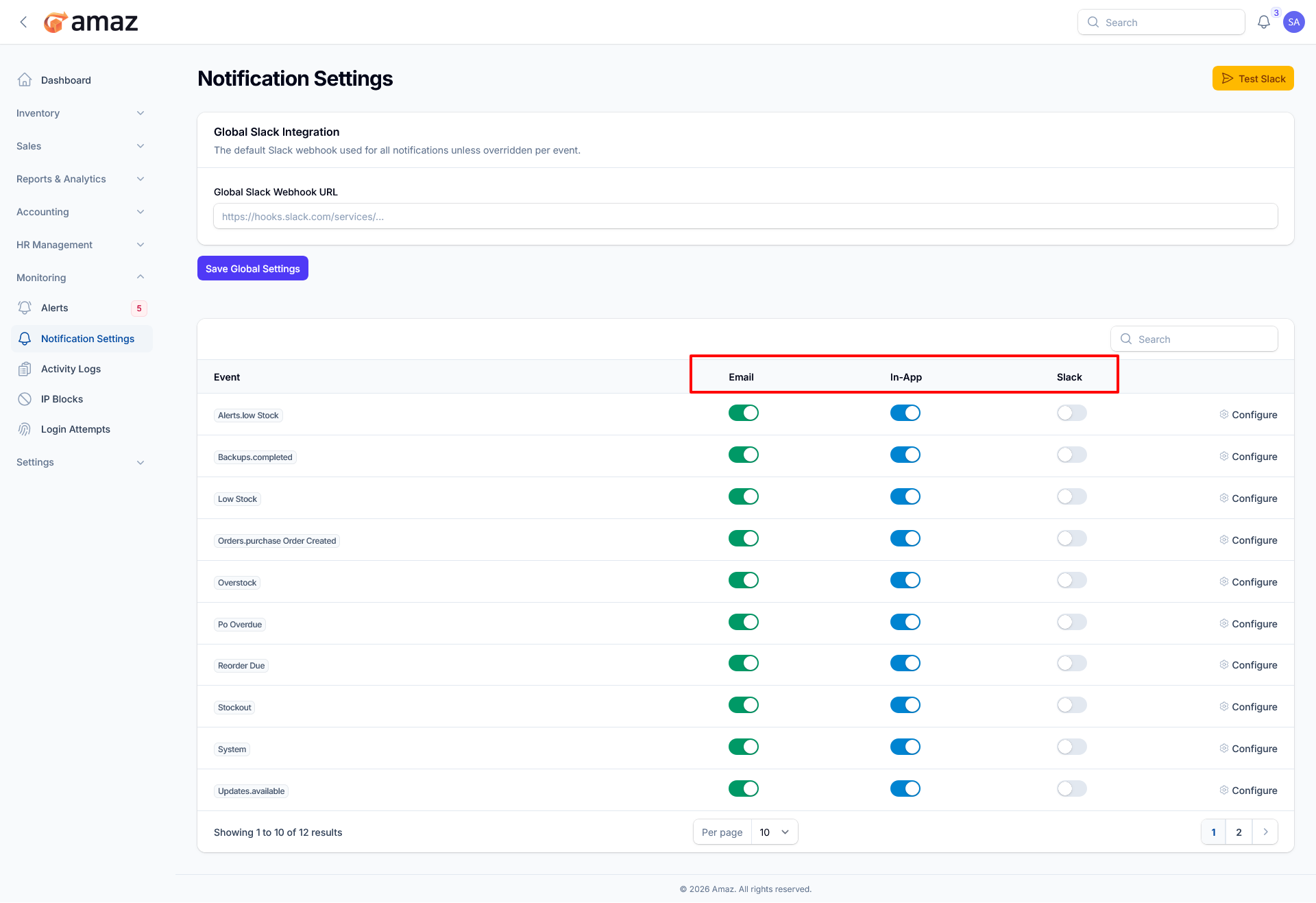
For every event, notifications can be enabled or disabled عبر the following channels:
- Email – Sends notifications to configured email recipients.
- In-App – Displays notifications within the application interface.
- Slack – Sends notifications to Slack via webhook integration.
Toggle switches allow quick activation or deactivation of each channel per event.
Event Configuration
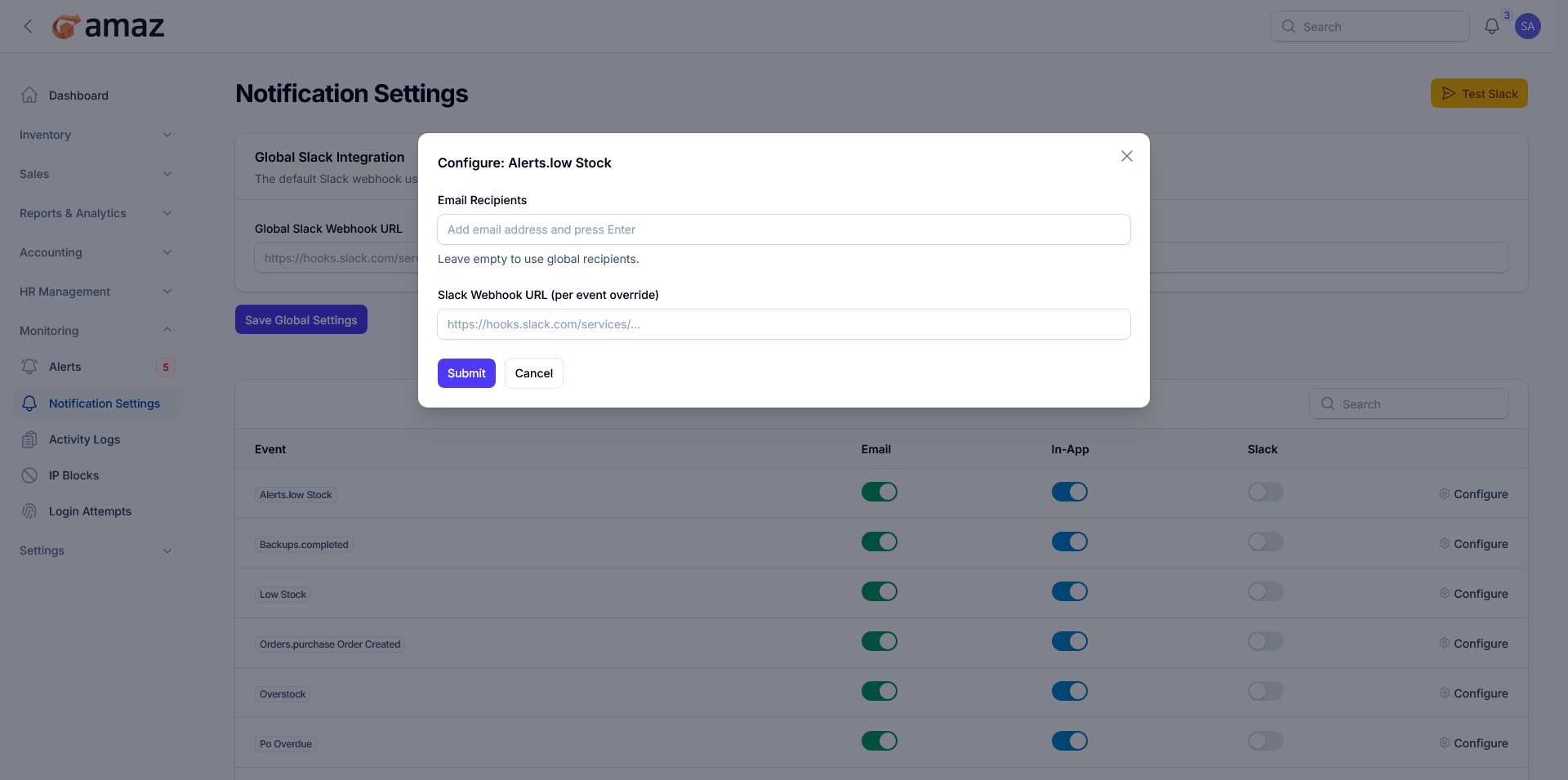
- Configure Option – Allows further customization of notification settings for individual events.
Notification Bell
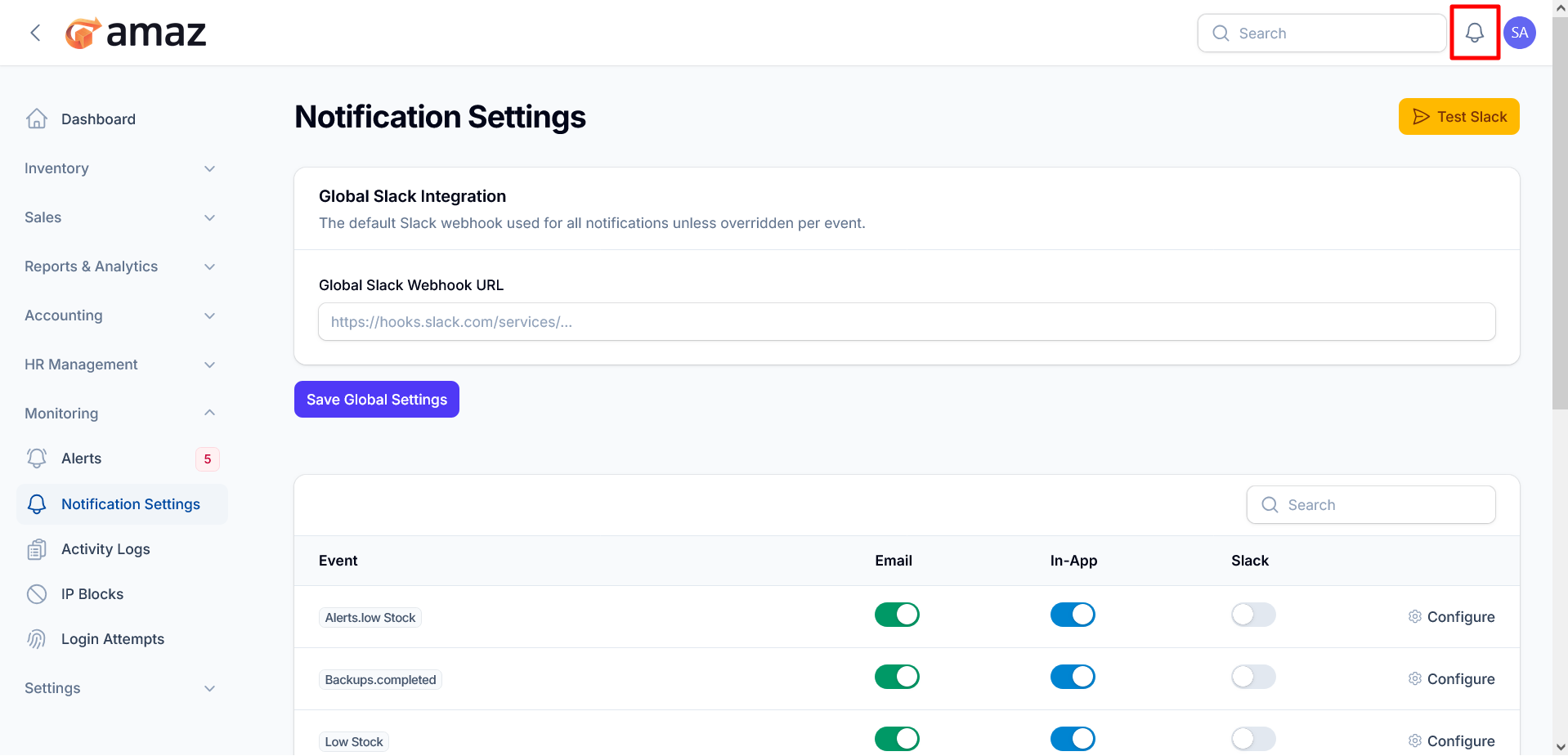
The notification bell icon in the top-right corner of the application provides real-time notifications about important events.
Accessing Notifications:
- Click the bell icon in the top navigation bar
- A badge shows the count of unread notifications
Notification Types:
- Low stock alerts
- Purchase order updates (received, paid)
- Sale order status changes (shipped, delivered)
- Return order notifications
- Amazon sync completions
- Payment confirmations
- System announcements
Managing Notifications:
- Click a notification to view details or navigate to the related record
- Click Mark all as read to clear all unread notifications
- Notifications are automatically polled every 60 seconds for updates