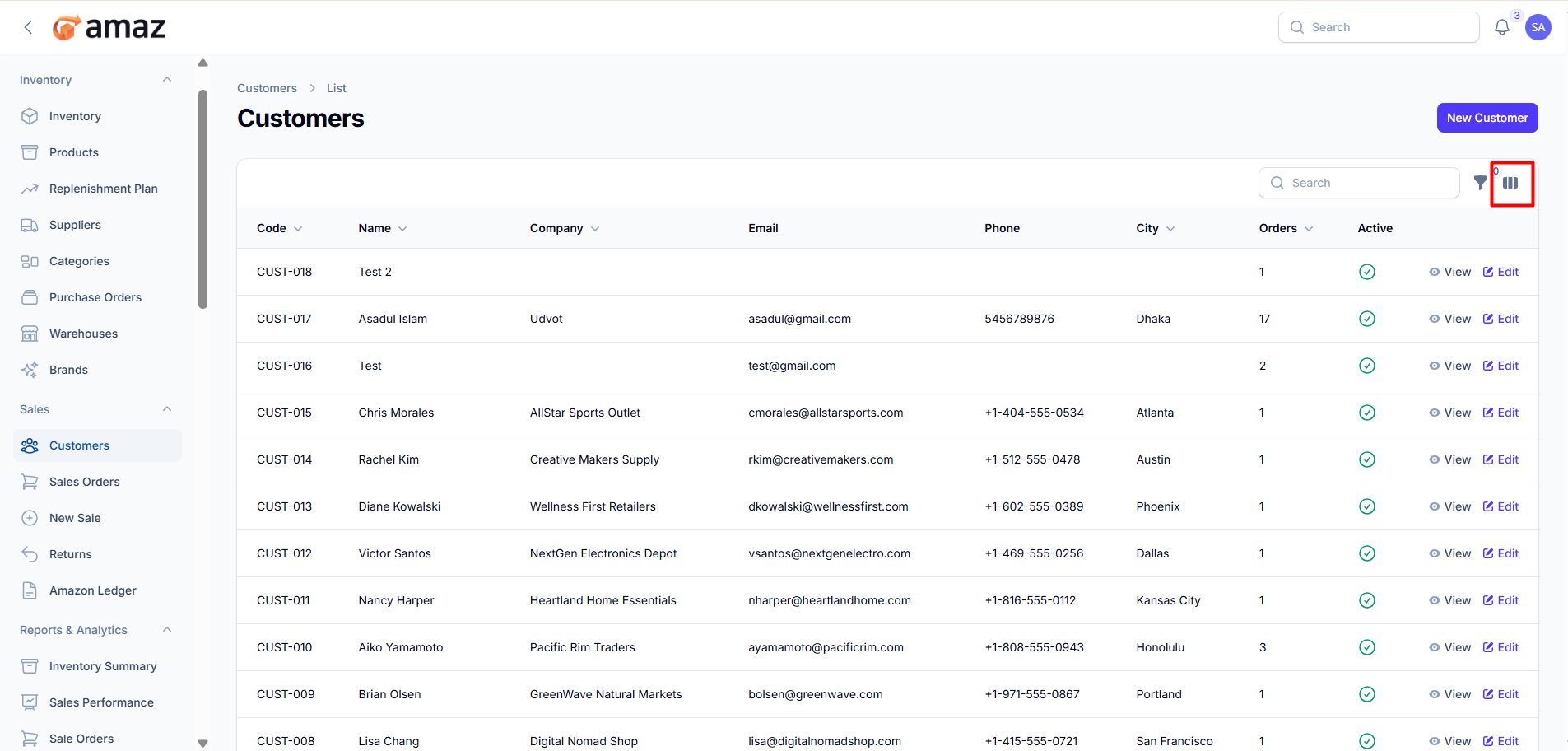
Maintain your customer database.
Location: Sidebar → Sales → Customers
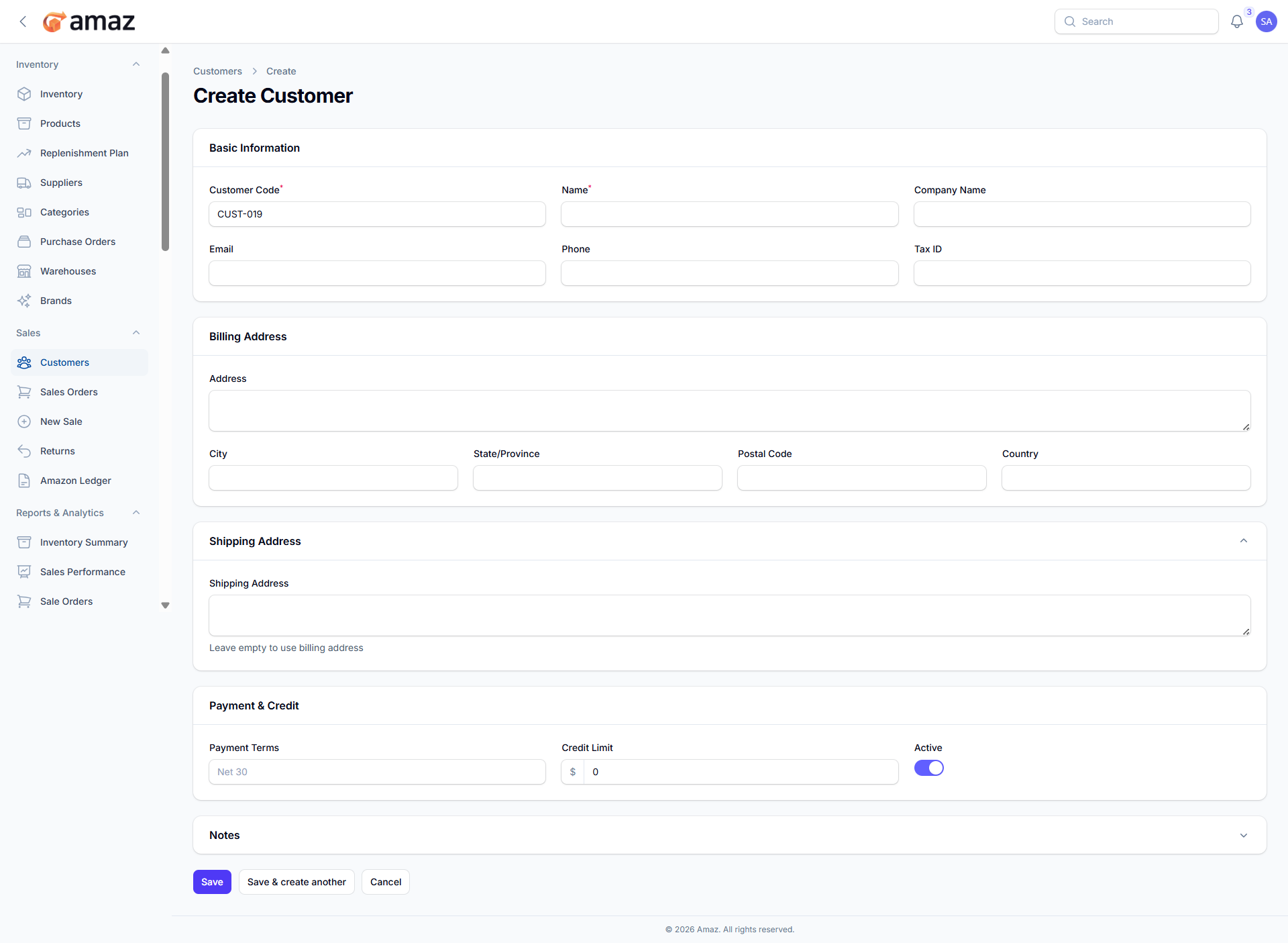
1.Creating a CustomerClick New Customer.
Fill in customer details:
2.Field | Description | Required
Code – Unique customer code. | Yes
Name – Customer or company name. | Yes
Company Name – Business name (if different). | No
Email – Contact email. | No
Phone – Contact phone number. | No
Tax ID – Tax identification number. | No
3.Billing Address – Address used for invoices.
City – City name
State/Province – State or province
Postal Code – ZIP or postal code
Country – Country
4.Shipping Address – Default delivery address.
5.Payment & Credit
Payment Terms – Agreed payment duration (e.g., Net 30).
Credit Limit – Maximum allowed credit for the customer.
Active – Enable or disable the customer.
6.Click Create.
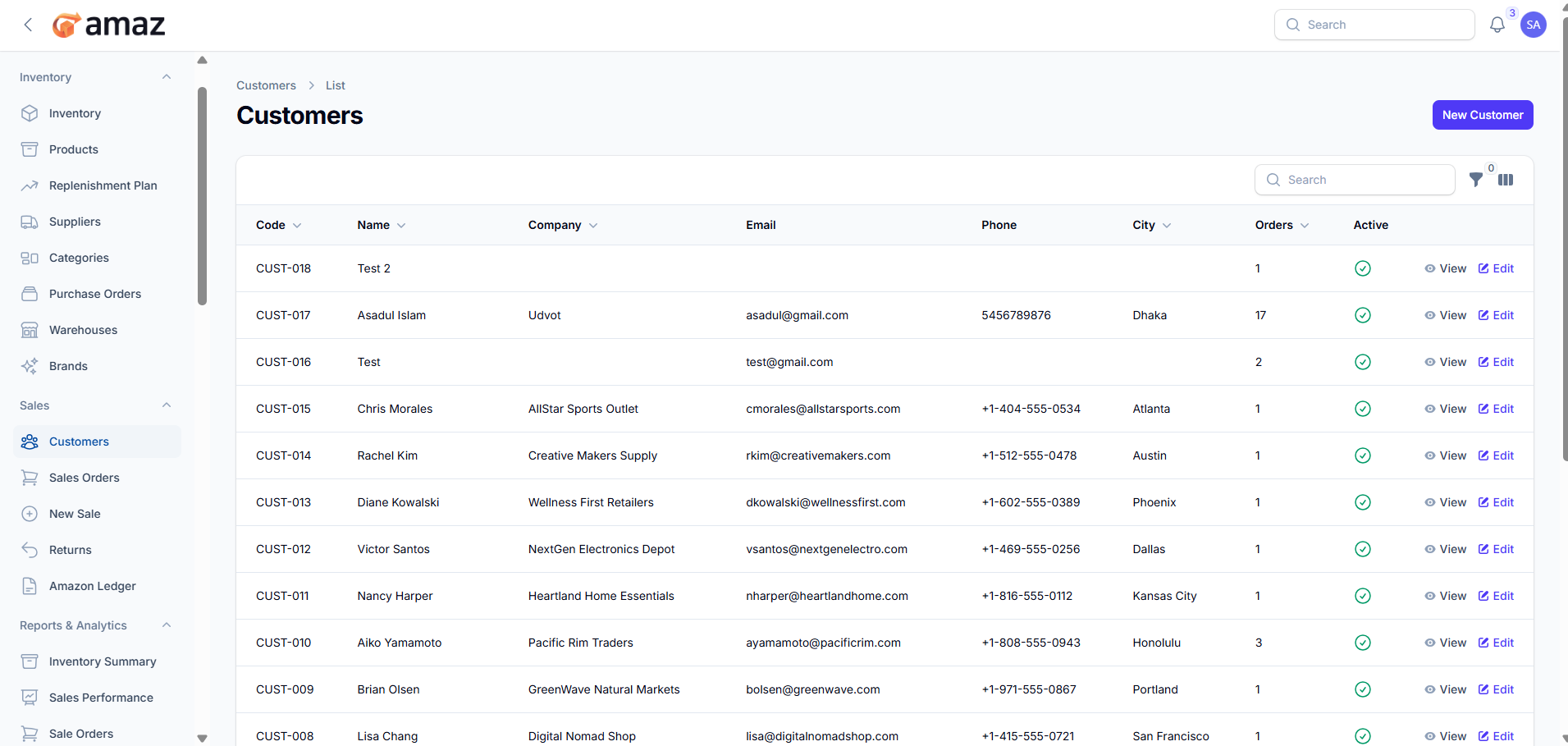
Customer List:
From here you can view all customers along with their details.
Field – Description
Customer Code – Unique identifier for the customer.
Name – Customer or company name.
Company Name – Business name (if applicable).
Email – Contact email address.
Phone – Contact phone number.
City – City where the customer is located.
Orders – Total number of orders placed by the customer.
Active – Indicates whether the customer is active or inactive.
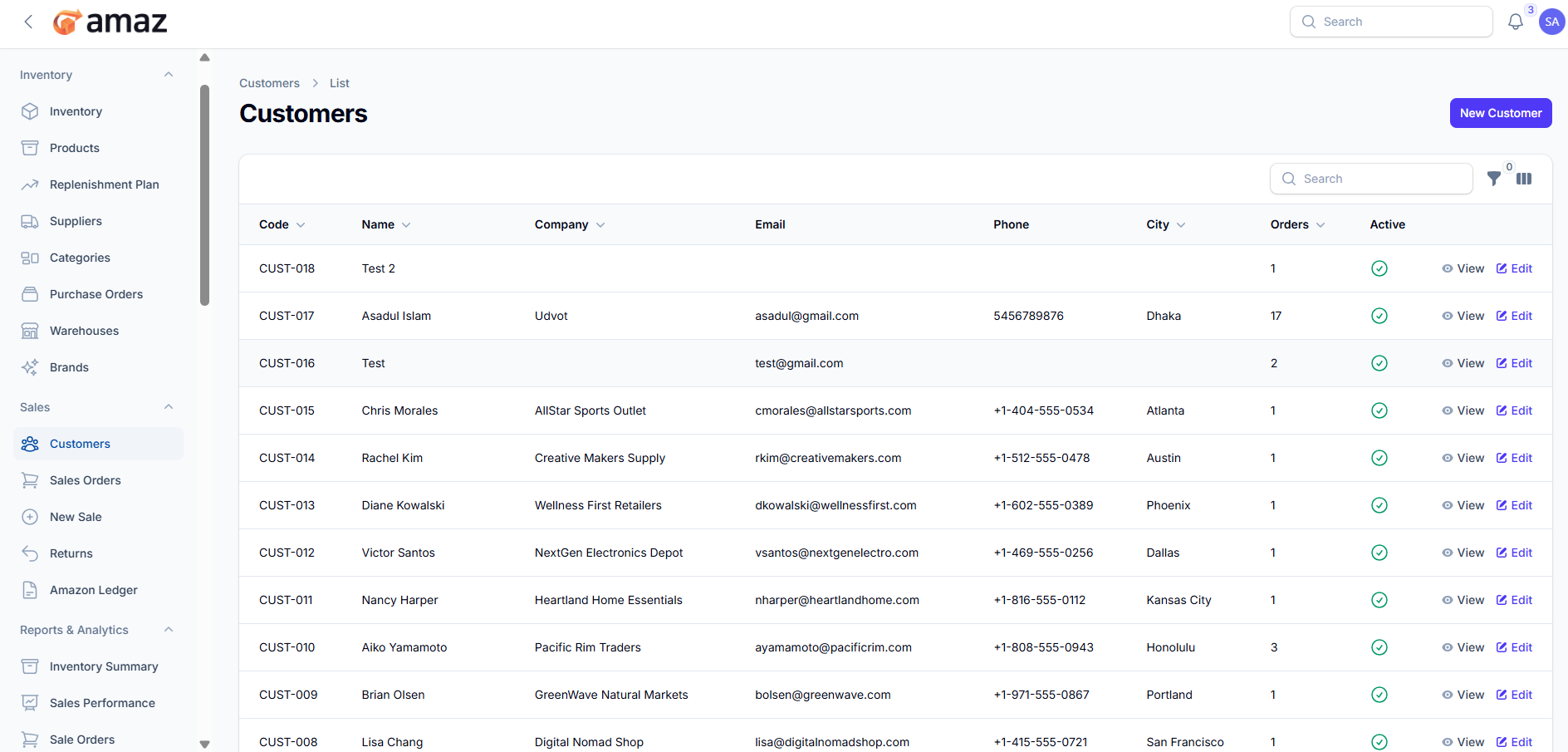
Action – Description
Edit – Update customer information.
View – View customer profile along with order history.
Delete – Remove a customer (only if no orders exist).
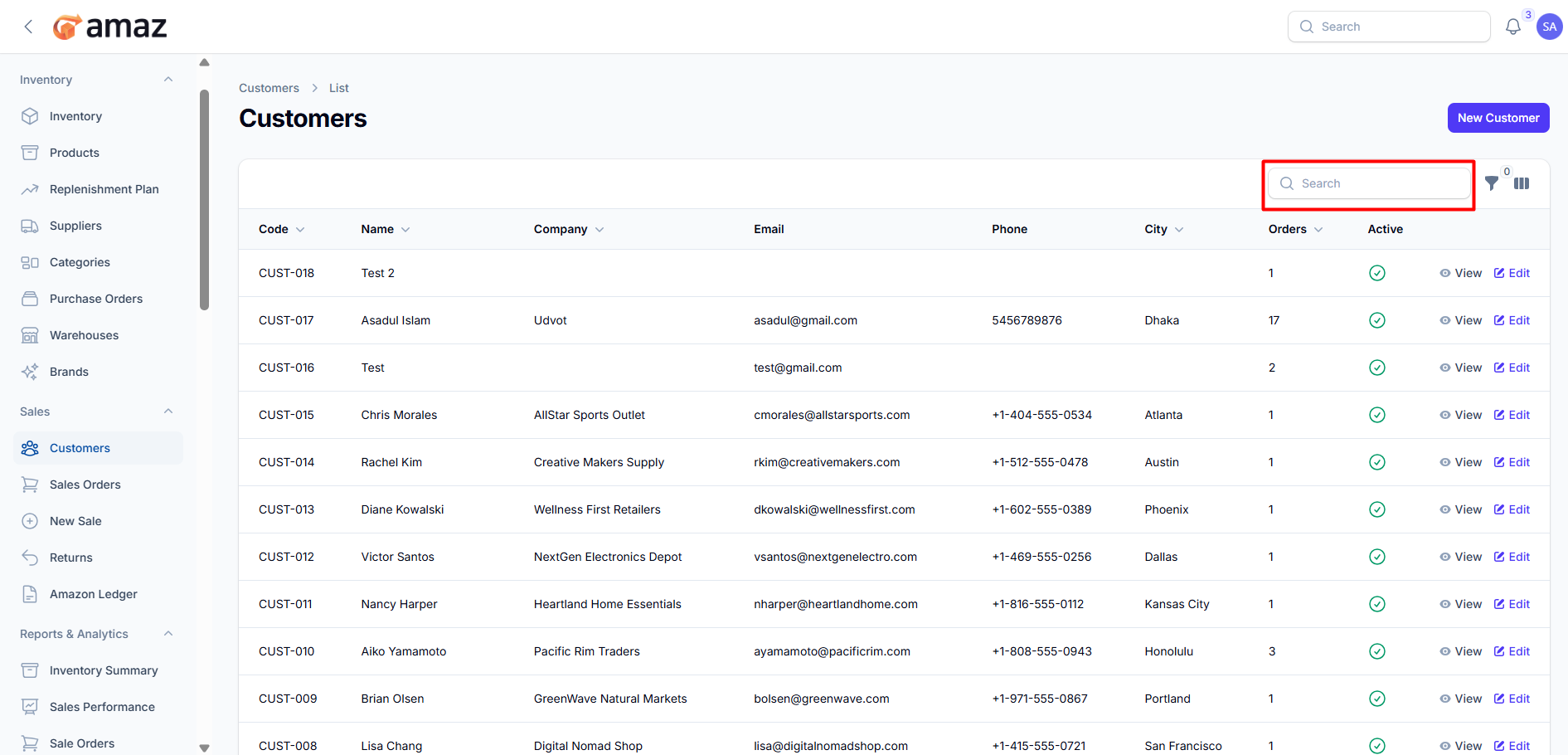
Search: Use the search option to quickly find customers by entering details such as name, email, phone, or customer code.
Filters:
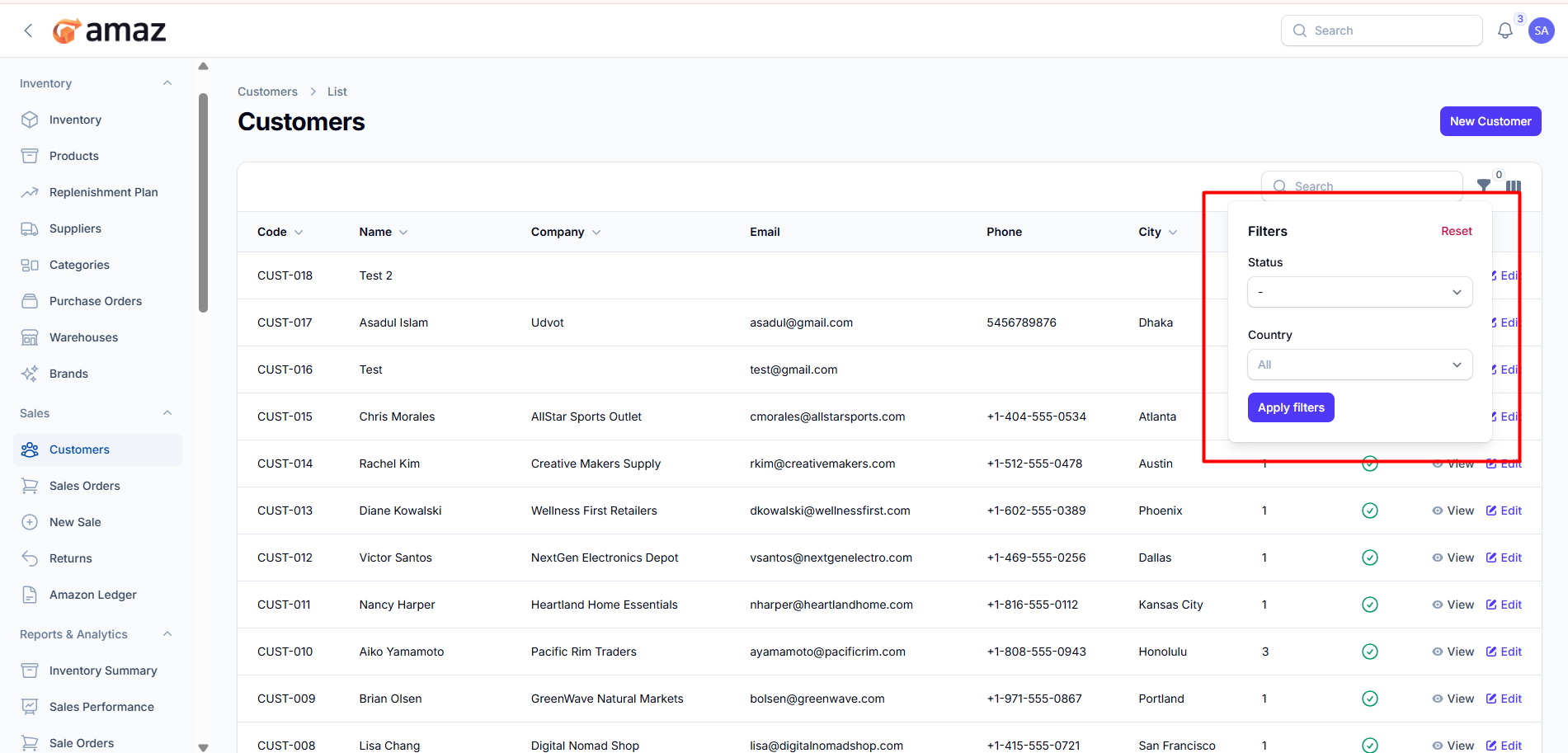
You can use filters to quickly find specific customers.
Filter – Description
Status – Filter customers by their status (Active/Inactive).
Country – Filter customers based on their country.
Column Customization:
You can customize the visible columns to display only the customer information relevant to your needs.