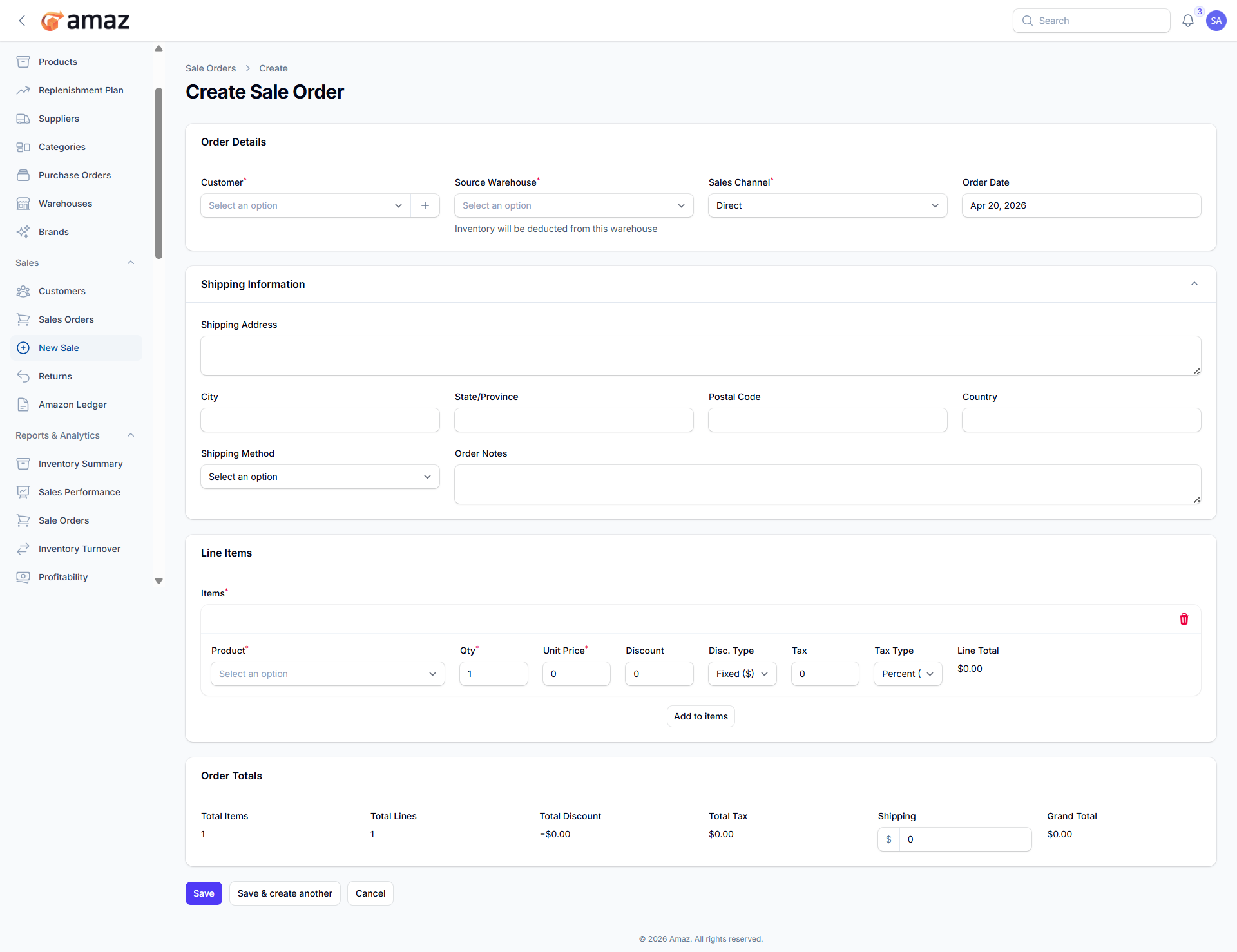
Creating a Sales Order
1. To create a new sale follow the below steps.
Click New Sales Order (or New Sale from the sidebar).
Fill in the order details:
2. Field | Description | Required
Customer – Select or create a customer. | Yes
Warehouse – Ship-from warehouse. | Yes
Channel – Order source (Direct, Website, Phone, Email, Marketplace). | Yes
Order Date – Date when the order was placed. | Yes
Order Notes – Special instructions for the order. | No
Shipping Address – Delivery address. | No
City – City of delivery. | No
State/Province – State or province. | No
Postal Code – ZIP or postal code. | No
Country – Country of delivery. | No
Shipping Method – Method of shipment. | No
Add line items:
Select Product
Enter Quantity
Unit Price – Pre-filled (can be adjusted)
Discount – Apply discount if needed
Discount Type – Type of discount (e.g., fixed or percentage)
Tax Rate % – Applicable tax rate (optional)
Tax Type – Type of tax
Click Add Items.
Review order summary:
3. Field – Description
Total Items – Total quantity of items.
Total Lines – Number of product lines added.
Total Discount – Total discount applied.
Total Tax – Total tax amount.
Shipping – Add shipping charges.
Grand Total – Final payable amount.
4. Click Save to create the sales order.