Sales Management
1. Sales Orders
Track orders from your customers.
Location: Sidebar → Sales → Sales Orders
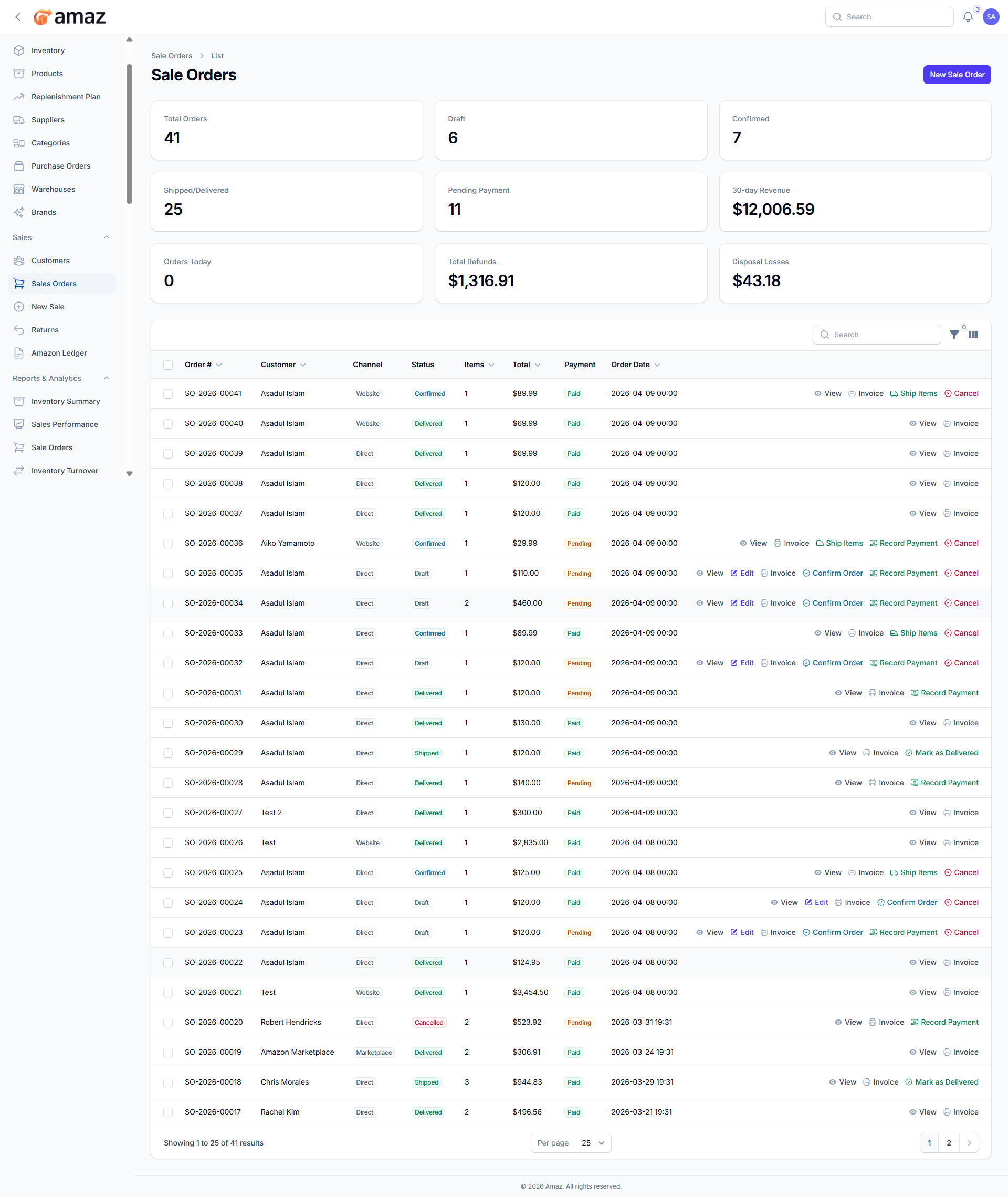
From here you can see the summary of the sales order. Such as:
Status | Description
Total Orders – Total number of sales orders.
Draft – Order is being prepared.
Confirmed Order – Order confirmed and stock reserved.
Shipped/Delivered – All items have been shipped or delivered.
Processing – Order is currently being processed.
Pending Payment – Orders that are confirmed but payment is still pending.
30 Day Revenue – Total revenue generated from sales orders in the last 30 days.
Order Today – Number of sales orders created today.
Total Refunds – Total amount refunded to customers.
Disposal Losses – Losses incurred from damaged, returned, or unsellable items.
2.Sales Order List:
From here you can view all sales orders along with their details.
Field – Description
Order No – Unique identifier for the sales order.
Customer Name – Name of the customer.
Channel – Source of the order (e.g., Direct, Website, Phone, Email, Marketplace).
Status – Current status of the order (e.g., Draft, Confirmed, Processing, Shipped).
Items – Total number of items in the order.
Total – Total value of the order.
Payment – Payment status (Paid/Unpaid).
Order Date – Date when the order was created.
Here’s a clean and consistent version:
Actions:
From here you can perform multiple actions on sales orders.
Action – Description
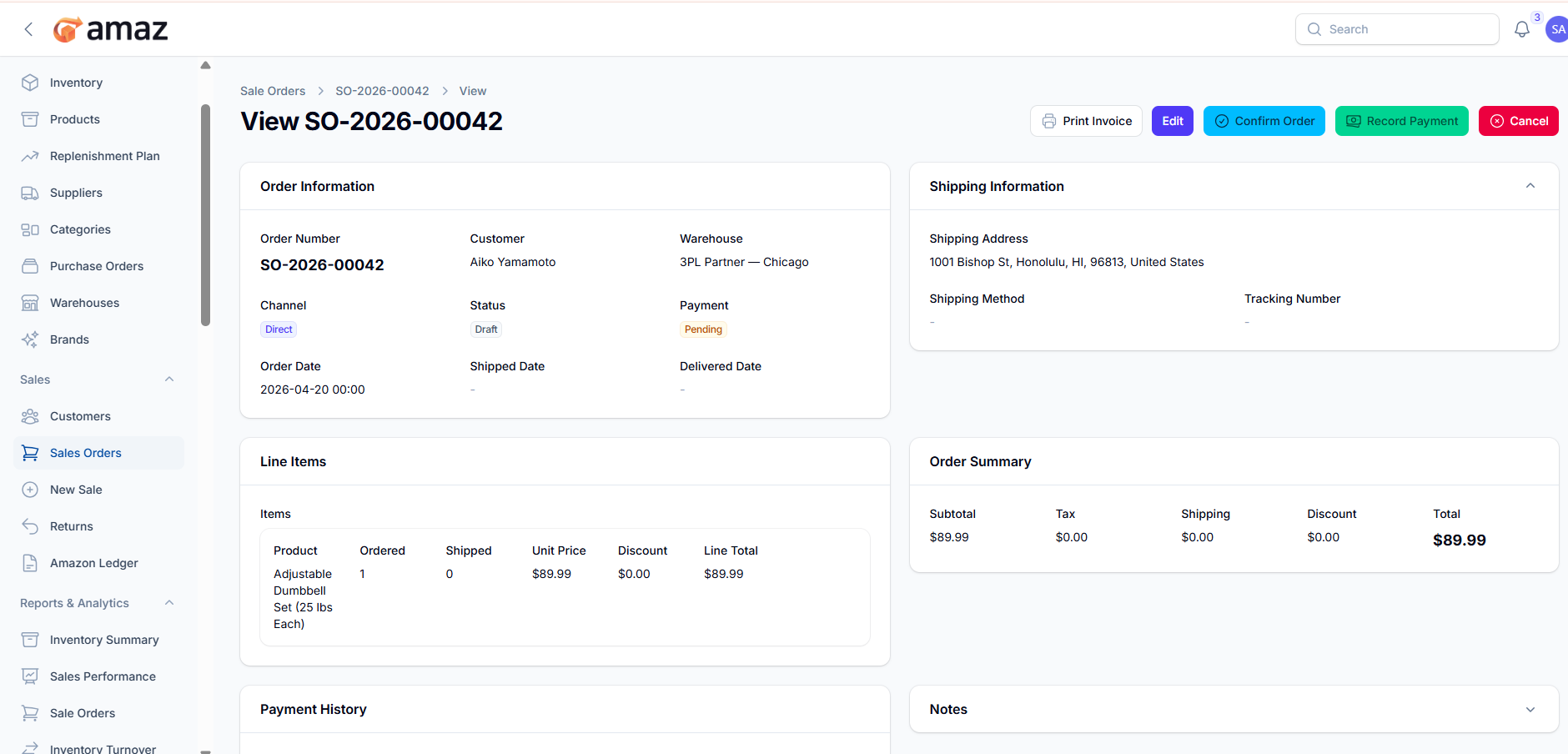
View – Open and view full order details.
Invoice – Generate or view the invoice for the order.
Ship Items – Process and mark items as shipped.
Cancel – Cancel the order.
Edit – Modify order details.
Confirm Order – Confirm the order and reserve stock.
Record Payment – Record payment received for the order.
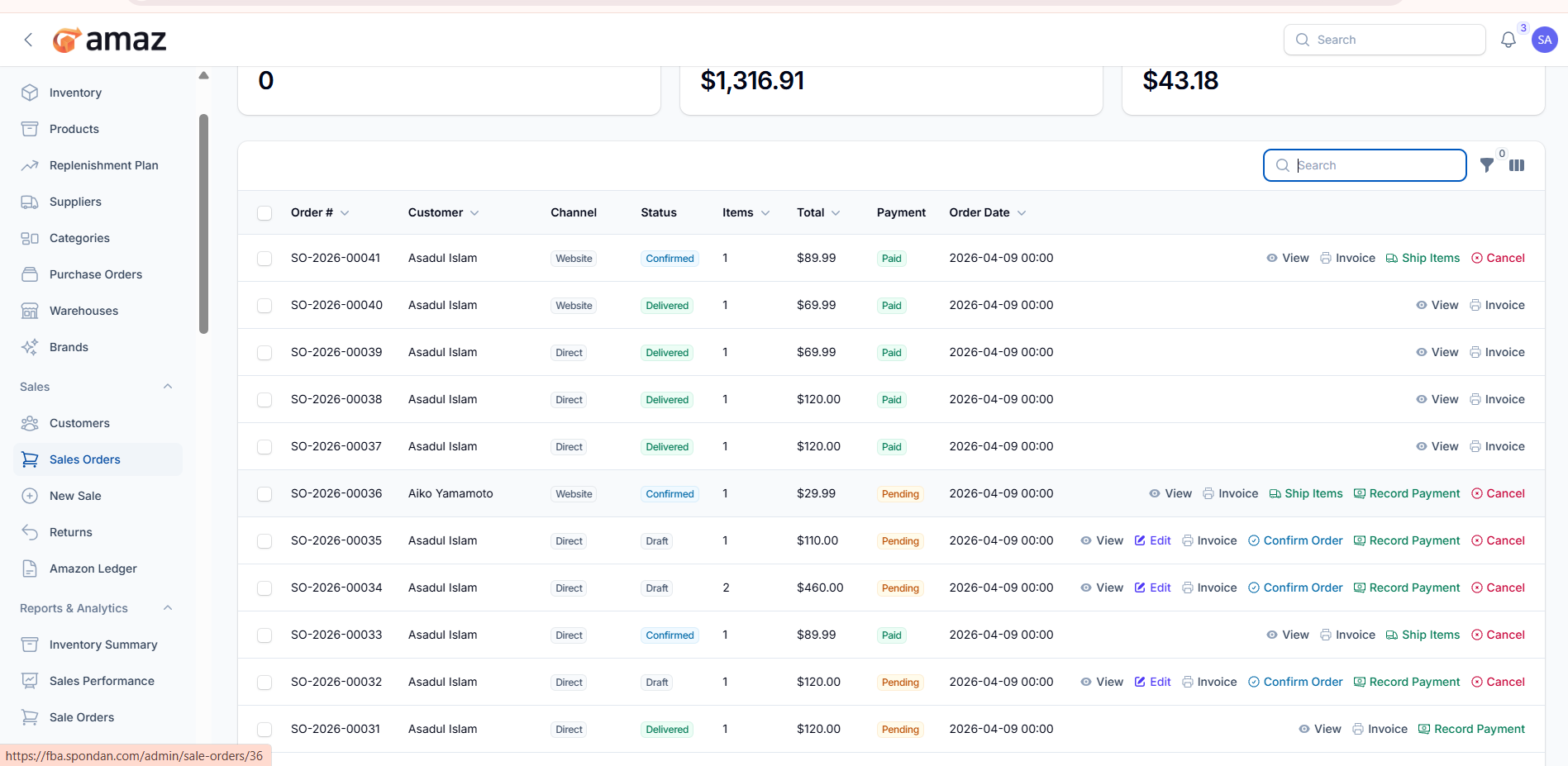
You can find out any specific sales order from the list using search.
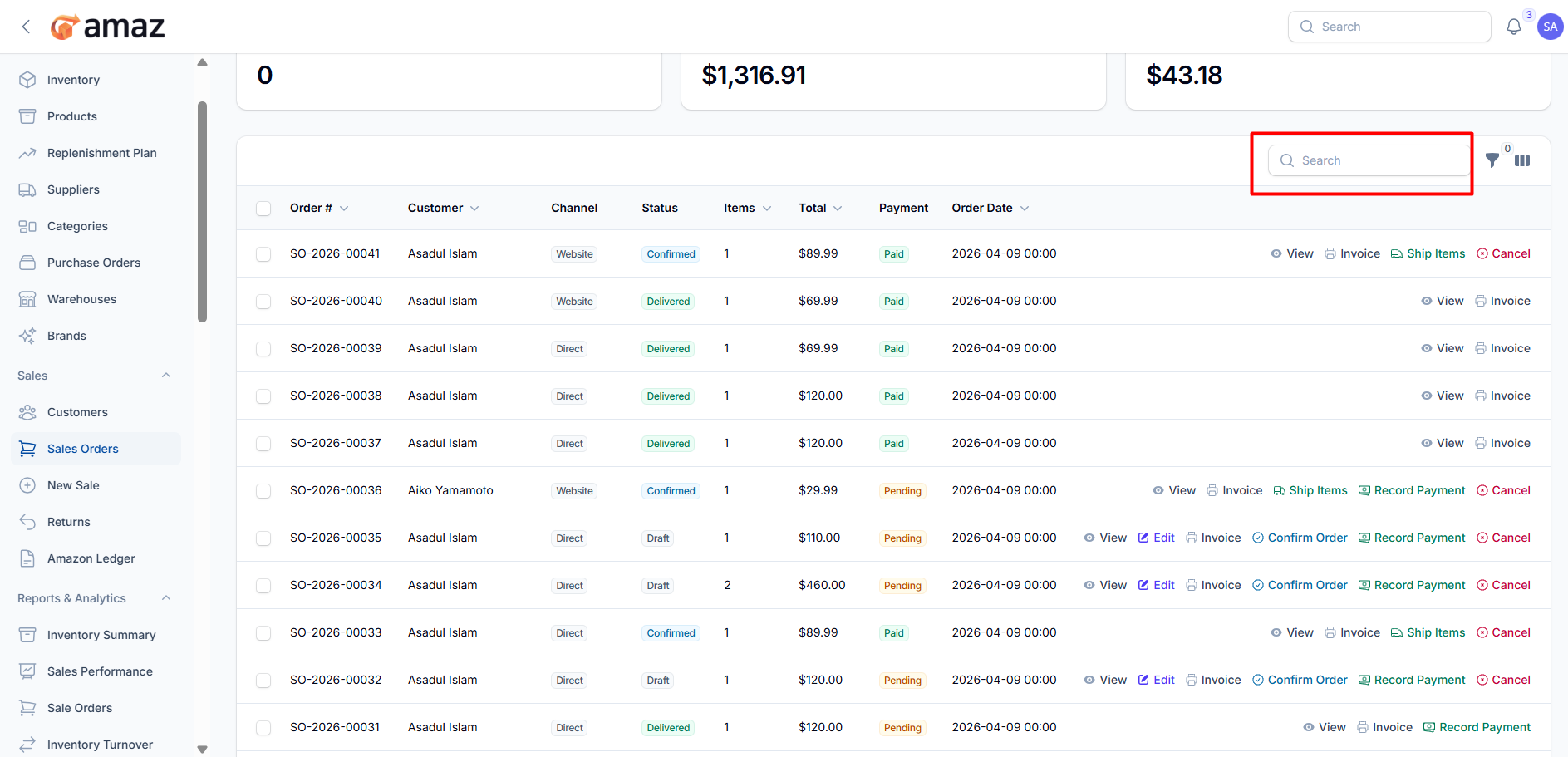
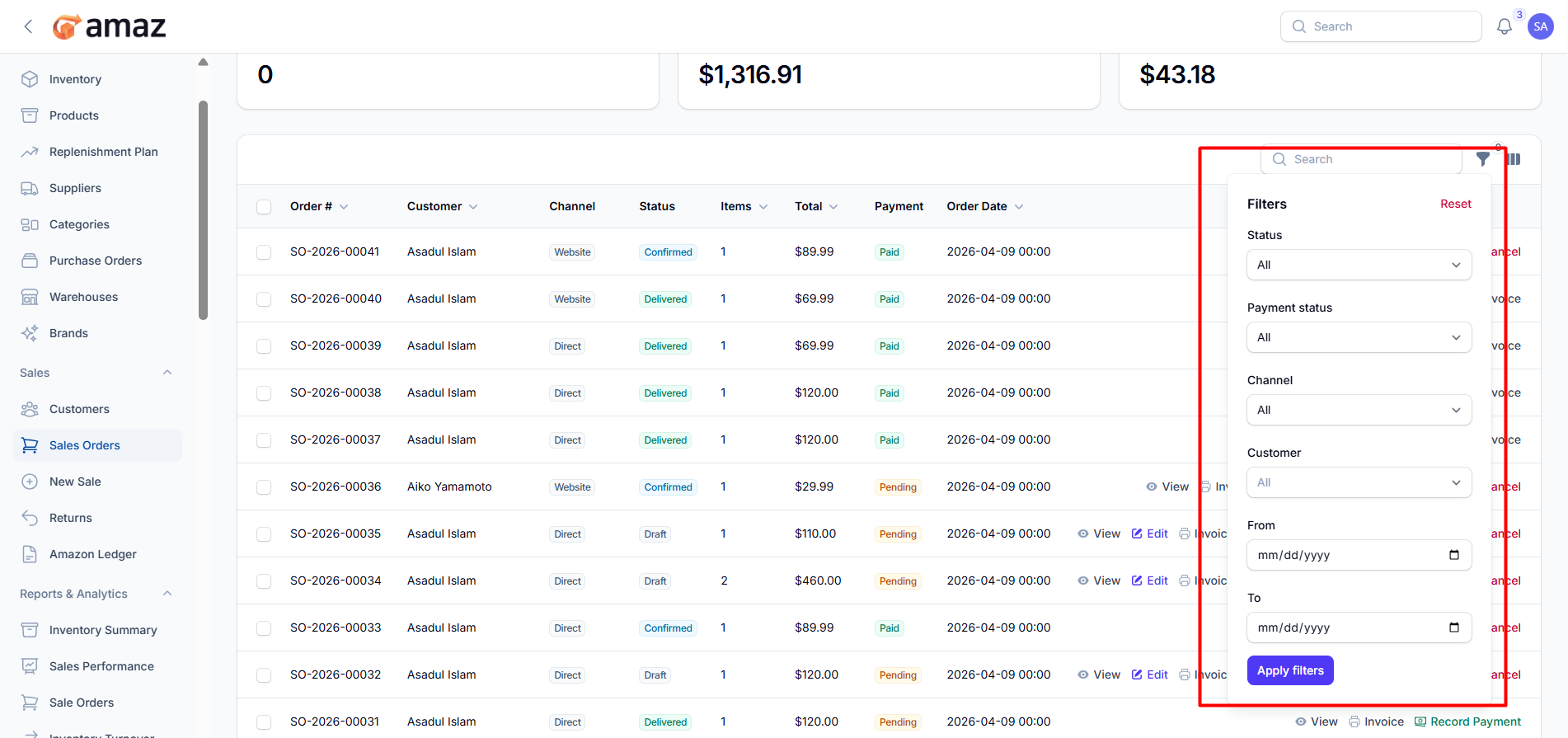
Filters:
You can use filters to quickly find specific sales orders.
Filter – Description
Status – Filter orders by their current status.
Payment Status – Filter based on payment (Paid/Unpaid).
Channel – Filter by order source (e.g., Direct, Website, Phone, Email, Marketplace).
Customer – Search orders by customer name.
From Date – View orders starting from a specific date.
To Date – View orders up to a specific date.
Reset – Clear all applied filters and return to the default view.
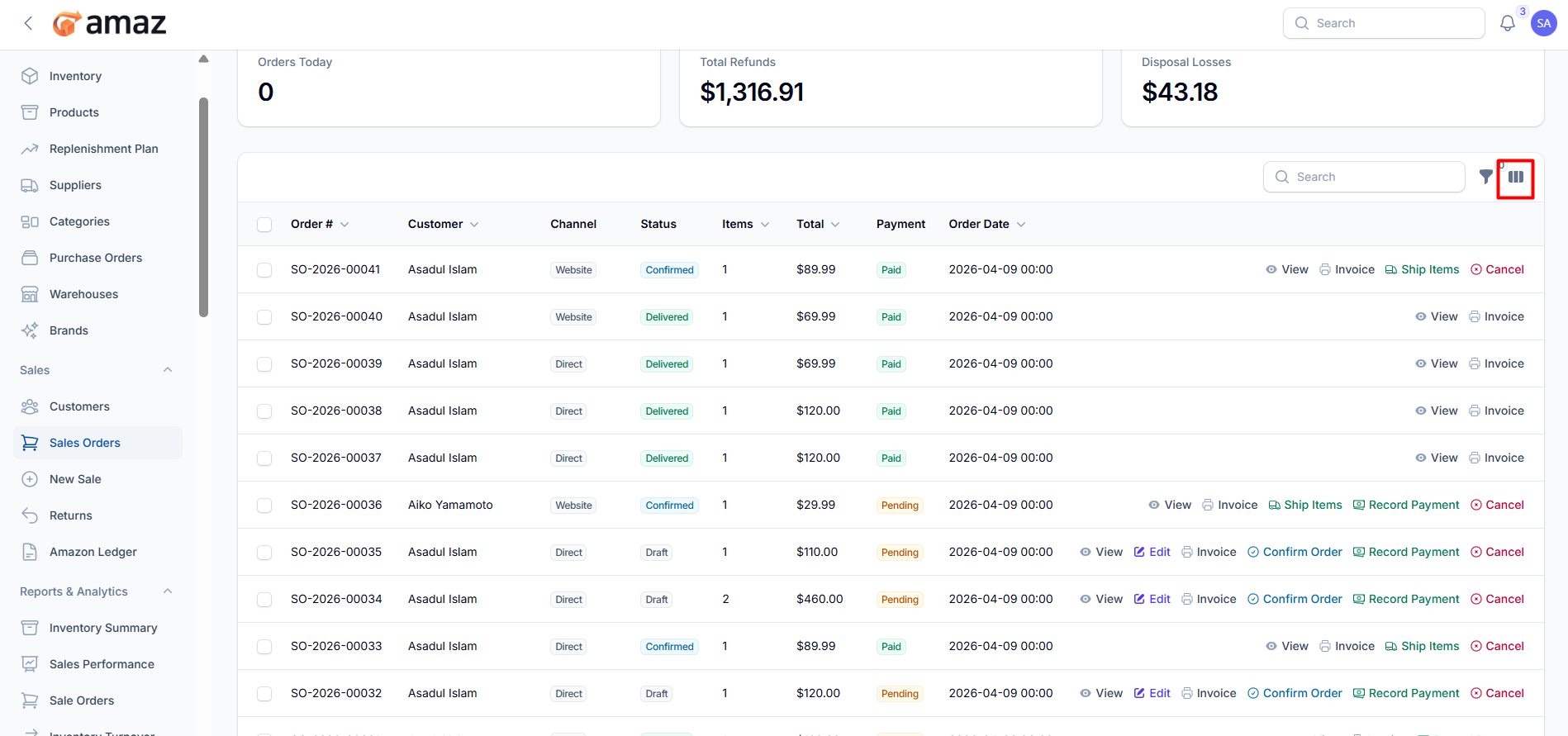
Column Customization:
You can customize the visible columns using the column customization section to display only the information you need.
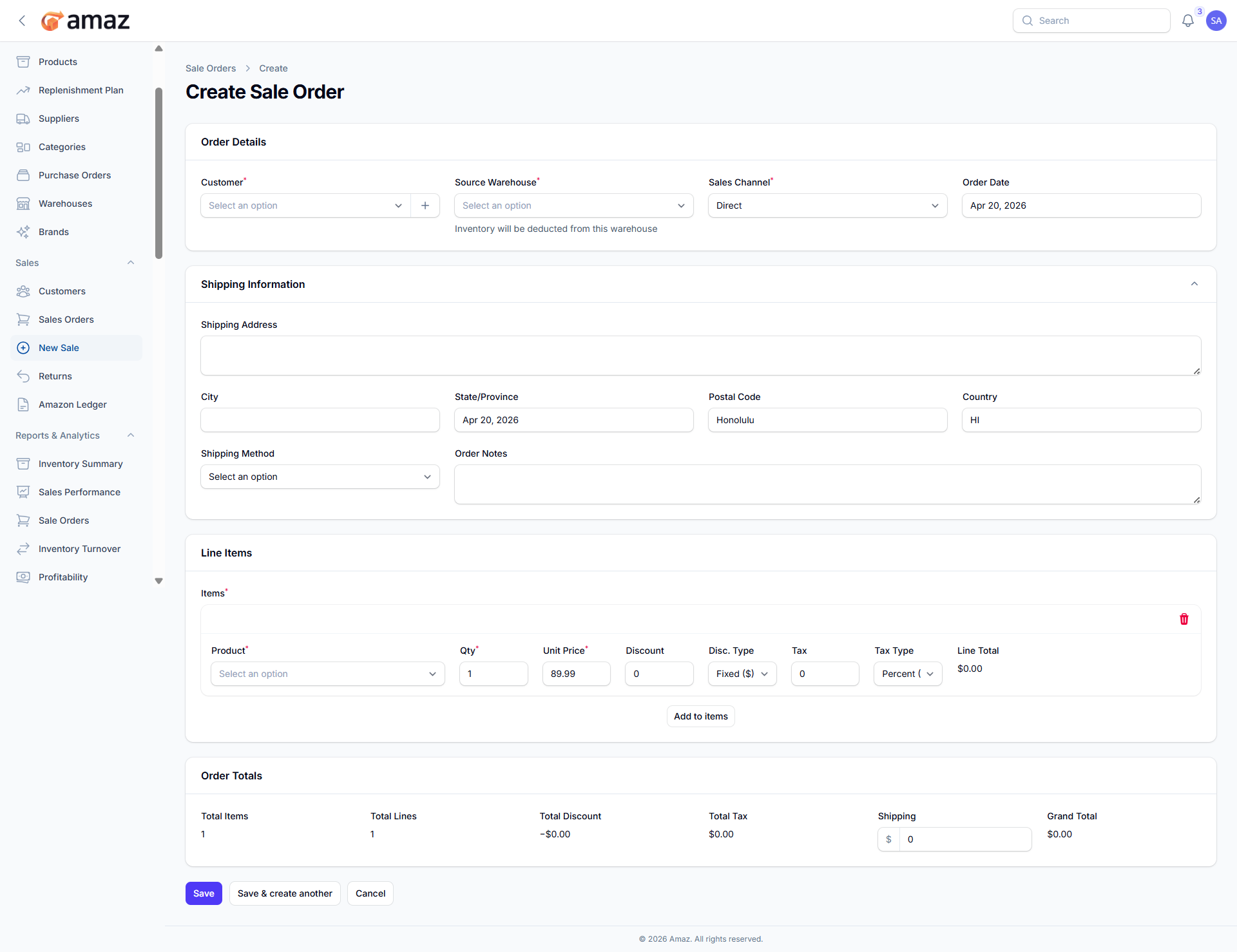
Click New Sales Order (or New Sale from the sidebar).
Fill in the order details:
Field | Description | Required
Customer – Select or create a customer. | Yes
Warehouse – Ship-from warehouse. | Yes
Channel – Order source (Direct, Website, Phone, Email, Marketplace). | Yes
Order Date – Date when the order was placed. | Yes
Order Notes – Special instructions for the order. | No
Shipping Address – Delivery address. | No
City – City of delivery. | No
State/Province – State or province. | No
Postal Code – ZIP or postal code. | No
Country – Country of delivery. | No
Shipping Method – Method of shipment. | No
Add line items:
Select Product
Enter Quantity
Unit Price – Pre-filled (can be adjusted)
Discount – Apply discount if needed
Discount Type – Type of discount (e.g., fixed or percentage)
Tax Rate % – Applicable tax rate (optional)
Tax Type – Type of tax
Click Add Items.
Review order summary:
Field – Description
Total Items – Total quantity of items.
Total Lines – Number of product lines added.
Total Discount – Total discount applied.
Total Tax – Total tax amount.
Shipping – Add shipping charges.
Grand Total – Final payable amount.
Click Save to create the sales order.
Open the Draft order.
Click Confirm Order.
Stock is reserved (shown as Reserved in inventory).
Shipping ItemsOpen the Confirmed order.
Click Ship Items.
Enter shipping details:
Tracking Number – (optional)
Shipping Method – Standard, Express, Overnight, Economy
For each item, enter Quantity to Ship Now
Click Ship.
What Happens:
Inventory is deducted from the warehouse.
Status updates to Shipped (or Partially Shipped).
Reserved quantities are released.
Open the Shipped order.
Click Mark as Delivered.
Status changes to Delivered.
Recording PaymentsOpen the order.
Click Record Payment.
Fill in:
Field – Description
Amount – Payment amount.
Payment Method – Cash, Credit Card, Bank Transfer, Check, PayPal, Other.
Reference Number – For non-cash payments.
Bank Name – For bank/check payments.
Financial Account – Account to credit.
Notes – Additional information.
Click Submit.
Payment Statuses:
Pending – No payment received.
Partial – Partial payment received.
Paid – Fully paid.
Open the order.
Click Invoice action.
Invoice opens in a new browser tab.
Use your browser’s print function (Ctrl + P or Cmd + P).
Invoice Contents:
Company logo and details
Customer billing and shipping addresses
Order number and date
Line items with quantities, prices, discounts, and taxes
Subtotal, total discount, total tax, and grand total
Open the order.
Click Cancel.
Enter Cancellation Reason.
Click Submit.
Note: Only orders that have not been fully shipped can be cancelled. Cancelling an order releases reserved stock.