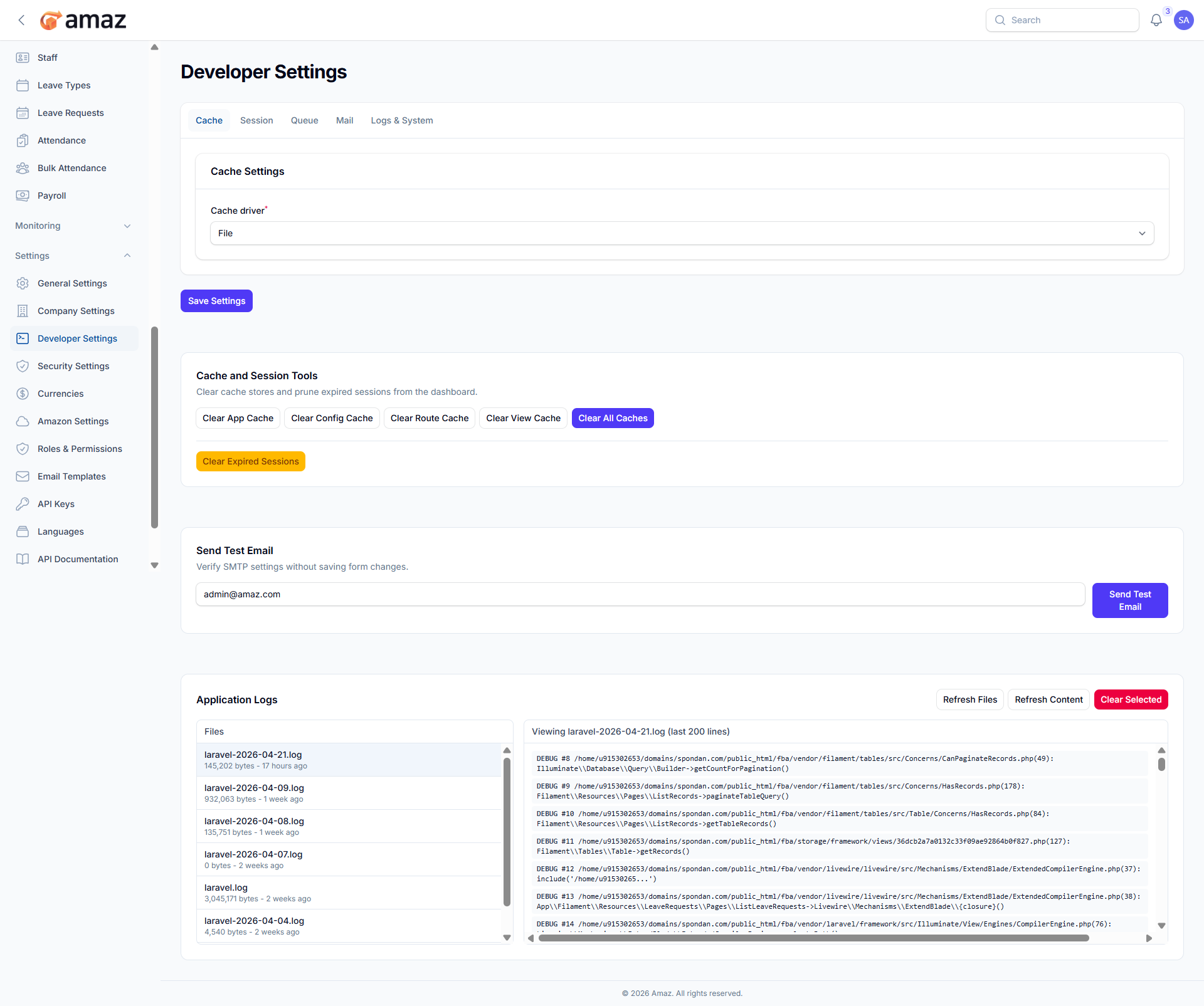
Developer Settings
Technical configuration and debugging.
Location: Sidebar → Settings → Developer Settings
Cache
Session
Queue
Logs & System
Field – Description
Cache Driver – Select the caching method (e.g., File, Redis, etc.).
Field – Description
Session Driver – Defines how session data is stored (e.g., File, Database, Redis).
Session Lifetime – Duration (in minutes) before a session expires.
Encrypt Session Data – Enable or disable encryption for session data.
Field – Description
Queue Driver – Defines the queue system used for background jobs (e.g., Sync, Database, Redis).
Field – Description
Mail Mailer – Mail sending protocol (e.g., SMTP, Sendmail).
Mail Port – Port used for mail server communication.
Mail Username – Username for mail server authentication.
Mail Password – Password for mail server authentication.
Field – Description
Redis Host – Host address of the Redis server.
Redis Port – Port used to connect to Redis.
Redis Username – Username for Redis authentication (if applicable).
Redis Password – Password for Redis authentication.
Field – Description
PHP Version – Current version of PHP running the application.
Laravel Version – Current version of the Laravel framework used.
Action:
Save Settings – Save the selected cache configuration.
Manage and clear cached data and sessions.
Action – Description
Clear App Cache – Remove application cache data.
Clear Config Cache – Clear cached configuration settings.
Clear Route Cache – Clear cached route definitions.
Clear View Cache – Remove compiled view files.
Clear All Caches – Clear all types of cache at once.
Clear Expired Sessions – Remove expired user sessions.
Send a test email to verify mail configuration.
View and manage system log files.
Section – Description
Files – List of available log files with size and last updated time.
Log Viewer – Displays the contents of the selected log file (latest entries).
Action – Description
Refresh Files – Reload the list of log files.
Refresh Content – Reload the selected log content.
Clear Selected – Delete the selected log file.