Language Management
Configure system languages.
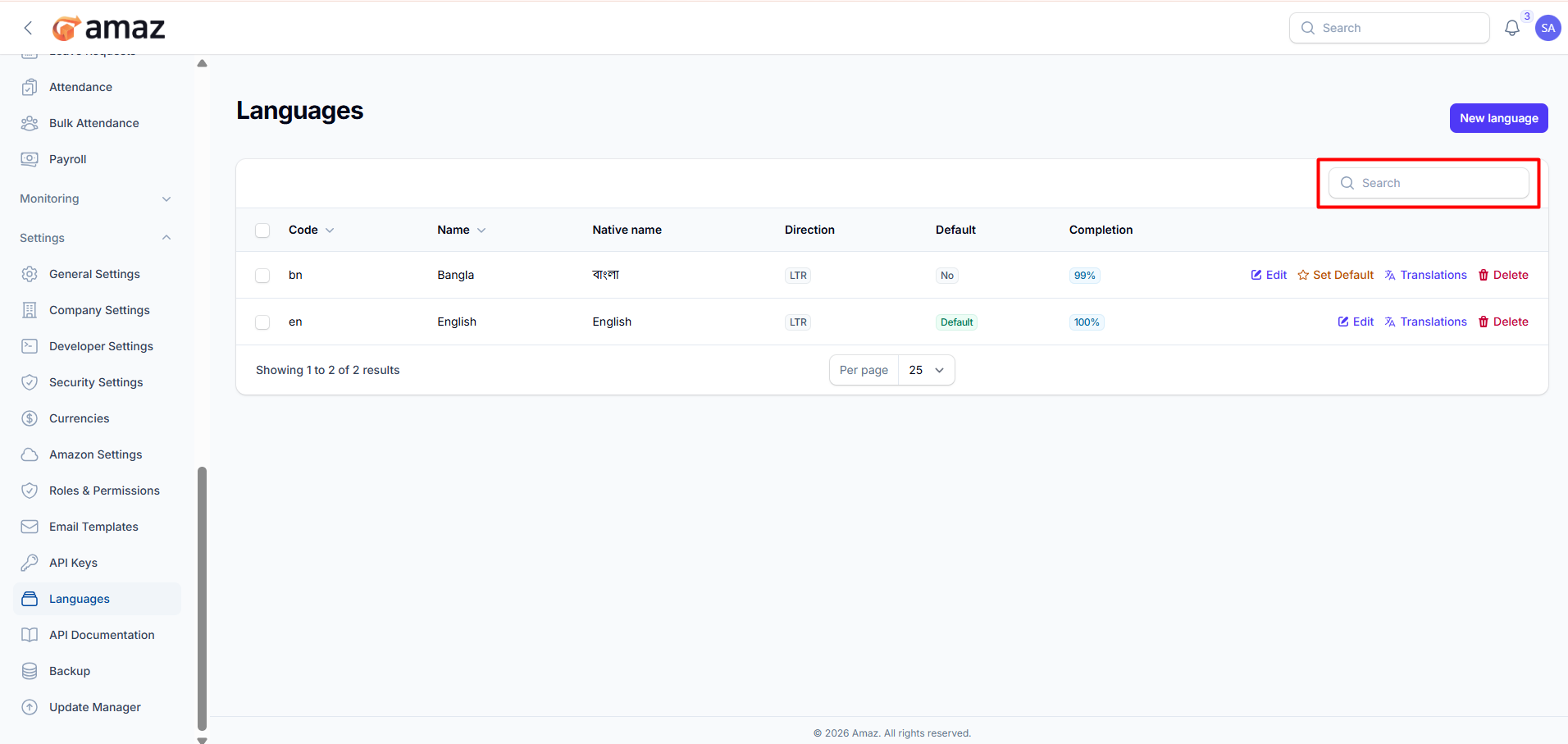
Location: Sidebar → Settings → Languages
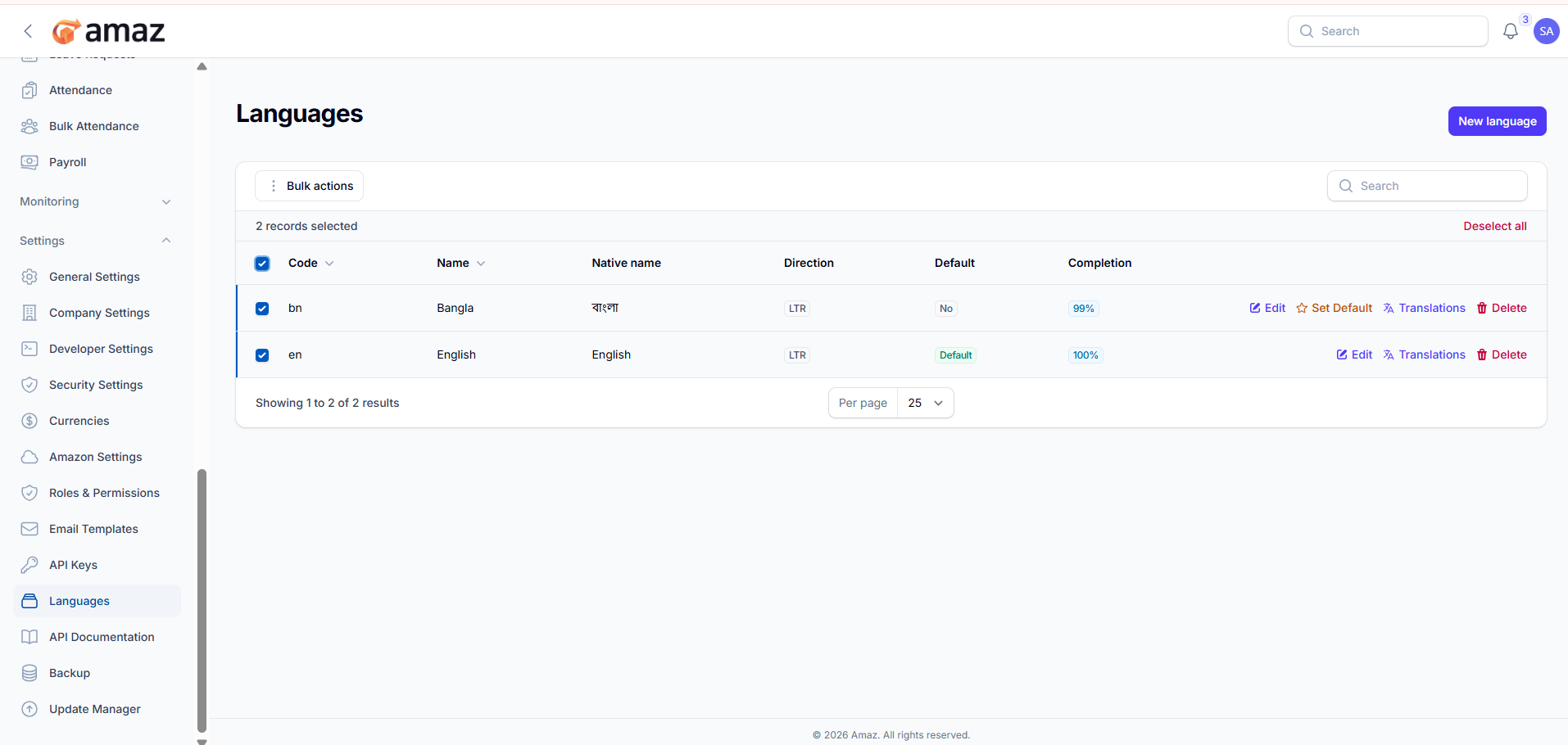
From here you can view all available languages along with their details.
Field – Description
Code – Unique language code (e.g., en, fr).
Name – Language name in English.
Native Name – Language name in its native form.
Direction – Text direction (e.g., LTR – Left to Right, RTL – Right to Left).
Default – Indicates whether the language is set as default.
Completion – Percentage of translation completed for the language.
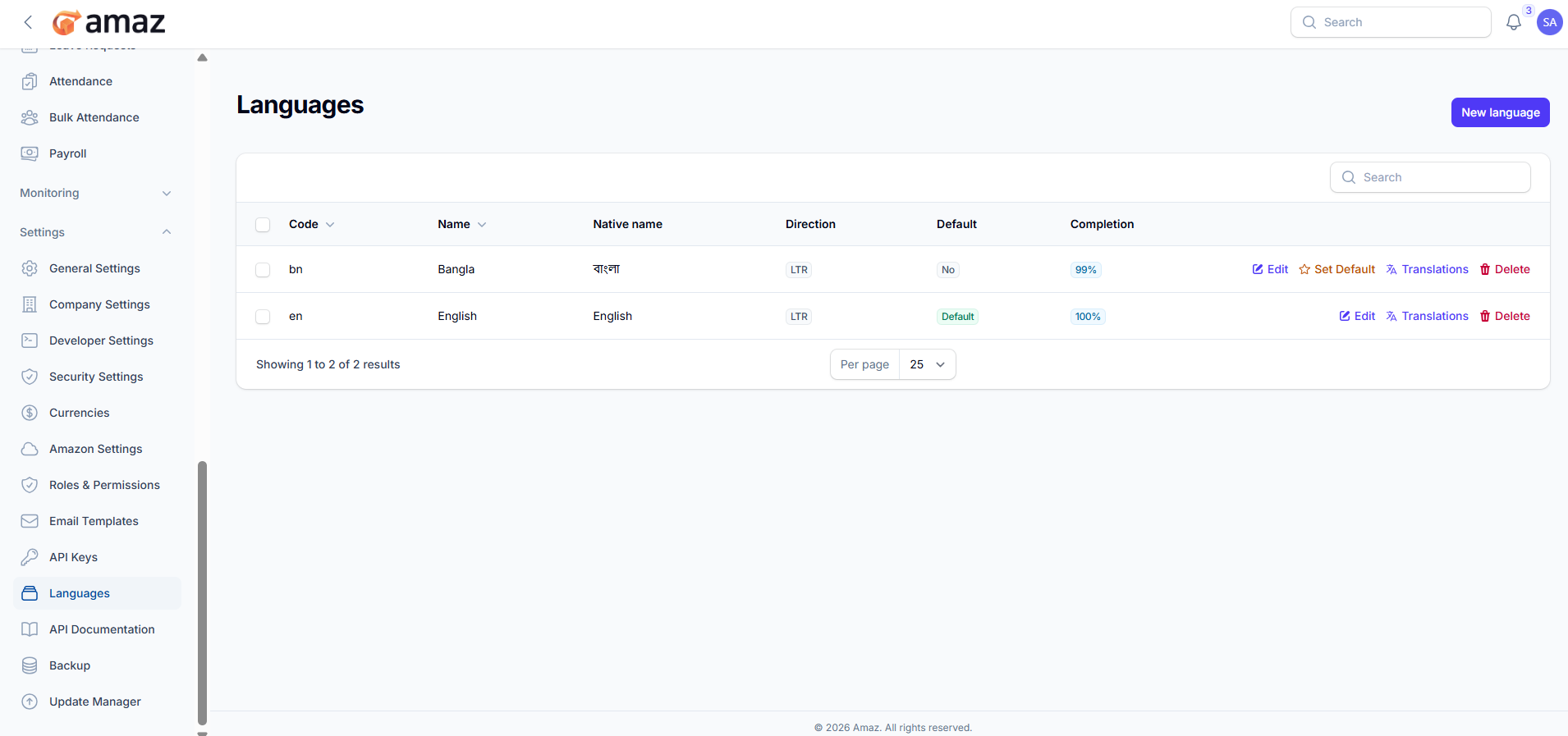
Action – Description
Edit – Update language details.
Set as Default – Set the selected language as the system default.
Translations – Manage and update translations for the language.
Delete – Remove the language from the system.
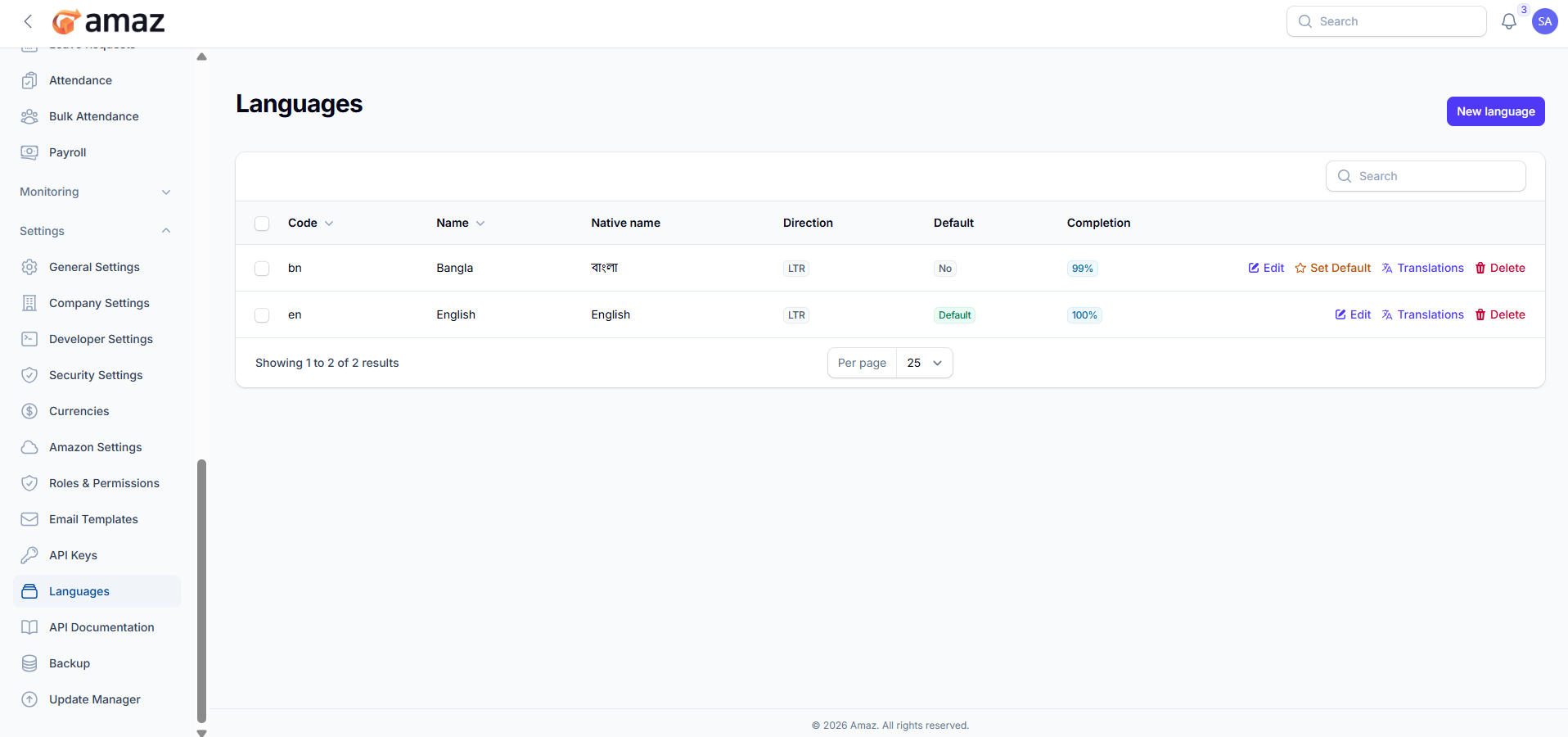
Option – Description
Select Language Checkbox – Select an individual language from the list.
Select All – Select all languages at once.
Deselect All – Clear all selected languages.
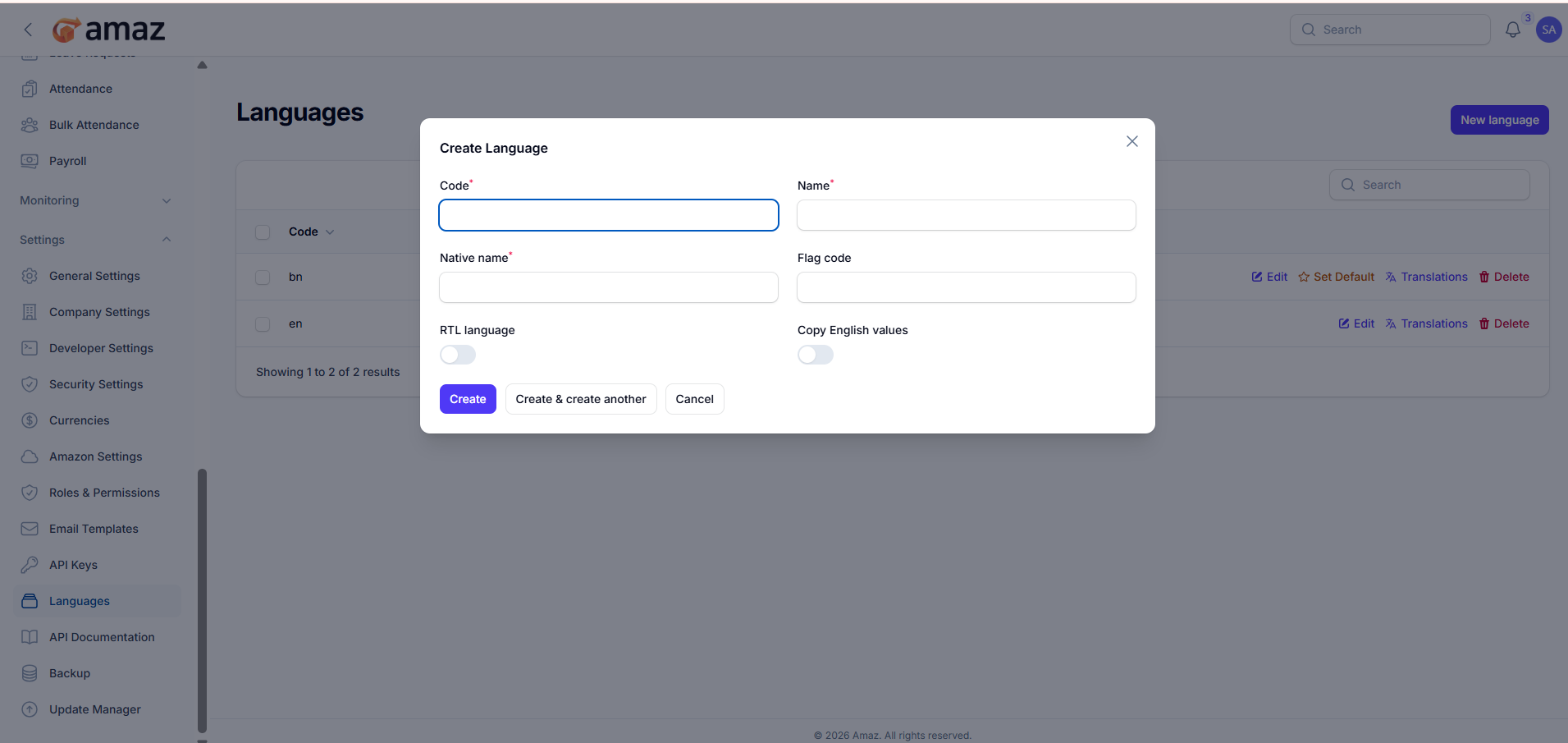
Click the Create button.
Fill in the following details:
Field – Description
Code – Unique language code (e.g., en, fr).
Name – Language name in English.
Native Name – Language name in its native form.
Flag Code – Country or language flag identifier.
RTL Toggle – Enable if the language uses right-to-left direction.
Copy English Value – Enable or disable copying default English values for translations.
Click Save to create the language.
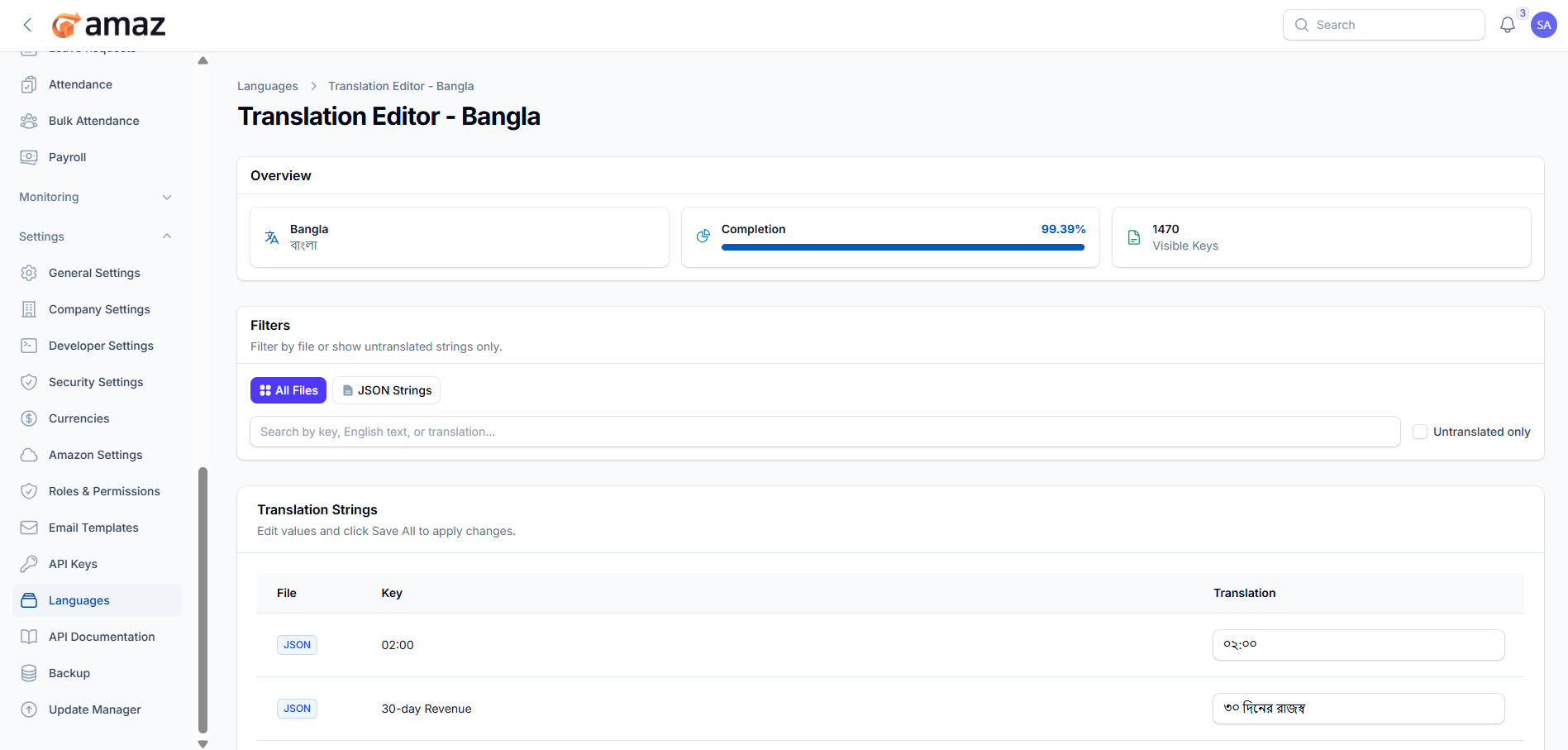
Translation Editor:
Manage and update system translations for the selected language.
Location: Settings → Languages → Translation Editor
Overview Section:Field – Description
Language – Selected language (e.g., Bangla).
Completion – Percentage of completed translations.
Visible Keys – Total number of translation keys available.
Filter – Description
All Files / JSON Strings – Filter translations by file type.
Search – Search by key, English text, or translated value.
Untranslated Only – Show only untranslated strings.
From here you can view and edit translation entries.
Column – Description
File – Source file of the translation (e.g., JSON).
Key – Unique identifier for the text string.
Translation – Translated value for the selected language.