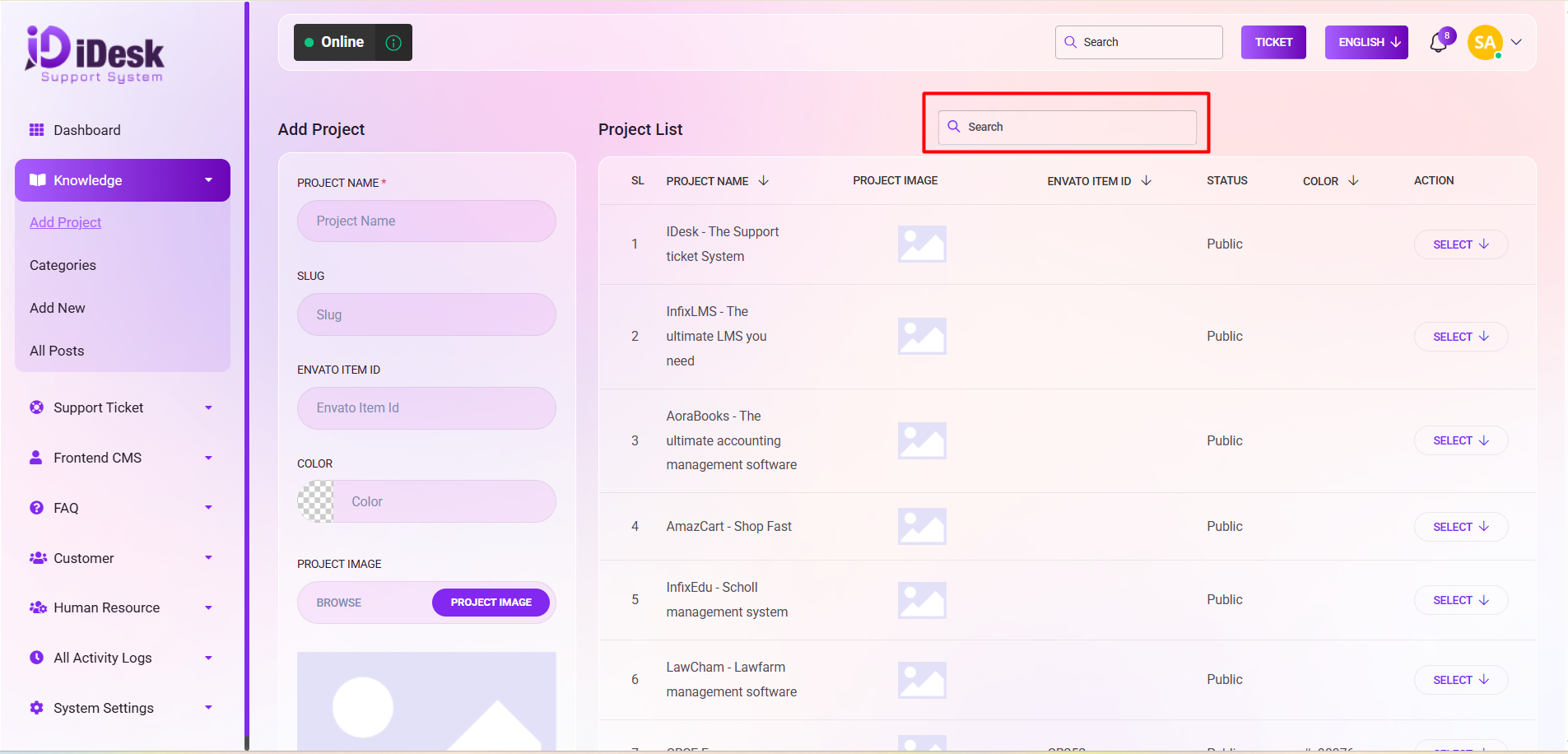
Add Project
To include a new project, which refers to a product in this context, follow these steps:
Project Name: Enter the name of the project.
Slug: Input the data in the slug for a URL that is SEO-friendly.
Envato Item ID: Provide the relevant ID for Envato.
Color Selection: Click on the color button to choose the desired color from the menu.
Project Image: Click on the "Project Image" button. Browse and select the desired image for the project.
Visibility: Check the box for visibility. Choose either Public or Private based on requirements.
Saving Data: Click the "Save" button to store the entered data.
Project List: On the right side, a Project List will appear with details such as
SL: You can see the serial number of the project here.
Project Name: You can see the name of the project here.
Project Image: You can see the project image here.
Envato Item ID: You can see the envato item id here.
Status: You can see the status of the project here, if it is public or not.
Color: You can see the color you have set for this project from here.
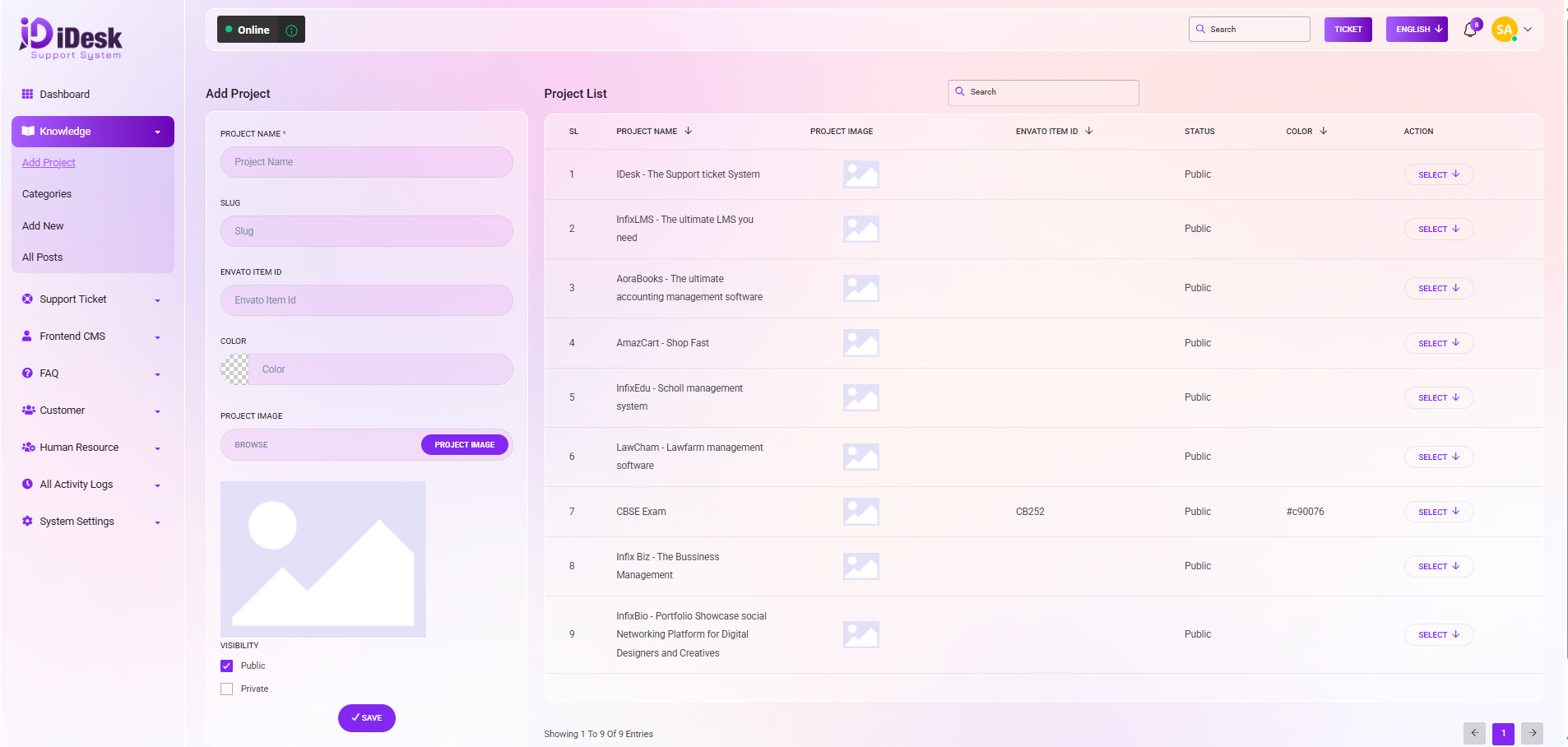
The "Select" button under the Project List allows you to perform below actions:
Edit: By clicking this you can edit the project if you want to change anything.
Delete: By clicking this you can delete the project from the list.
Manage Project: By clicking this you can arrange the project according to your need.
Manage FAQ: By clicking this you can manage the FAQ of the project according to your need.
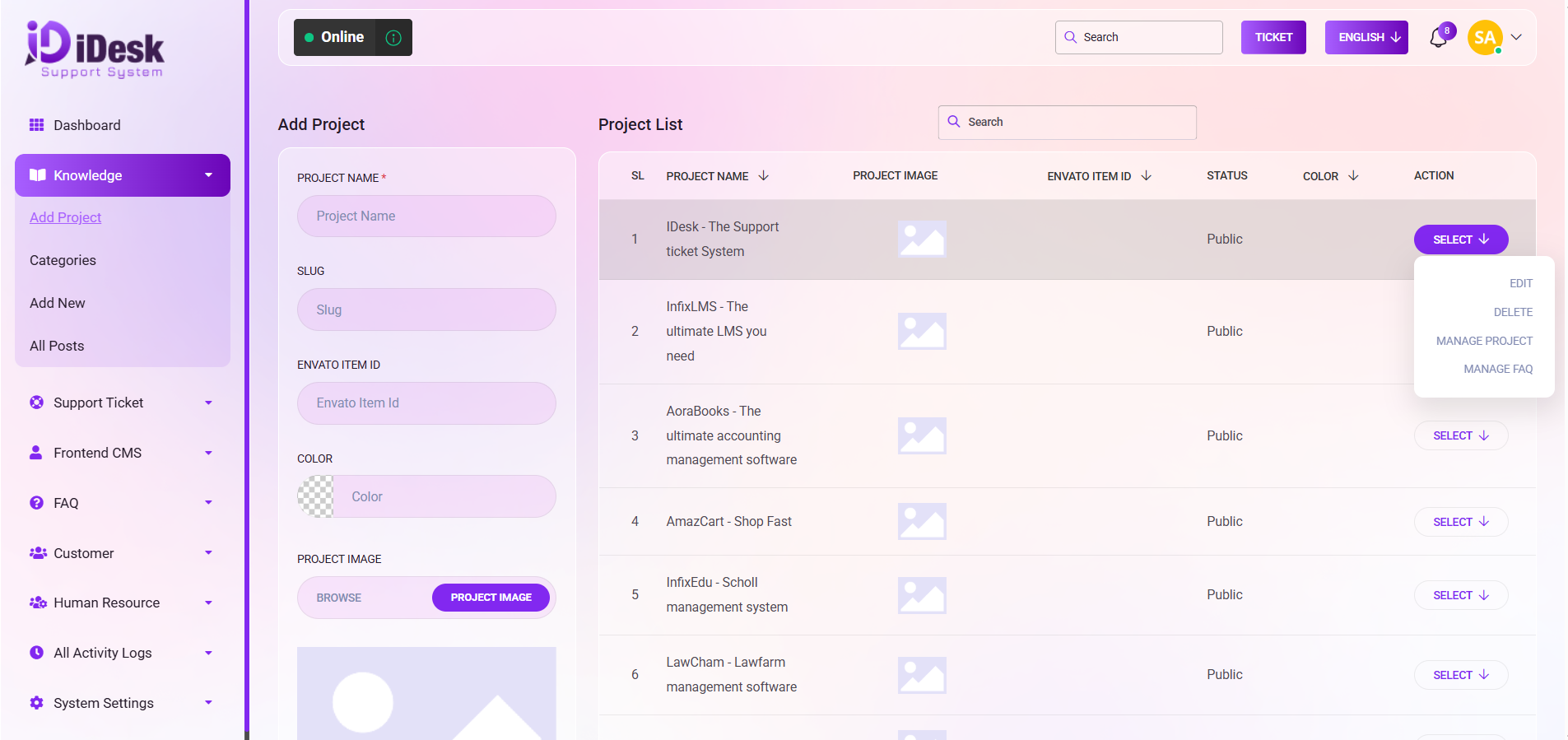
Search: You can easily find out any specific project from the list using the search functionality.