Envato accounts within the software. Here's how it works:
Enabling/Disabling Envato:
Activate or deactivate the Envato mode by toggling the "On/Off" button.
Account Configuration:
Easily link your Envato accounts by entering the corresponding Envato ID, secret, and personal token.
Assign a custom name to each account for easy reference (e.g., Envato One, Envato Two, Envato Three).
Product Import:
Effortlessly import all products associated with the linked Envato accounts.
Streamline your workflow by consolidating products from various Envato accounts.
Account Activation:
Enable the "Active This Account" feature to allow users to log in using their Envato credentials.
Upon activation, users gain access to their purchased list, providing a seamless experience.
Updating Settings:
Finally, ensure that you save your changes by clicking the "UPDATE" button.
These steps will help you configure your Envato settings.
This feature enhances user convenience by centralizing Envato account management and simplifying the importation of products associated with each account. The "Active This Account" button ensures users can effortlessly log in with their Envato credentials and access their purchase history associated with the active account.
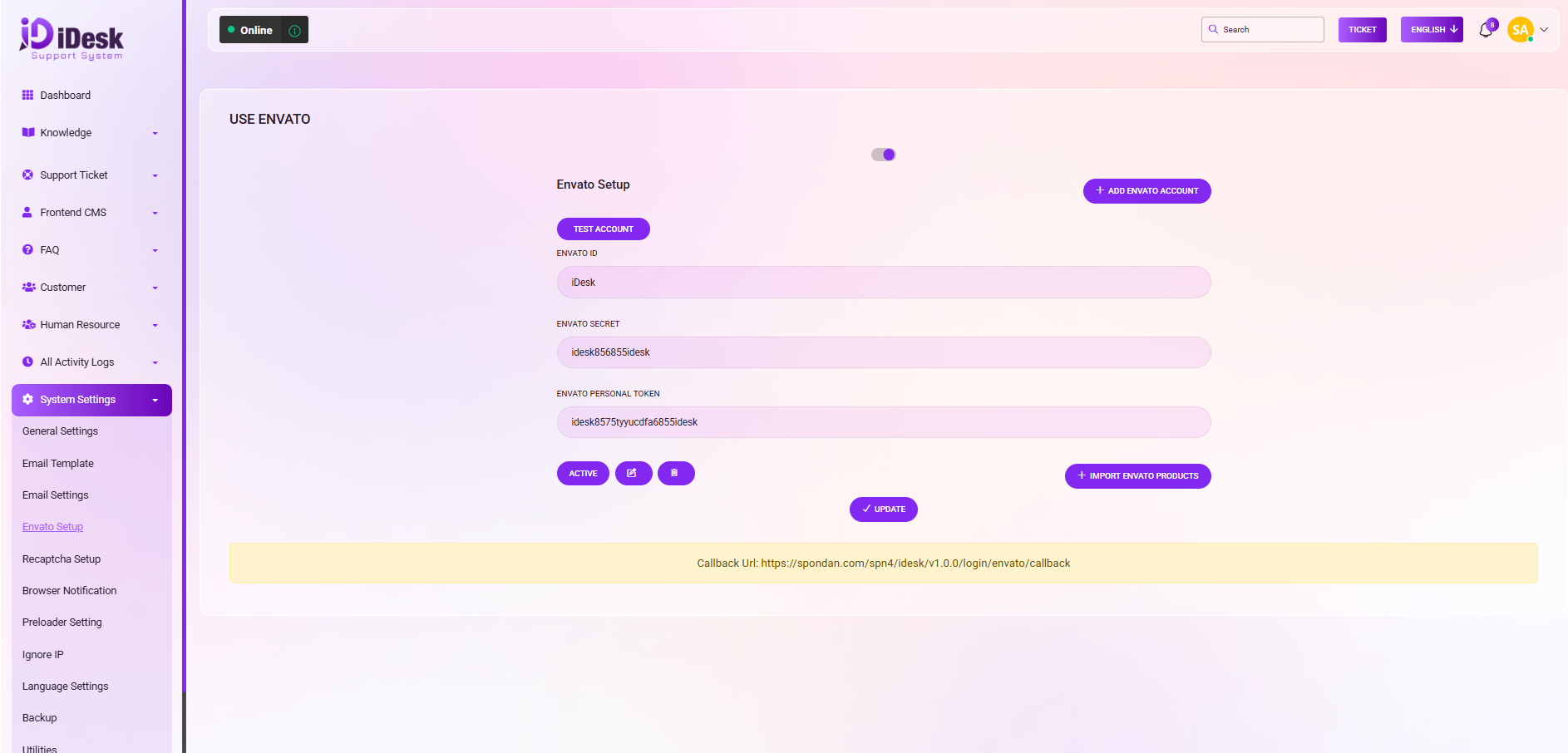
To get the Envato ID and Envato Secret shown in your screenshot, you must register a new application.
Login: Go to the Envato API "My Apps" page.
Register New App: Click on the button to register a new application.
App Details:
App Name: Enter a name (e.g., "iDesk Support").
Confirmation URL: Copy the Callback Url from the bottom of your iDesk screen and paste it here.
Permissions: Check the boxes for the permissions your system needs (typically "View and search Envato sites" and "Verify purchases of your items").
Save: Click Register App.
Copy Credentials: Envato will provide you with a Client ID (your Envato ID) and a Client Secret (your Envato Secret).
Important: Copy the Secret immediately, as it may not be shown again.
For the Envato Personal Token field:
Create Token: Go to build.envato.com/create-token.
Token Name: Give it a recognizable name (e.g., "iDesk Token").
Permissions: Ensure the following are checked:
View and search Envato sites
View your Envato Account username
List purchases you've made
Verify purchases you've made
Create: Agree to the terms and click Create Token.
Copy Token: Copy the long string of characters provided. This is your Personal Token.
Paste Details: Enter the Envato ID, Secret, and Personal Token into the corresponding fields in your iDesk panel.
Update: Click to update the settings.