Browser Notification
A real-time alert or message displayed directly in the user’s web browser, used to inform users about updates, reminders, or important activities without needing to open the application.
From here you can set the notification. To do that just follow the below steps:
Api Key: Set the API Key from here.
Auth Domain: Set the auth domain.
Project ID: Set the project id.
Storage Bucket: Set the storage bucket.
Messaging Sender ID: Set the messaging sender id.
APP ID: Set the app id.
Measurement ID: Set the measurement id.
Update: Click to update the settings.
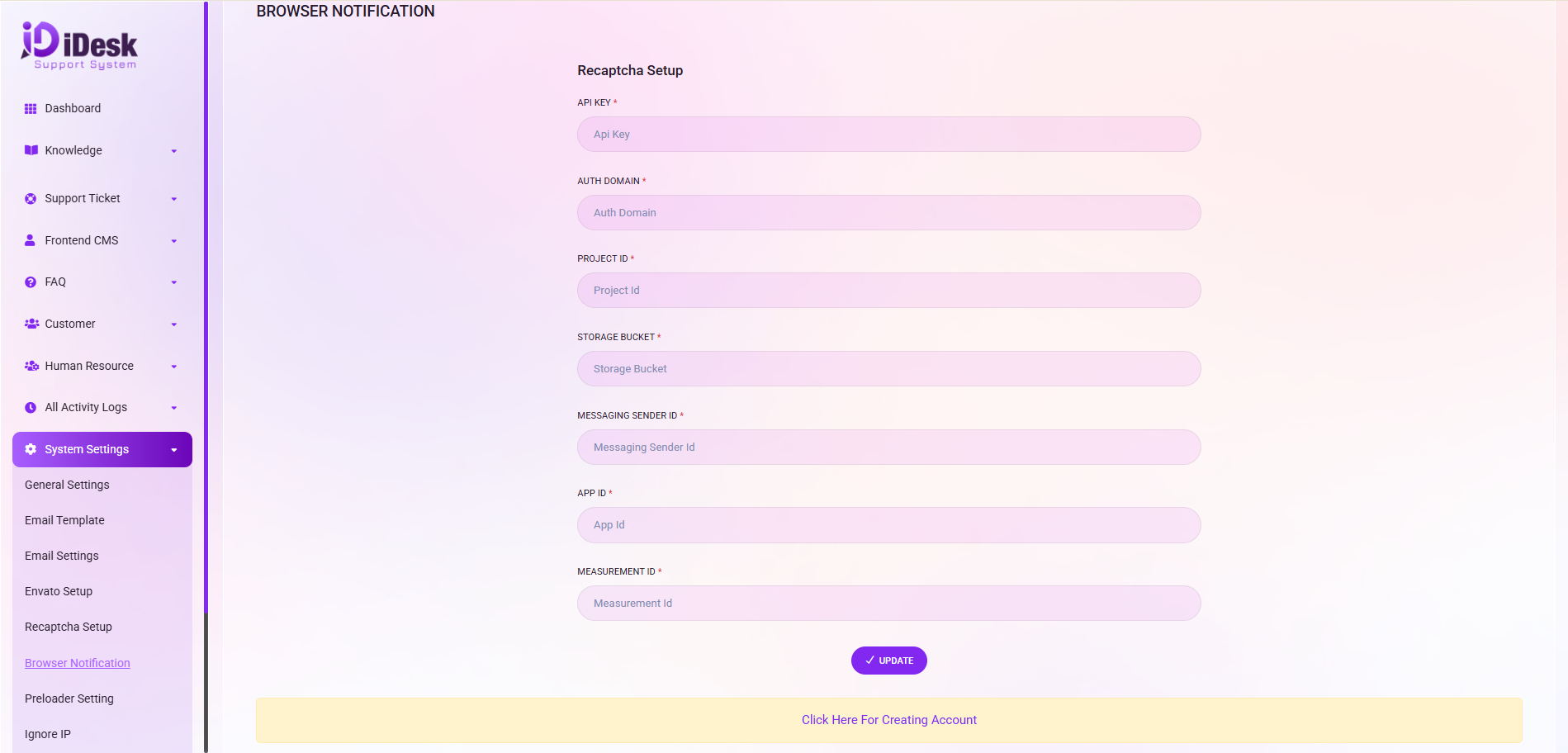
To get the credential Just click on “Click here to Create Account”. It will take you to the firebase. Then follow the below steps:
Go to the Firebase Console.
Click Add Project (or "Create a project").
Enter a project name (e.g., "iDesk Support") and click Continue.
You can choose to enable or disable Google Analytics. If you enable it, you will get a Measurement ID (which is one of the fields in your screenshot).
Click Create Project and wait for it to finish.
Once inside your new project dashboard, click the Web icon (</>) located in the center of the screen.
Enter an app nickname (e.g., "iDesk Web").
Click Register app.
After registering the app, Firebase will display a block of code called firebaseConfig. It will look like this:
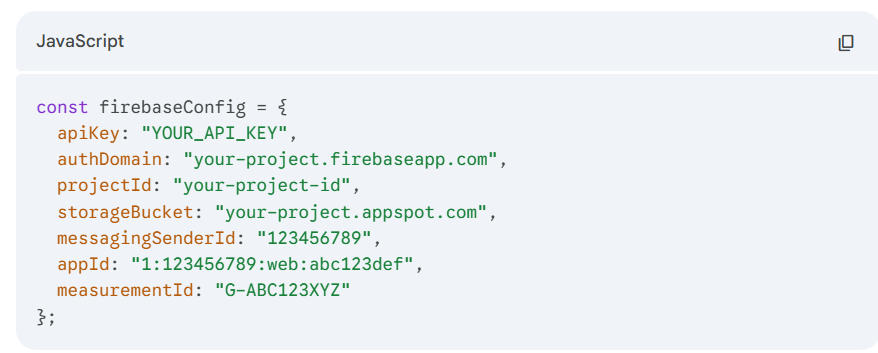
Just put all the data and click on update browser notification will be setup successfully.