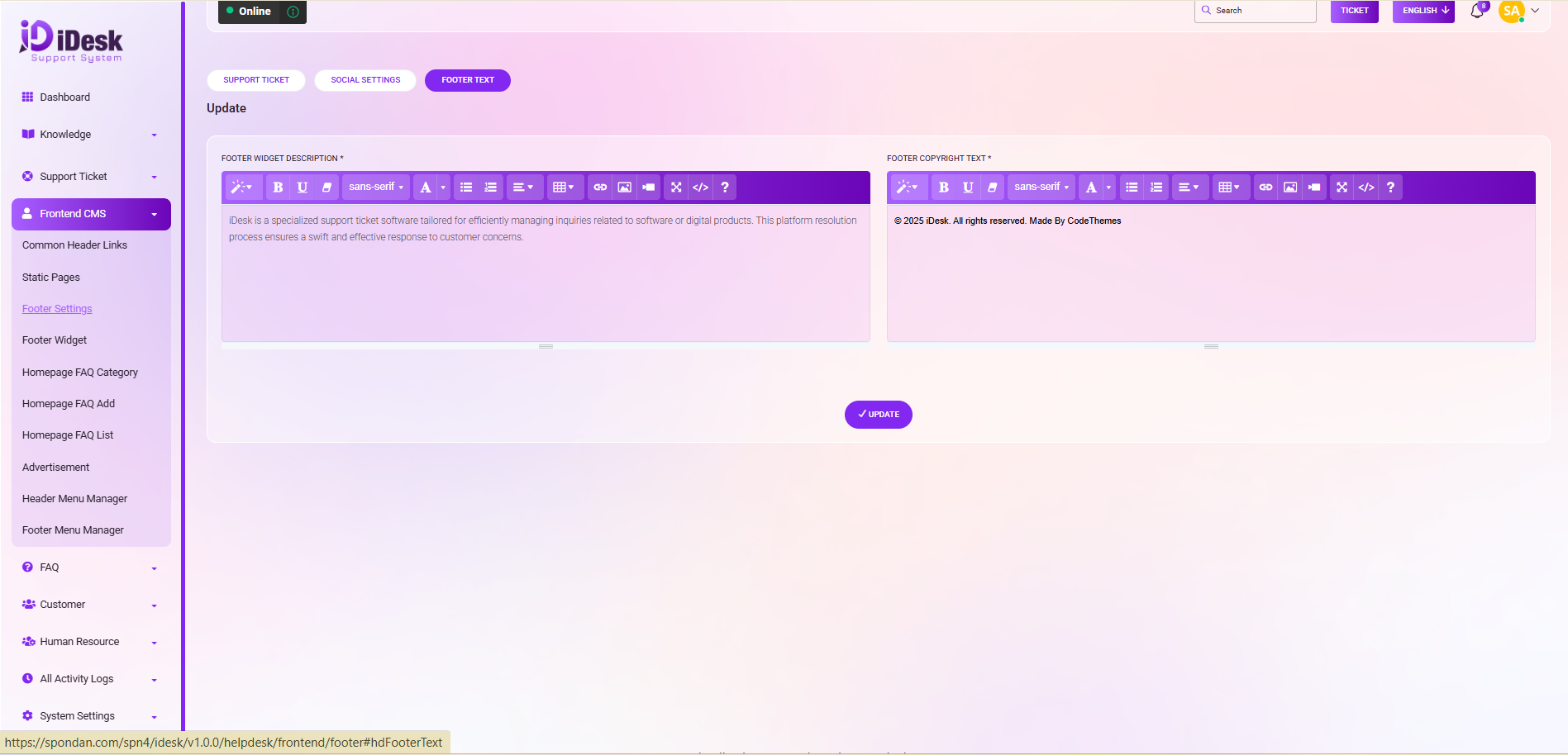
Footer Settings
Footer settings control the content and layout displayed at the bottom of a website, such as copyright text, links, contact information, and social media icons. They help provide important information and quick navigation across the site.
Support Ticket: From here you can update the footer settings for support tickets. To update this settings just follow the below steps:
Ticket Title: Set the title of the ticket.
Ticket Button Text: Set the ticket button text.
Status: Set the status if it is active or not.
Support Logo: Upload and update the support logo.
Ticket Sub Title: Set the sub title of the ticket.
Update: Click the update button to set the settings.
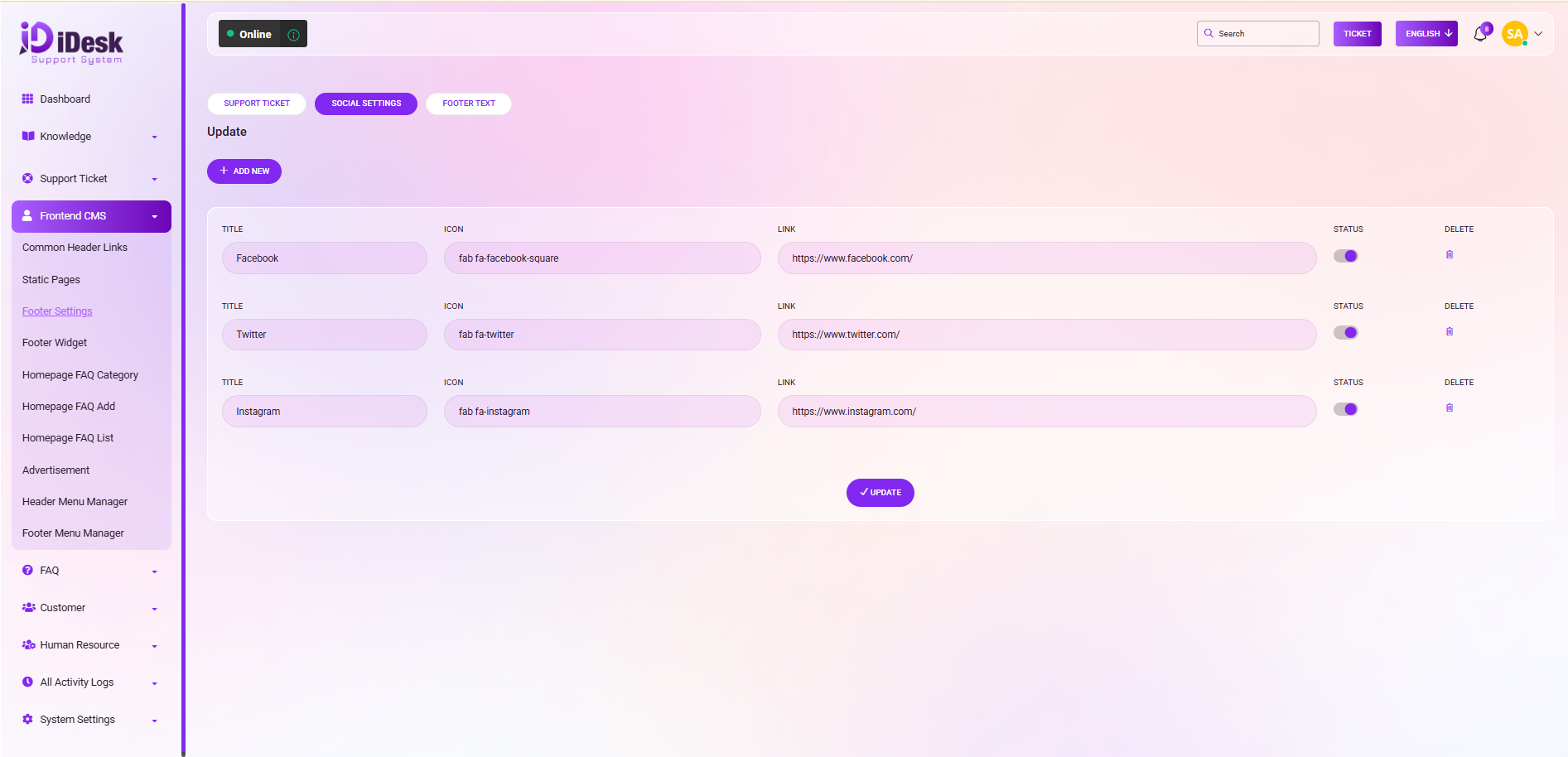
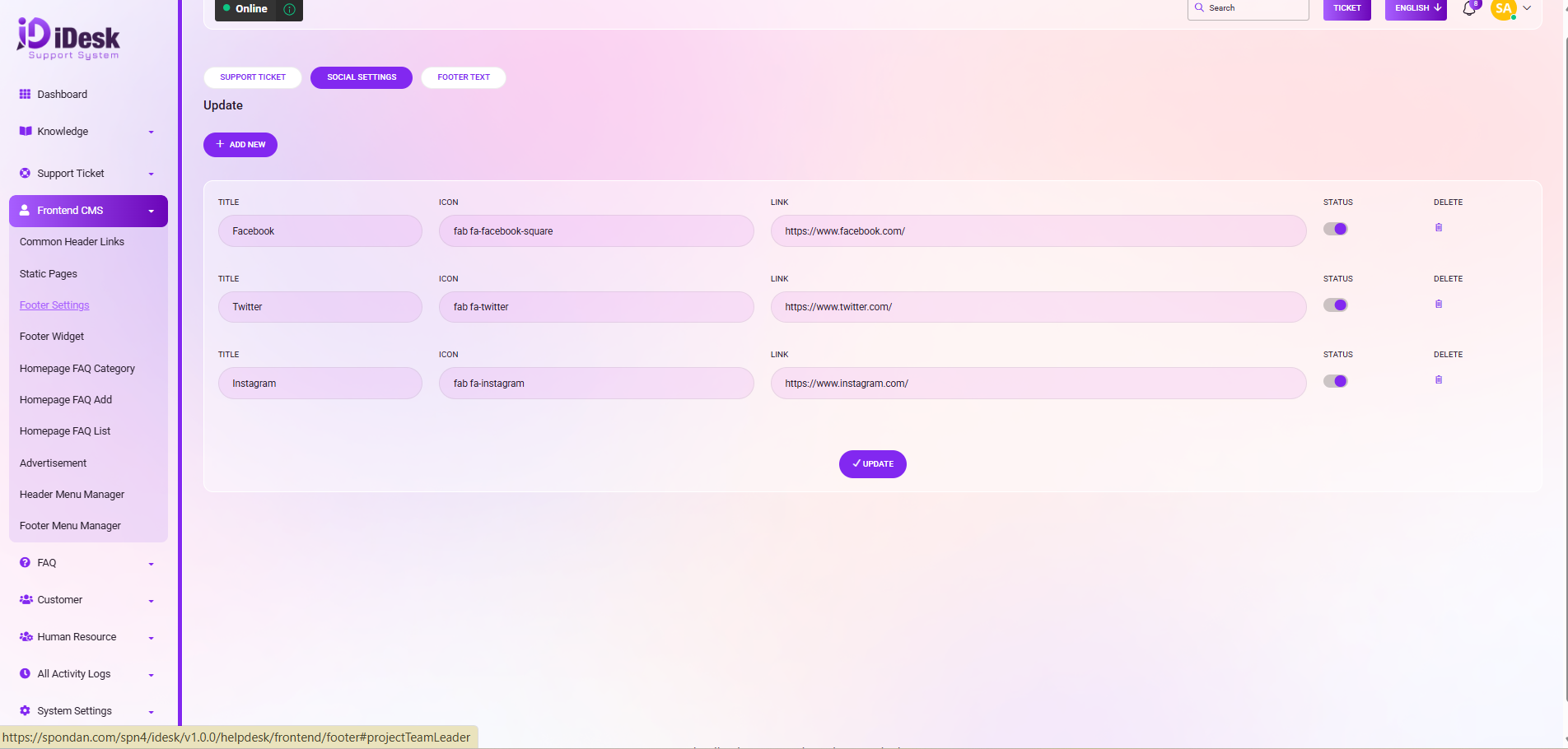
From here you can see the social settings with details and also can add a new social platform if you want. To do that just click on the “Add New” button and follow the below steps:
Title: Set the title of the social media.
Icon: Set the icon of the social media.
Link: Set the link of the social media.
Status: Set the status of social media.
Delete: Click the icon if you want to delete the social media.
Update: Click the button to update the settings.
From here you can set the footer text. To do that just follow the below steps:
Footer Widget Description: From here you can set the footer widget description. Just type down the description here.
Footer Copyright Text: Write down the footer copyright text here.
Update: Click the update button and your text will be shown in the frontend.