The Online Exam Settings module allows administrators to define the global rules and behavioral parameters that apply to all digital assessments. These configurations ensure academic integrity, standardize the testing experience, and automate grading processes.
Log in to your InfixEdu Admin Dashboard.
Navigate to the left-hand sidebar and select Online Exam.
Click on Settings at the bottom of the submenu to open the configuration panel.
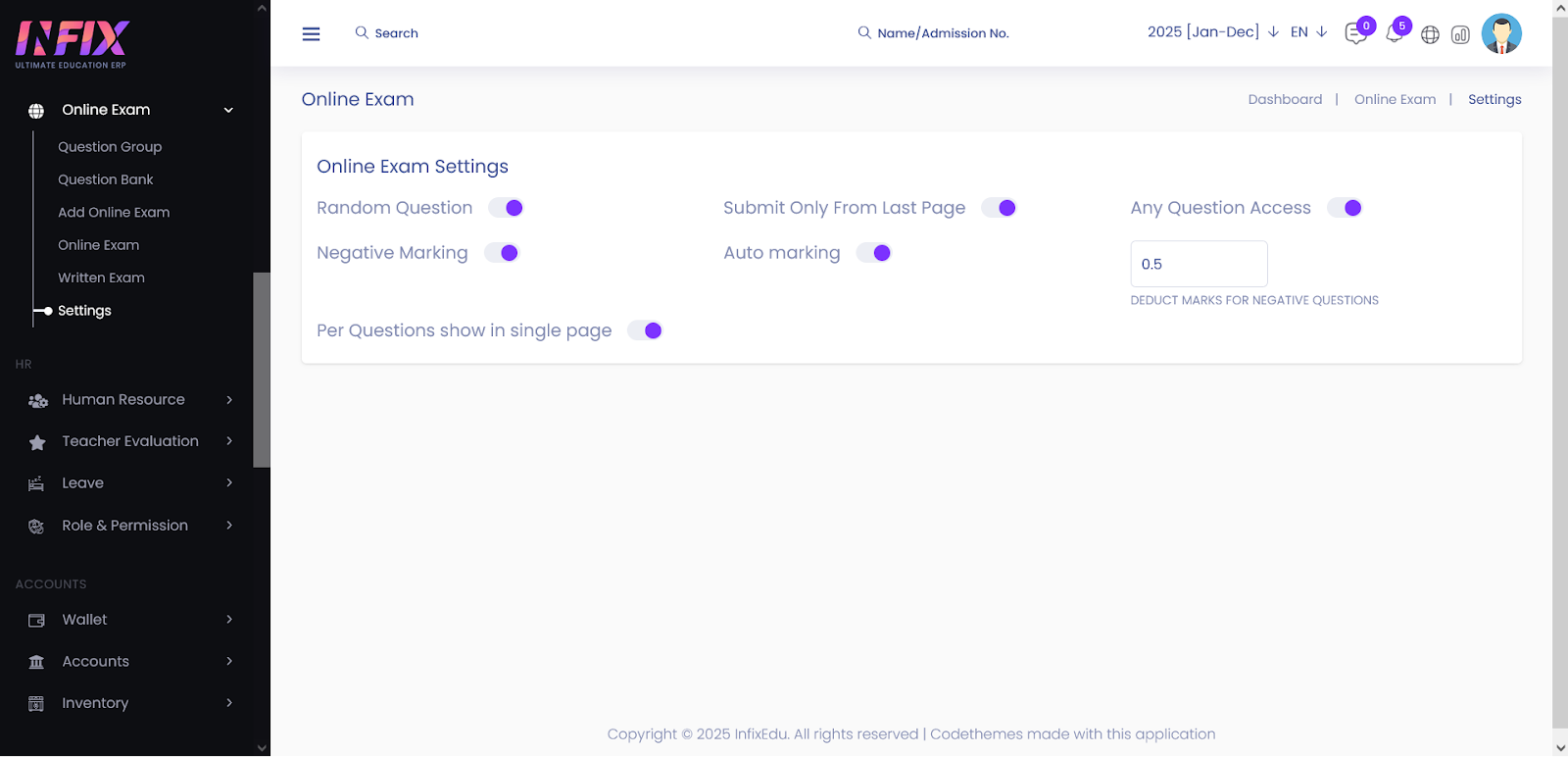
Use these toggles to customize how students interact with their exams:
Random Question: When enabled, the system will shuffle the order of questions for every student, making it harder for students to share answers in a synchronized environment.
Any Question Access:
Enabled: Allows students to jump between questions in any order.
Disabled: Forces a sequential progression where students must answer the current question before moving to the next.
Submit Only From Last Page: If active, the final "Submit" button will only appear once the student has navigated to the very last question of the exam.
Per Questions Show in Single Page: Enable this to display only one question at a time. This is recommended for reducing student distraction and managing server load during high-traffic exams.
Configure how the system handles marks and evaluations:
Auto Marking: Enable this for objective-based exams (Multiple Choice, True/False). The system will instantly calculate results upon submission based on the predefined answer key.
Negative Marking:
Toggle this to Active to penalize incorrect answers.
Deduct Marks: Input the specific value to be deducted for each wrong answer (e.g., 0.25 or 0.5). This value is subtracted from the student's total earned score.


