The Online Exam module allows you to digitize your assessment process. Use this tool to schedule exams, define passing criteria, and assign specific question banks to classes and sections.
1. Accessing the Online Exam ModuleLog in to your InfixEdu Dashboard.
In the main sidebar, navigate to Online Exam.
Select Add Online Exam from the dropdown menu to create a new one.
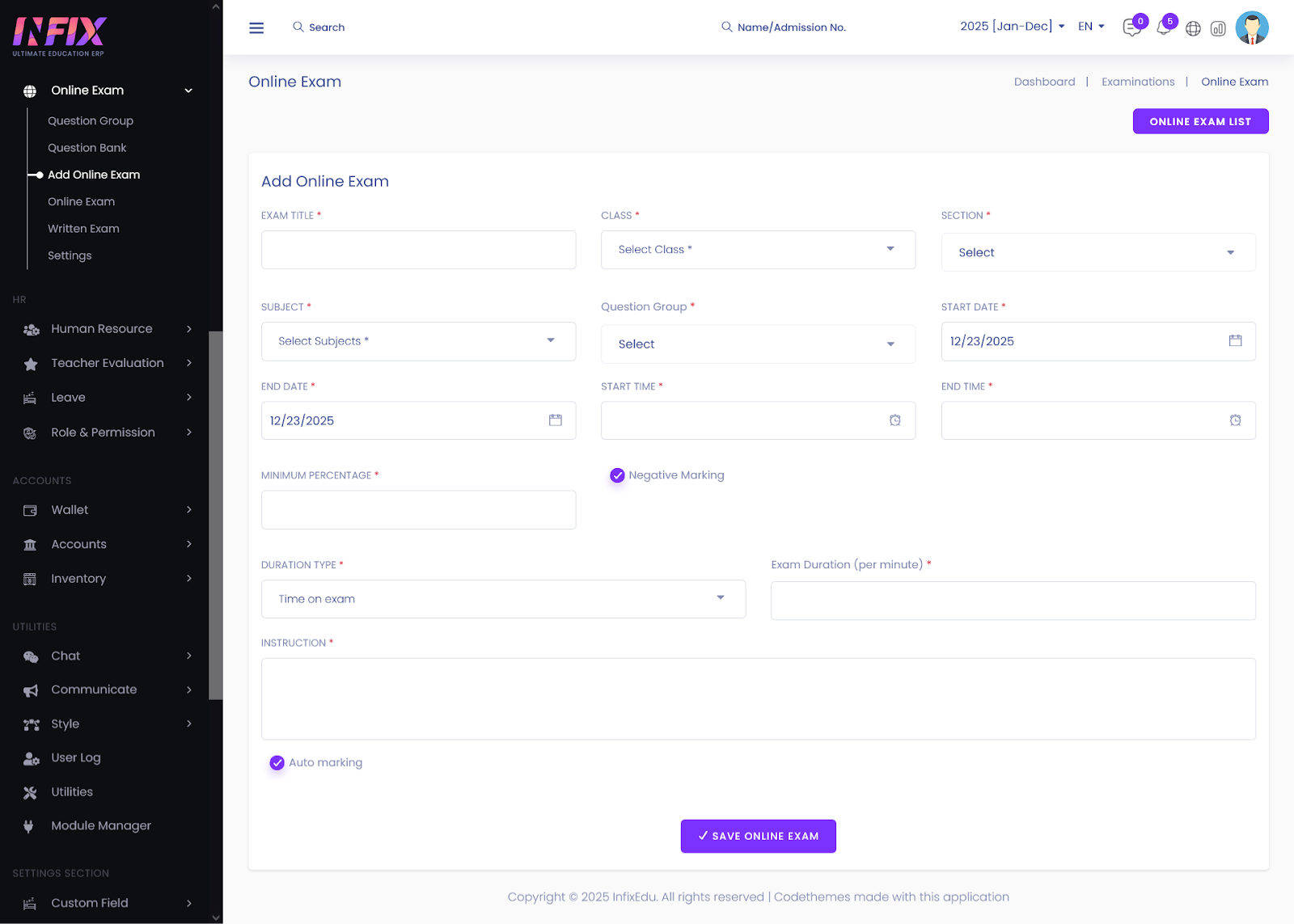
To add a new exam, fill in the configuration details on the "Add Online Exam" panel:
Field
Description
Exam Title
Enter a descriptive name (e.g., Mid-Term Mathematics 2024).
Class & Section
Select the target academic level and specific student group.
Subject
Choose the relevant subject for this assessment.
Start Date & Time
Set the specific start date and time for the exam.
End Date/Time
Set the deadline for completion.
Duration
Specify the total time allowed (in minutes).
Minimum Percentage
Define the passing mark (e.g., 40%).
Negative Marking
Negative marking is a scoring system where marks are deducted for each incorrect answer.
Instruction
Provide students with specific guidelines or rules for the exam.
Auto Marking
Auto marking is an automated evaluation process where the system checks answers and assigns marks automatically based on predefined rules or correct answers.
3. Student AccessibilityOnce an exam is published:
Students will see the exam listed in their Student Panel under Online Exam.
The "Take Exam" button will only become active at the scheduled start time.
Students must submit before the timer expires; otherwise, the system will auto-submit the current progress.


