Streamline your assessment creation process by importing questions in bulk using the InfixEdu Import tool. This feature allows you to upload multiple questions at once using a standardized Excel/CSV template, saving time and reducing manual entry errors.
1. PrerequisitesBefore beginning the import process, ensure you have:
Created the necessary Question Groups (e.g., Mid-term, Quiz, Final Exam).
Defined the Subjects and assigned them to relevant Classes and Sections.
Downloaded the Sample Import File from the dashboard to ensure correct data formatting.
Log in to your InfixEdu Admin Dashboard.
Navigate to the left-hand sidebar and select Online Exam.
Click on Question Bank.
Select the Import tab located at the top right of the interface.
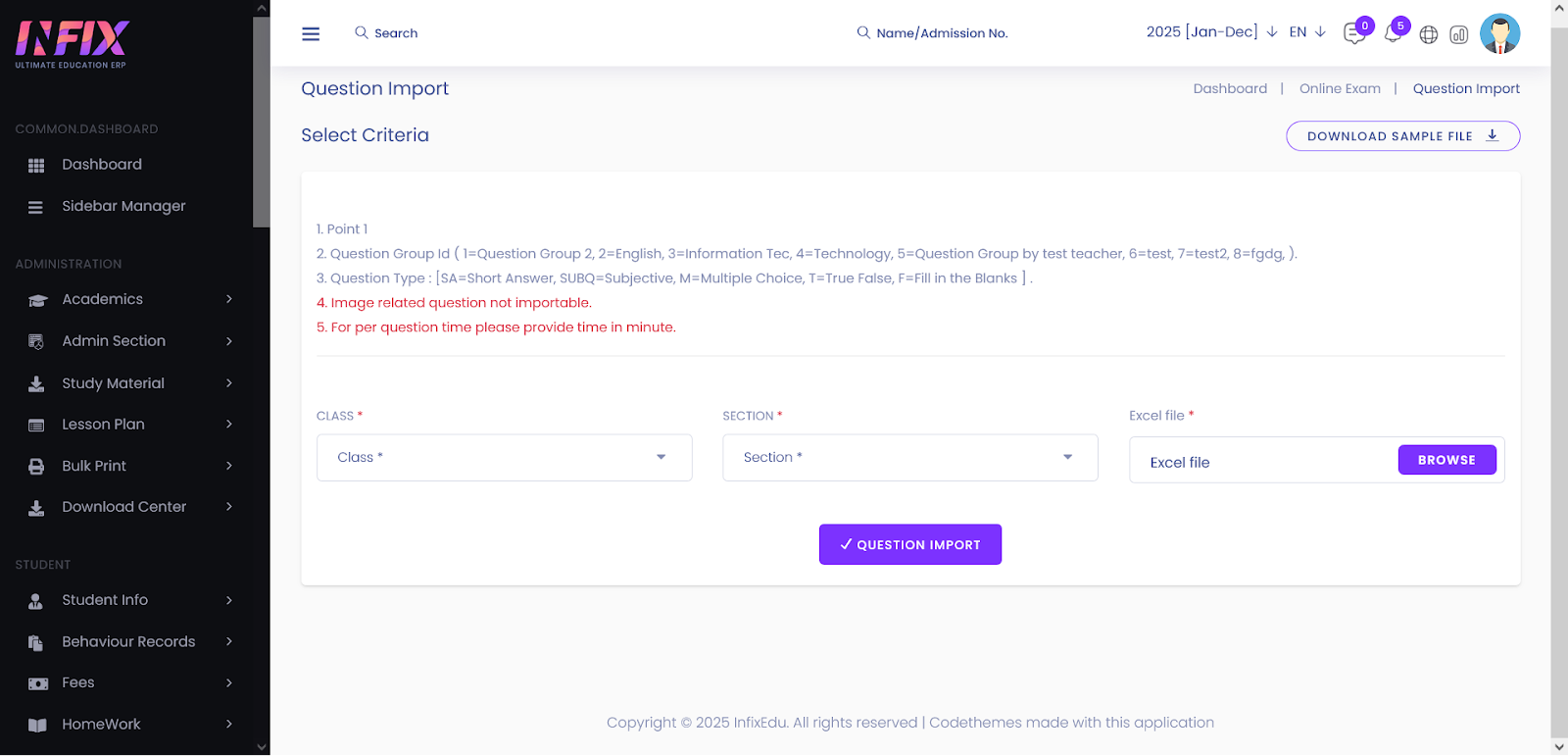 To ensure a successful upload, your data must follow the structure of the sample file precisely
Field
Description
Question Group
The category the question belongs to.
Subject
The academic subject linked to the question.
Question Type
Multiple Choice, True/False, Fill in the Blanks, etc.
Marks
Numeric value for the question's weightage.
Question
The actual text of the question.
Number of Options
Required for Multiple Choice questions.

Format: Only upload files in .xls or .xlsx format.
Case Sensitivity: Ensure Group and Subject names match exactly as they appear in the system.
Privacy: You can set questions to "Common" (visible to all) or "Self" (visible only to you).
Select Criteria: Choose the Group, Class, Section, and Subject for which you are importing questions.
Upload File: Click on the Browse button and select your prepared Excel file.
Validate & Save: Click the QuestionImport button.
Verification: Once completed, a success message will appear. Navigate to the Question Bank List to verify that your questions have been populated correctly.


