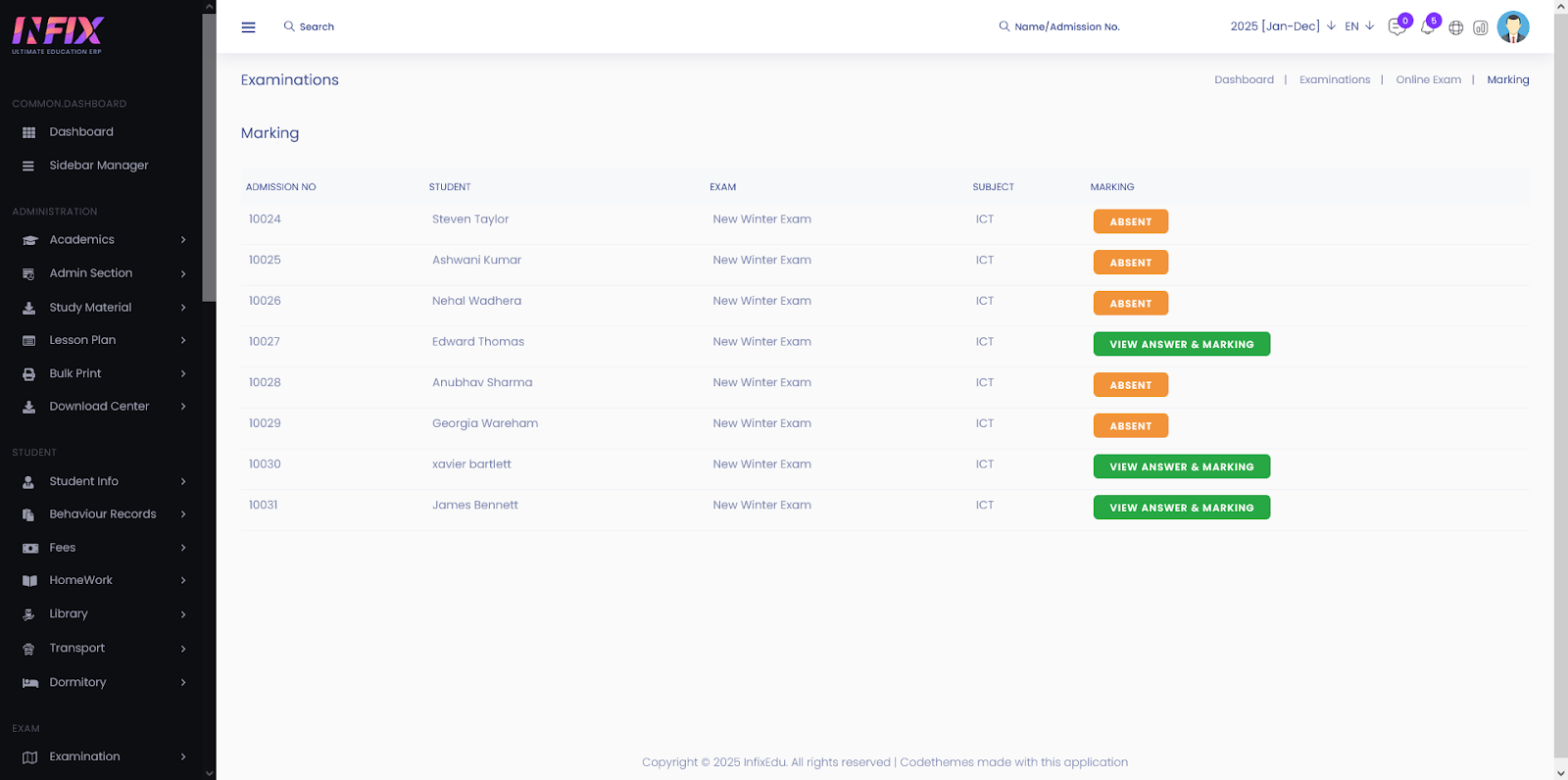
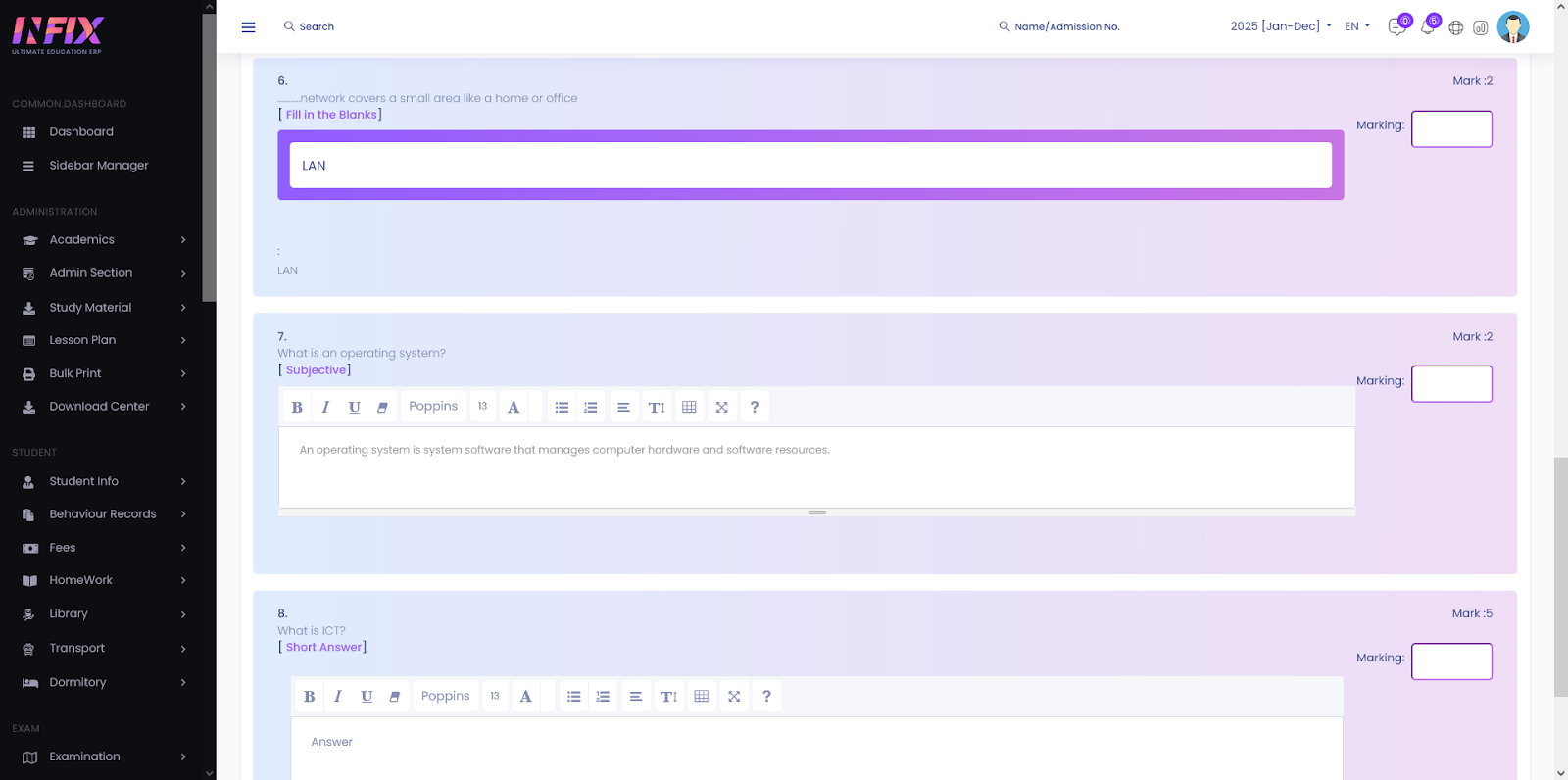
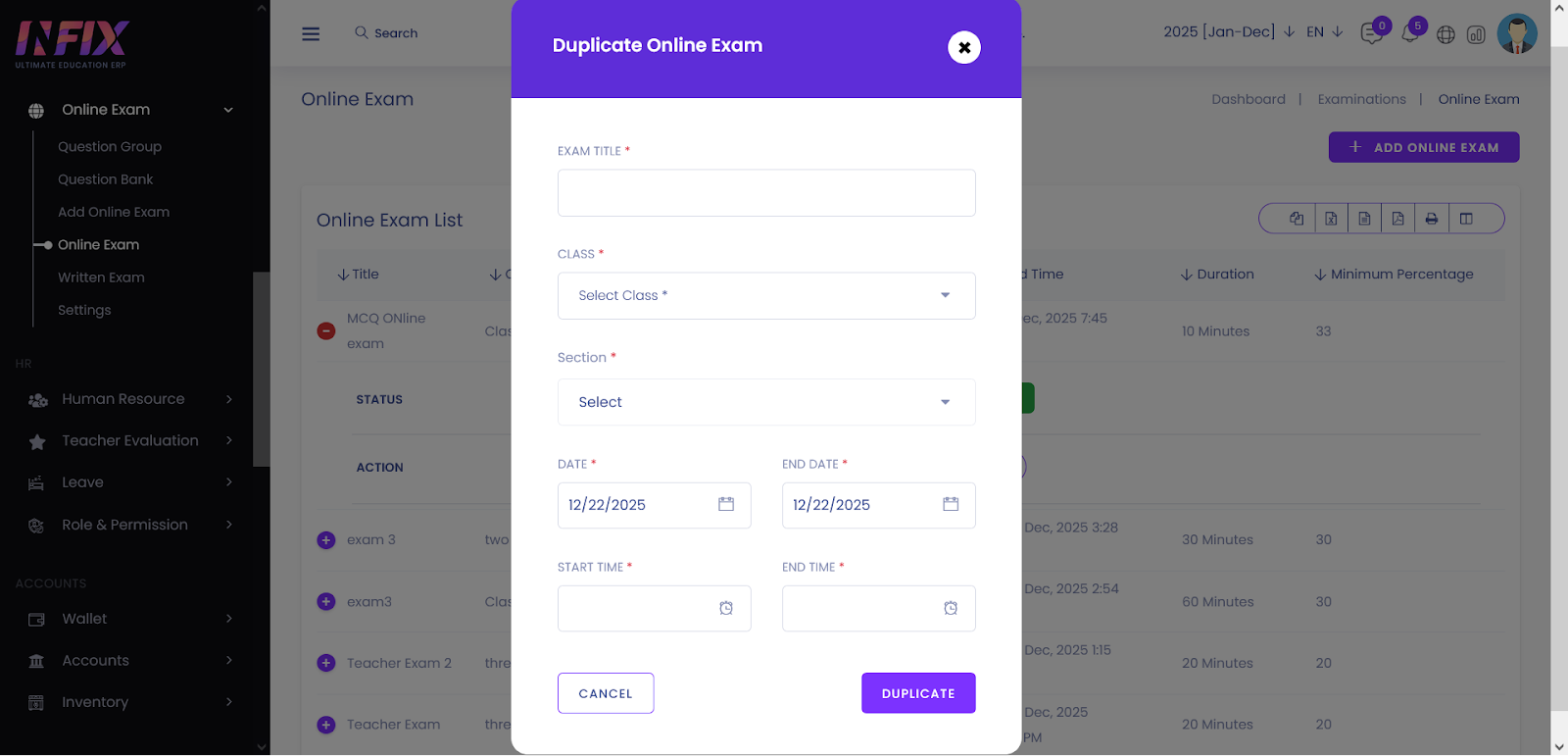
The Online Exam List is the central dashboard for administrators and teachers to monitor, edit, and publish digital assessments. From this interface, you can track the lifecycle of an exam—from initial draft to final result publication.
1. Dashboard OverviewUpon navigating to Online Exam > Online Exam, you will find a comprehensive table listing all scheduled assessments. The table provides the following key information:
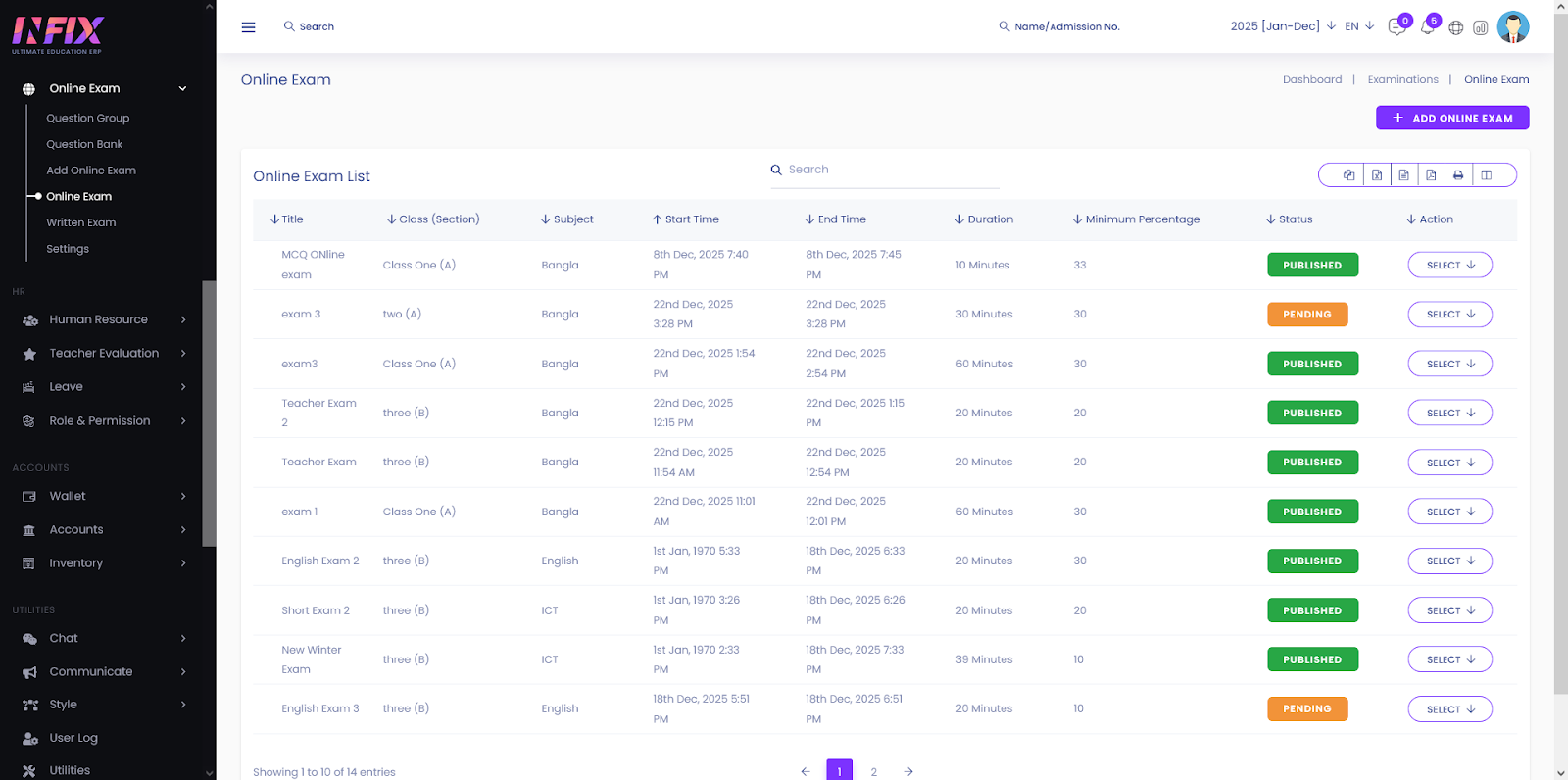
Exam Title: The name assigned to the assessment.
Class (Section): The target student group.
Subject: The academic subject associated with the exam.
Time & Duration: The scheduled start/end times and total minutes allowed.
Minimum Percentage: Minimum percentage means the lowest required score that must be achieved to qualify, pass, or be eligible for the exam. Status: Indicates if the exam is Pending or Published.
2. Managing Exam StatusesUnderstanding the status of an exam is critical for successful administration:
Status
Definition
Action Required
Pending
The exam is created but not yet visible to students.
Use this phase to finalize questions and settings.
Published
The exam is live. Students can see it on their panel.
The "Take Exam" button will appear for students at the start time.
Each entry in the list includes an Action menu with the following capabilities:
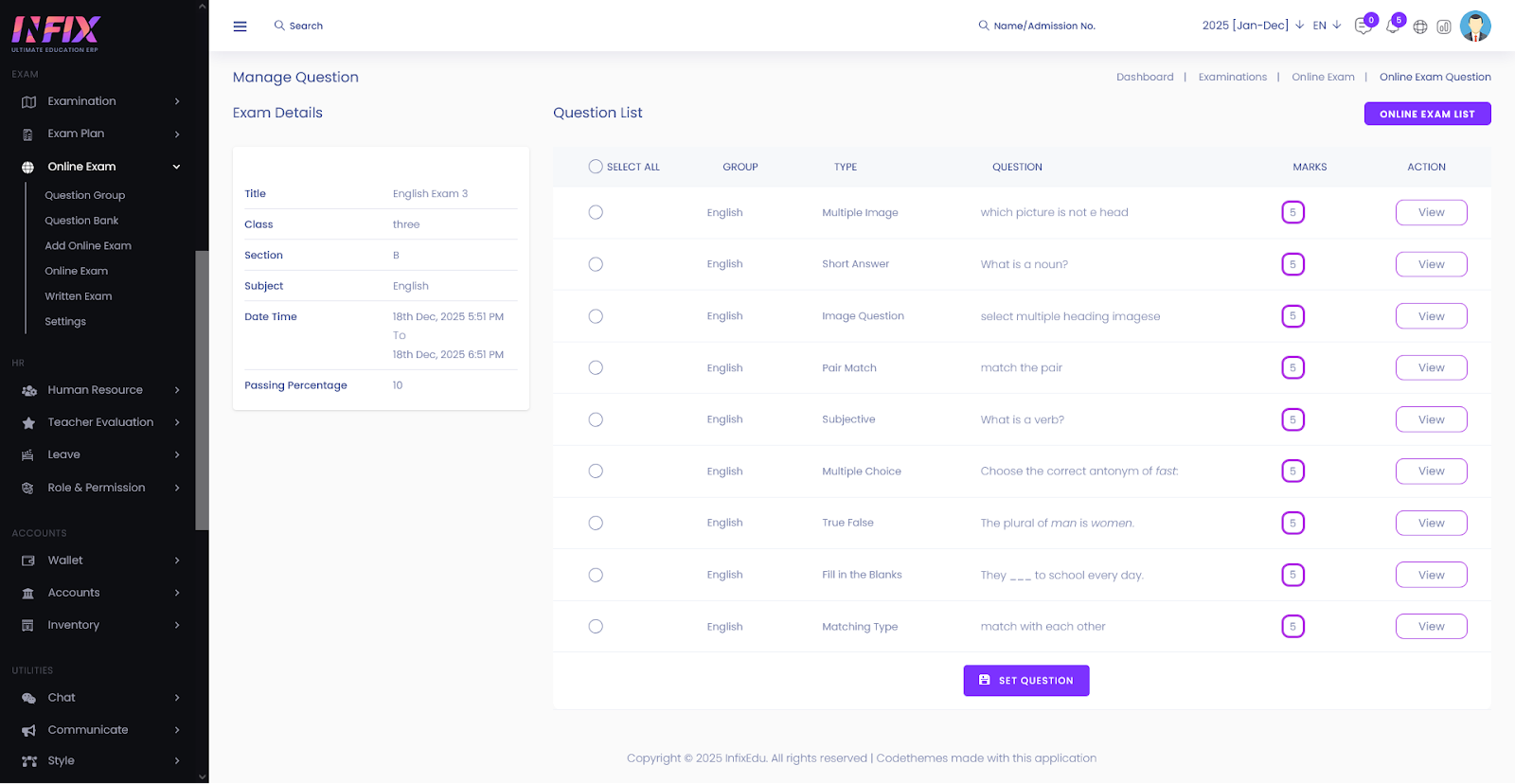 Edit: Modify exam parameters such as duration, passing percentage, or instructions. (Note: Edits are restricted once an exam has published).
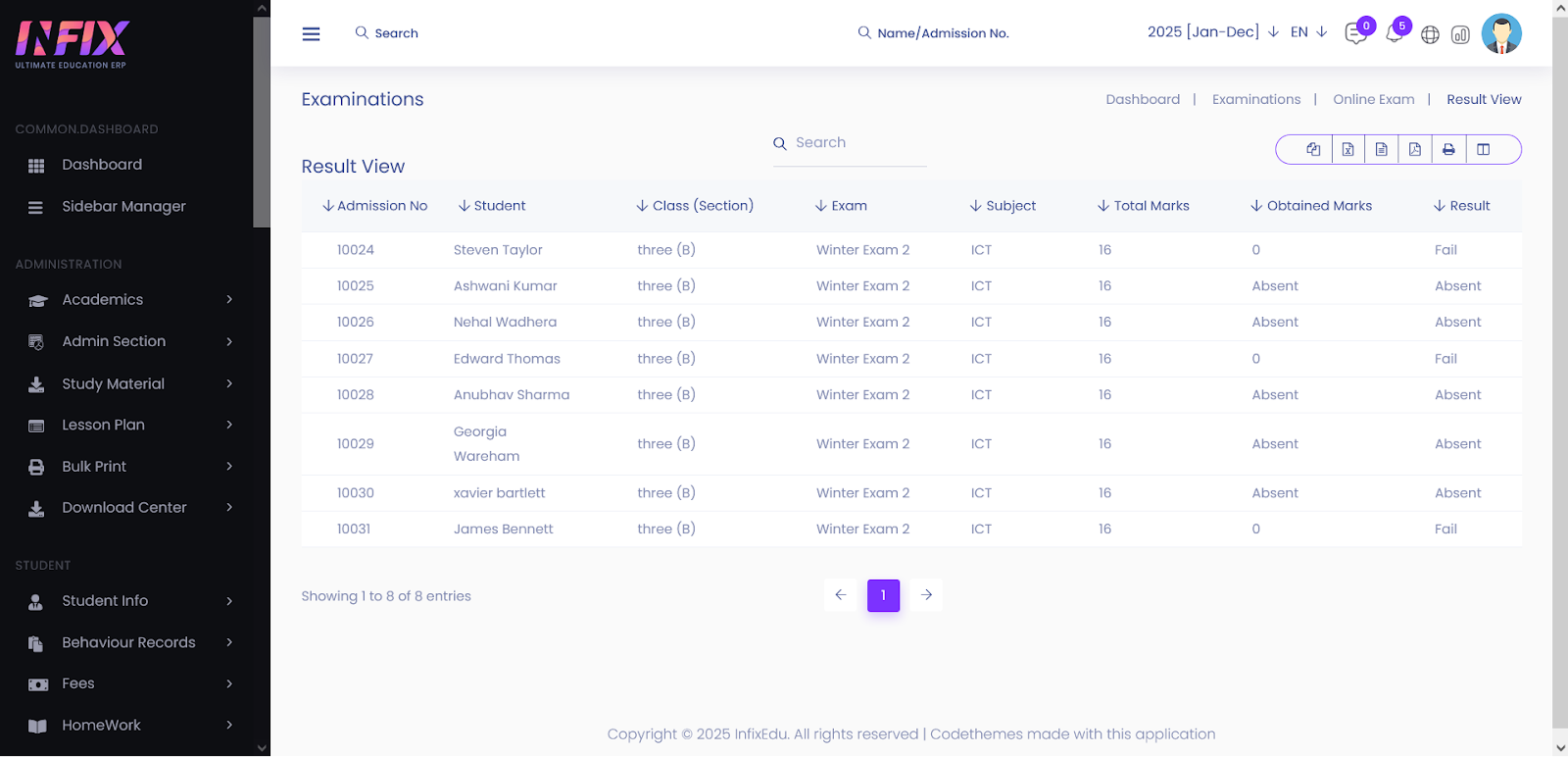
View Results: Once the exam is complete, access the student performance breakdown and individual answer sheets.
Marking: For descriptive or "Fill in the Blanks" questions that require manual review, use the marking tool to award points.