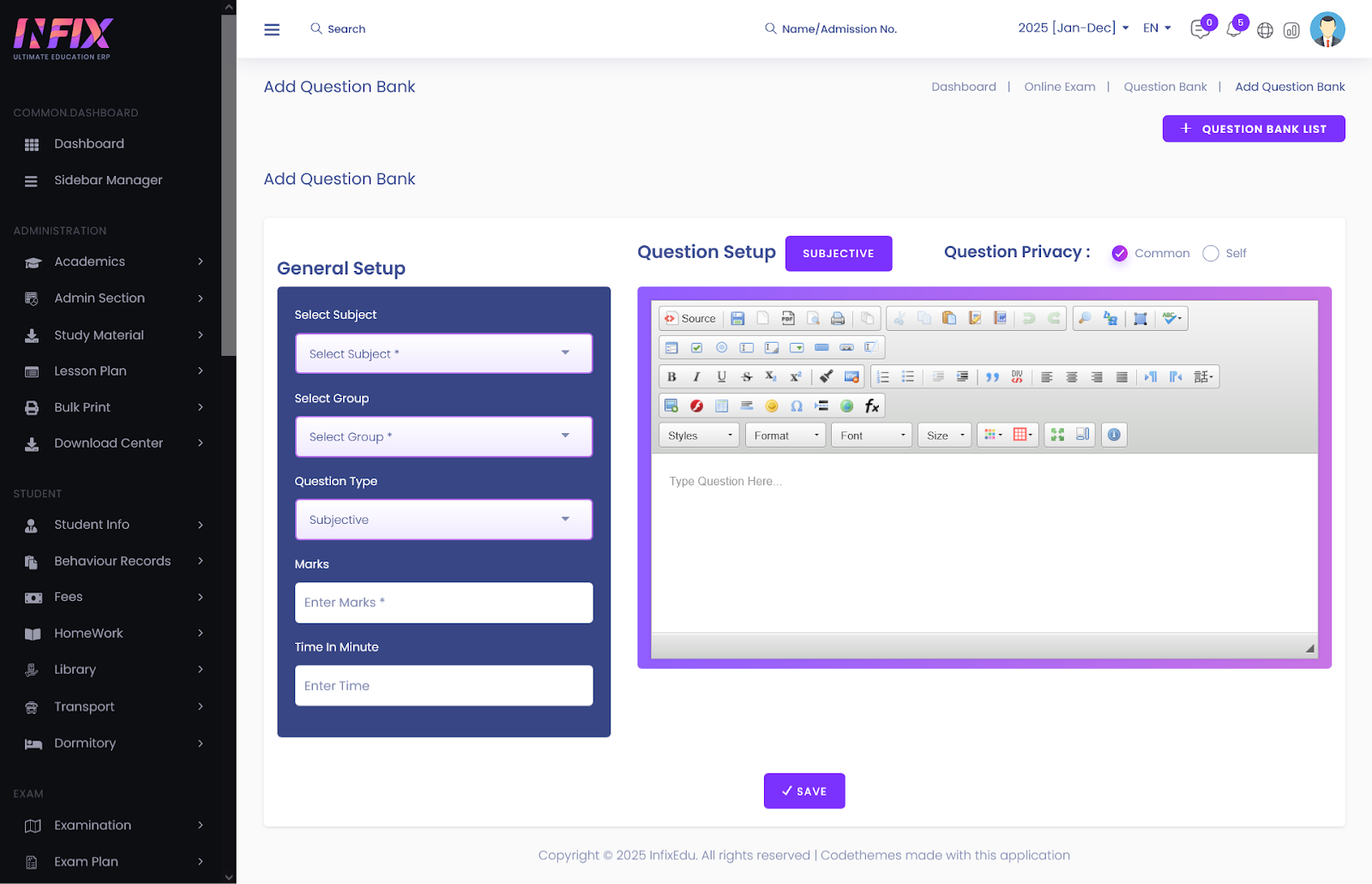
Overview : The Question Bank is the central repository for all assessment content within InfixEdu. It allows educators to create, store, and manage various types of questions—ranging from Multiple Choice to Descriptive—which can be dynamically pulled into any Online Exam.
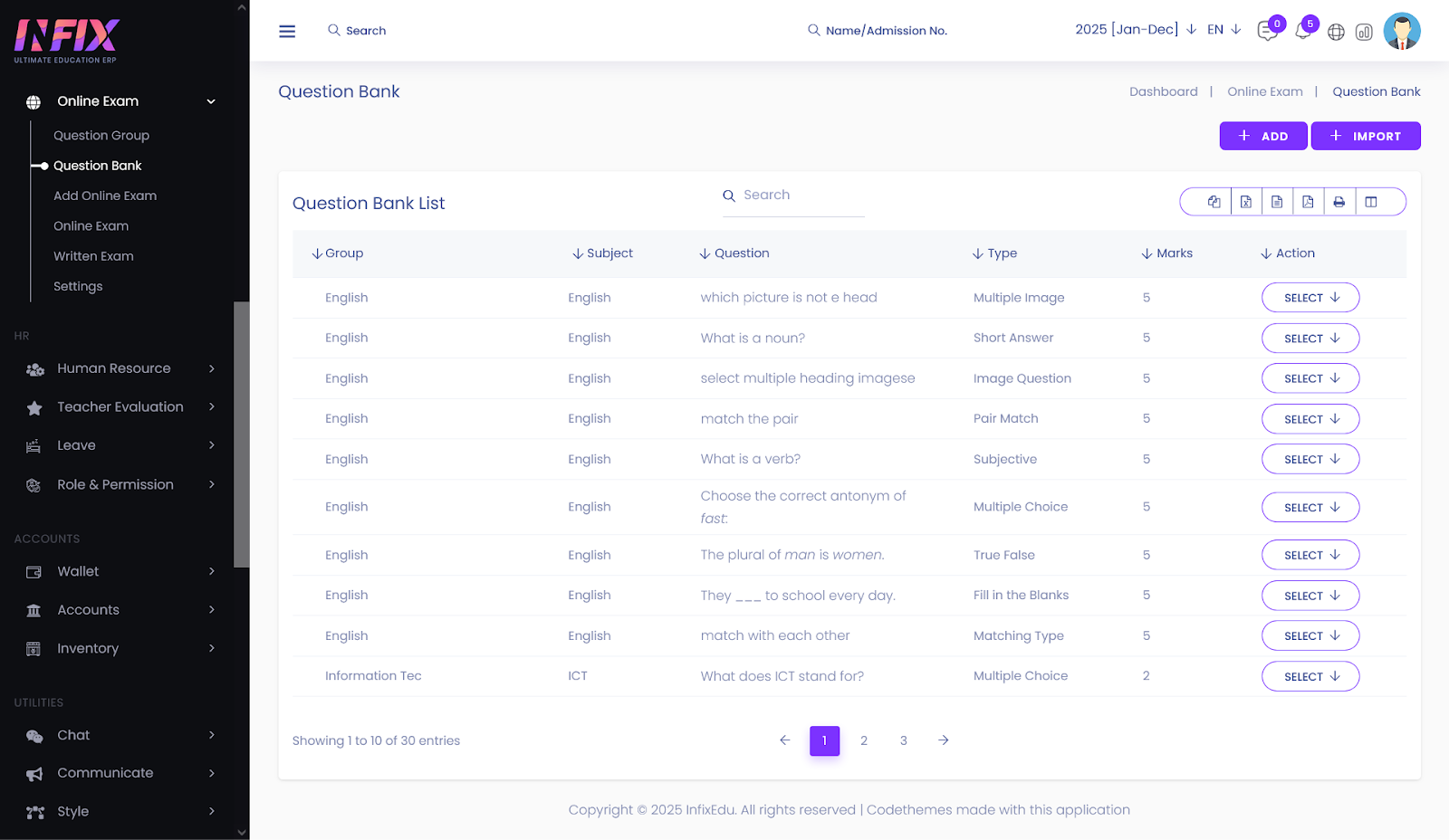
To populate your repository, you must define the question's parameters and content.
Navigation:Online Exam > Question Bank
Step 1: Define MetadataSubject: Select the subject for which you want to create the question.
Group: Select the pre-defined Question Group (e.g., English).
Choose one of the following formats from the dropdown menu:
Multiple Choice (MCQ): Define the question and provide multiple options. You must toggle the radio button next to the correct answer for auto-grading.
True/False: A simplified binary choice for quick knowledge checks.
Fill in the Blanks: Enter the question text and define the exact keywords that will trigger a "correct" mark.
Multiple Image: Define the question and provide multiple image options. You must checkmark to the correct answer for auto-grading.
Image Question: Define the question and provide multiple image with answer option. You must checkmark to the correct answer for auto-grading.
Pair Match: Used for pair matching.
Subjective: Used for subjective type questions.
Matching Type: Used for matching type questions.
Used for long-form answers.
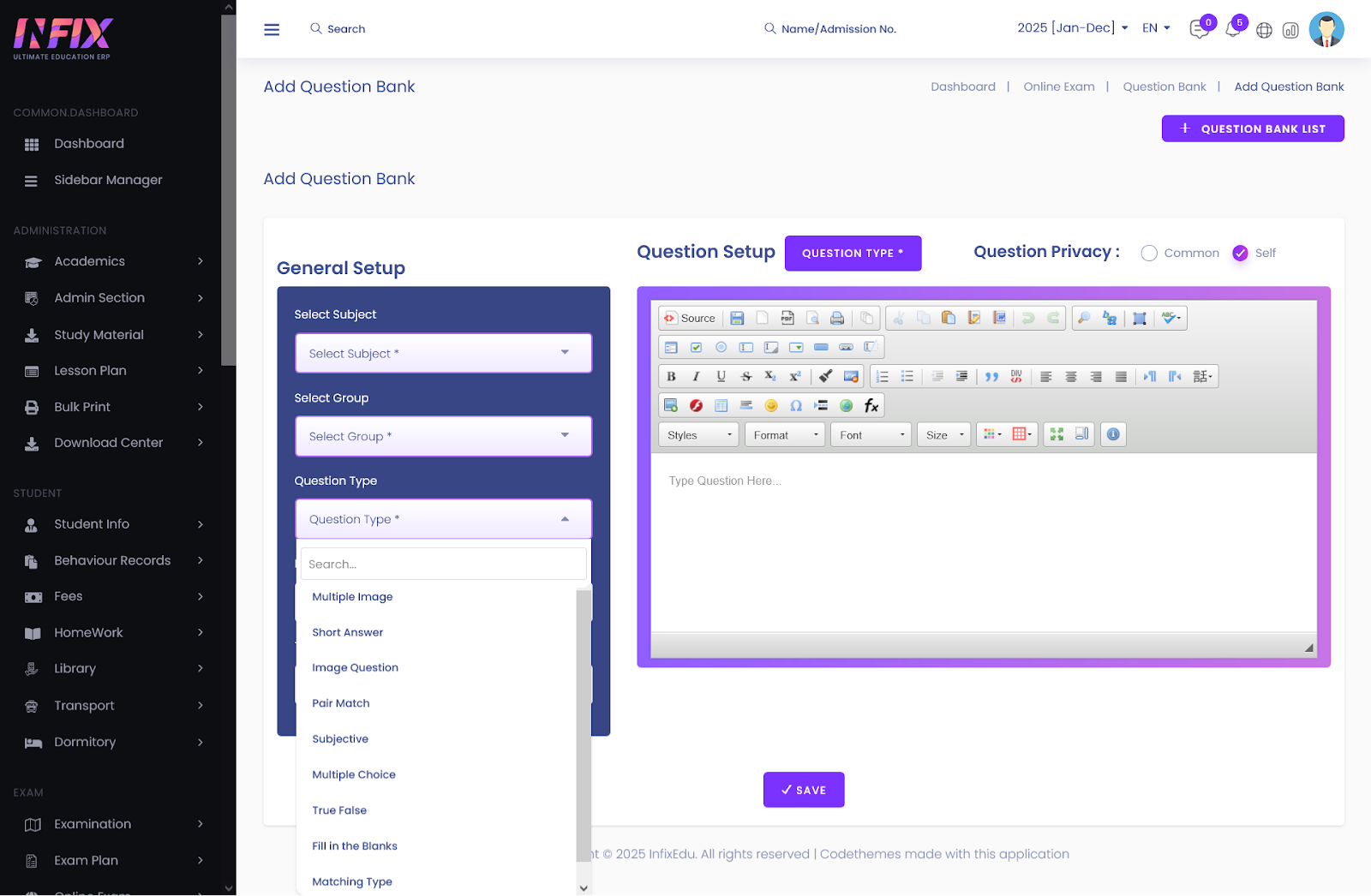
Question: Use the Rich Text Editor to input your question. You can format text, add links, or insert images.
Marks: Assign a numerical value (e.g., 5.00) for this specific question.
Save: Click Save to commit it to the bank.