The Written Exam module is designed for assessments that require descriptive answers, file uploads, or manual submissions. Unlike automated objective tests, this module provides the flexibility to include multimedia resources and supports manual grading workflows.
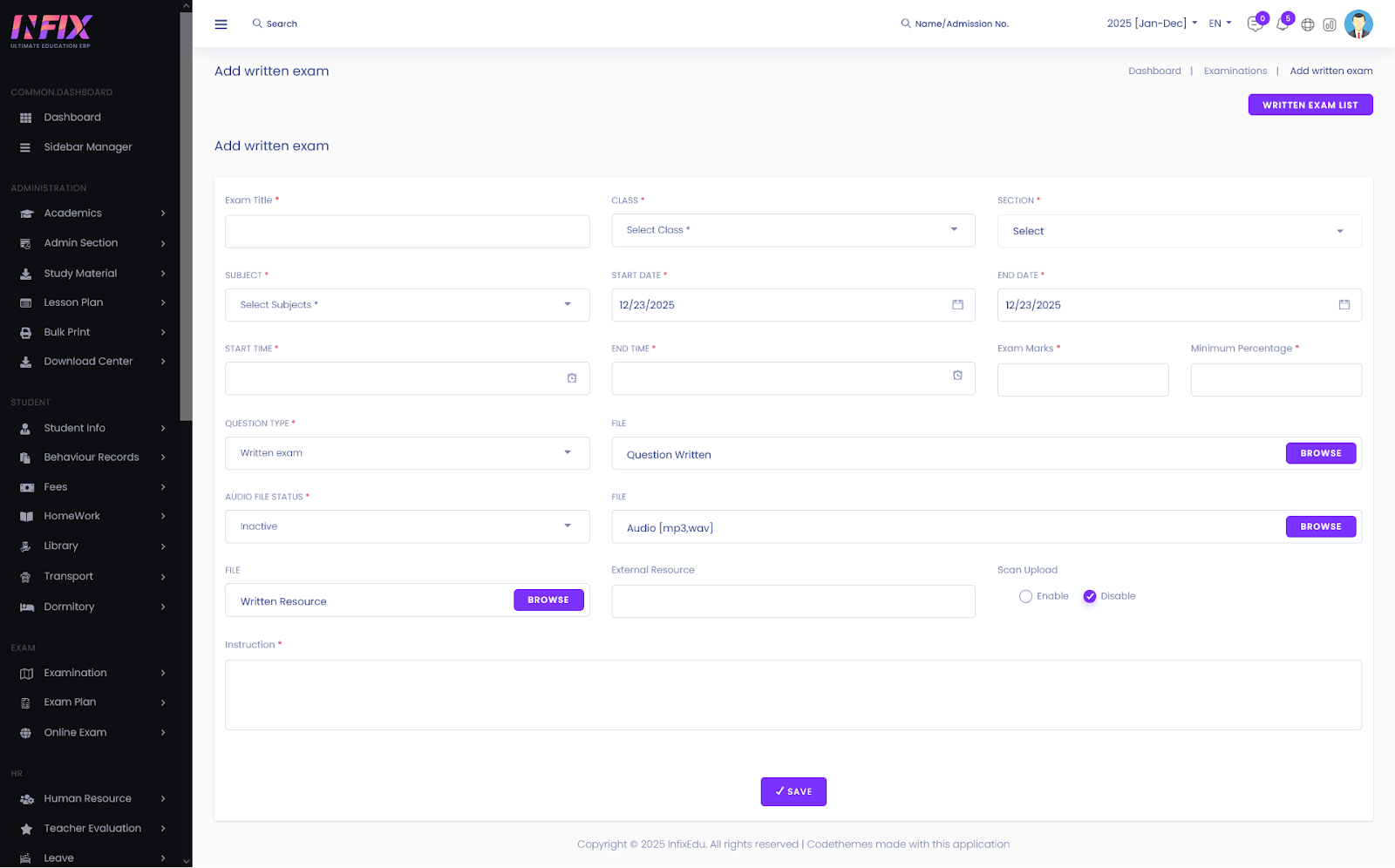
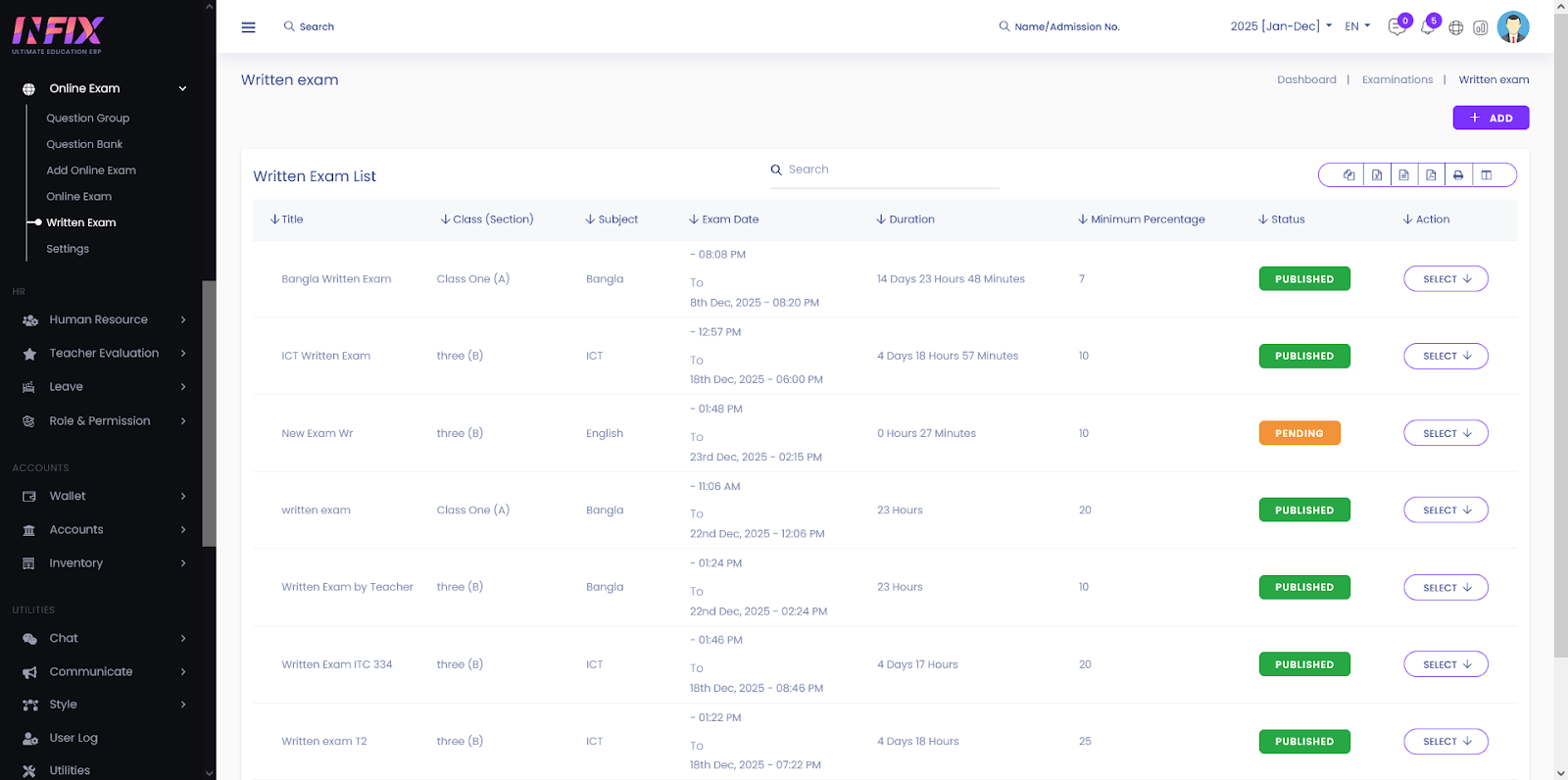
1. The Written Exam DashboardThe Written Exam List serves as your primary monitoring hub for all descriptive assessments.
Dashboard OverviewCentralized Tracking: View all scheduled exams, their target classes, and current status (Pending or Published) at a glance.
Duration Monitoring: The system automatically calculates and displays the total time available for students to complete the assessment based on the start and end times.
Data Export: Utilize the export icons to download the exam list in various formats, including Copy, Excel, CSV, and PDF.
The Written Exam module allows educators to facilitate descriptive assessments that require student uploads, audio responses, or physical document scanning. This guide outlines how to configure these exams and manage associated resources.
1. Accessing the Module
Log in to the InfixEdu Admin Dashboard
Navigate to the OnlineExam section in the left sidebar.
Select Written Exam > Add.
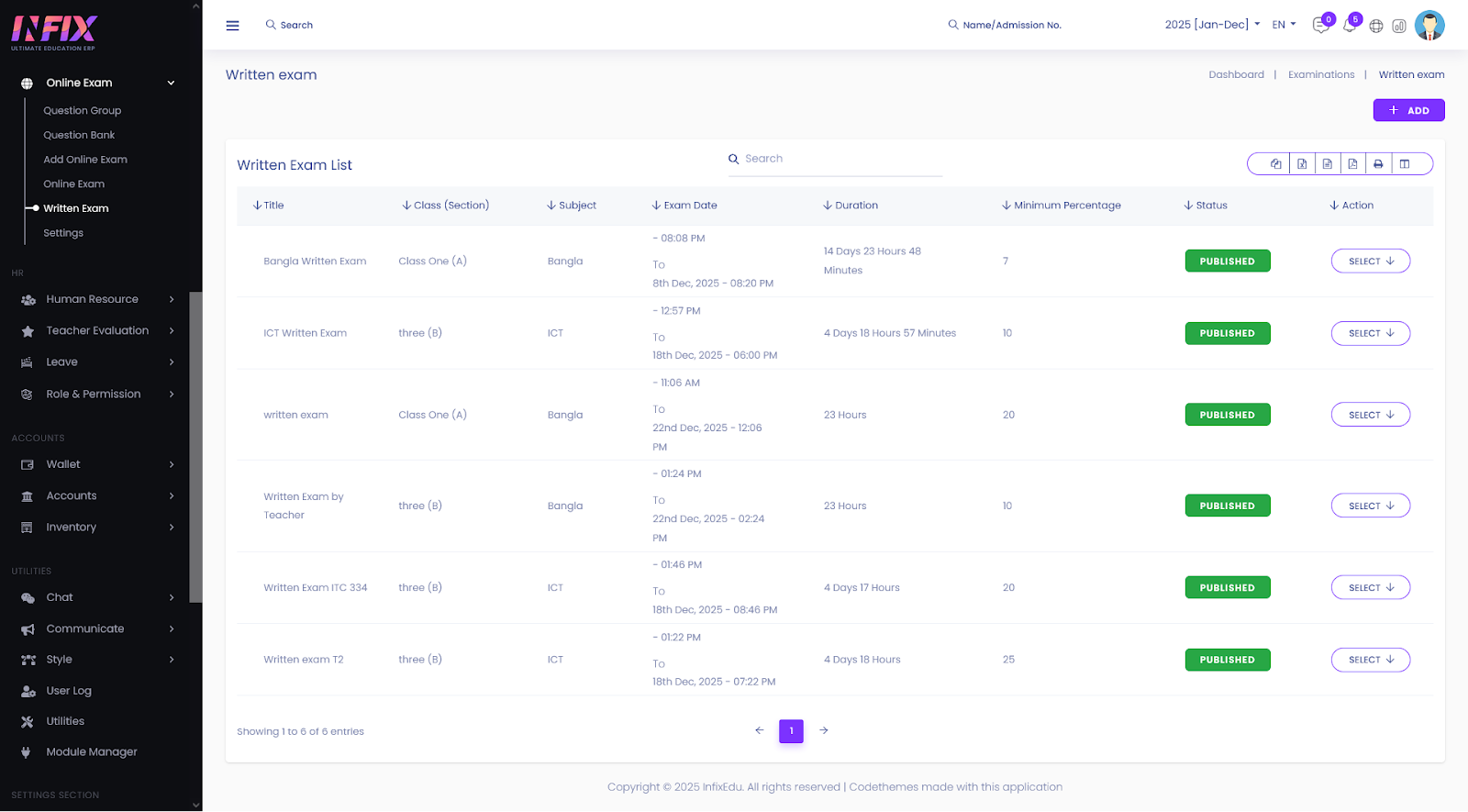
Fill in the mandatory fields (marked with a red asterisk) to establish the exam's basic structure:
Exam Title: Enter a clear, descriptive name for the assessment.
Class & Section: Select the target student group from the dropdown menus.
Subject: Assign the specific academic subject linked to this exam.
Dates & Times: Set the Start Date/Time and End Date/Time to define the active window for the assessment.
Grading:
Exam Marks: Specify the total maximum score for the paper.
Minimum Percentage: Set the required passing threshold (e.g., 40%).
Unlike standard objective exams, written exams support various file types and interaction methods:
Question Written (File Upload): Use the Browse button to upload the question paper or prompt in PDF or image format.
Audio File Status:
Toggle to Active if the exam requires an audio component (e.g., for language listening tests).
Upload the specific audio file in .mp3 or .wav format using the provided file field.
External Resource: Provide a URL for any third-party materials or research links students need to access during the exam.
Written Resource: Upload any supplementary reference documents students may need.
Scan Upload:
Enable: Allows students to photograph and upload their physical answer sheets directly via the mobile app or web portal.
Disable: Restricts submissions to digital files only.
Instruction: Use this text area to provide specific guidelines regarding formatting, word counts, or submission protocols.
Review all entered information for accuracy. Click the Save button at the bottom of the page to create the exam. Once saved, the assessment will appear in the Written Exam List, where you can manage student submissions and grading.