The forum activity allows students and teachers to exchange ideas by posting comments in an Online Course, Live Class or Offline Quiz. Online forums are also known as discussion boards or message boards. They enable users of a website to interact with each other by exchanging tips and discussing topics related to a particular theme.
Topic Management:
This is the InfixLMS topic management system where a user can find their course, quiz or another e-learning subject.
Short Direction: {InfixLMS> Dashboard> Forum> Admin Panel> Course> User> Category> Replies> Views> Select Course> Latest/ Unread or Most Viewed> Search> Category> New Course> Home> Make Post> Title> Make it Private> Description> Create Post.}
If you want to Select Forum Course, Create New Forum Post or reply to any of the course sections then follow the picture instruction.
1- Forum
2- Admin Panel is accessible for the dashboard.
3- Course
4- The user section shows the profile status.
5- Category
6- Replies
7- Views
8- Select the Course
9- Latest/ Unread or Most Viewed
10- Search
11- Category shows the particular course.
12- New Course selected for the creating subject.
13- Home
14- Make a Post
15- Title
16- Make it Private can be manually operated.
17- Description
18- Create a Post
Select Forum Course:
If you want to find any of the courses or want to check the latest, Unread or Most Viewed then go to the InfixLMS dashboard to click on the topic management.
Create New Forum Post:
This section is made for creating new forum posts or you can reply as follows the same structurally. An online forum is an internet space structured around and dedicated to conversation, usually through posting questions, answers, and responses. Online forums do not usually happen in real-time.
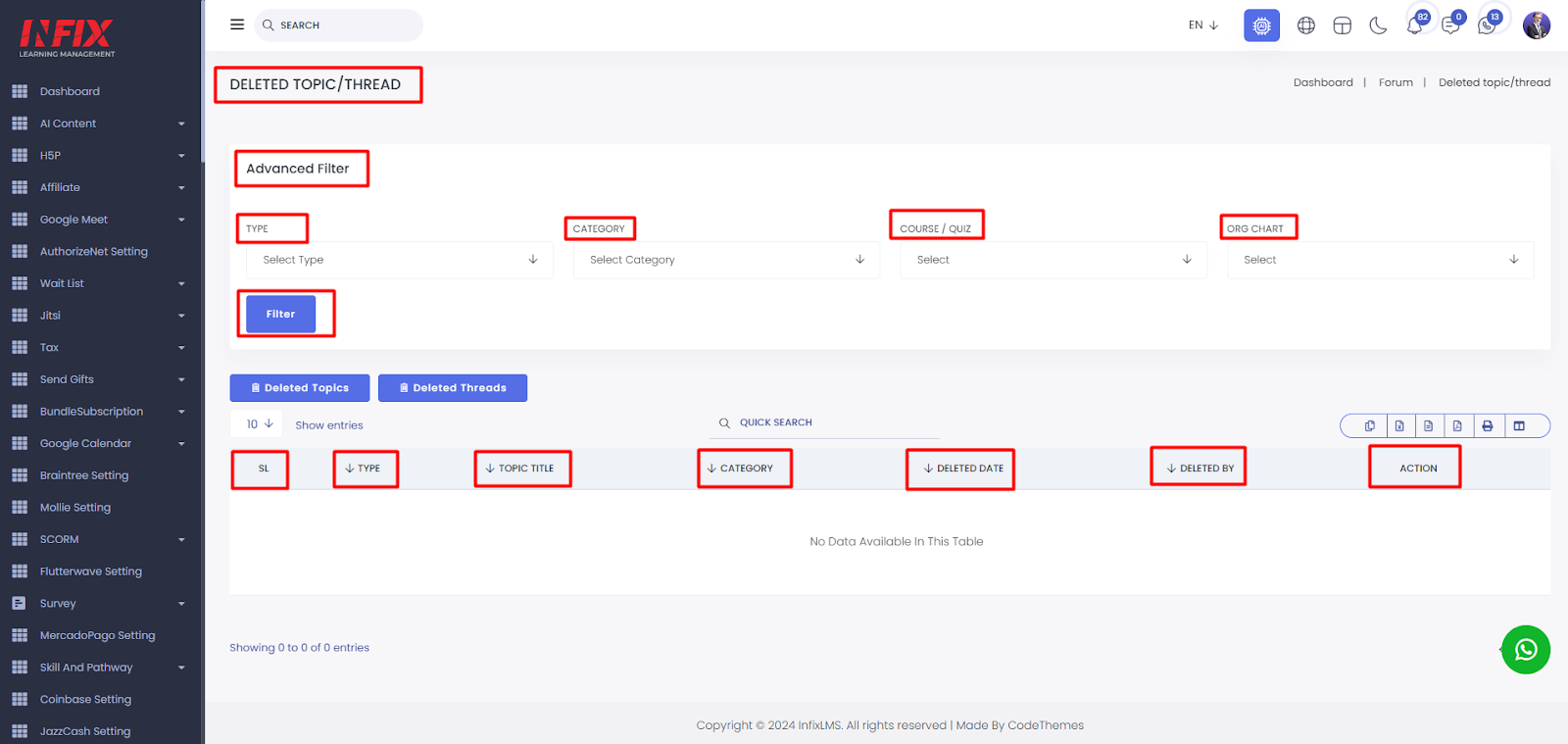
Deleted topic:
This section is so important to restore your deleted course, quiz or any other topics. On the Course Management panel, under Course Settings, select Restore, delete or View for details.
Short Direction: { InfixLMS> Dashboard> Search > Deleted Topic> Advanced Filter> Type> Category> Course/ Quiz> ORG Chart> Filter> Deleted Topics or Threads> SL> Type> Thread Title> Category> ORG> Topic title> Deleted Date> Action}
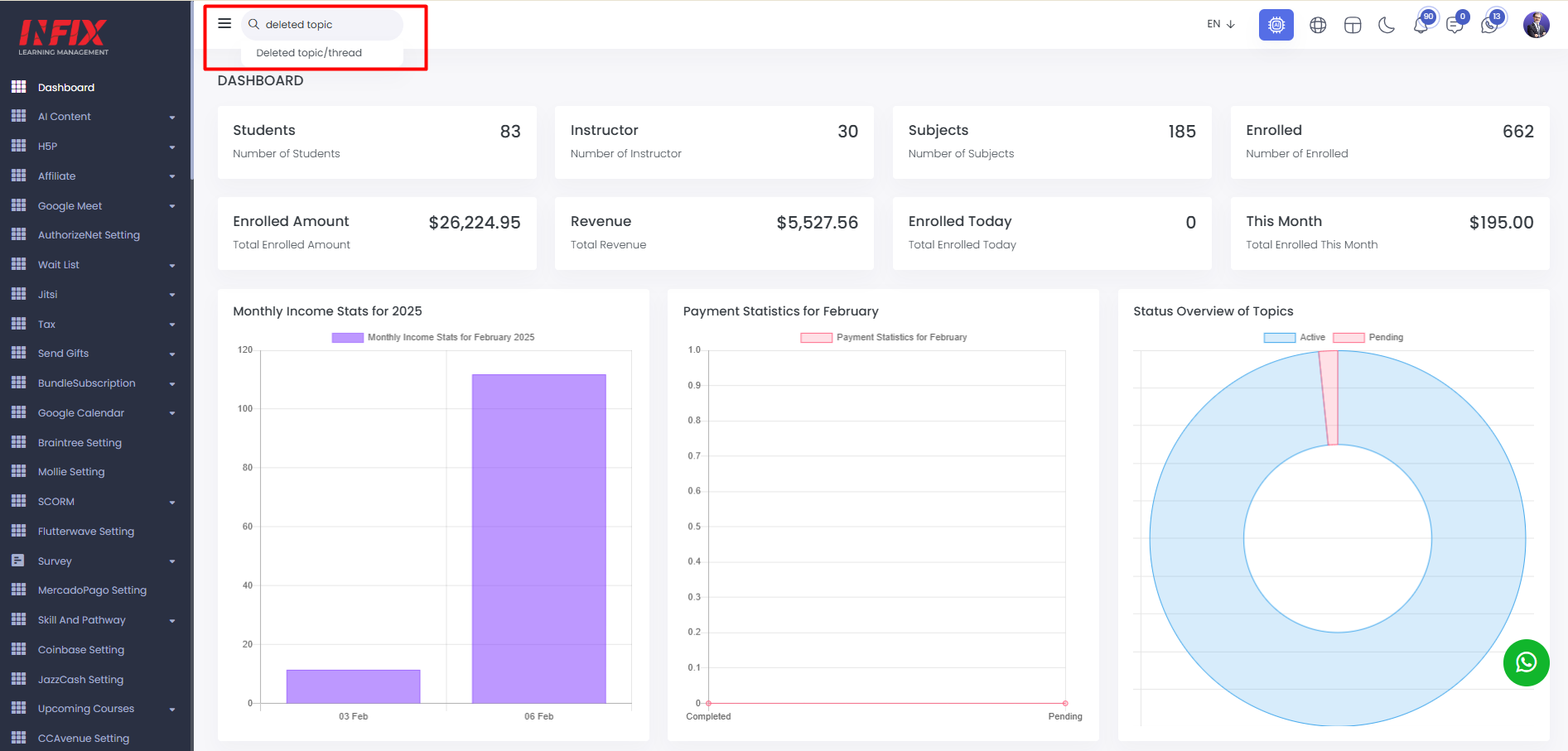
If you want to Locate the activity or resource you want to restore, under the Restore column & select Restore.
1- Deleted Topic
2- Advanced Filter
3- Type
4- Category
5- Course/ Quiz
6- ORG Chart illustrates employee designations, reporting managers and more.
7- Filter
8- Deleted Topics or Threads
9- SL means serial number.
10- Type
11- Thread Title
12- Category
13- ORG means An organization chart of a company is the visual representation of its reporting structure.
14- Topic title
15- Deleted Date
16- Action for Restore, View or Delete.
Forum Setup:
You can manually be operating the auto-create topics, approval topics or approval thread, although you can add a discussion forum to your LMS domain within minutes. InfixLMS offers native and third-party discussion extensions that are easy to use and intuitive.
Short Direction: {InfixLMS> Dashboard> Search > Forum Setup> All Setting> Auto Create Topics> Approval Topics> Approval Thread> Update.}
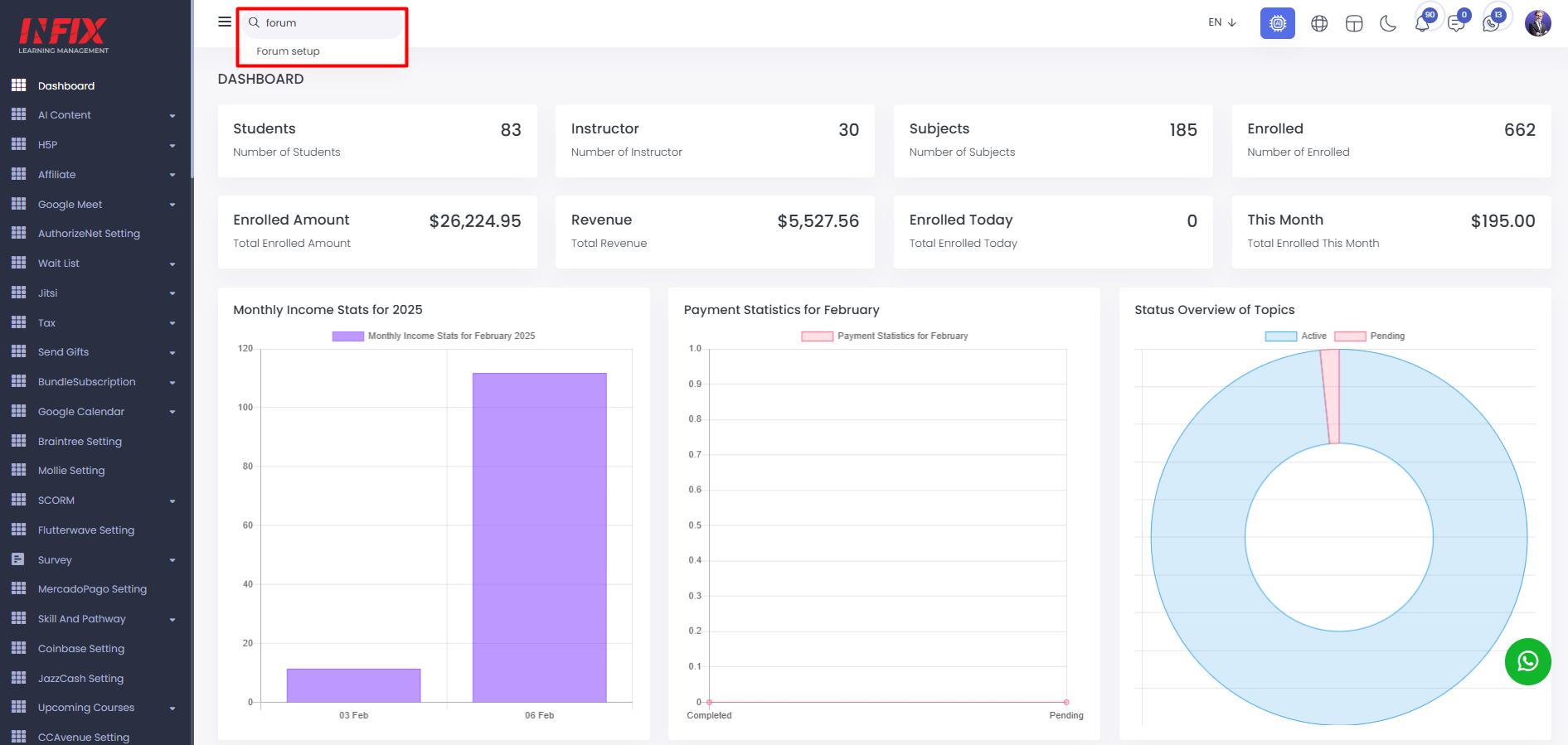
If you want to active inactive or want to setup your forum section for configuring purpose then go to the InfixLMS dashboard to find the Forum module.
1- Forum Setup
2- All Setting
3- Auto Create Topics are manually operating by the below list from here about the online-offline courses, quizzes, live classes or Learning Path.
4- Approval Topics can be active or inactive.
5- Approval Thread also manually can be active or inactive.
6- Update it.