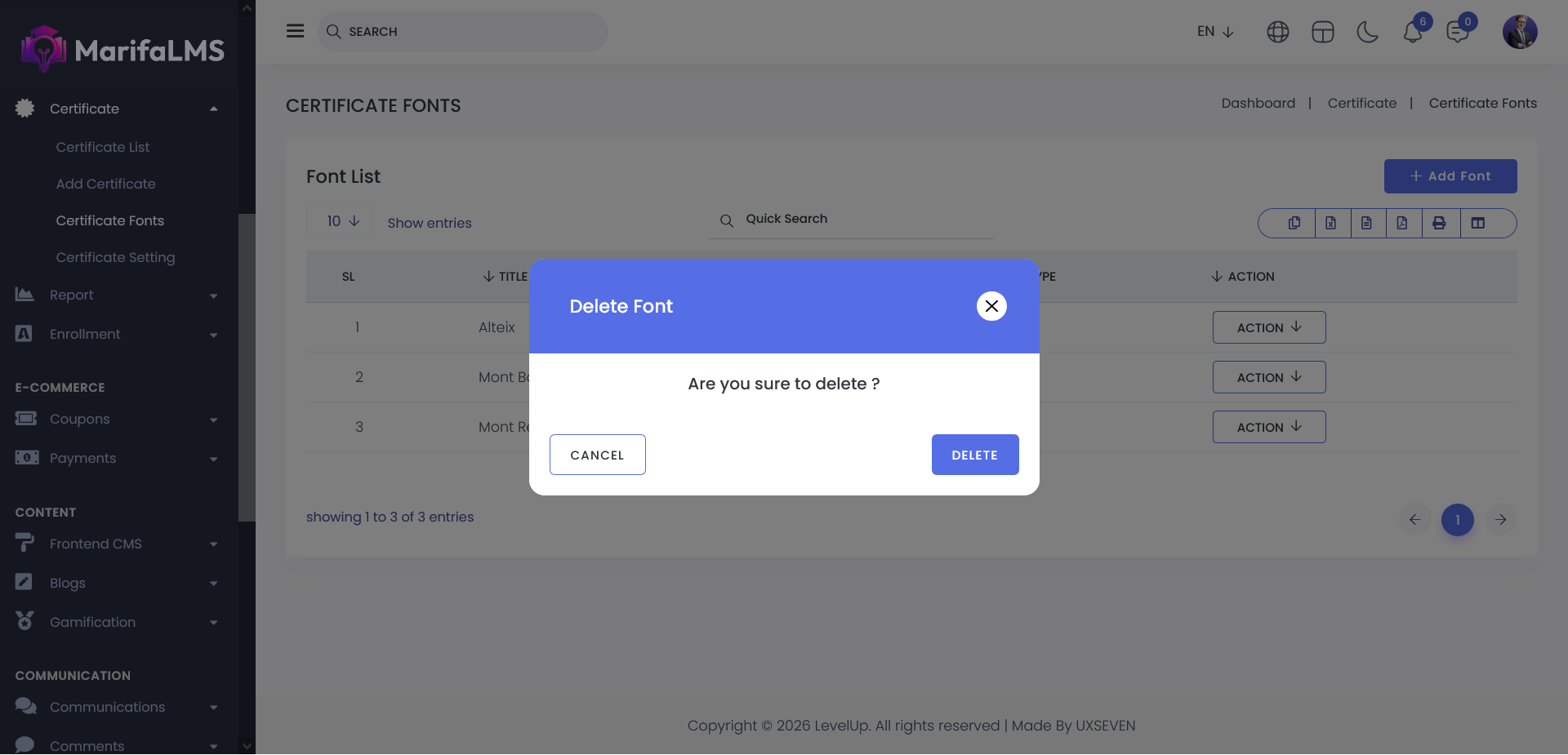
Certificate Fonts :
Think of the Font Management area as your toolbox for designing certificates. Here, you can choose and manage the fonts that make your certificates look clean and professional.
By selecting the right fonts, you make sure every certificate—whether printed or saved as a PDF—is easy to read, looks official, and matches your school or company’s style.
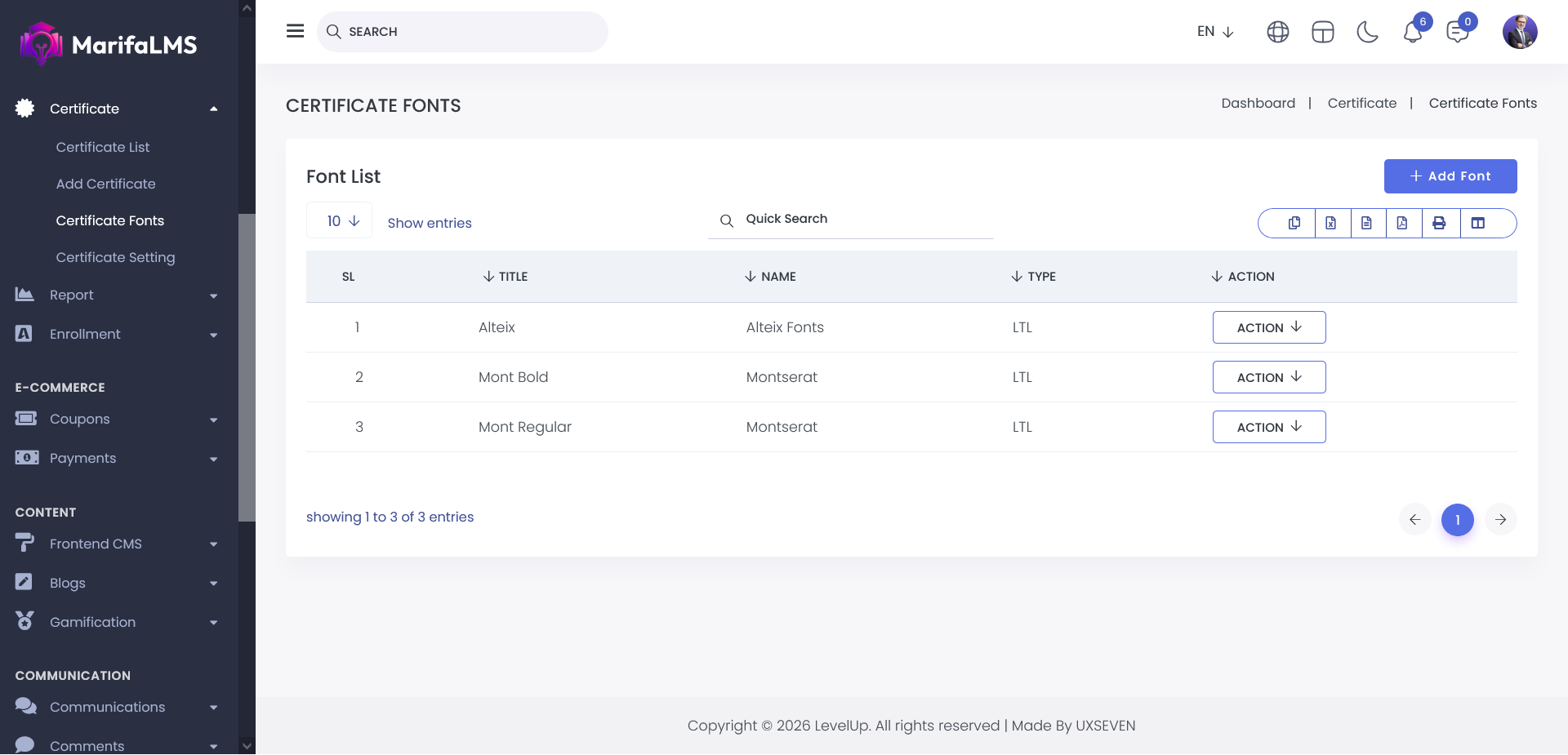
You can configure pagination settings and quickly locate specific records using the Quick Search field. Additionally, this section allows you to export your data and customize table column visibility according to your preferences.
+ Add Font Button : Clicking the +Add Font button opens a modal window where users can create and configure a new font for use in certificates.
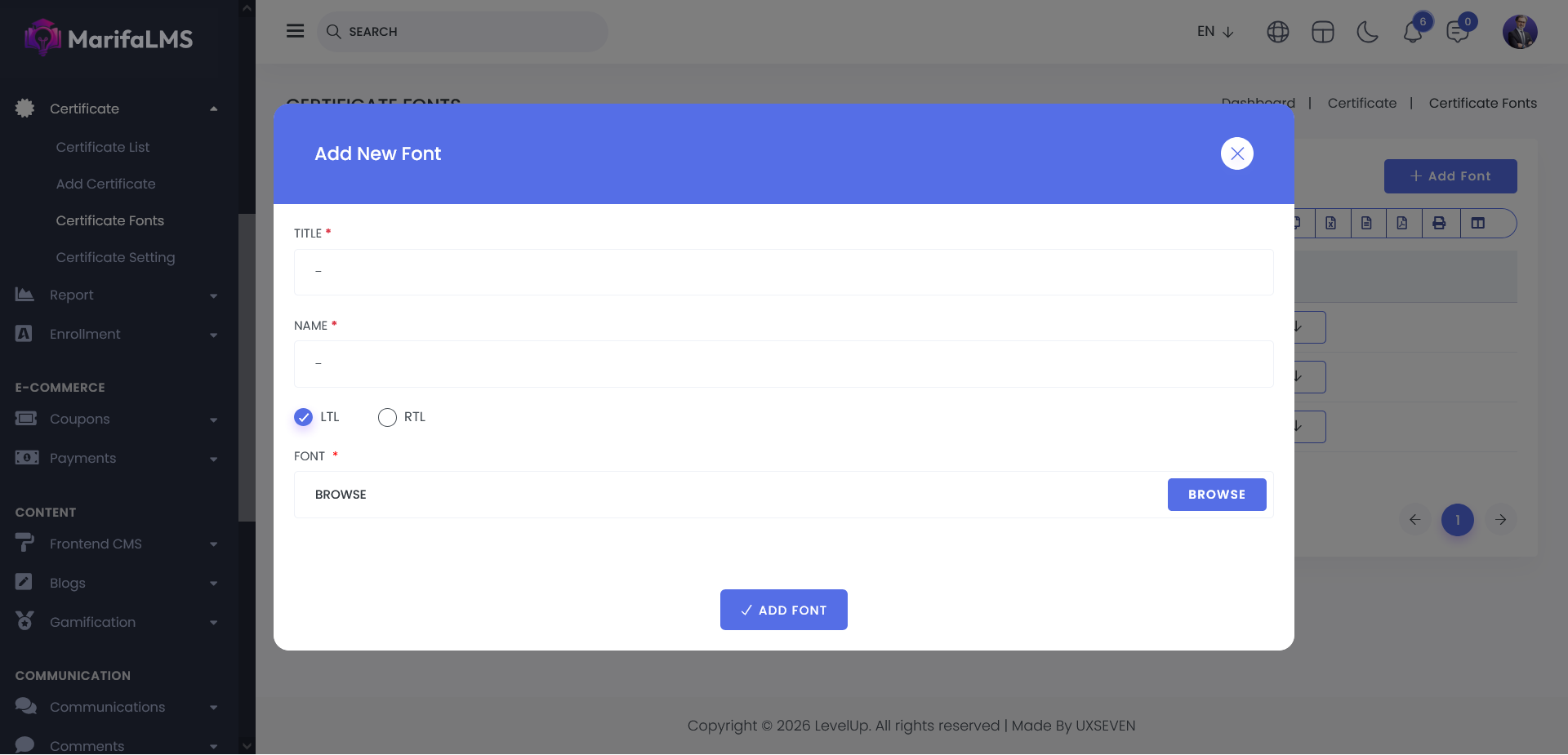
Title: Enter the text for the certificate title.
Name: Enter the recipient’s name.
Text Direction: Specify whether the font is RTL (Right-to-Left) or LTR (Left-to-Right).
Font: Browse and select a font file from your device.
Add Font: Click the Add Font button to upload and apply the new font to the certificate.
Fonts can be removed directly from the font list using the action menu.
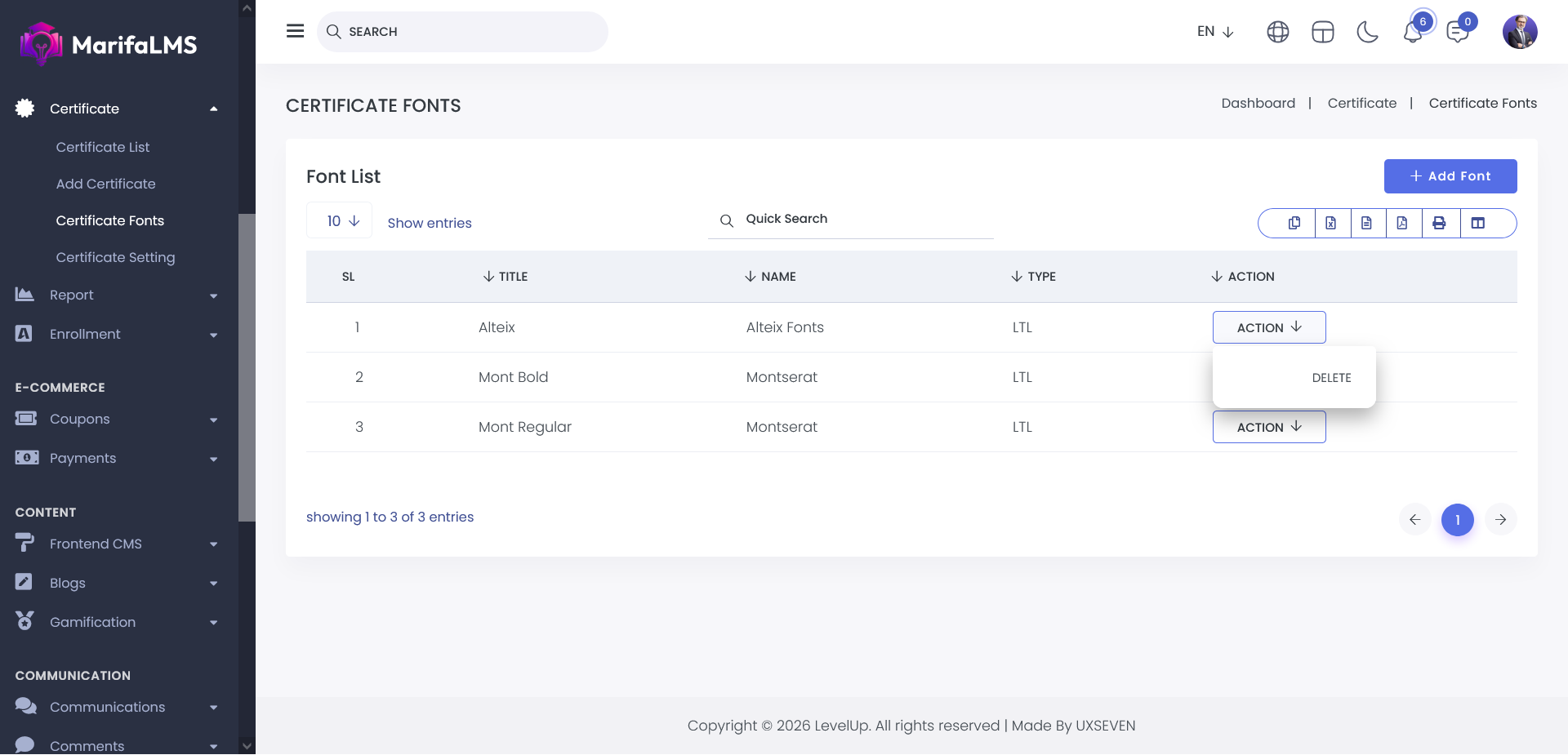
Select the desired font and choose the delete option to permanently remove it from the system.