All Courses: In this section you can add a new course or quiz . You can find out courses or quiz by using advanced filters and search functionality.
Use advanced filters like Category, Course Type, Instructor, and Status to quickly find courses or quizzes. Set your filters and click "Filter" to see results.
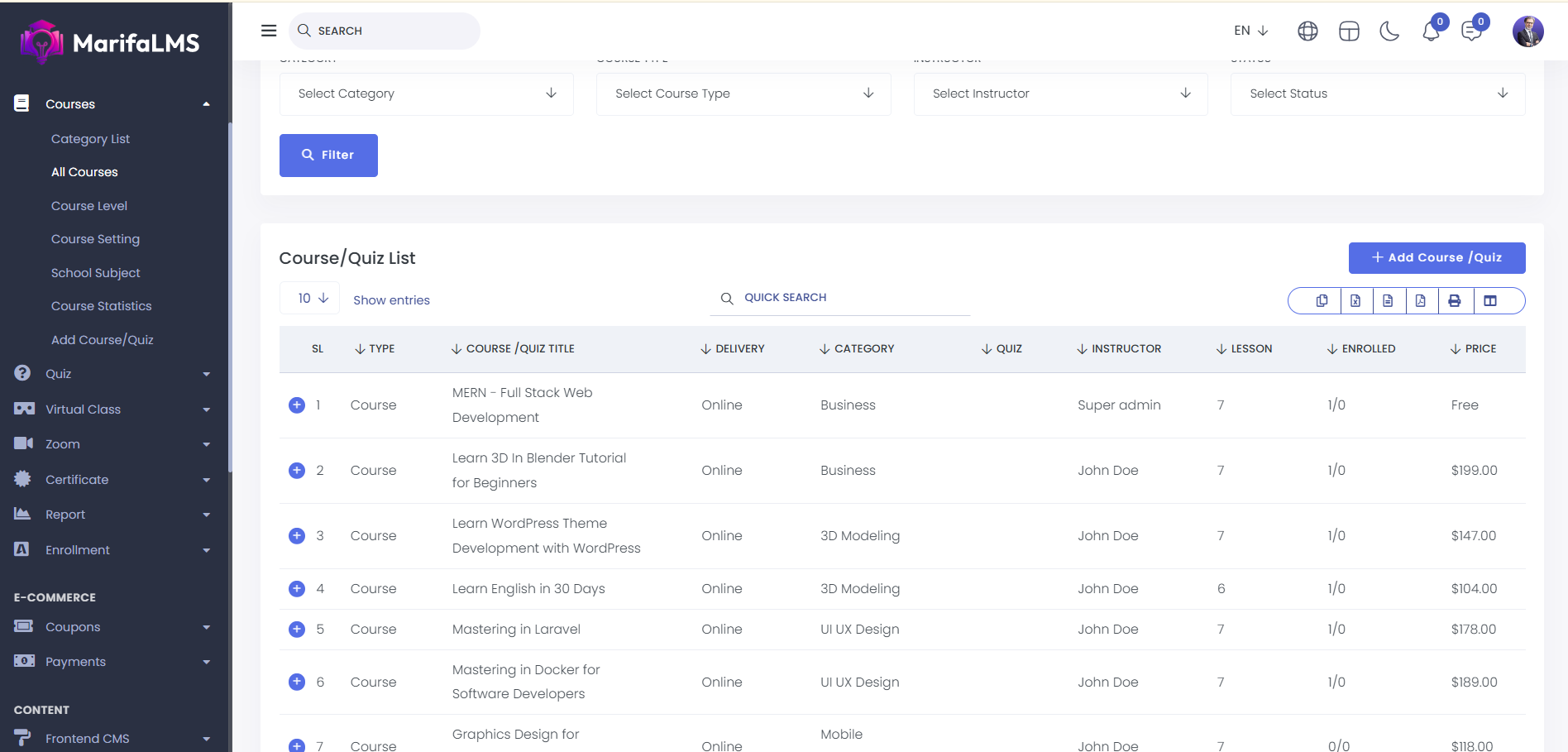
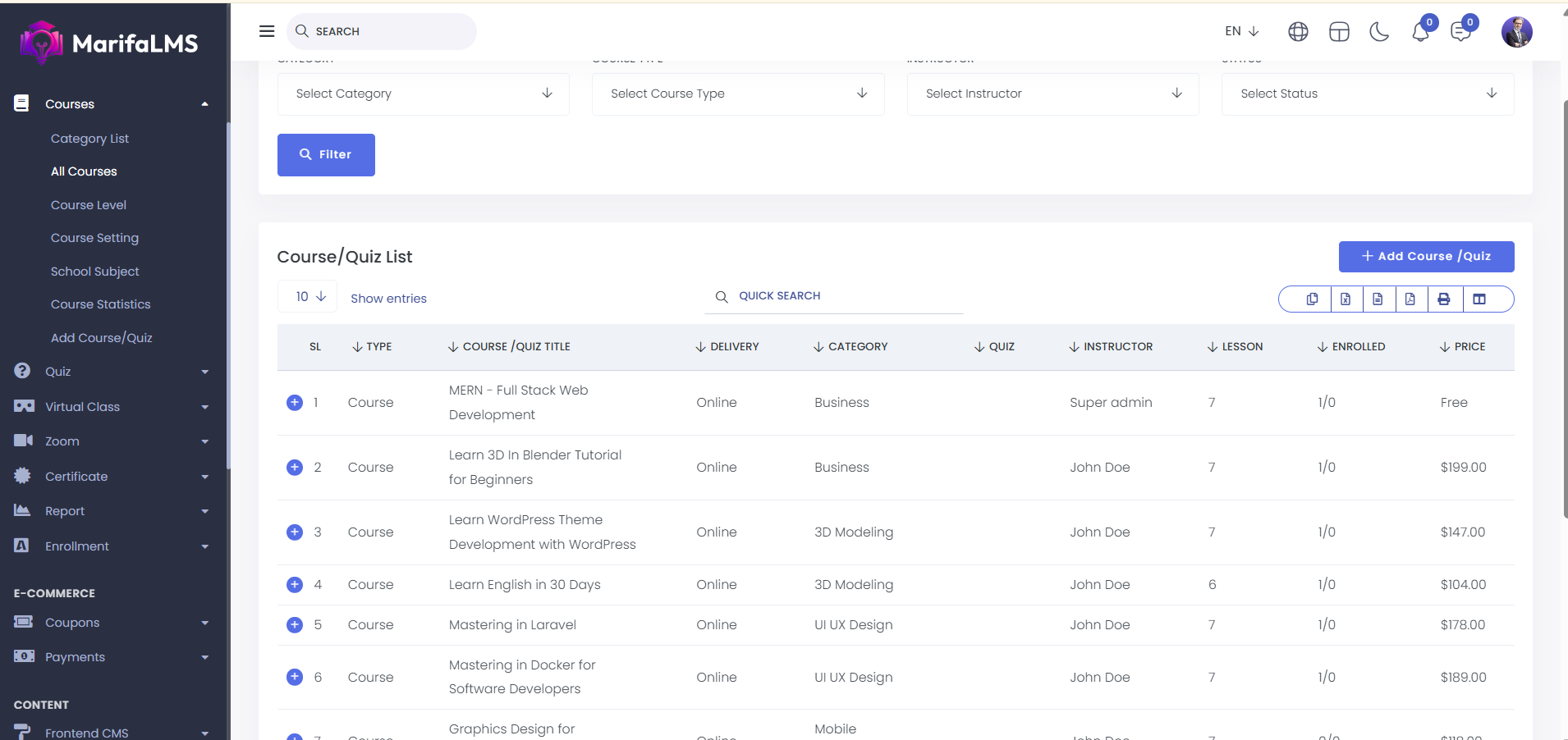
You can also find out any kind of courses or quizzes by using the search functionality.
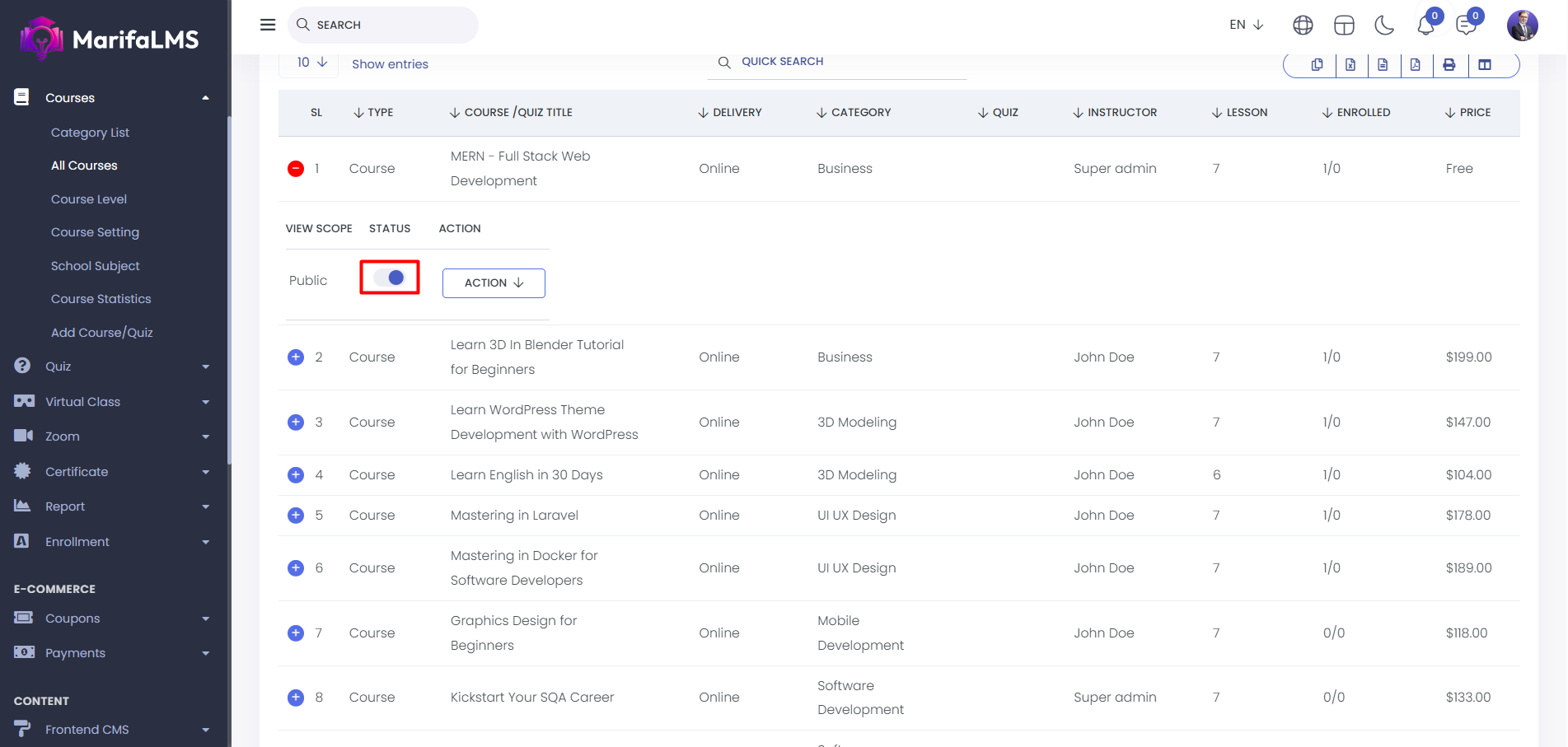
Use the status toggle button to show or hide any course or quiz on the frontend.
You can export the list from here.
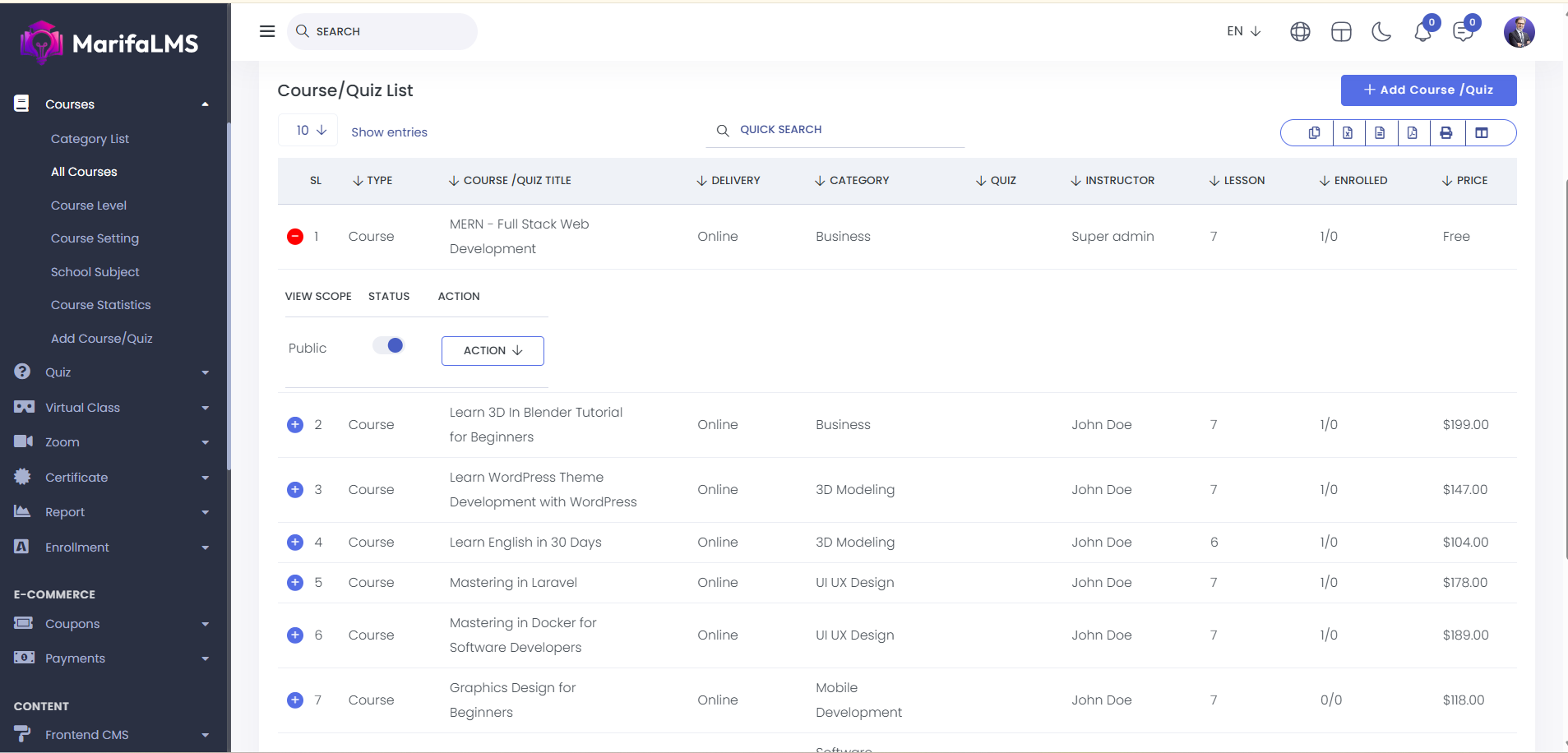
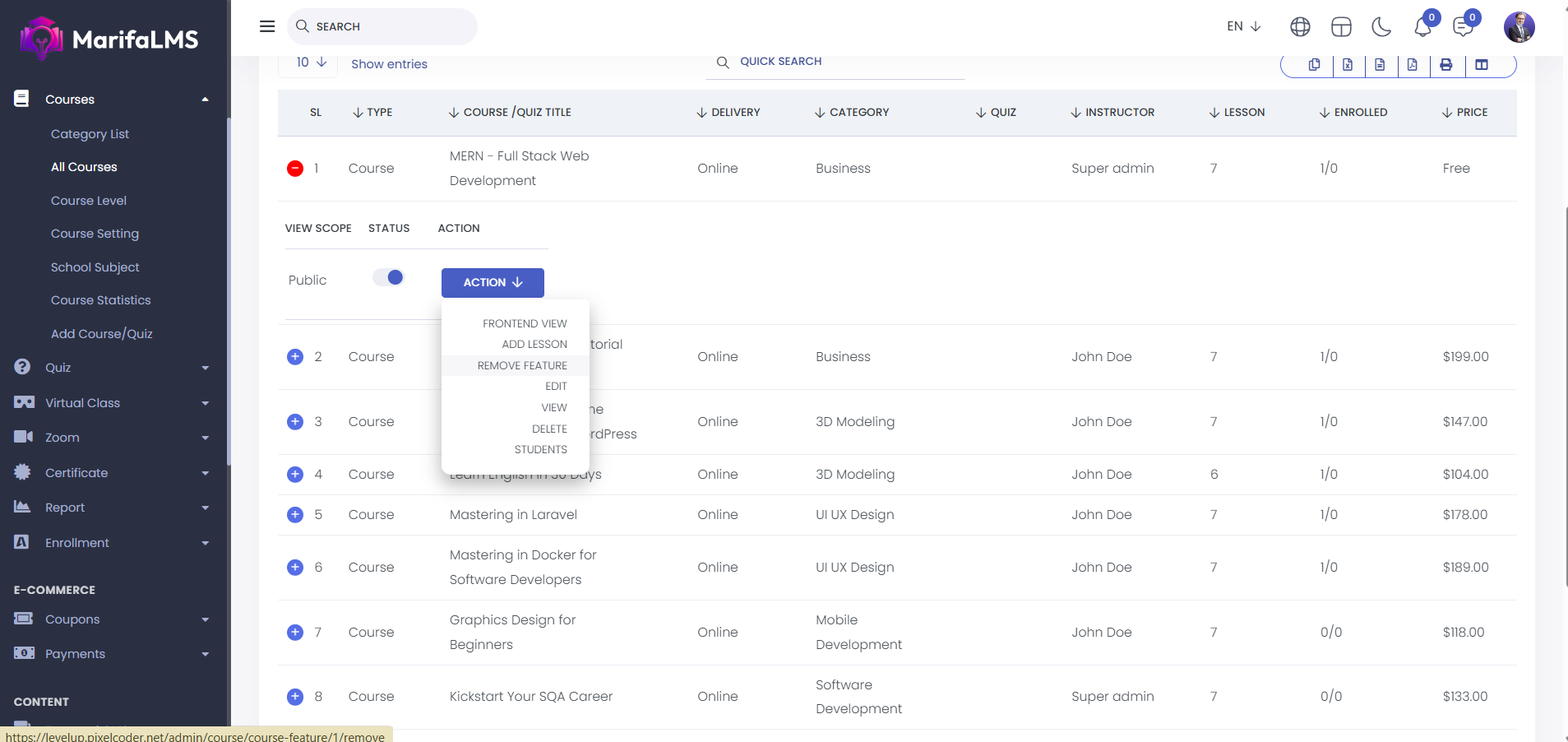
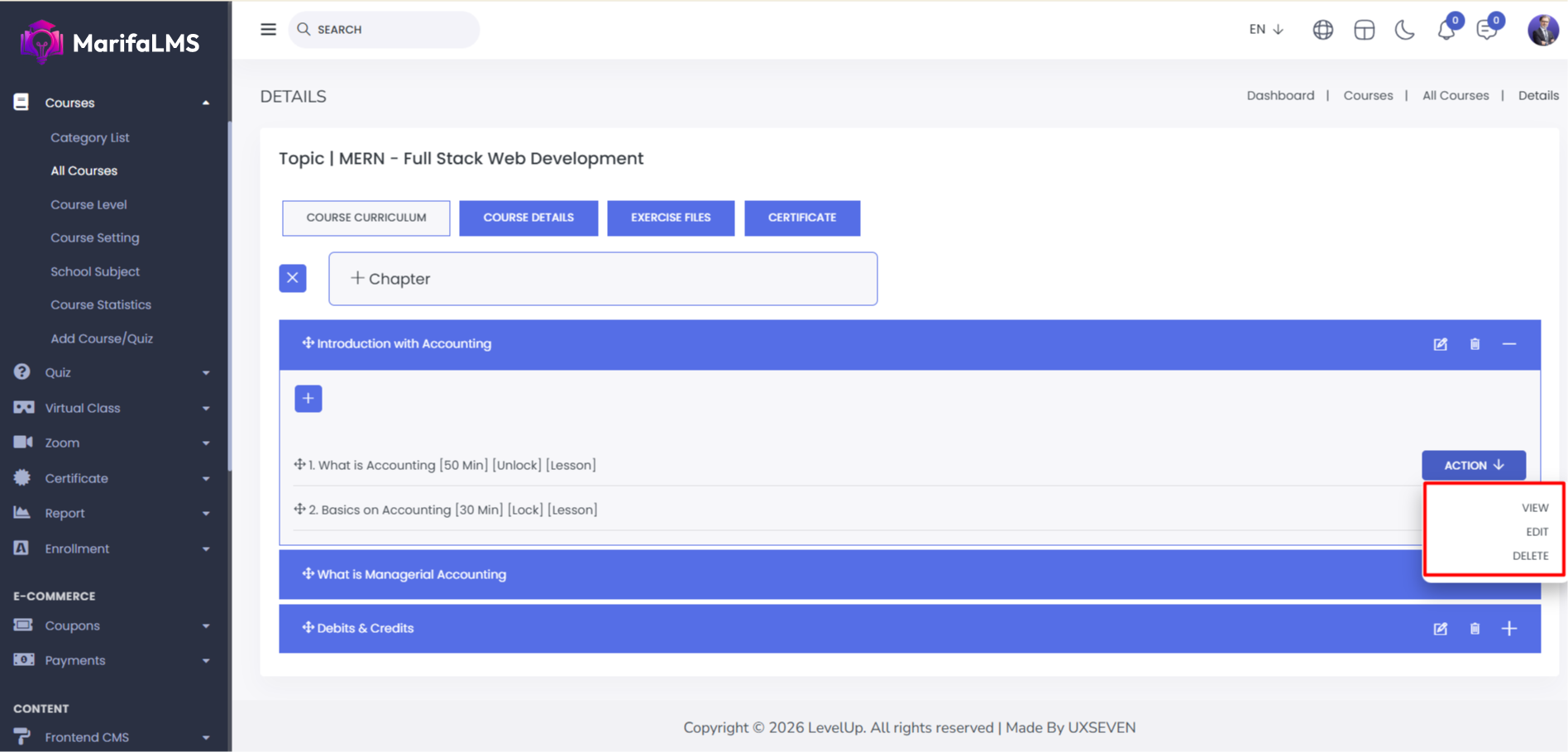
The "Action" button lets you manage courses and quizzes with options like previewing on the frontend, adding lessons or quizzes, marking a course as featured, viewing, editing, or deleting details, and checking student enrollment.
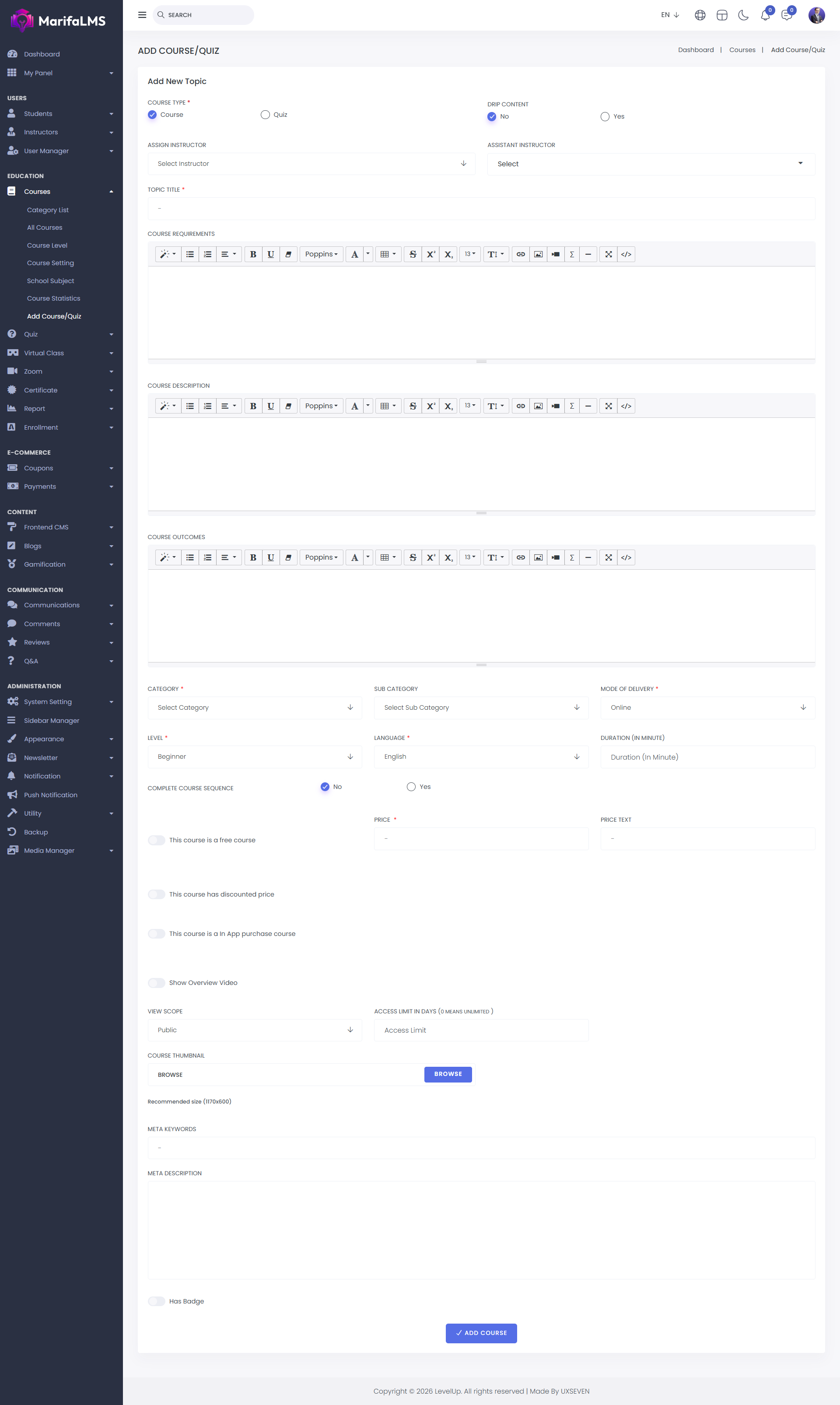
Add New Course : To create a new course or quiz, click on the "Add New Course/Quiz" button. This will open a new page where you can fill out the required form. Begin by selecting the course type and specifying whether the content is drip or not. Assign an instructor and, if applicable, an assistant instructor.
Provide the topic title, course requirements, description, and Course outcomes. Choose the appropriate category, subcategory, mode of delivery, level, and language. Set the course duration and indicate whether it must be completed in sequence.
Specify if the course is free or paid. For paid courses, set the price and, if applicable, the discounted price. Configure in-app purchase options and upload an overview video. Define the course's visibility scope and access limits. Finally, upload a thumbnail image for the course.
You can also optimize the course for search engines by adding meta keywords and a meta description. Once all the details are completed, click "Add." Your course or quiz will be successfully created.
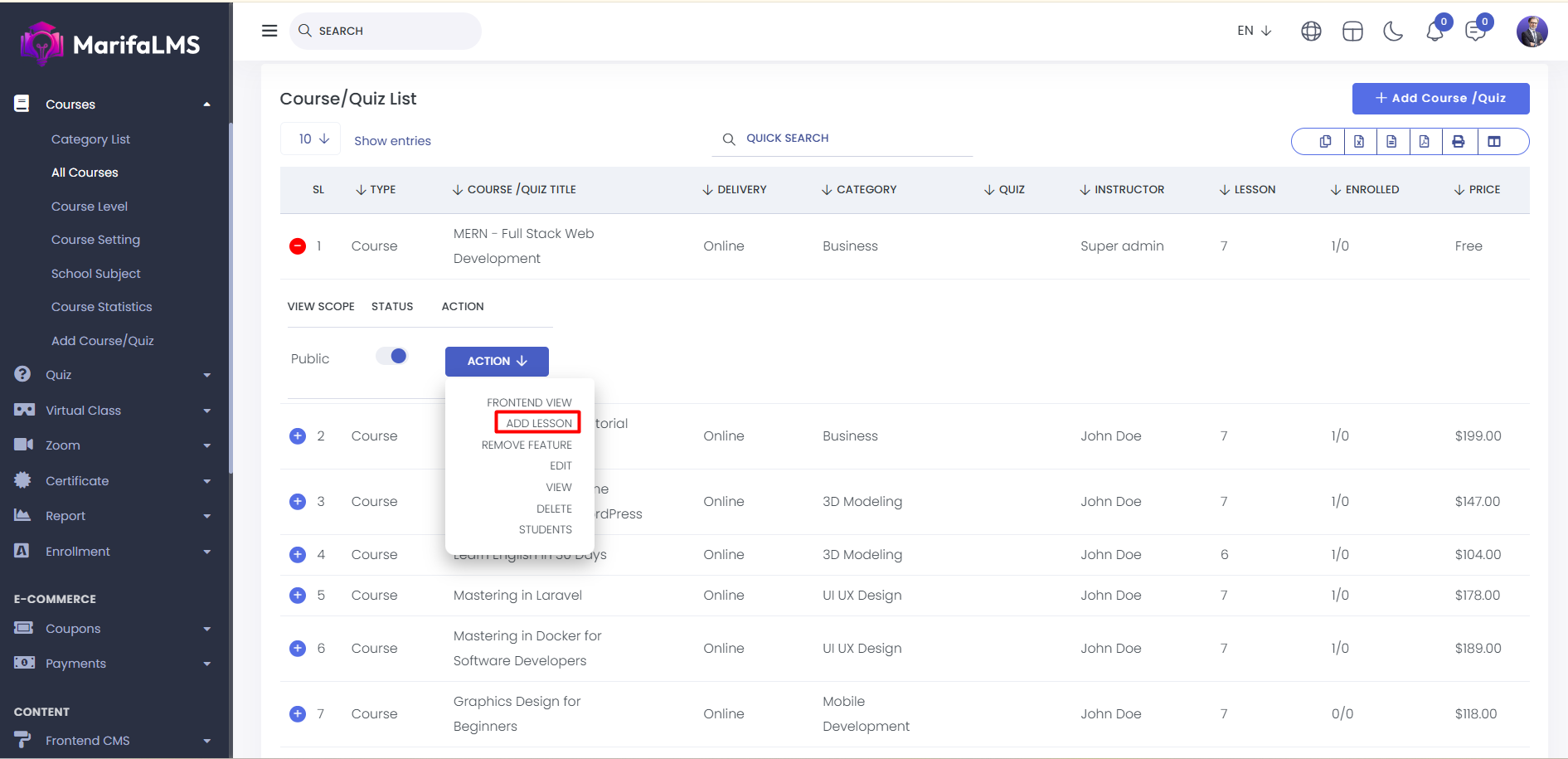
Add Lesson: To add a lesson or quiz first you have to create a chapter , to create this first you have to go to the course list, click "Action," and select "Add Lesson."
Click on plus sign ,you will find the “Add Chapter ”option.
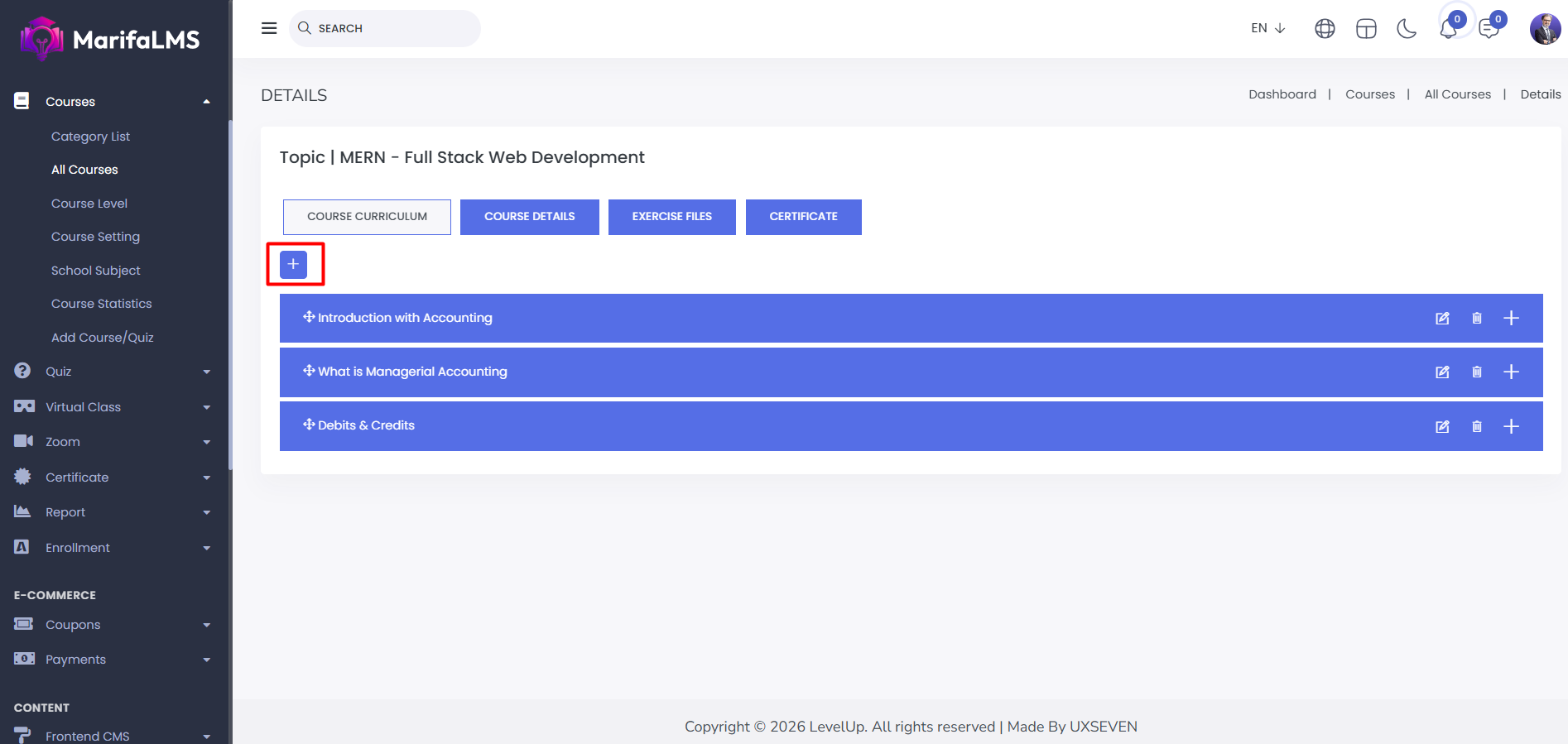
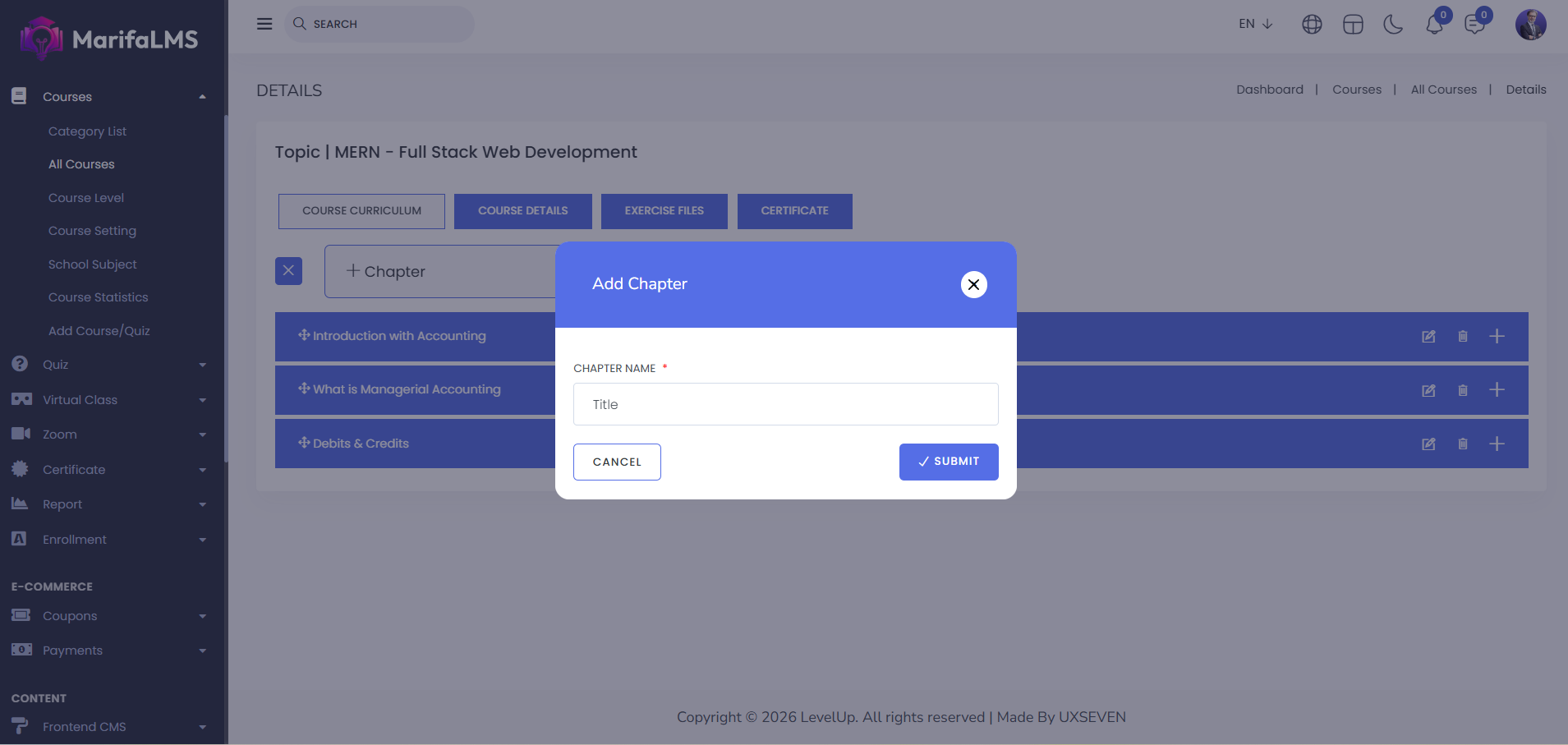
To create a chapter click on chapter and type the chapter name and save, chapter will be created successfully.
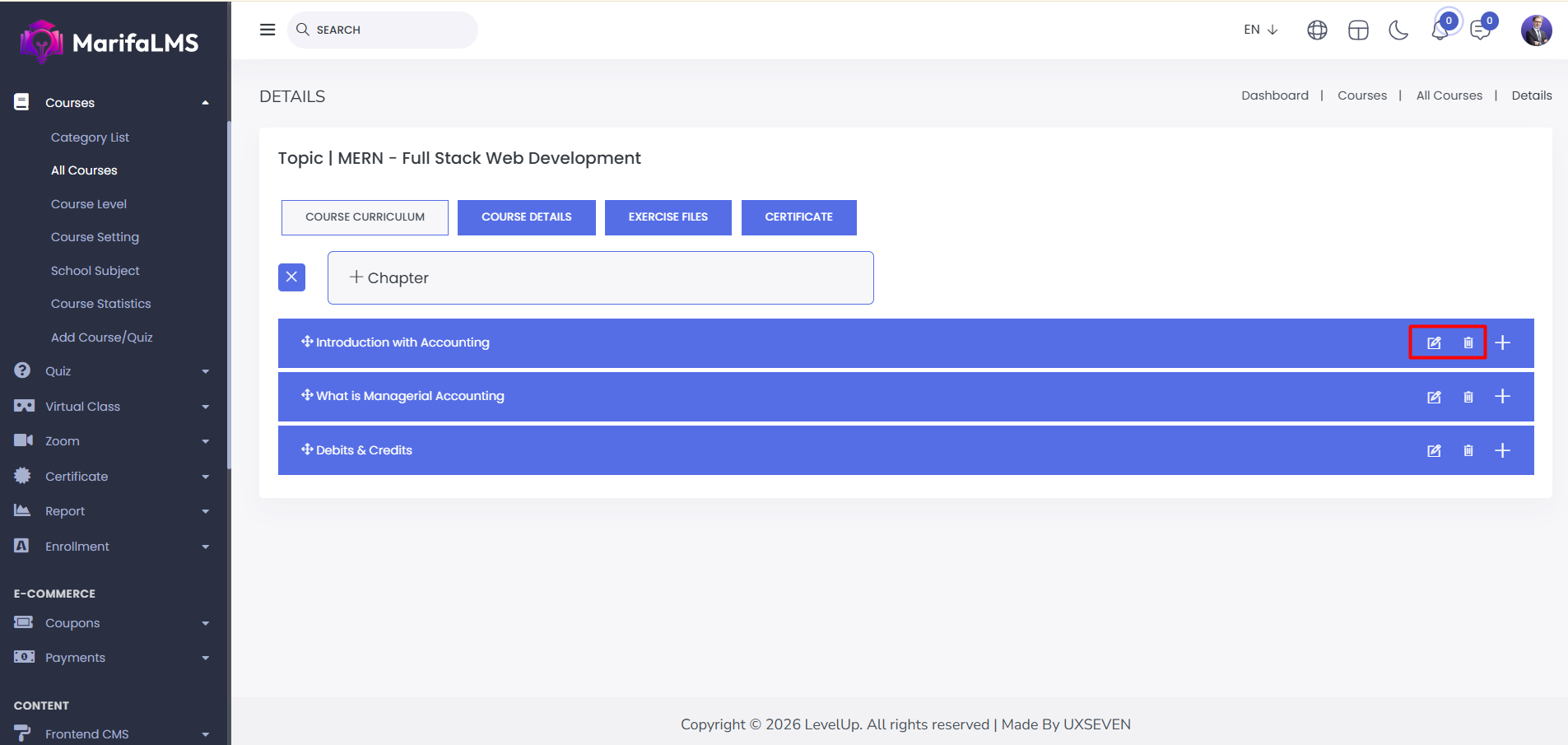
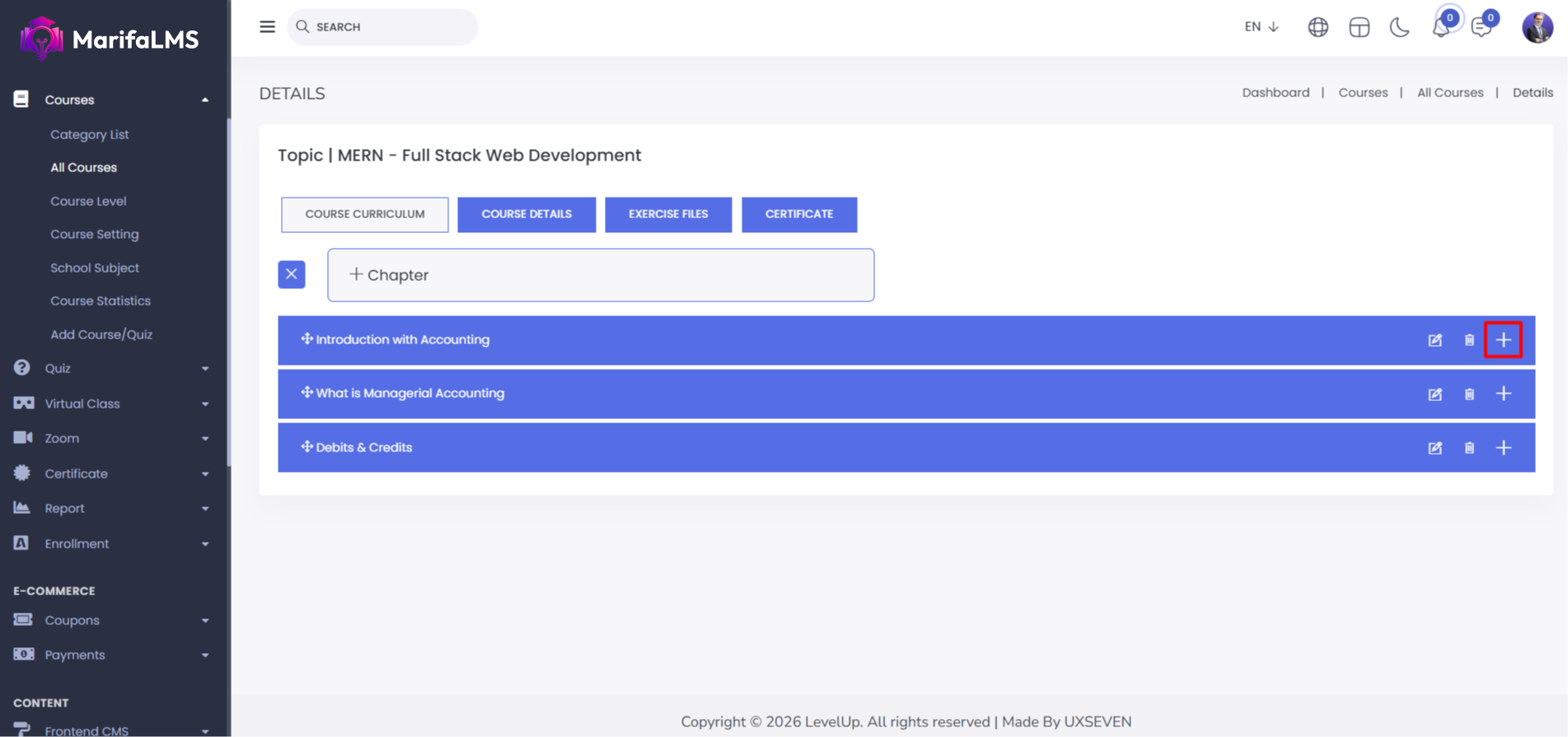
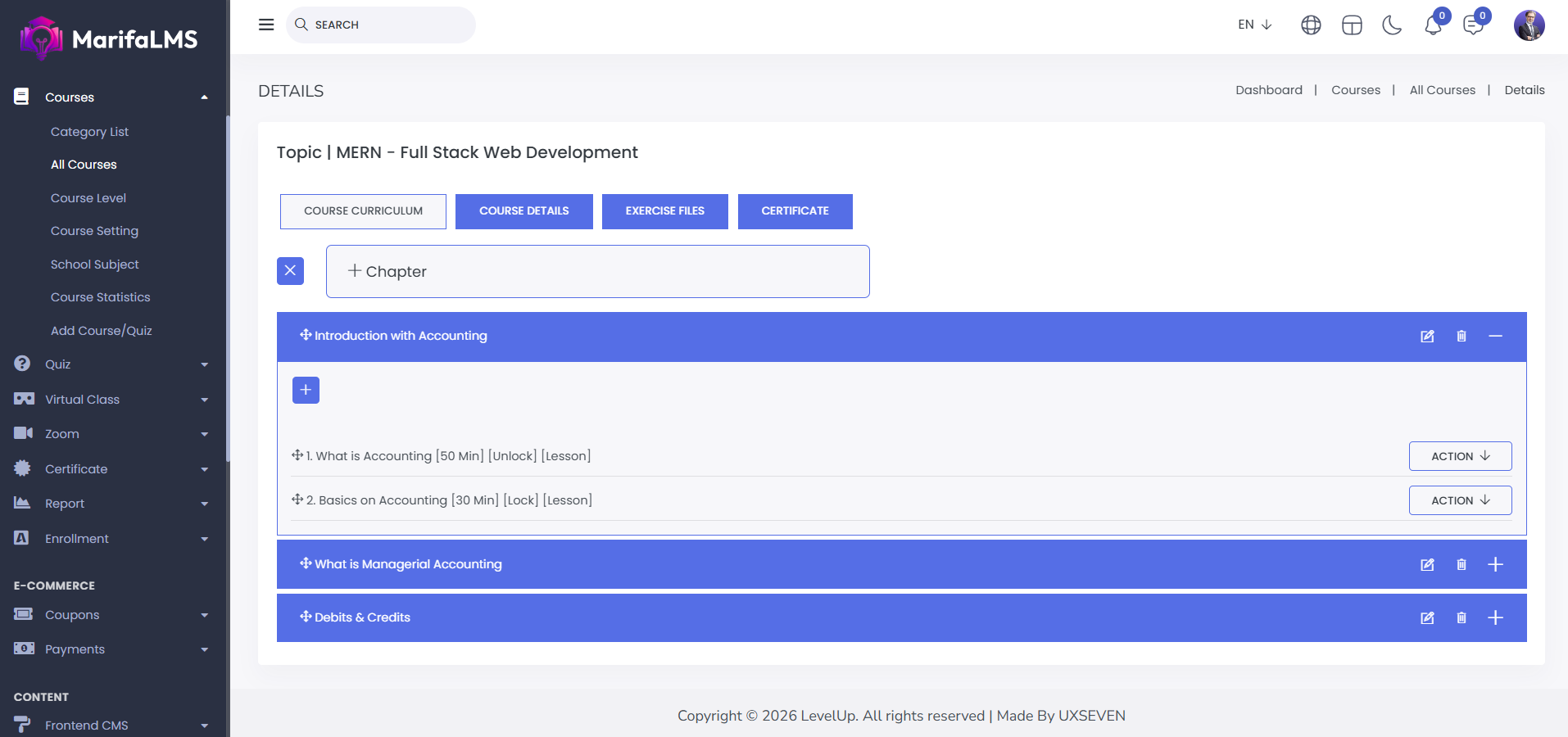
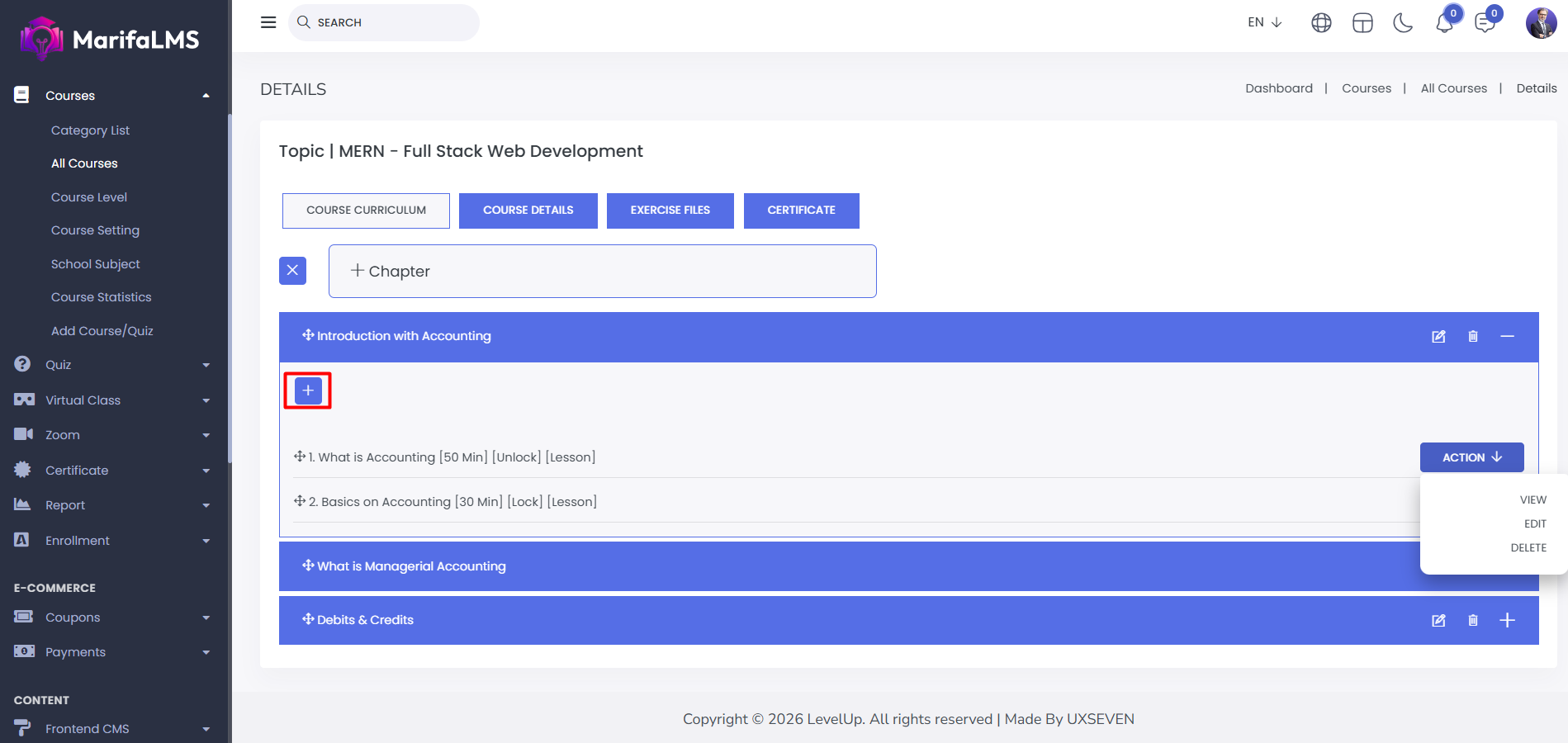
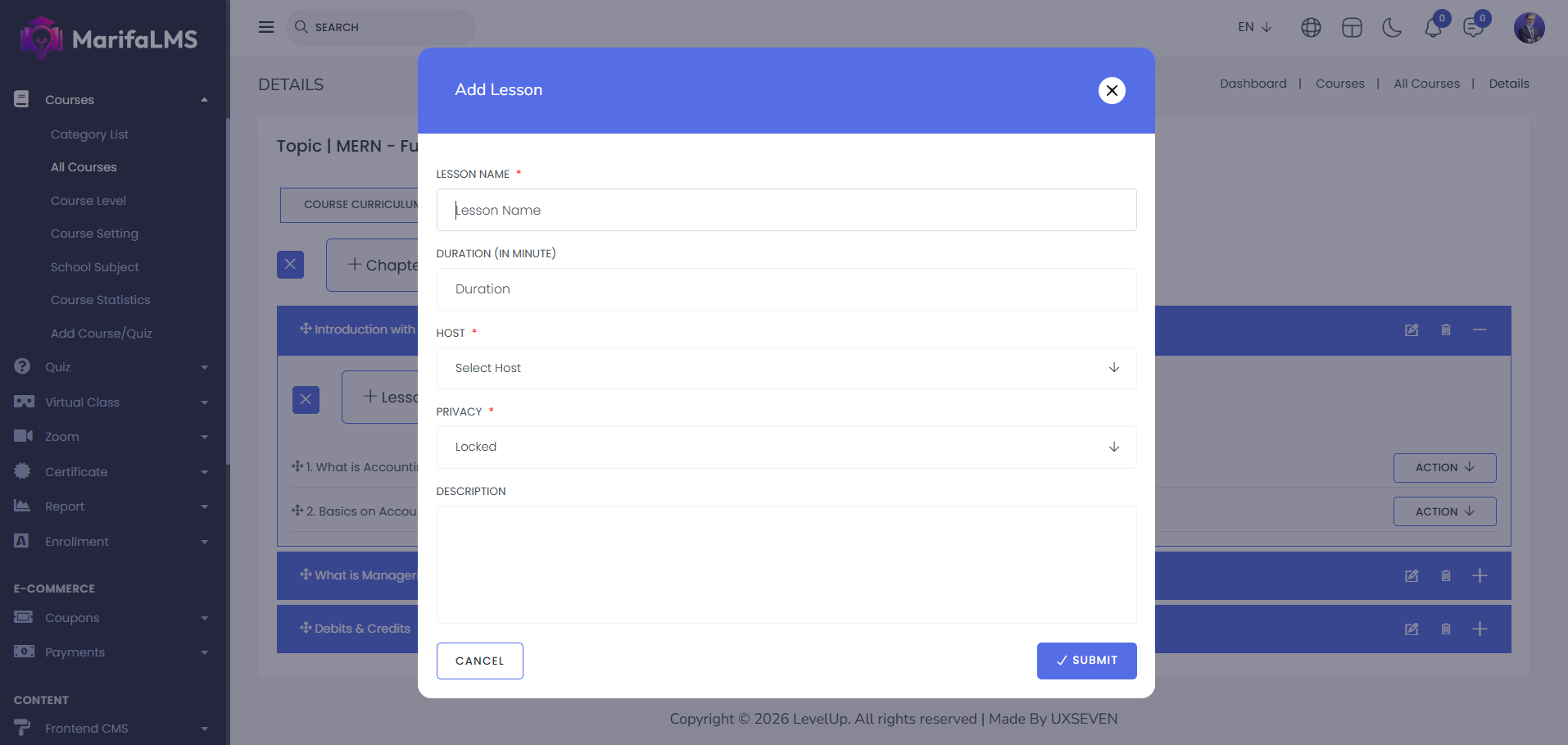
To create a new lesson click on “Lesson”.
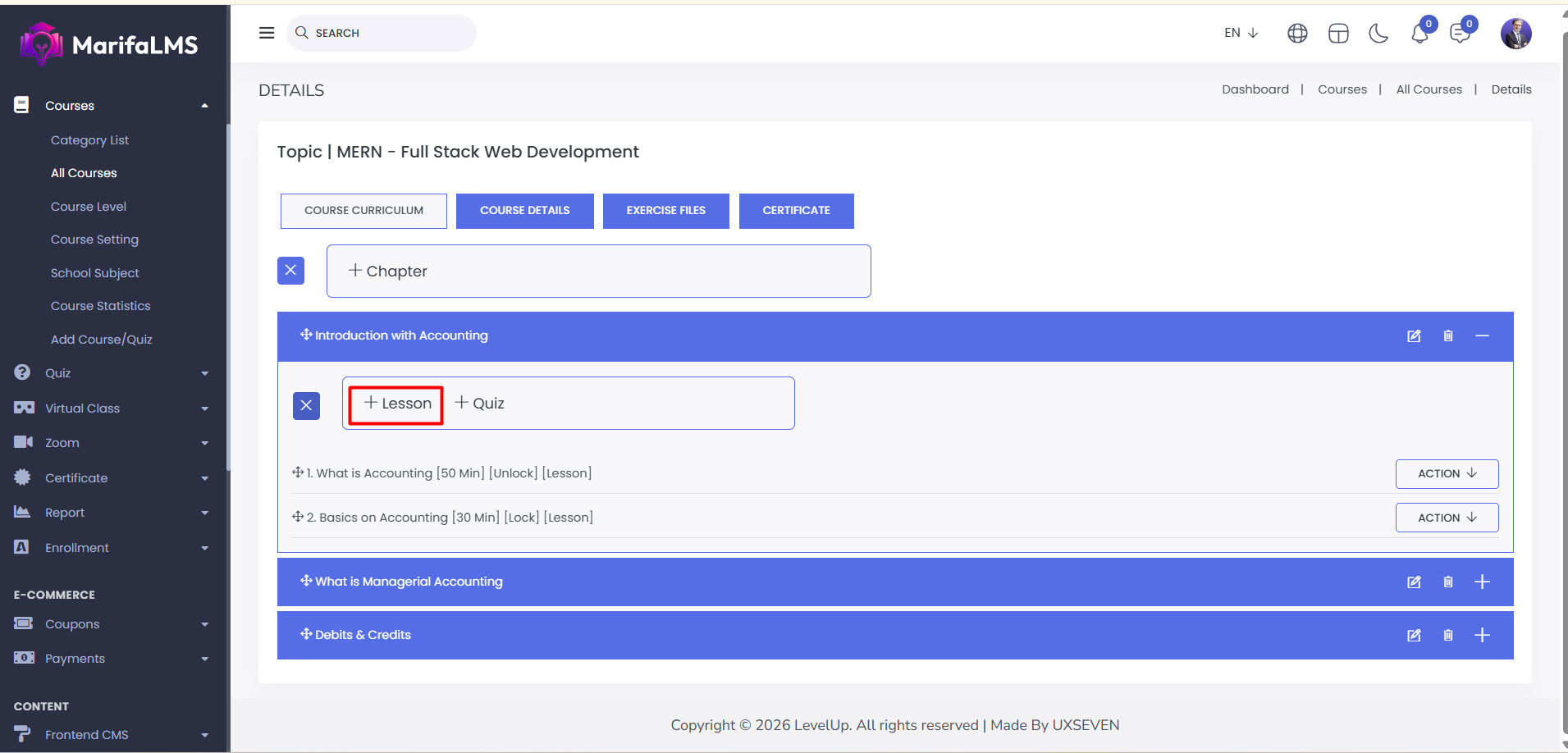
Enter the lesson name, duration, host, privacy, and description, then click "Submit" to successfully create the lesson.
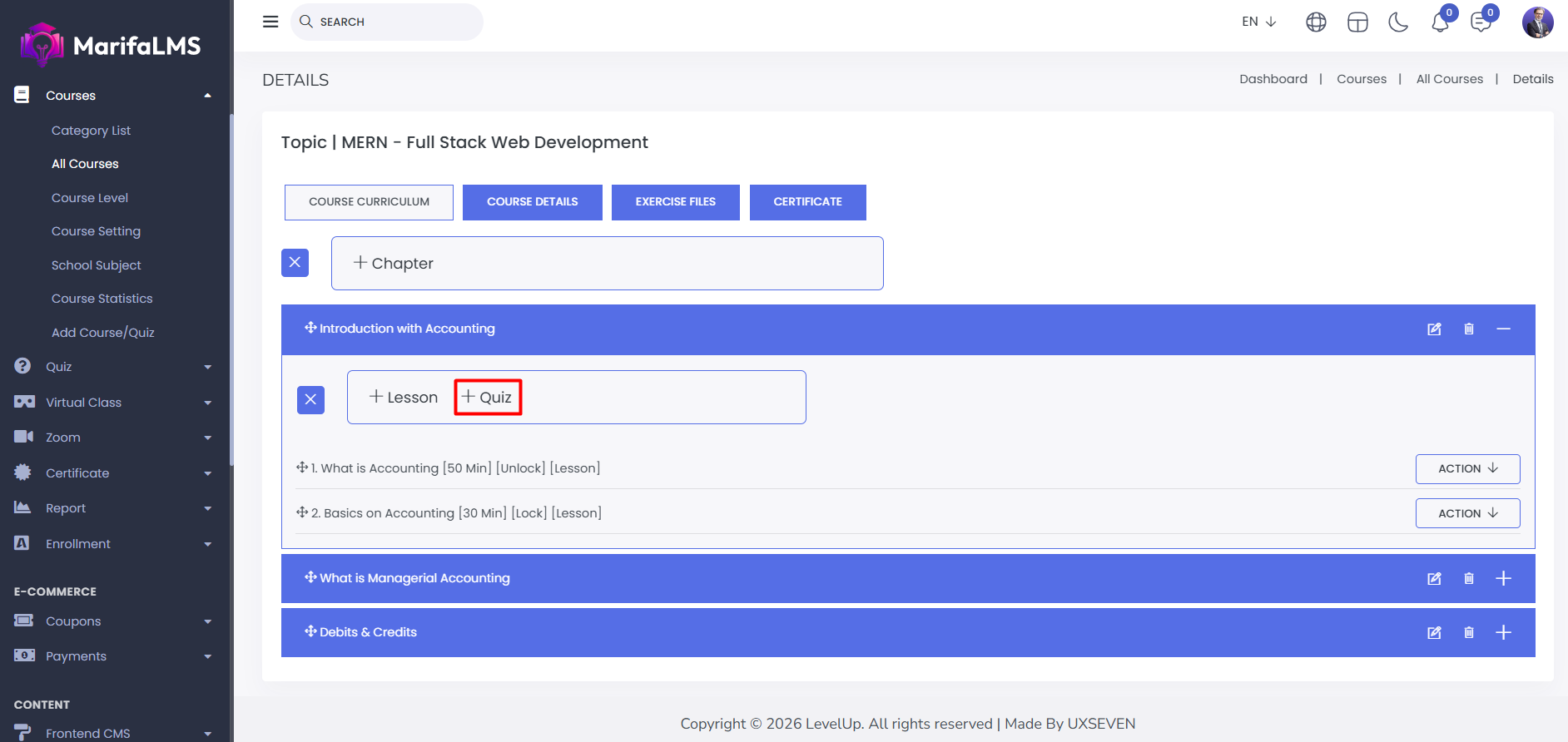
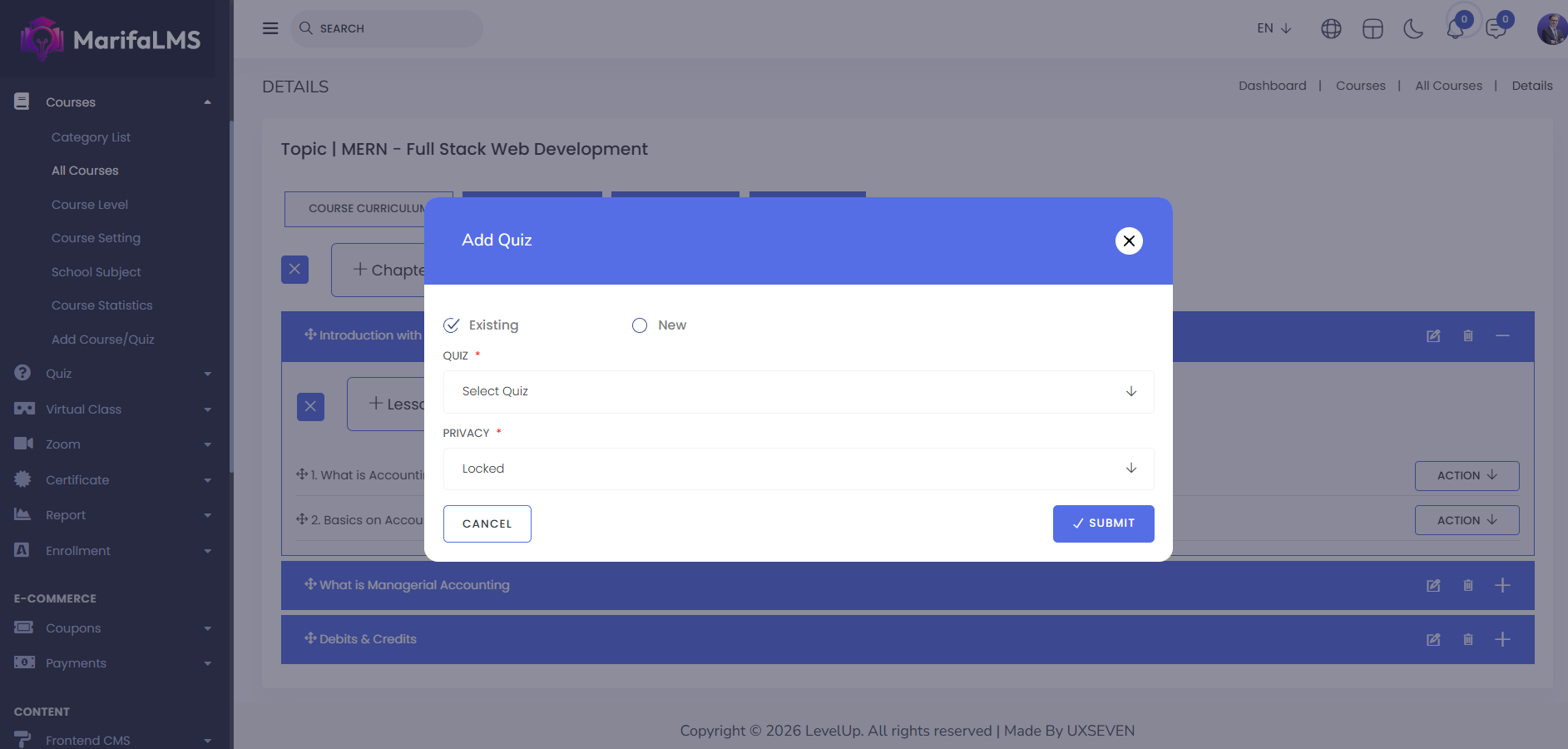
You can create both existing and new quizzes here. To create an existing quiz, simply click on it, select the quiz, set the privacy, and click "Save."
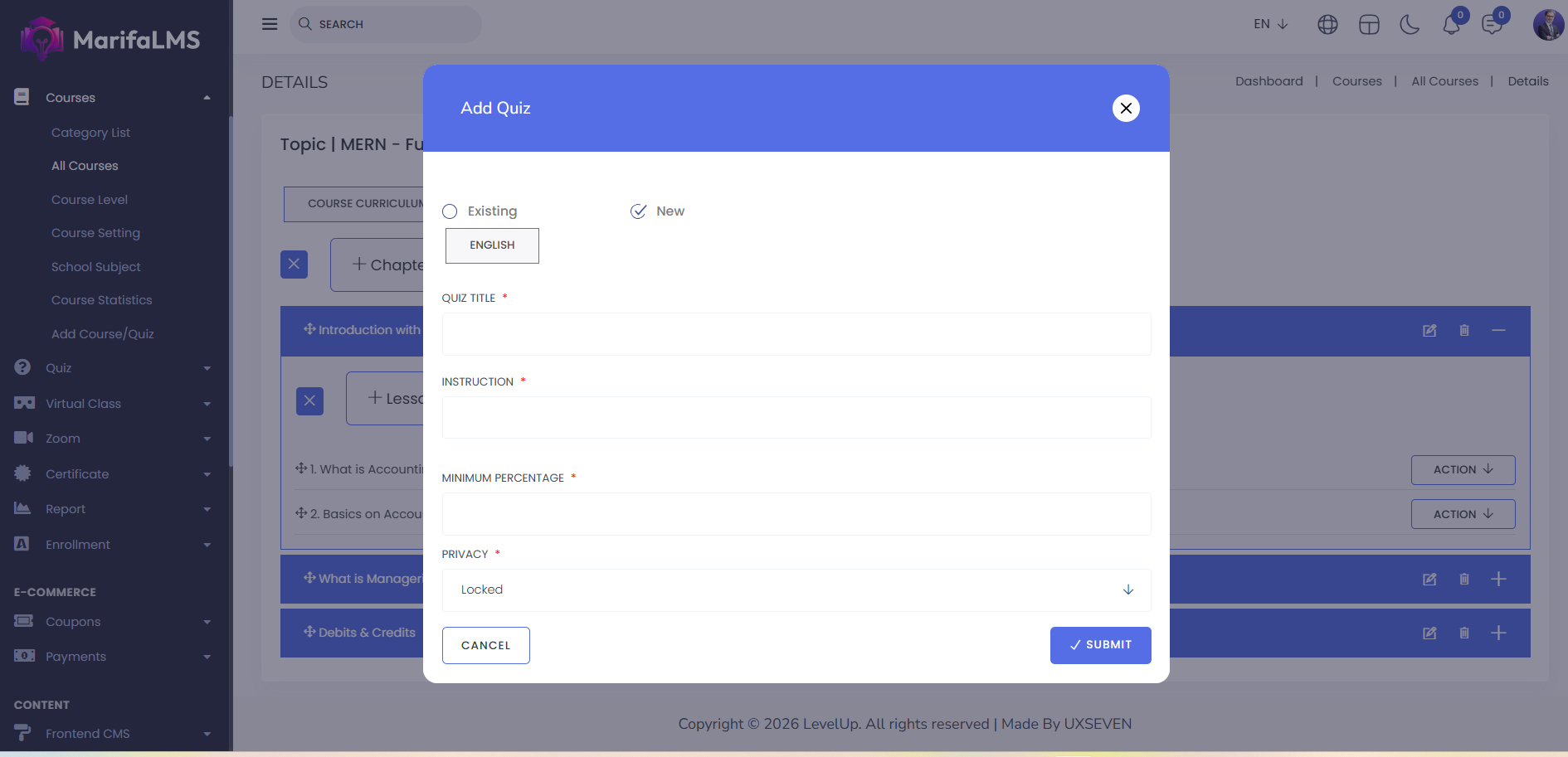
To create a new quiz, click "New," enter the quiz title, instructions, minimum percentage, and privacy settings, then click "Submit."
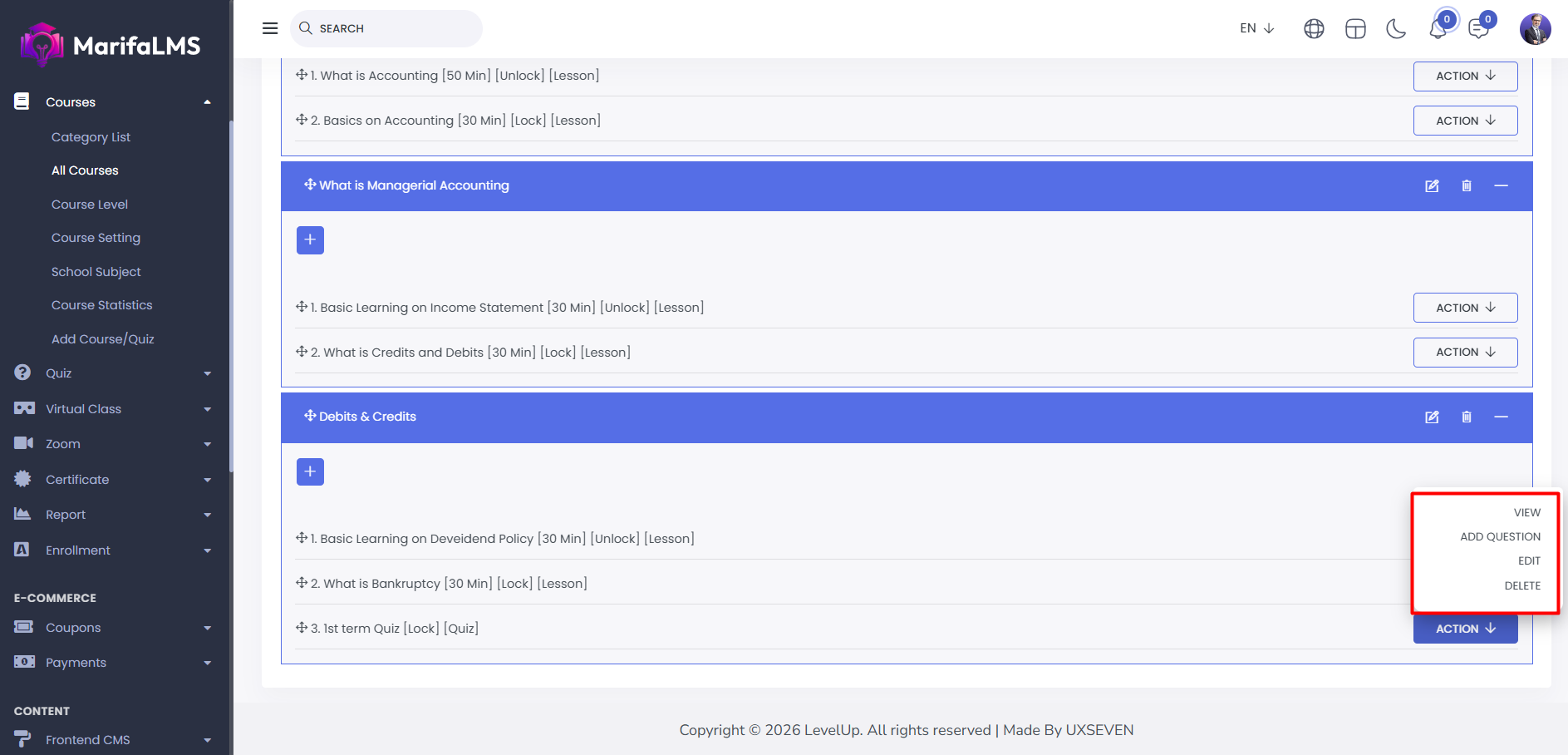
By clicking on “Action” you can view the quiz, add questions, edit and delete.