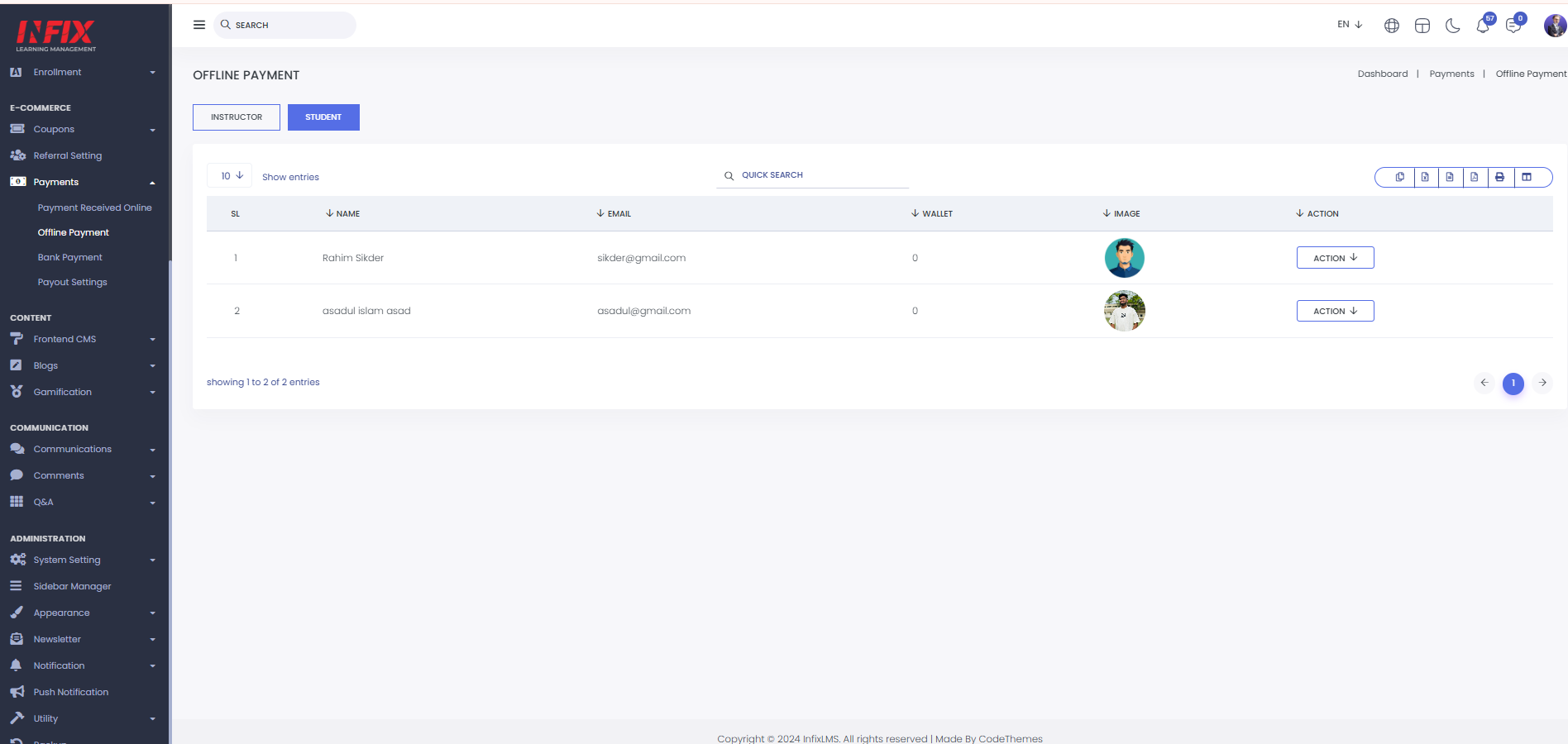
Offline Payment : If any user make his/her payment direct by admin then it will be shown on the offline payment list. Only admin can use this function. User just give the amount to admin and admin make a deposit manually. From here you can see the offline payment list for both instructor and students. Here you can see SL, name, email, wallet, image & action for both instructor & student panel.
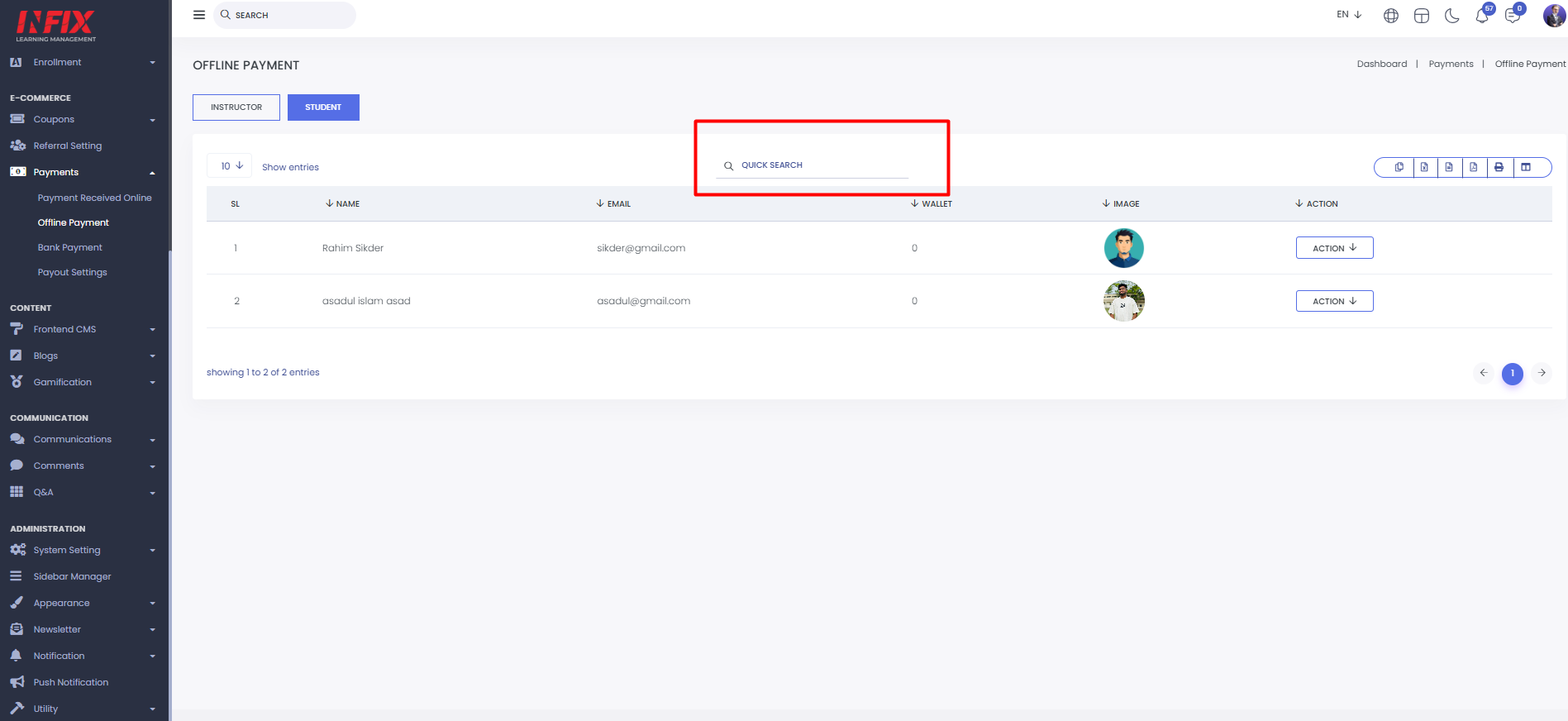
You can find anything by using the search functionality from both the instructor and student panels.
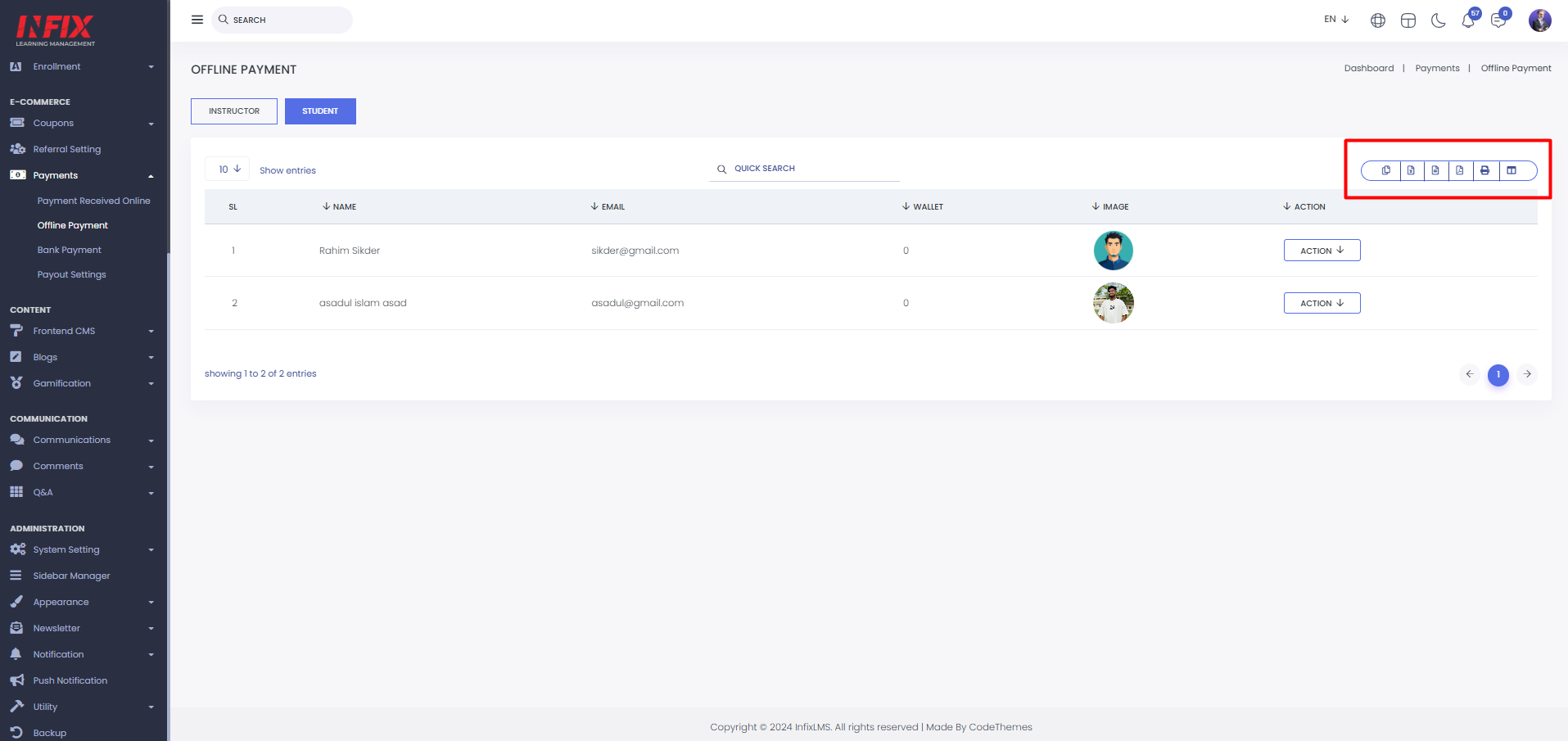
You can export data from here in both the instructor and student panels.
By clicking on the Action button, you can add funds, deduct funds, and view the fund history for both the instructor and student panels.
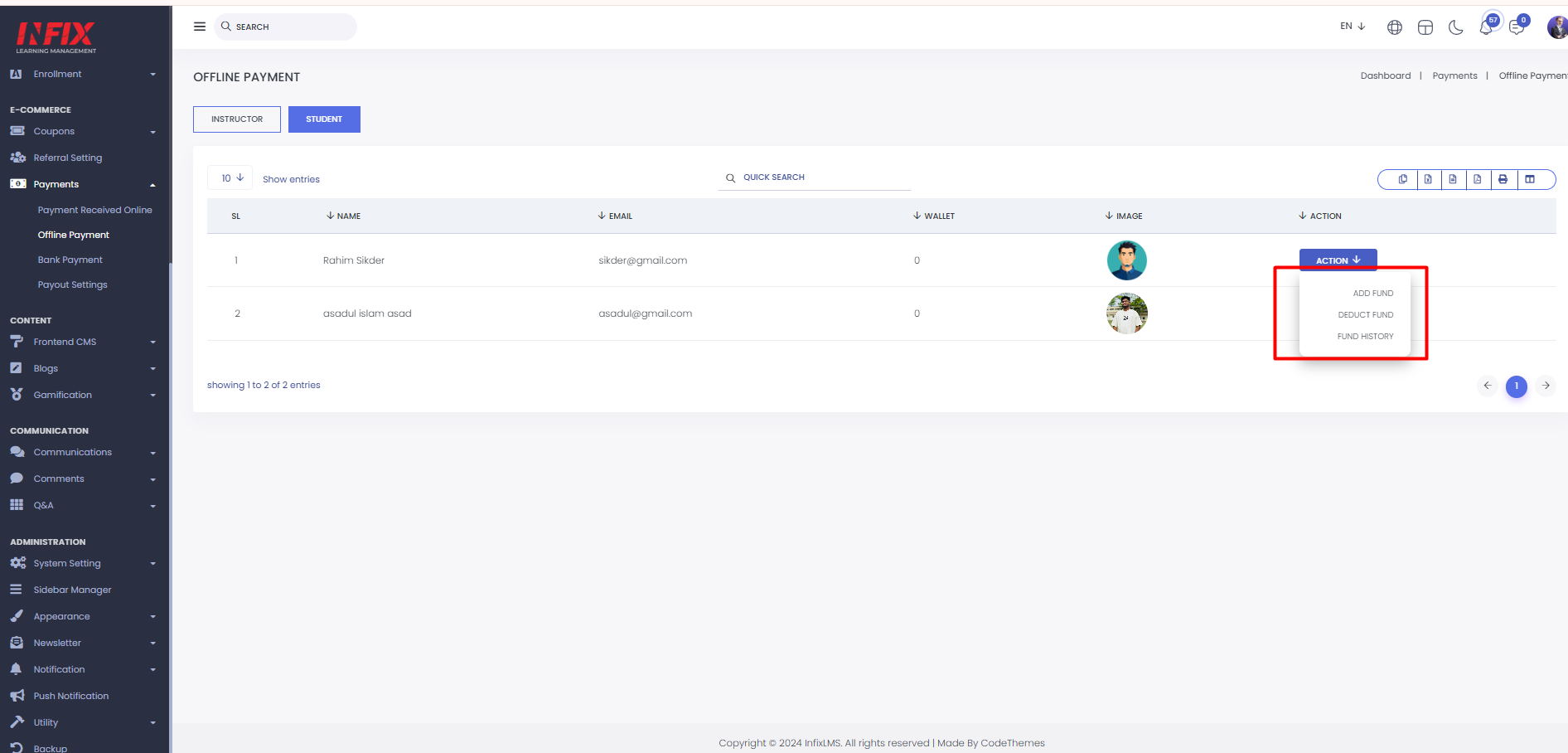
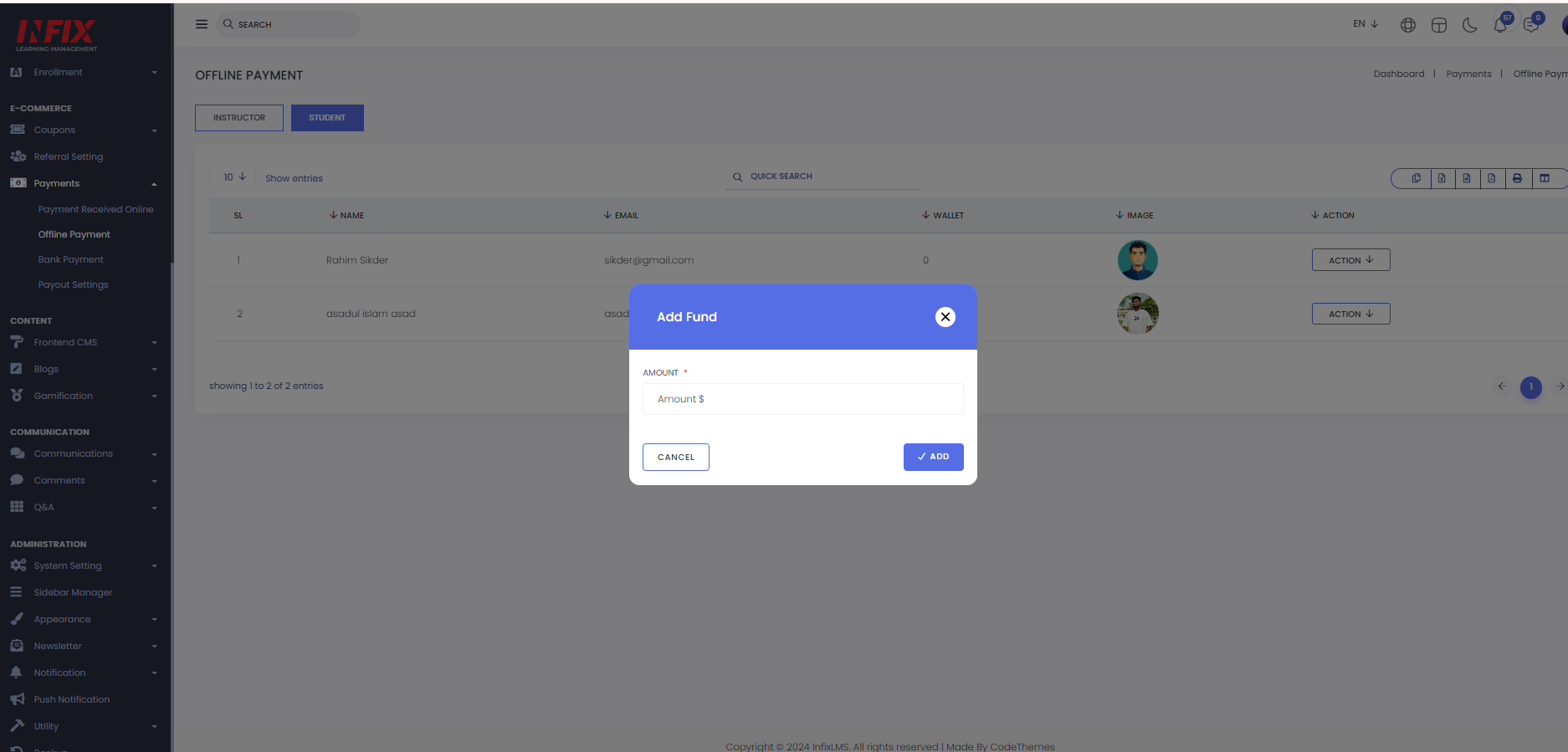
Add Fund: To add funds, click on the Action button and then select the Add Fund option. Next, enter the amount in the provided field and click on the Add button. Your payment will be added successfully.
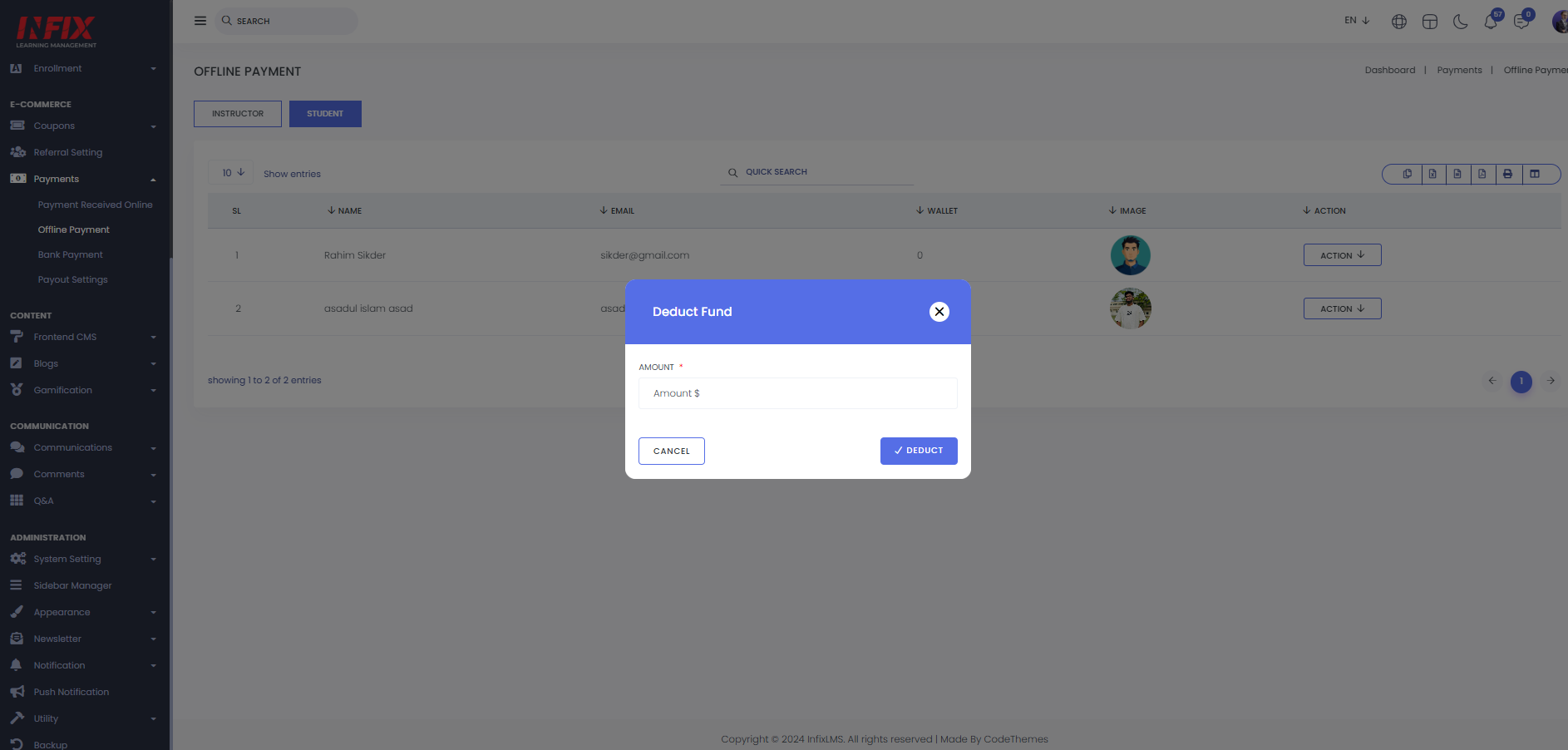
Deduct Fund: To deduct funds, click on the Action button and then select the deduct Fund option. Next, enter the amount in the provided field and click on the deduct button. Your payment will be deducted successfully.
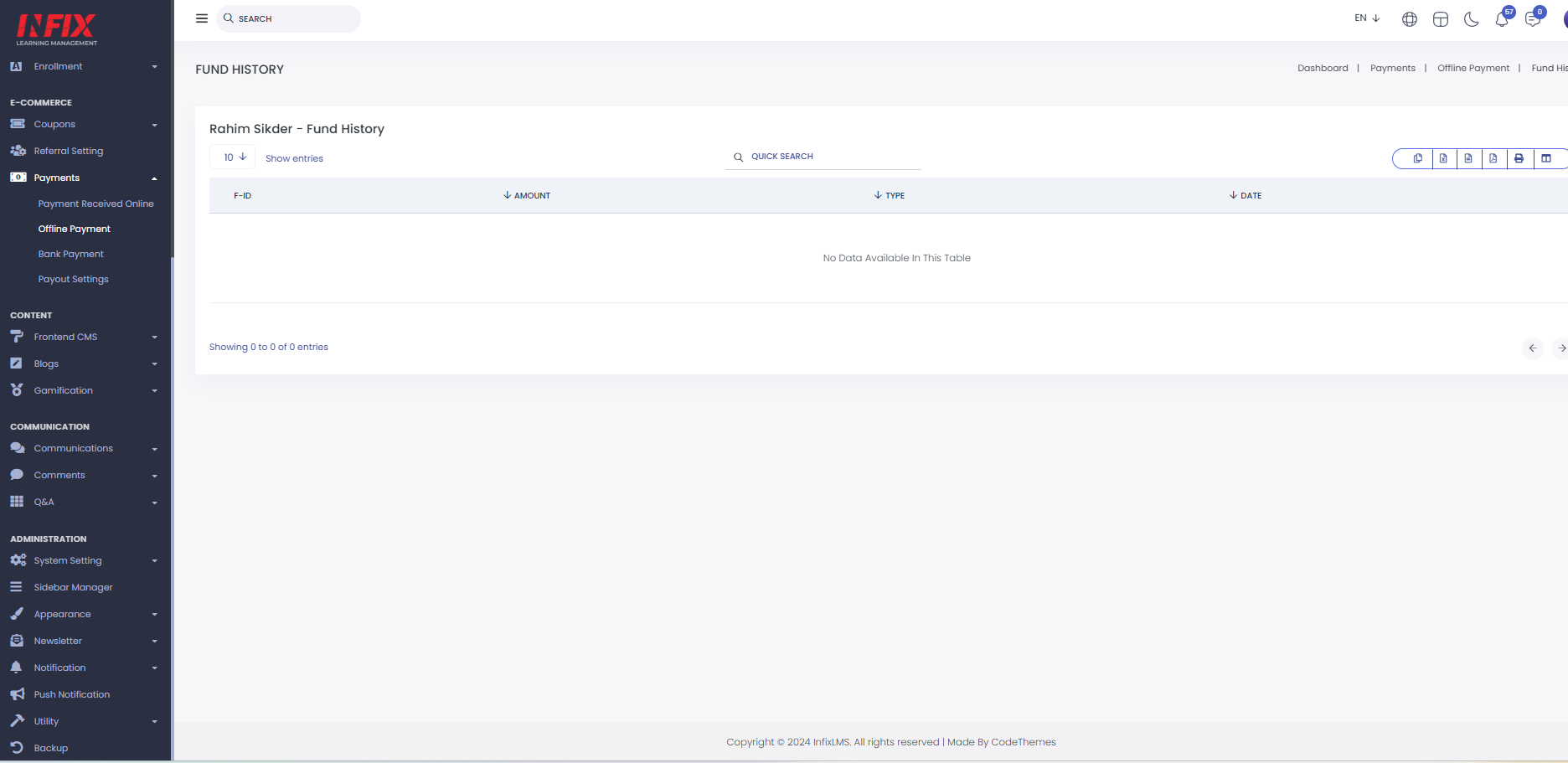
Fund History : After clicking on fund history you can see the fund history list.