26th Feb, 2024
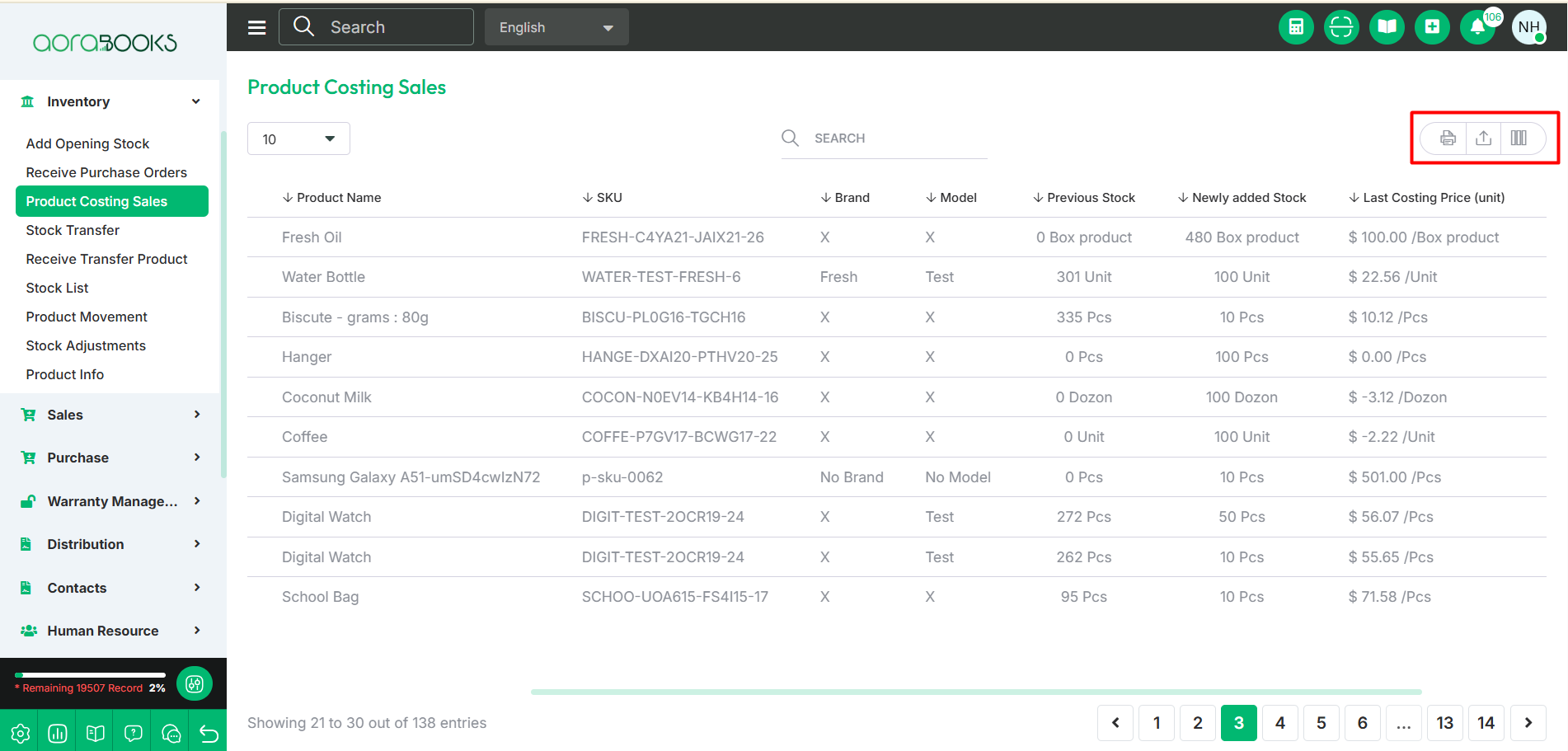
Product Costing Sales Product Costing Sales means calculating how much a product costs before selling it. This includes material costs, labor, and other expenses. From here you can see all the product costing sales list with details. Such as: Image: You can see the image of the product. Address: You can see the address related to the product, such as the shipping address or the location where the product is stored. Product Name: You can see the product name. SKU: You can see the SKU which is used to track inventory. Brand: You can see the brand name of the product. Model: You can see the model name of the product. Previous Stock: You can see the amount of stock that was available before the newly added stock. Newly Added Stock: You can see the quantity of stock that has been newly added to your inventory. Last Costing Price (Unit): You can see the last price at which the product was purchased or cost per unit. New Costing Price (Unit): You can see the updated or new cost price per unit for the product.
Type: You can see the type.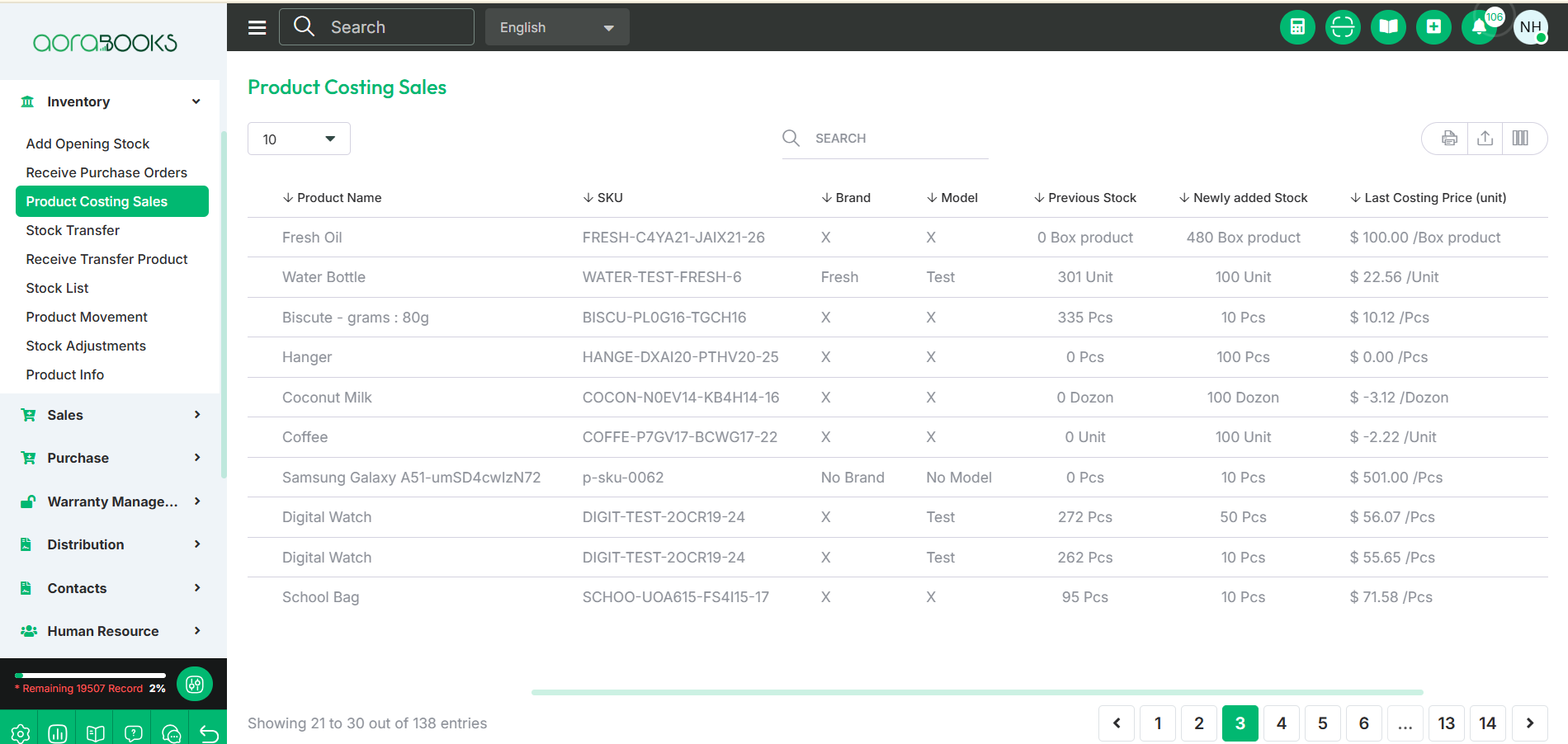
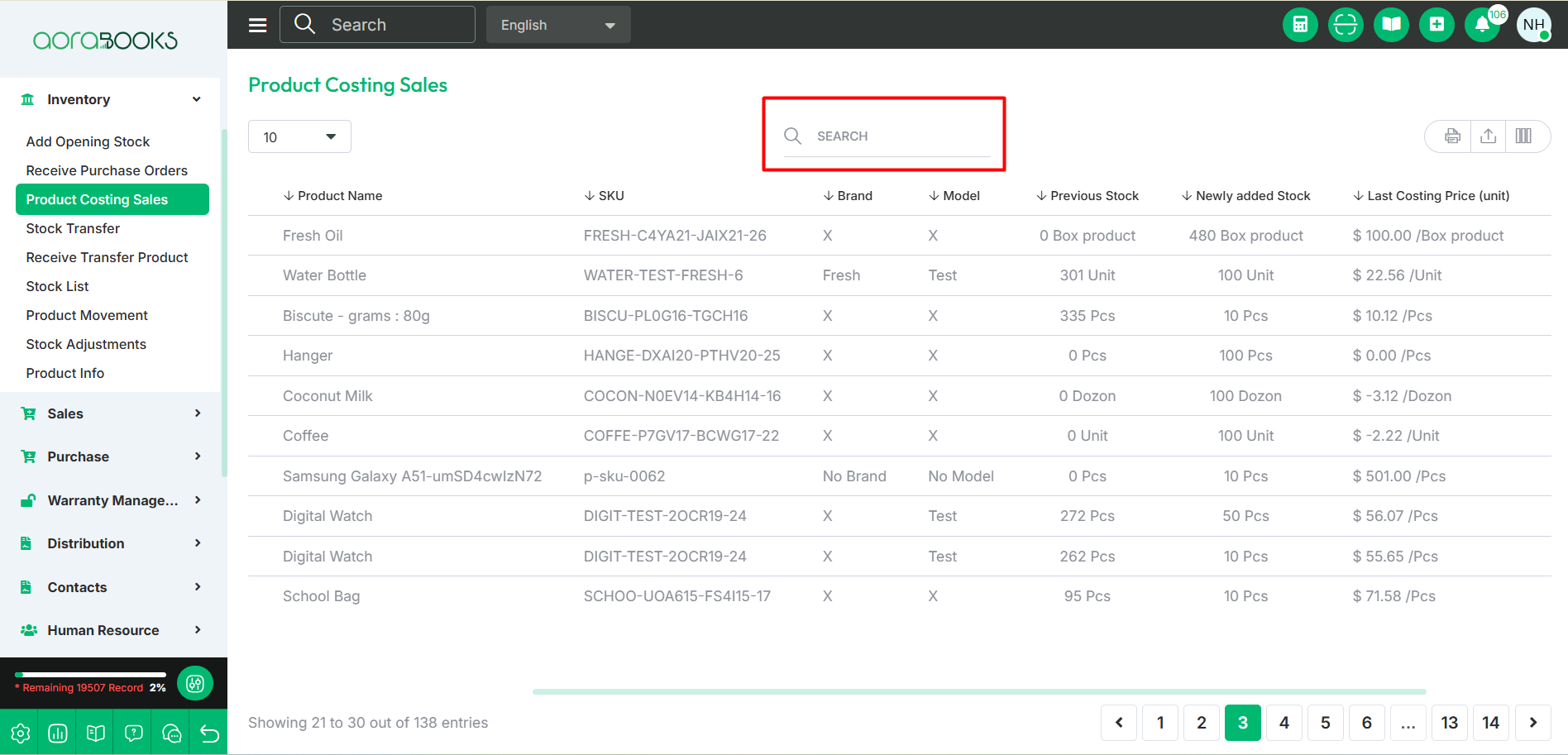
Search: You can find out any specific product costing sale from the list by using the search functionality.
Export Data: You can export the data table from here.