3rd Mar, 2025
Service Center
A service center is where products are inspected, repaired, or serviced under warranty or with additional charges.
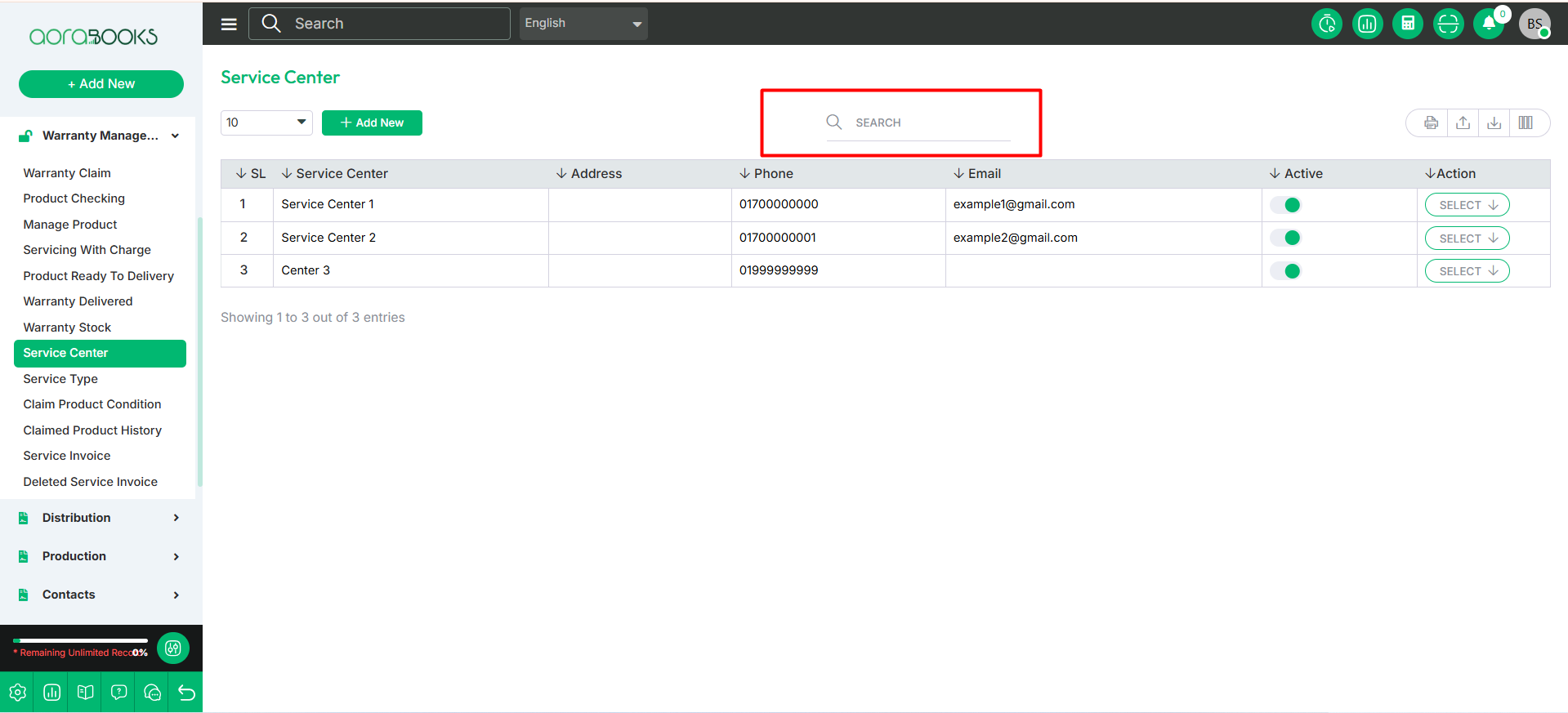
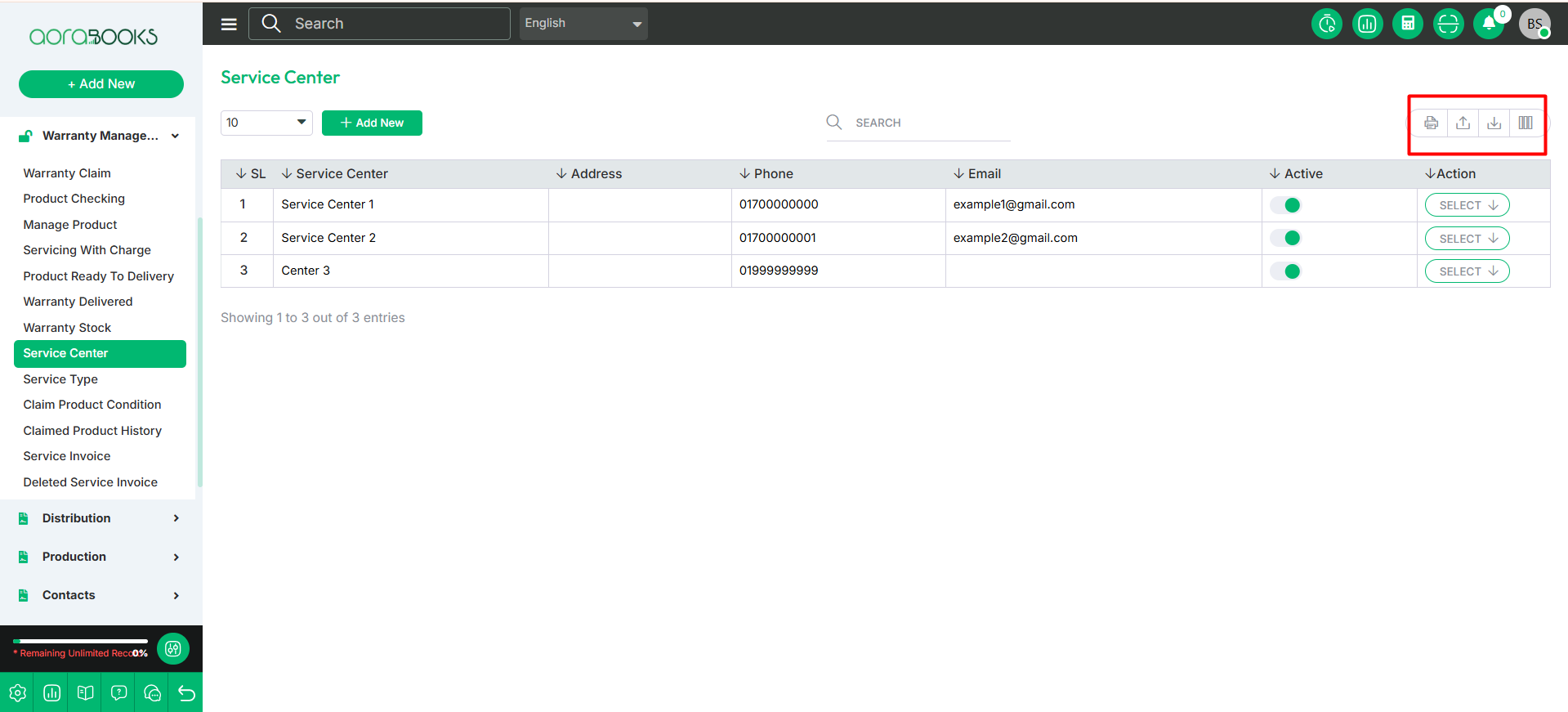
From here you can see all the service center list with details such as:
Service Center: You can see the service center name.
Address: you can see the address of the service center.
Phone Number: you can see the phone number of the service center.
Email Address: You can see the email address of the service center.
Active: You can see the status of the service center if it is active or not.
Action: From here you can perform available actions.
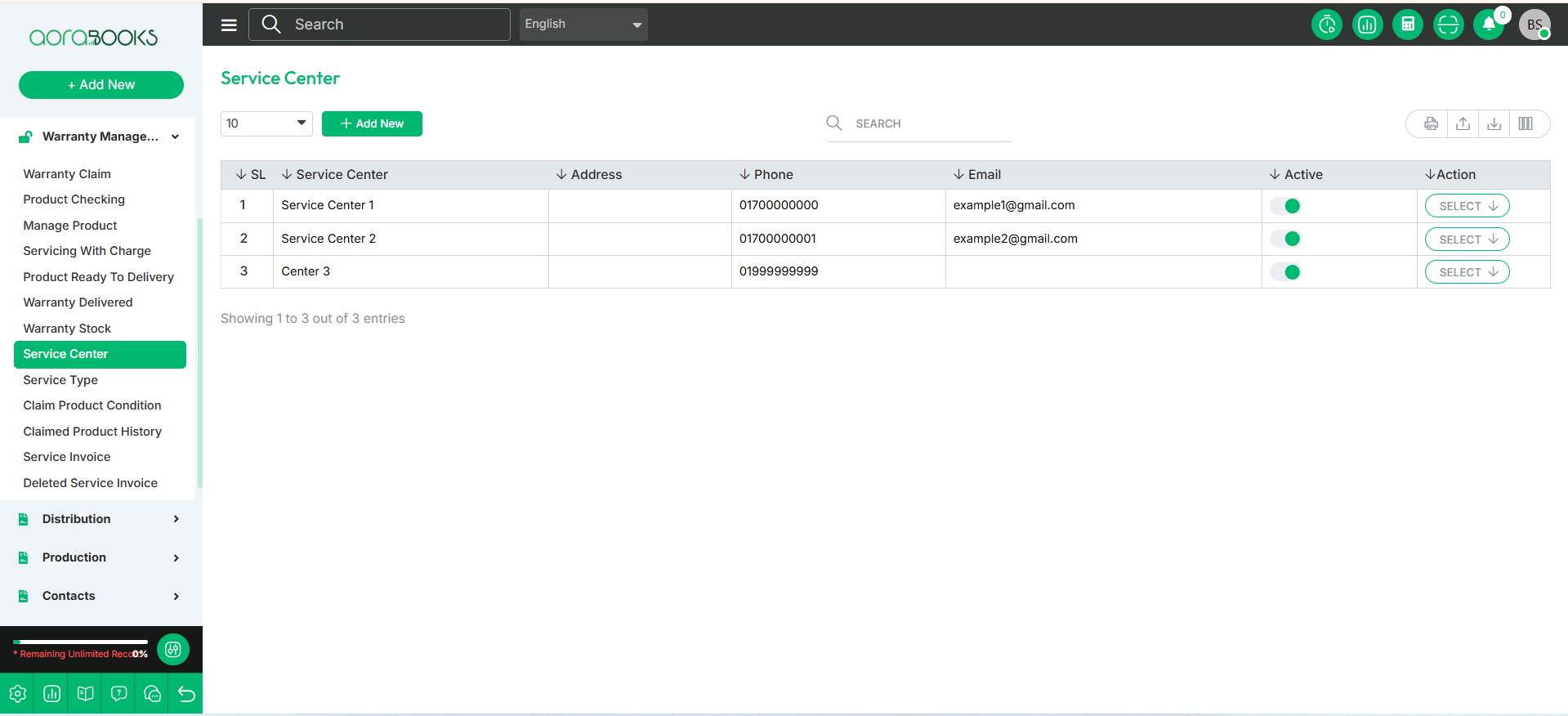
By clicking the select button you can perform multiple actions. Such as:
Edit: You can modify the details of the service center if needed.
Delete: You can delete any service center from the list if you want.
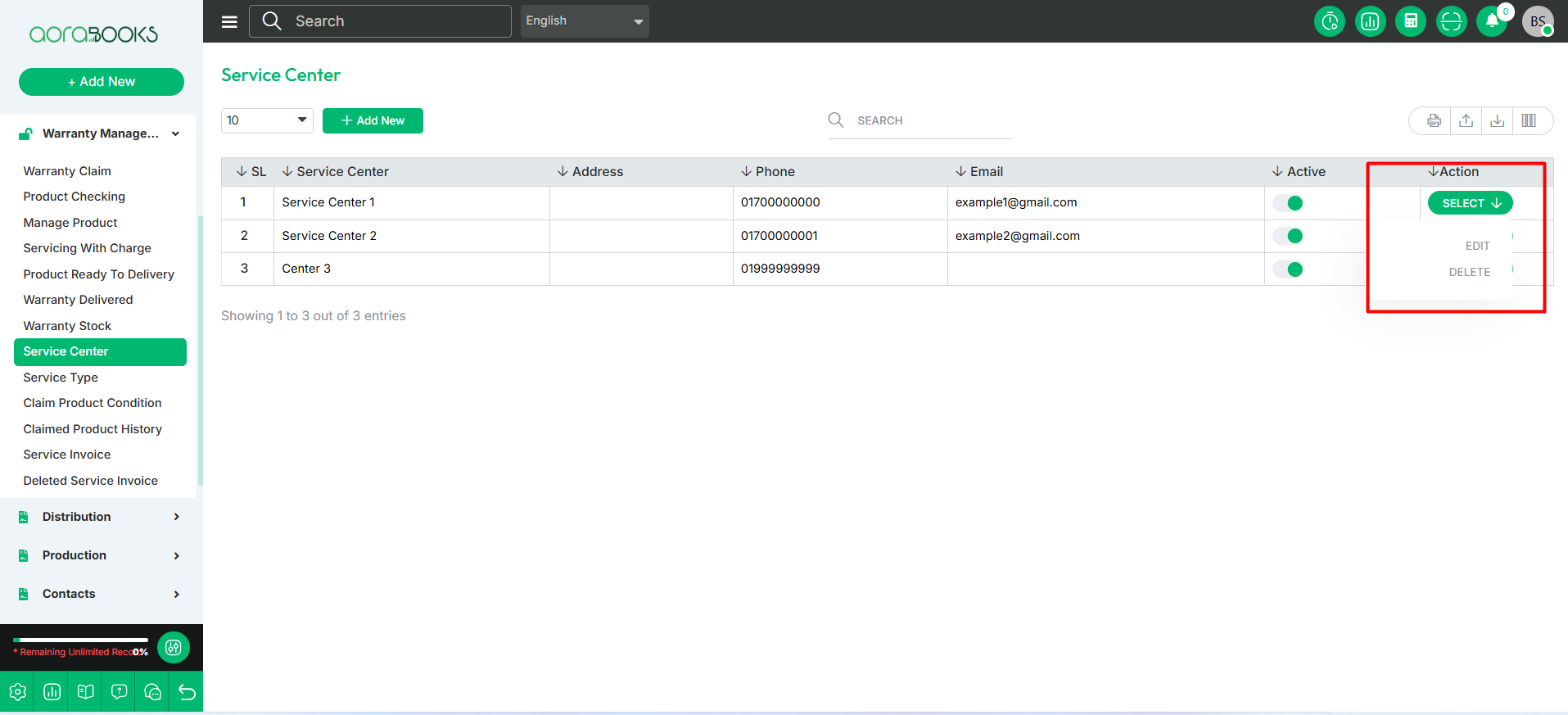
You can find out any specific service center from the list by using the search functionality.
Export Data: You can export the data table from here.
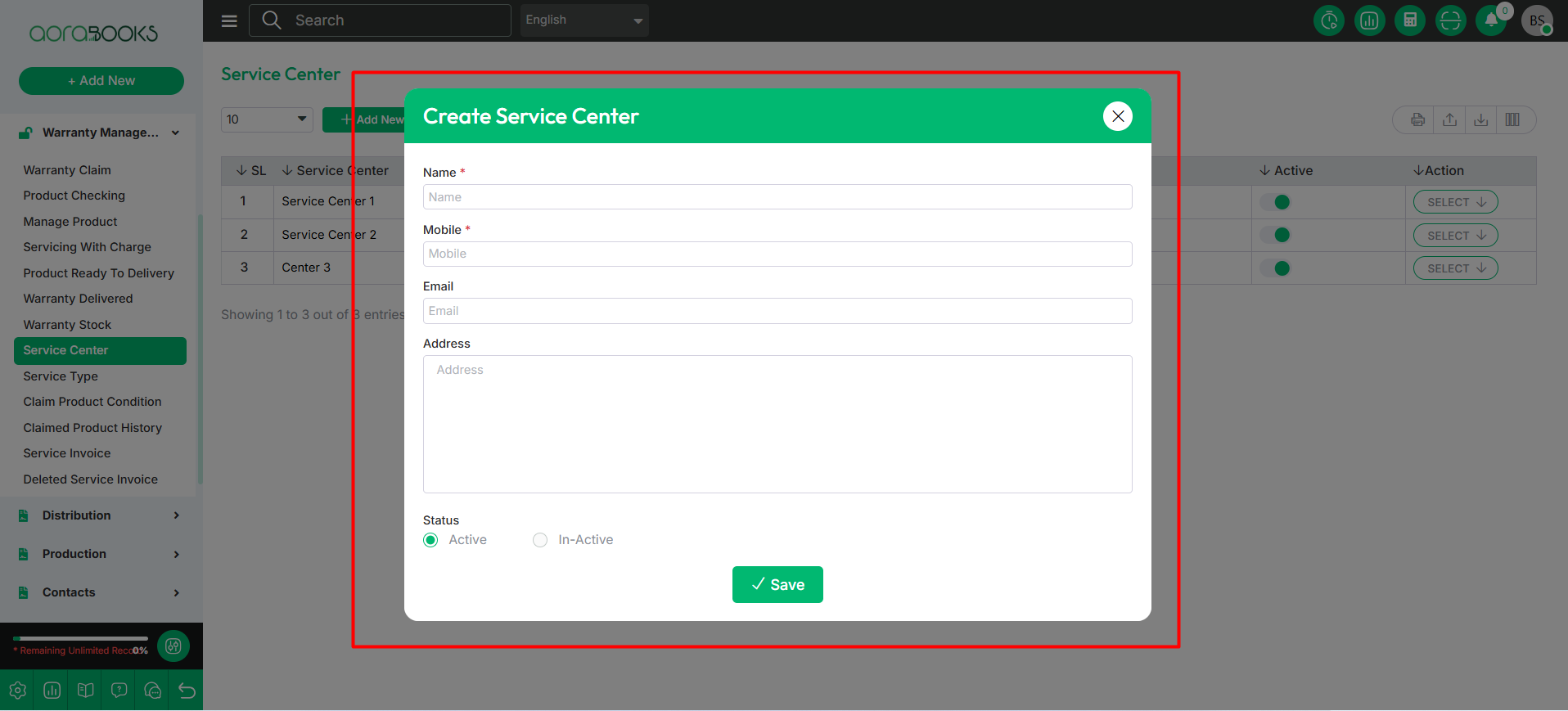
Add New: To add a new service center you have to click the button and follow the below steps:
Name: Type down the name of the service center.
Mobile Number: Set the mobile number of the service center.
Email: Set the email address of the service center.
Address: Set address of the service center.
Status: Set the status of the service center.
Save: After setting just click on save button your service center will be created successfully.