Ticket
A recorded request, issue, or task raised by a user, used to track, manage, and resolve problems or support queries within the system.
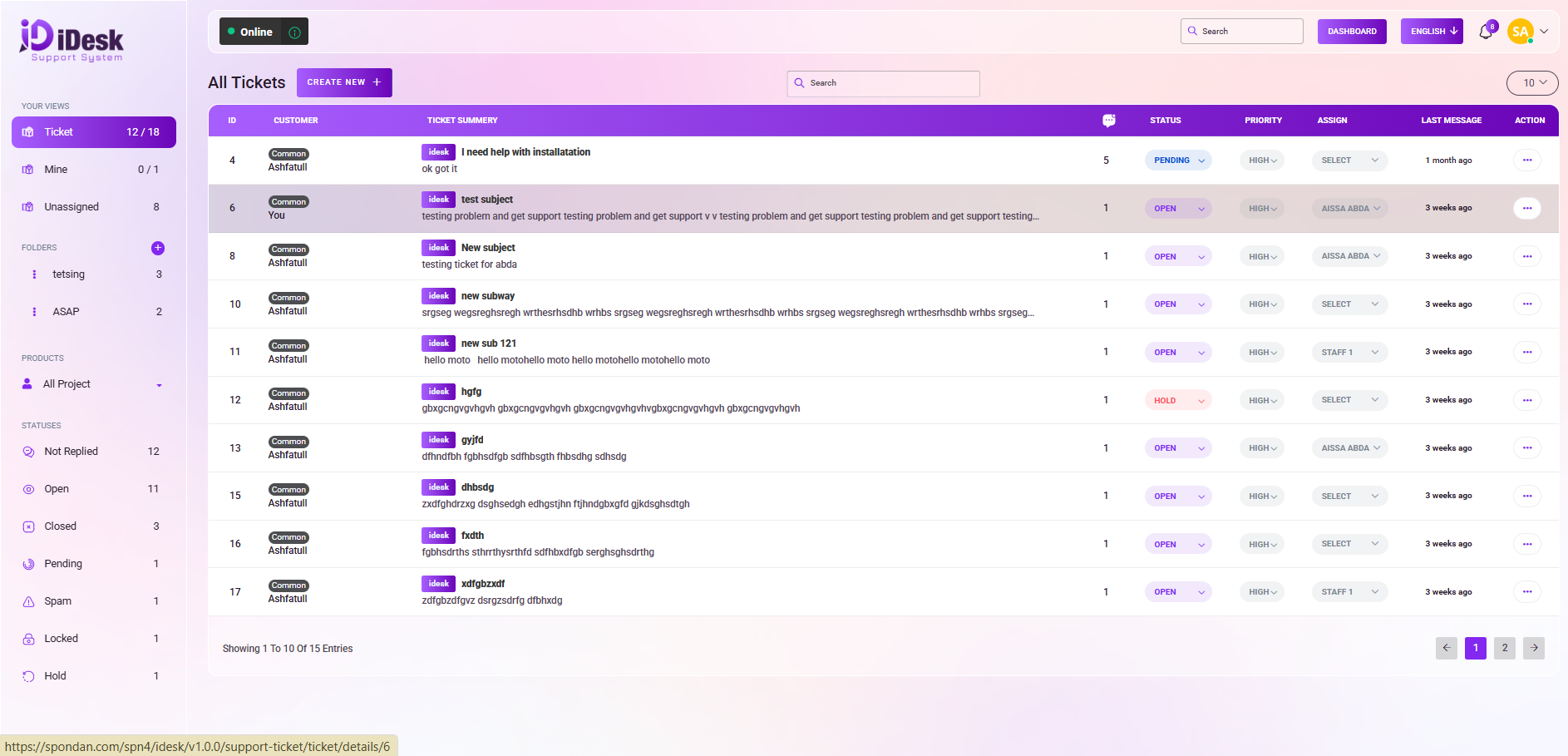
From here you can see all the ticket lists with details. Such as:
ID: You can see the id number of the ticket.
Customer Name : You can see the name of the customer.
Ticket Summary: You can see the summary of the ticket.
Ticket Number: You can see the total number of tickets.
Status: You can see the status of the ticket.
Priority: You can see the priority of the ticket.
Assign: You can see who is assigned to the ticket. You can assign anyone to the ticket from here.
Last Message: You can see when the last message was sent.
Action: In this column you can see three dots. By clicking this you can see three options. If you want to remove the ticket click on the delete button. If you are testing the app then click to change the status. Click the button to change the status to ASAP.
To add a new a new ticket just click on create new ticket button and follow the below steps:
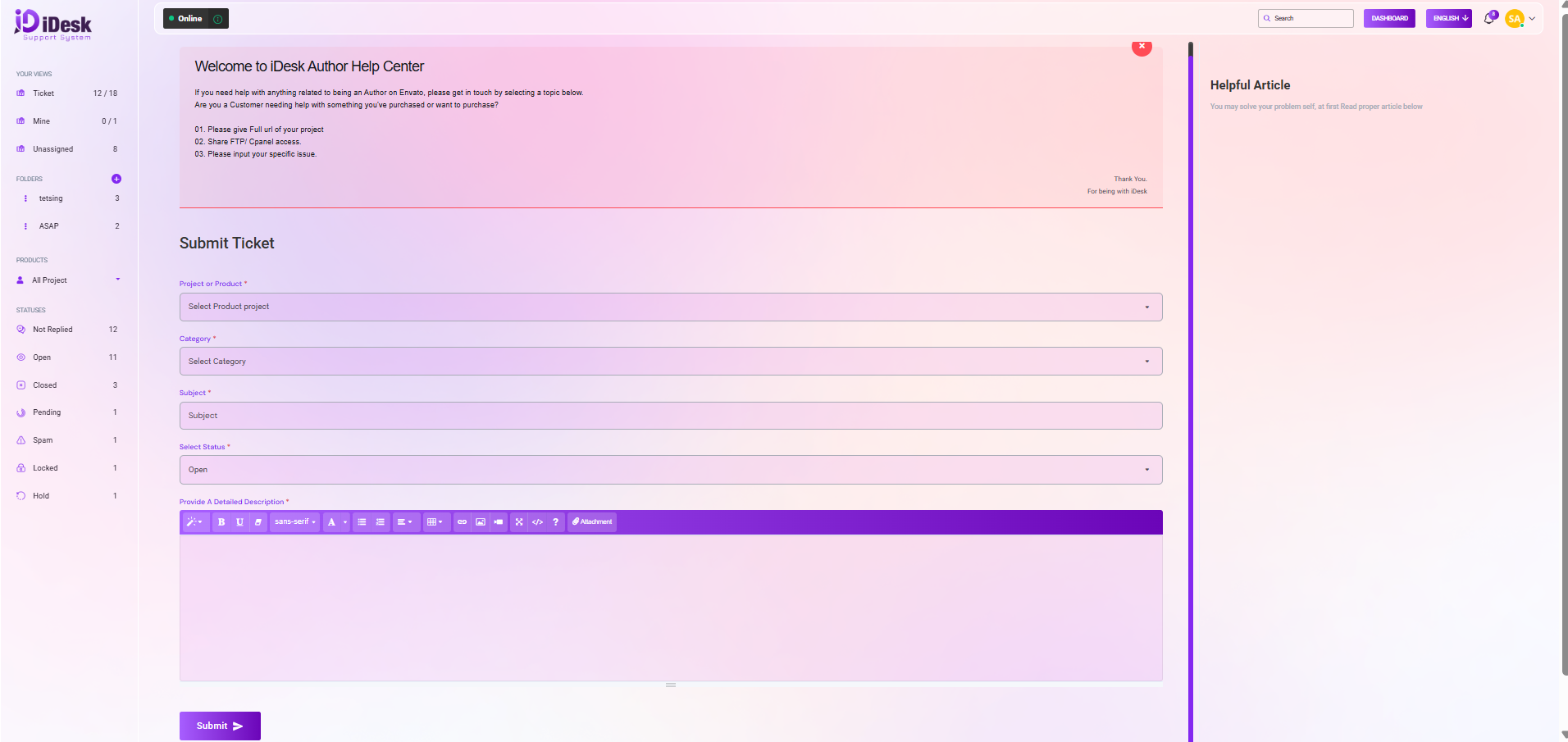
Project or Product: Select the project or product for which you want to add the ticket.
Category: Select the ticket category.
Subject: Write down the subject.
Status: Select the status for the ticket.
Provide A Detailed Description: Provide a detailed description in the box.
Submit: Click to submit the ticket.