Creating a POS Draft: A Step-by-Step Guide
This user guide provides step-by-step instructions on how to create a Point of Sale(POS) draft using AoraBooks. POS drafts allow users to prepare invoices before finalizing transactions.
Follow the outlined steps below to generate POS drafts within our software interface.
Step 1: Accessing the POS Draft Feature:
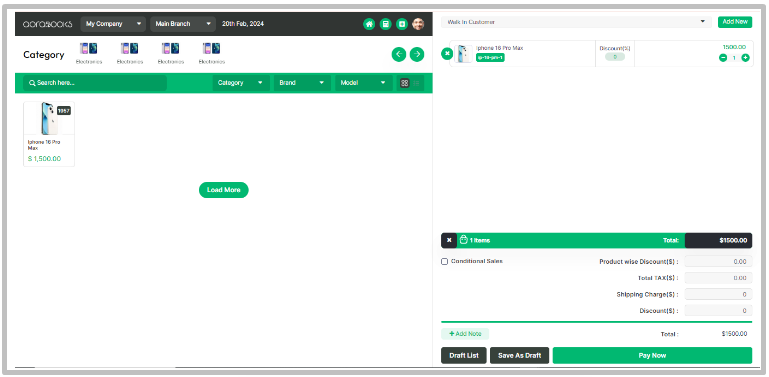
Upon logging into the software, navigate to the POS module. Locate the"Draft" button positioned adjacent to the"Pay Now" button within the interface. Click on the"Draft" button to initiate the process of creating a POS draft.
Step 2: Creating the POS Draft:
Once you've clicked on the"Draft" button, the system will prompt you to enter the necessary details such as item descriptions, quantities, prices, and any additional information required for the invoice. Fill out the fields accordingly to draft your POS invoice.
Step 3: Saving the POS Draft:
After inputting all the necessary information, click on the"Save" or"Save Draft" option within the interface to preserve your work. This action ensures that your draft is stored securely within the system and can be accessed at a later time for review or completion.
Step 4: Accessing Drafts List:
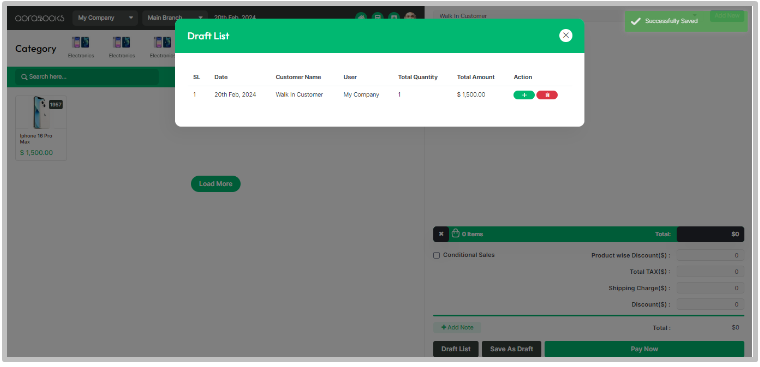
To view the POS draft you've just created, navigate to the"Drafts" section within the POS module. Here, you will find a list of all saved drafts, including the one you've just generated.
By following these simple steps, you can efficiently create and manage POS drafts within our software. Utilize the draft feature to streamline your invoicing process, ensuring accuracy and efficiency in your transactions.
For further assistance or inquiries, please consult the Help section within Aorabooks or contact our dedicated customer support team at https://ticket.aorasoft.com/